

Browse tips
Yume Techo Use Cases
- As a Student
- As a Teacher
- For Moms & Family
- For Work
- For Creative Projects
- For Bible Study
- For Small Business
- For Content Creation
- For Fitness & Health
- For Travel
- For Rapid Logging
- For Life Planning
- For Journaling & Reflection
- For Budget & Finance
- For Meals & Grocery
- For Project Planning
- For Home Management
- For Creative Writing
- For Music Writing
- For Brainstorming
- For Homeschooling
Page-by-Page Use Ideas
Essential Template Pages
- Template Index
- Yearly Spread
- Yearly Grid
- Yearly - Day Month Tracker
- Monthly - Day Tracker
- Monthly Grid
- Monthly Overview
- Weekly Review
- Monthly Spread
- Weekly - Horizontal
- Weekly - Vertical
- Routines
- 30 Day Challenges
- 100 Day Challenges
- Vision Board
- 100 Things
- Multi Purpose Table
- Level 10 Life
- 31 Things
- Daily Page - Type 1
- Daily Page - Type 2
- Gantt Chart - Universal
- Gantt Chart - Weekly
- Photo Page
- World Map
- Multi Purpose Wheel
- Kanban - 4/6/8 columns
- Template Pages
- Level 10
- Daily Template
- Yearly Tracker
Life Planner Pages
- Life Planner Index
- Life Planner
- Vision Board
- Life Inspirations
- Favorite Quotes
- Things That Make Me Happy
- My Life Systems and Rules
- Level 10 Life
- Things I Need To Change
- Bucket List
- Skills To Learn
- Projects To Make
- Challenges To Try
- Resolutions
- Yearly Goal Overview
- Goal Planner
- Reward Ideas
- Distraction List
- My Achievements
- Note To My Future Self
- Routines
- 30 Day Challenges
- Kanban Board
Books
How to use the Yume Techo Weekly Horizontal planner layout
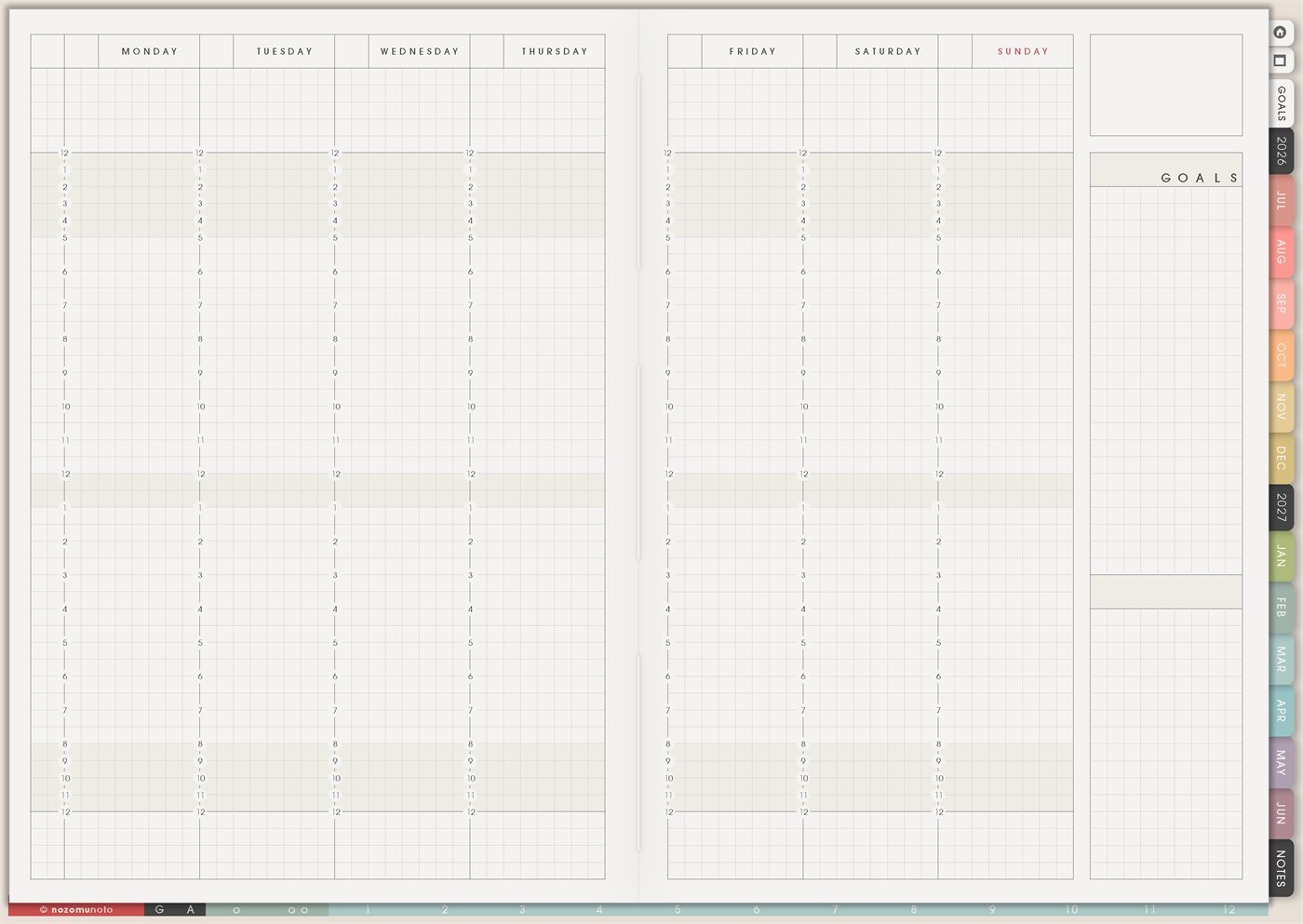
Use the Yume Techo Weekly Horizontal layout for time blocking, routines, school, work, family plans, and weekly priorities.
The Yume Techo Weekly – Horizontal page is a reusable weekly layout with Monday to Sunday across the spread, time lines inside each day, and a right-side space for Goals and extra notes. It is helpful when everyone wants to see the whole week in one glance and understand where time, energy, appointments, classes, work, errands, and rest actually fit.
Weekly – Horizontal works when the shape of the week matters. It is especially good for school schedules, work shifts, family logistics, time blocking, routines, appointments, content days, and busy seasons where seeing all seven days side by side makes the week easier to read.
How to use Weekly Horizontal
Use Weekly Horizontal when you want to see your whole week across the page.
It works well for:
- Time blocking.
- Class schedules.
- Work meetings.
- Family plans.
- Daily routines.
- Study blocks.
- Appointment planning.
- Weekly priority checks.
Start by adding fixed events first. Then add flexible tasks around them.
If your week feels crowded, do not fill every space. Choose only the plans that help you understand your week.
How to get to this page
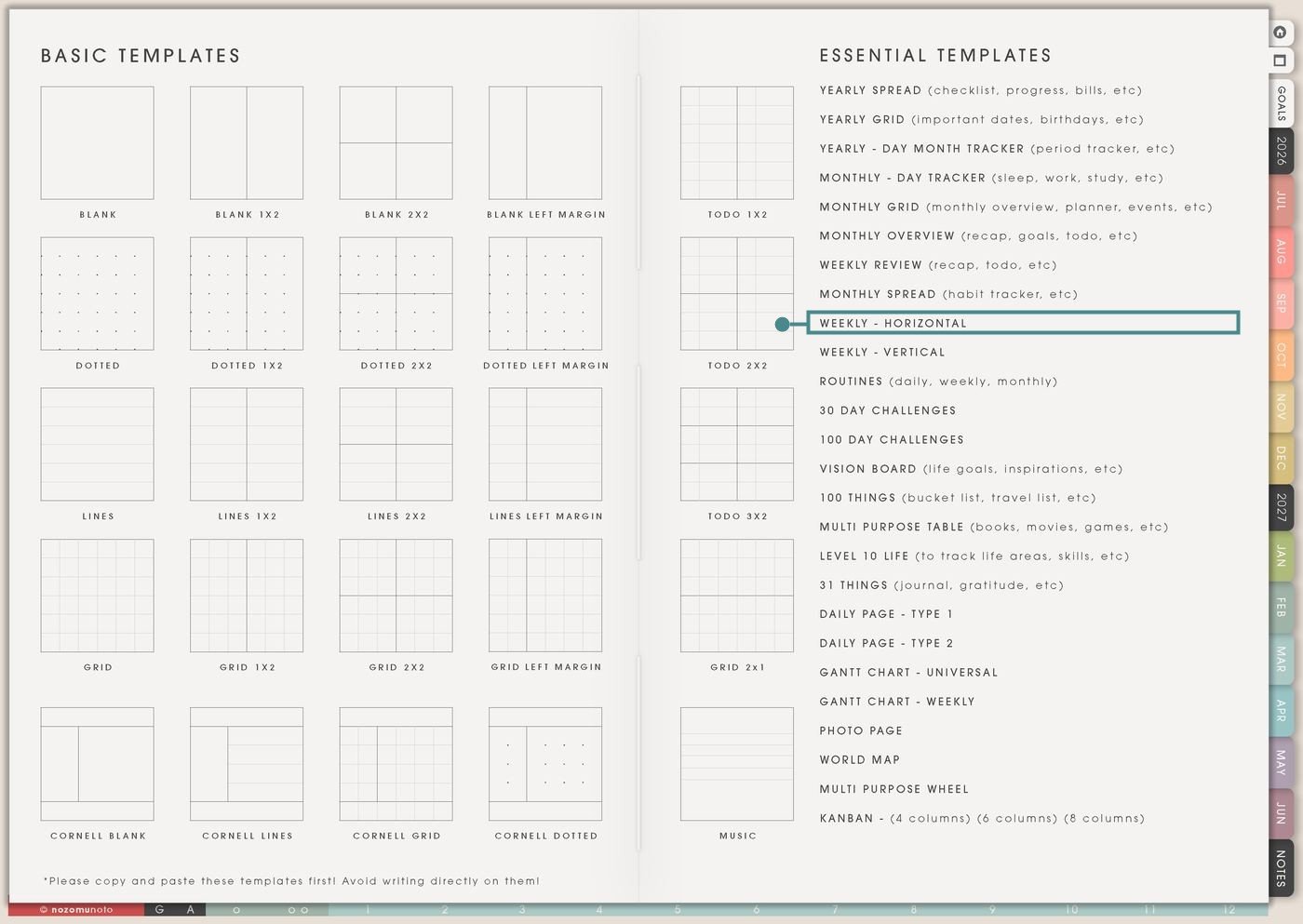
- Open the main Index page: use the planner Index if you need to return to the map.
- Tap the Template Pages icon: this opens the Template Index with reusable clean pages.
- Tap Weekly – Horizontal: it is under Monthly Spread in the Essential Templates list.
- Copy the page before writing: this is a clean template master. Duplicate it first, then write on the copy.
Before you write: copy the clean Weekly – Horizontal first
Weekly – Horizontal is an Essential Template Page. Keep the original clean and make a fresh copy for the week, class schedule, project week, work week, family week, or event week you want to plan.
- Open Weekly – Horizontal from Template Index.
- Duplicate or copy the page in your app. Use the page overview, thumbnail view, page manager, or page actions menu.
- Name the copy by week or purpose. Examples: July Week 2, Exam Week, Launch Week, Family Schedule, or Work Shift Week.
- Add fixed things first. Write appointments, classes, work shifts, school drop-offs, deadlines, and non-movable commitments before optional tasks.
- Use Goals for the week, not the whole life. Keep the right-side Goals area to a short list so it can guide the week instead of overwhelming it.
Related guides: Yume Techo Weekly – Vertical for spacious daily plans, task lists, notes, and flexible weeks, Yume Techo Weekly Review for carrying tasks forward and planning next week, and digital work planner for projects, meetings, and admin.
Use scenario ideas
1. Time blocking a realistic week
Use the time lines to block fixed commitments and then place flexible tasks around them. This helps everyone see whether the plan actually fits before the week begins.
For example: write work from 9 to 3, commute, dinner, one errand block, and one admin block. Then add only the tasks that can fit in the open spaces. If the page is already full, the answer is not “try harder.” The answer is move, shrink, or delete something.
2. School, classes, assignments, and exam week
Use each day column for classes, study blocks, tutoring, library time, club meetings, work shifts, and due dates. The horizontal view makes it easier to see heavy days and lighter days.
For example: Monday has class and reading, Tuesday has lab, Wednesday has work, Thursday has review, Friday has quiz. Put “finish outline” in Goals, but write the actual study block inside Wednesday or Thursday so it has a place to happen.
3. Work shifts, meetings, clients, and admin
Use Weekly – Horizontal for work weeks that include fixed hours and floating tasks. The time lines show availability, while the right-side Goals area keeps the main outcomes visible.
For example: block client calls, packing orders, meeting times, email blocks, upload windows, and invoice time. Goals can be “finish product photos,” “send three follow-ups,” and “update listing.” Put small admin tasks in open grid space instead of scattering them across many pages.
4. Family logistics and shared household planning
Use the page when one week has school, appointments, groceries, kids’ activities, meal prep, errands, and home care. Seeing all seven days helps prevent overloading one day by accident.
For example: write school pickup, dentist, grocery pickup, laundry, sports practice, and family dinner. If Tuesday is packed, move grocery prep to Monday or choose an easier dinner. The page should protect the week from becoming impossible.
5. ADHD-friendly weekly anchor page
Use Weekly – Horizontal as the one page to return to when the week feels noisy. It can hold the fixed structure while notes pages catch overflow thoughts.
For example: highlight the current day, write three Must tasks in Goals, and keep one “later” list in the side notes area. If you miss a day, skip backfilling the whole column. Find today, look at the next fixed thing, and choose one next action.
6. Meal planning, chores, and home rhythm
Use the day columns to connect meals and chores to the real week. This works better than making a perfect meal plan that ignores late work days, errands, or tired evenings.
For example: write “leftovers” on the long work day, “easy rice bowl” on appointment day, “laundry” near a home block, and “grocery list” before shopping. Goals can include “use freezer food” or “pack lunch three times.”
7. Content, shop, or launch week planning
Use Weekly – Horizontal to spread creative work across the week so every step does not land on the same day. It helps separate idea, photo, edit, write, upload, and follow-up.
For example: Monday idea list, Tuesday photos, Wednesday edit, Thursday listing update, Friday newsletter, Saturday social post, Sunday rest or review. Goals can be the finished outcomes, while the day columns hold the actual steps.
8. Health, energy, rest, and appointment weeks
Use the layout to plan around energy, not only tasks. This is helpful for weeks with appointments, symptoms, medication reminders, recovery time, therapy, exercise, or medical admin.
For example: put the appointment on the day column, then block travel, food, and rest before and after it. If Thursday has a heavy appointment, Friday can hold lighter tasks. Goals can include “prepare questions” and “pick up prescription,” not twenty unrelated chores.
9. Travel, event, or special week planning
Use Weekly – Horizontal for weeks that are not normal: trips, holidays, launches, exams, moving, birthdays, markets, or family visits. The full spread helps show travel time, prep time, and recovery time.
For example: block packing, train time, hotel check-in, event hours, photos, meals, and rest. Keep the right-side notes for confirmation numbers, packing reminders, or people to message.
10. Weekly review plus next-week setup
Use this page with Weekly Review when you want a simple rhythm. Review the old week first, then copy Weekly – Horizontal for the new week and place only what still matters.
For example: after Weekly Review, carry forward “reply to dentist,” “finish worksheet,” and “update order notes.” Put each one on a real day. If there is no space, save it in Notes or choose a smaller next action.
What I usually use it for and how I use it
Tips for using this template
- Add fixed commitments first, then buffers. If the week is already full, choose the top three Goals and let the rest move to Notes, Monthly, or another week.
- Use bigger time blocks. Try Morning, Midday, Afternoon, Evening, or 60- to 90-minute blocks. The page should show the shape of the week, not trap everyone inside tiny boxes.
- Limit Goals to 3 to 5 outcomes. Put small tasks on a day. Put ideas in Notes. Goals are the week’s compass, not the whole backpack.
- Give floating tasks a day. “Book appointment” becomes “call clinic Monday at 10.” If it cannot be scheduled this week, move it to a waiting or later list.
- Edit the page when real life changes. Circle only what still matters, draw a small arrow to a new day, or rewrite the top three tasks in the notes area.
- Store details outside the weekly page. Put long links, research, grading rules, and project notes on Notes, project pages, or the matching planner page. Keep only the next action here.
- Copy first, write second. Keep the clean Weekly – Horizontal as the reusable master. Write on a copy so next week starts clean.
Keep weekly planning details safe
Weekly – Horizontal can include appointments, school schedules, work shifts, client calls, invoices, family logistics, meals, travel, health appointments, medication reminders, content plans, and private notes. Keep full addresses, passwords, account numbers, medical records, financial documents, private school files, full client details, confirmation codes, and sensitive family information in a secure place outside the planner. In Yume Techo, use safe labels like appointment, client call, invoice, school pickup, refill, grocery, trip prep, file to check, or private note elsewhere.
Final thought
Weekly – Horizontal is useful because it makes the whole week visible before the week asks too much from you. Copy the clean template, place fixed commitments first, choose a few honest Goals, and leave room for normal human life. I hope this page helps the week feel easier to choose, not like a perfect performance!
Need exact app steps for copying pages?
If you need the exact buttons for duplicating, moving, or bookmarking this template in your app, use the Help Center app guide for your device.
Browse NozomuNoto products
Find the planner, notebook, e-reader file, or add-on that fits the way you actually plan.
About NozomuNoto
NozomuNoto creates Japanese-inspired digital planners, notebooks, stickers, and e-reader PDFs for people who want useful pages that still work in real life.
Yume Techo is built with dated yearly, monthly, weekly, daily, Life Planner, Planner Pages, and Template Pages so one planner can hold study, work, home, ADHD-friendly routines, lists, and creative projects without adding paper bulk.
New to digital planning? Start there, use the Help Center for setup help, or browse NozomuNoto products when you are ready to choose your planner.