

Browse tips
Yume Techo Use Cases
- As a Student
- As a Teacher
- For Moms & Family
- For Work
- For Creative Projects
- For Bible Study
- For Small Business
- For Content Creation
- For Fitness & Health
- For Travel
- For Rapid Logging
- For Life Planning
- For Journaling & Reflection
- For Budget & Finance
- For Meals & Grocery
- For Project Planning
- For Home Management
- For Creative Writing
- For Music Writing
- For Brainstorming
- For Homeschooling
Page-by-Page Use Ideas
Essential Template Pages
- Template Index
- Yearly Spread
- Yearly Grid
- Yearly - Day Month Tracker
- Monthly - Day Tracker
- Monthly Grid
- Monthly Overview
- Weekly Review
- Monthly Spread
- Weekly - Horizontal
- Weekly - Vertical
- Routines
- 30 Day Challenges
- 100 Day Challenges
- Vision Board
- 100 Things
- Multi Purpose Table
- Level 10 Life
- 31 Things
- Daily Page - Type 1
- Daily Page - Type 2
- Gantt Chart - Universal
- Gantt Chart - Weekly
- Photo Page
- World Map
- Multi Purpose Wheel
- Kanban - 4/6/8 columns
- Template Pages
- Level 10
- Daily Template
- Yearly Tracker
Life Planner Pages
- Life Planner Index
- Life Planner
- Vision Board
- Life Inspirations
- Favorite Quotes
- Things That Make Me Happy
- My Life Systems and Rules
- Level 10 Life
- Things I Need To Change
- Bucket List
- Skills To Learn
- Projects To Make
- Challenges To Try
- Resolutions
- Yearly Goal Overview
- Goal Planner
- Reward Ideas
- Distraction List
- My Achievements
- Note To My Future Self
- Routines
- 30 Day Challenges
- Kanban Board
Books
How to use Yume Techo as a digital writing planner
Use Yume Techo as a digital writing planner for story ideas, characters, scenes, drafts, writing sessions, revisions, and creative projects.
I use this Yume Techo creative writing setup for story ideas, picture book dreams, essays, newsletters, manga-inspired scenes, character notes, research, scene lists, revision plans, and the small restart notes that help a writing project keep moving.
I want to make children’s books one day, but writing has to live beside parenting, work, design, NozomuNoto, study, and home life. This setup protects messy ideas without forcing every idea into this week. Projects To Make catches story starts, Template Pages hold structure and notes, Resources / Tasks keeps research out of the weekly list, Weekly names the next writing session, and Weekly Review leaves a handoff for my future self.
A simple writing planner setup
Use Yume Techo to keep your story ideas, scenes, notes, and writing progress together.
Try this setup:
- Use the monthly pages for writing goals, draft deadlines, challenge dates, and revision timelines.
- Use the weekly pages for writing sessions, scene goals, research tasks, and revision blocks.
- Use the daily pages for today’s writing task, scene notes, word notes, and quick ideas.
- Use notebook sections for story ideas, characters, settings, chapters, research, and revision notes.
- Use template pages for plot notes, character sheets, scene lists, project timelines, and draft checklists.
- Use the Index page to jump quickly between active stories and writing notes.
Start with one story page and one scene list. Add more structure only when the story needs it.
For related workflows, see the digital brainstorming planner for ideas and mind maps, the digital project planner for work and creative projects, and the digital journal planner for prompts and weekly reflection.
How I split writing projects across Yume Techo
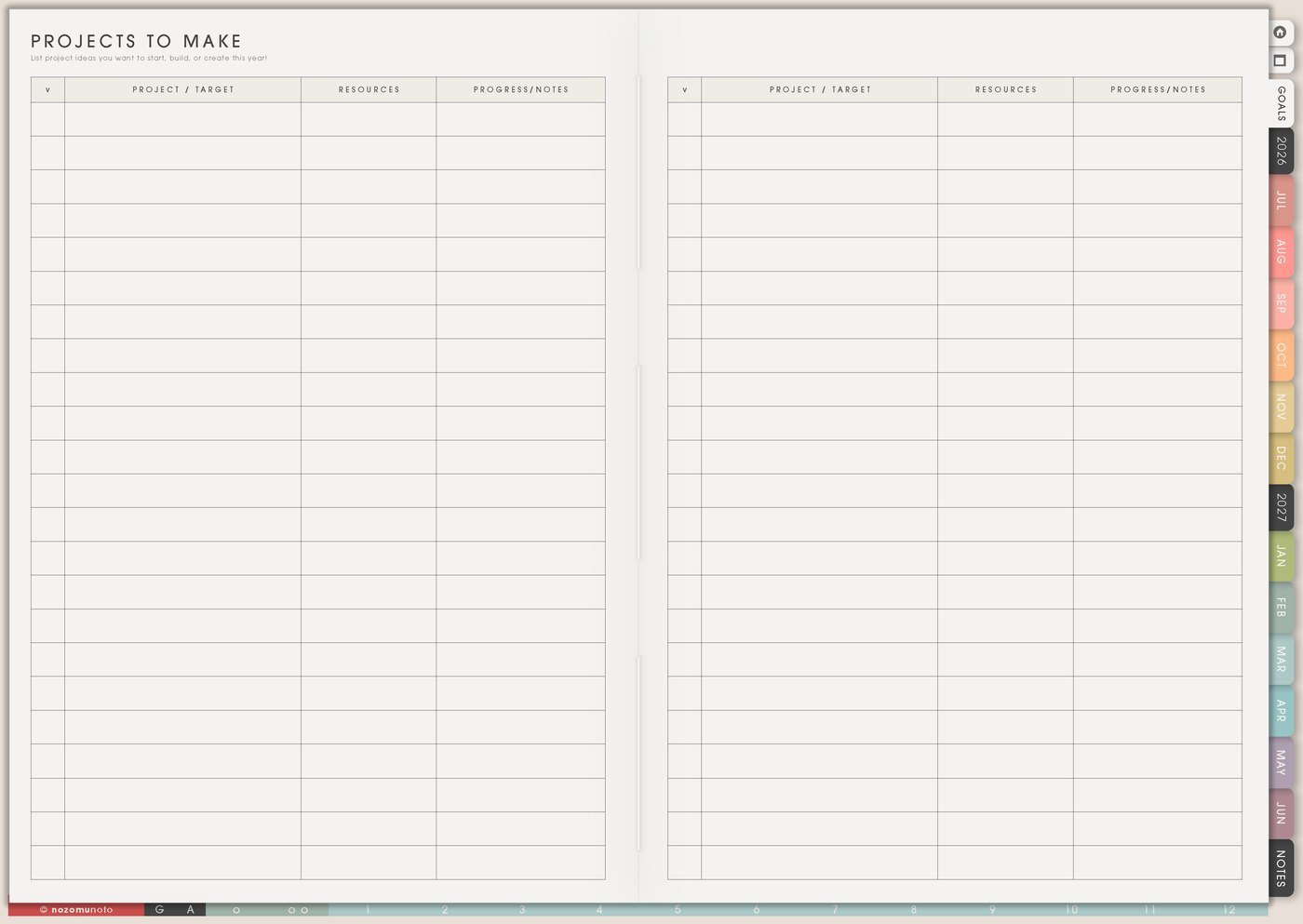
1. Use Projects To Make for story ideas
I use Projects To Make for story seeds, essay ideas, character questions, scene ideas, revision projects, submission plans, newsletters, blog series, or writing dreams that need a place to wait.
I add enough context so the idea is easy to reopen later: title or working name, why it interests me, who it is about, the first scene or angle, the feeling I want, and the next tiny experiment.
For example, stationery shop mystery can become: main character inherits a tiny shop, first scene is a lost package, mood is rainy and warm, next action is write opening conversation.
Related Tips: Projects To Make page ideas has more ways to park story ideas without starting every one this week.
2. Use Template Pages for story structure
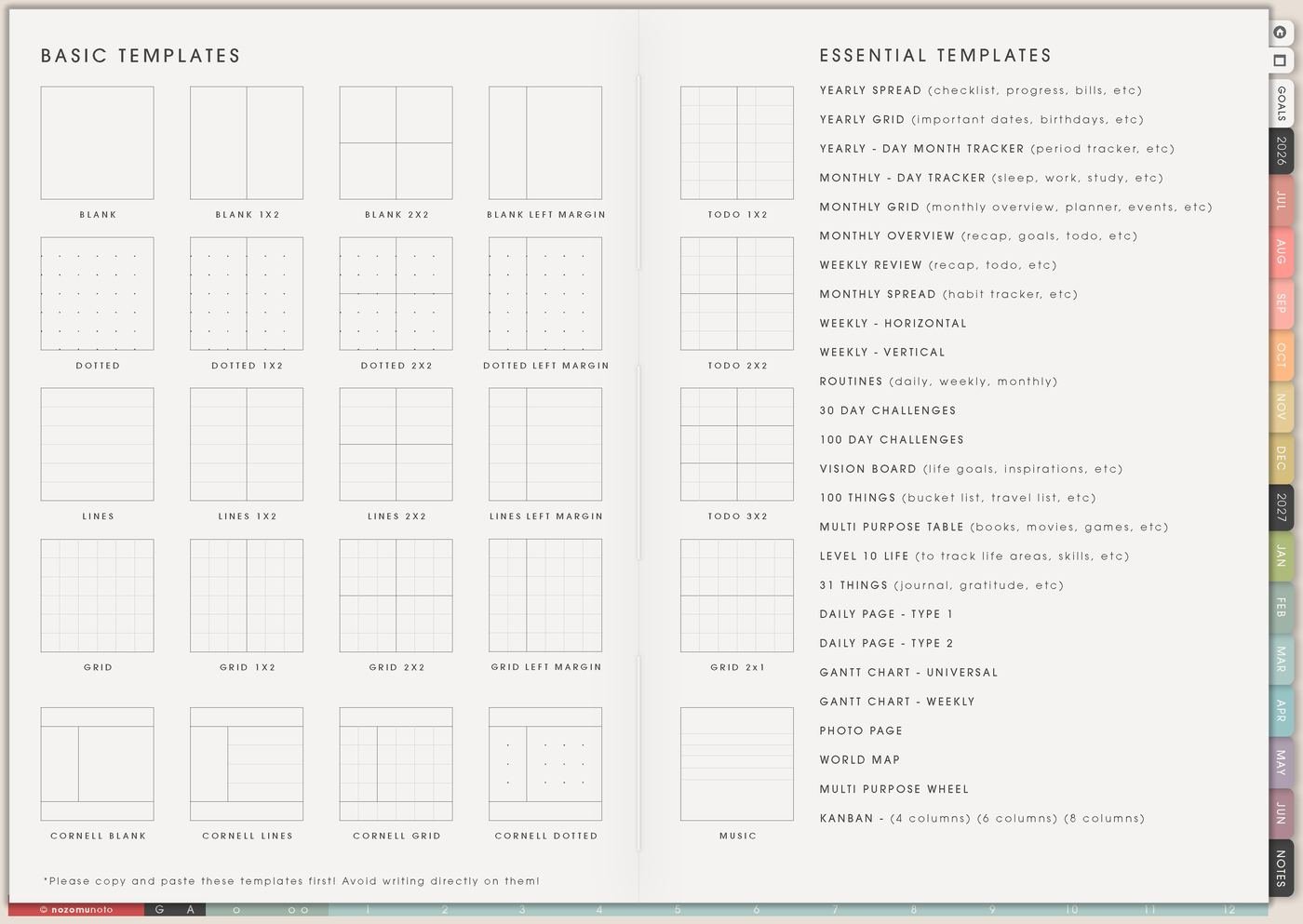
I copy blank, lined, dotted, grid, or table templates for character notes, chapter lists, scene cards, timelines, research, revision notes, submission trackers, or a page just for messy questions.
I use lined pages for scene notes, grid pages for timelines, table pages for chapter or revision lists, blank pages for mind maps, and dotted pages when the idea needs a little structure without feeling boxed in.
The structure should help me return to the project, not make me prove the story is perfect before writing starts.
Related Tips: Template Pages ideas helps choose a clean page for character notes, scene lists, and messy drafts.
3. Use Resources / Tasks for research and references
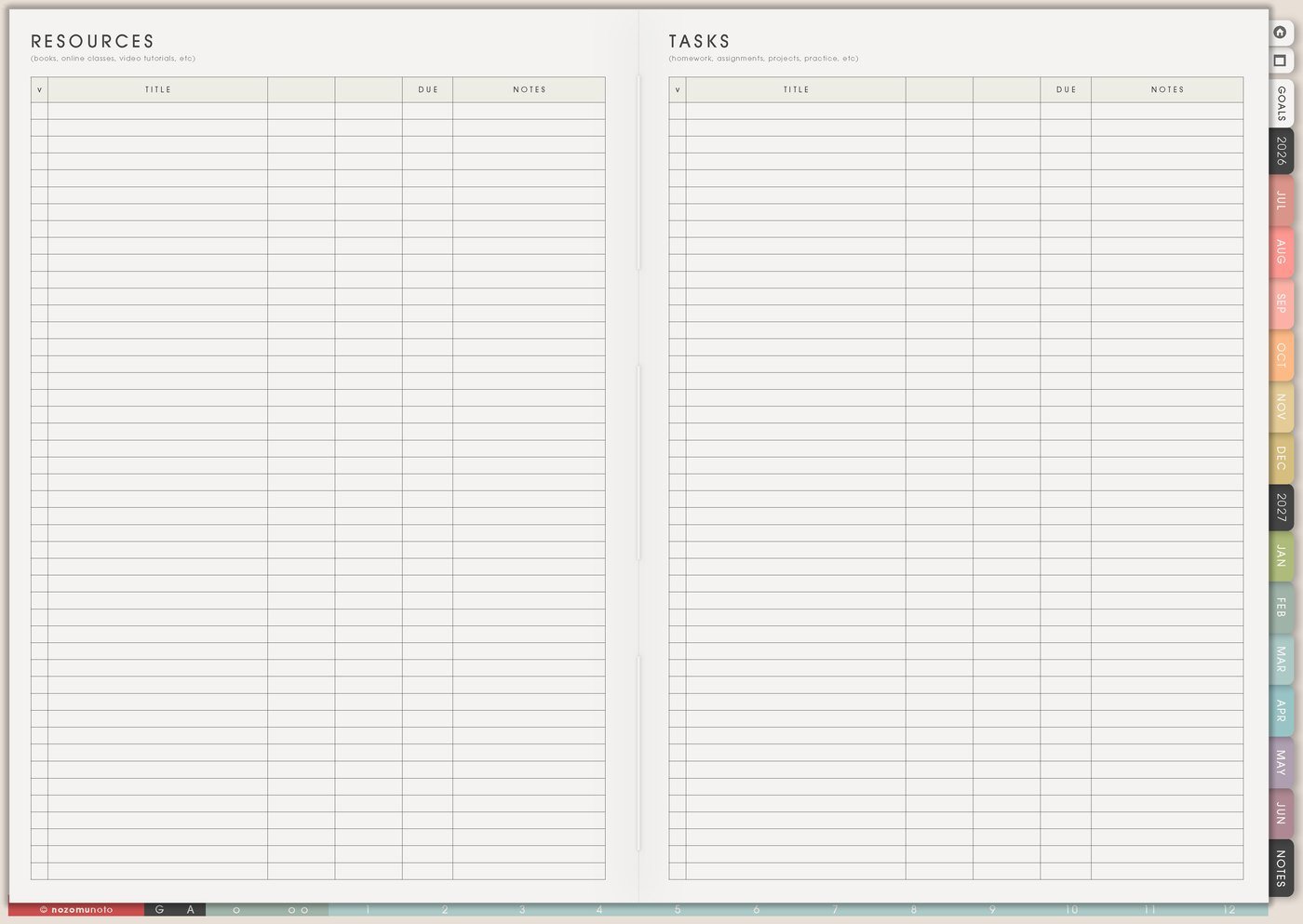
I use Resources / Tasks for research links, book titles, places to check, character name ideas, timeline questions, submission rules, editor notes, cover references, and questions that should not interrupt the draft yet.
Research is easier to use when each item has a job: check later, fact needed, mood reference, name idea, revision note, or question for chapter 4.
If a resource needs action, I move only that action to Weekly: read one article, choose character name, check date, compare submission rules, or save reference photos.
Related Tips: Resources / Tasks page ideas shows how to keep research and next actions separate.
4. Use Weekly for writing sessions
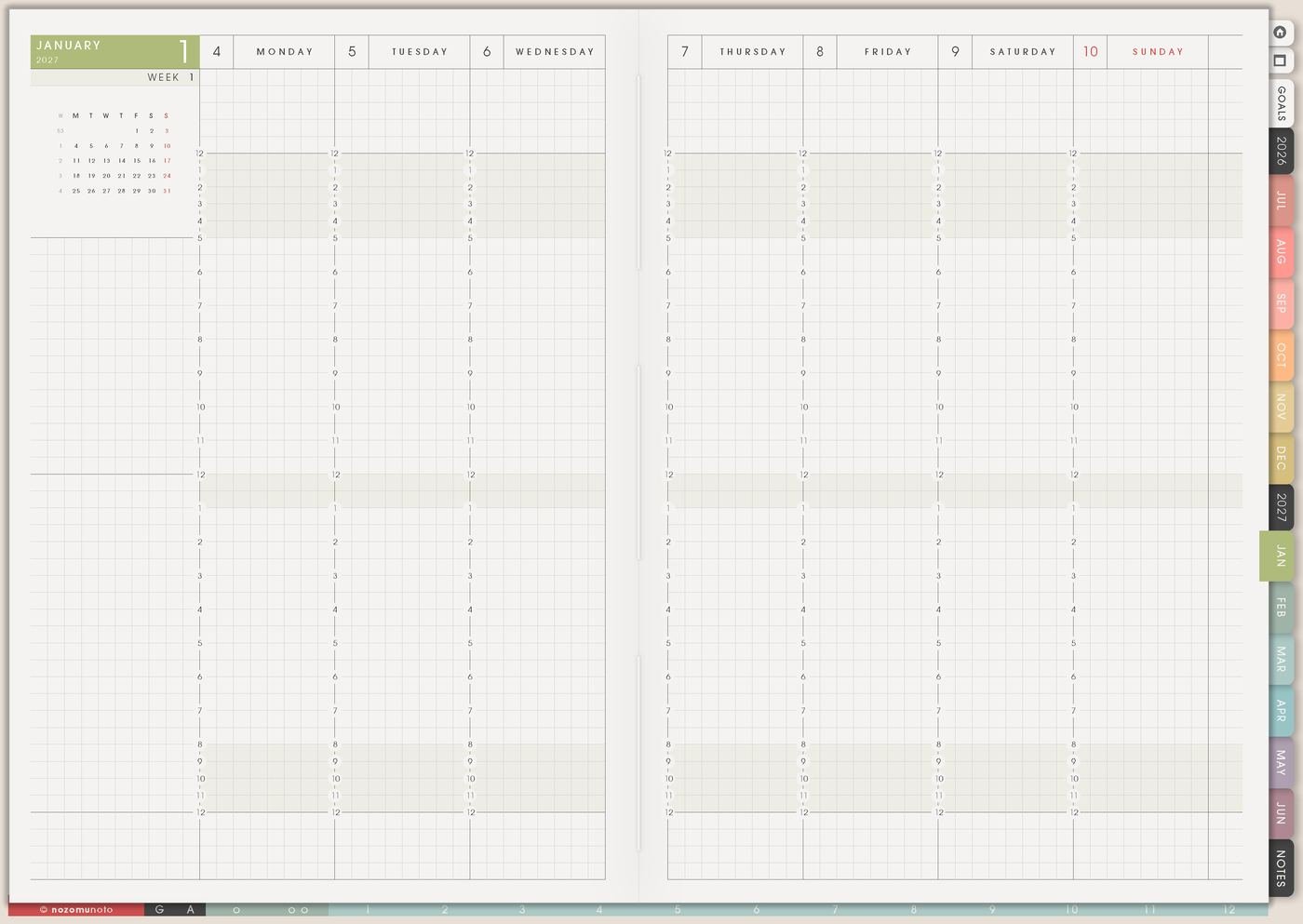
I use Weekly for specific writing sessions that match real life. Write 300 words, revise scene 4, outline next conflict, name side character, reread chapter 2, collect five research links, export draft, or write one messy paragraph.
If writing time is limited, I write the session goal before opening the document. It helps my brain land faster, especially when the project has many possible doors.
A useful writing task has a doorway. Write is huge. Open chapter 3 and draft the argument scene is startable.
5. Use 30 Day Challenge Tracker for a draft sprint
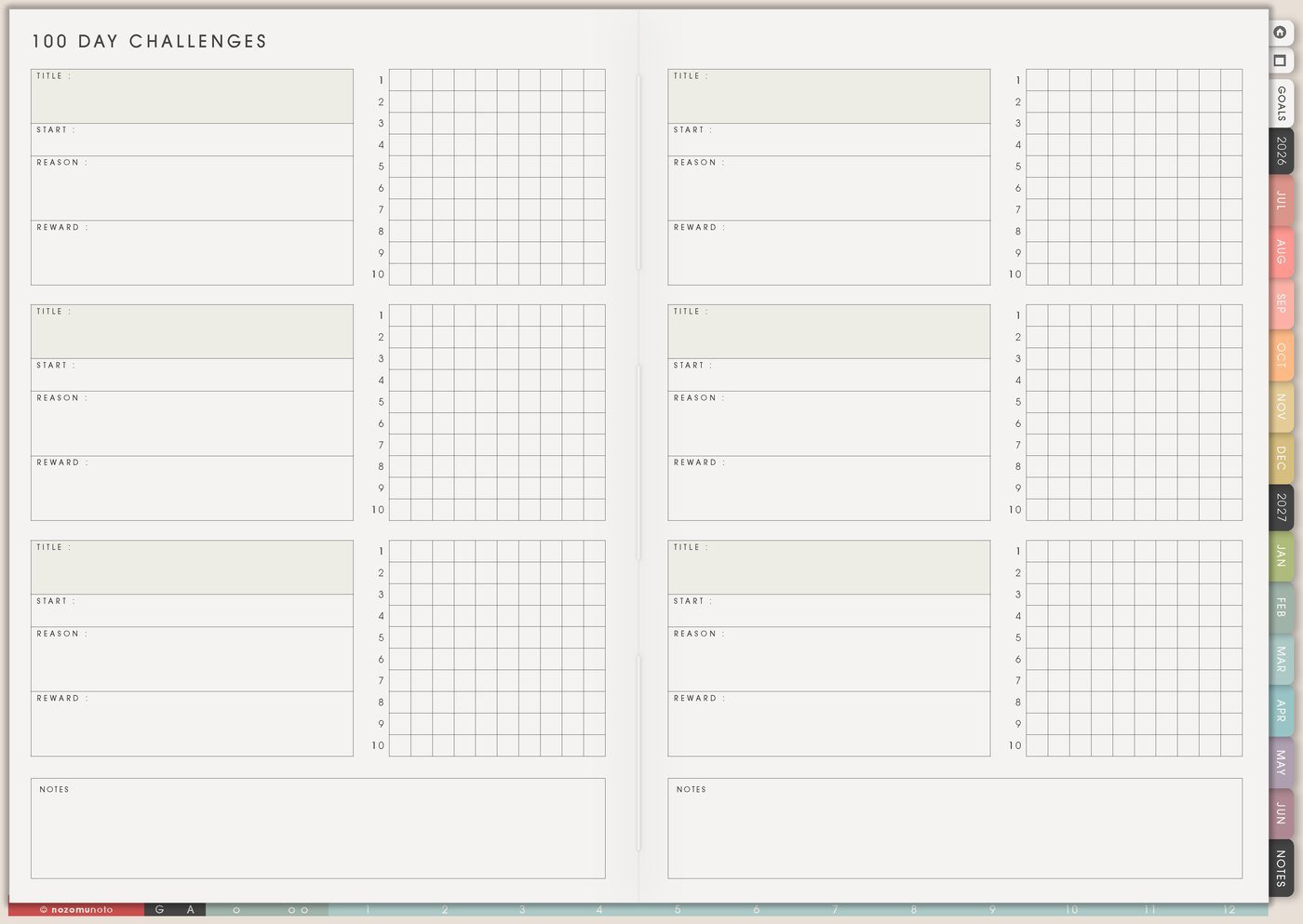
I use 30 Day Challenge Tracker for a writing sprint, revision month, daily scene note, essay draft, blog series, or open-the-file challenge.
I track the version that helps: words, pages, minutes, scenes, revision passes, or simply opened the file. I include a minimum version before day one, like five minutes, one sentence, one paragraph, or reread yesterday.
A writing challenge should create momentum, not shame. If the streak breaks, I restart with the next tiny session.
6. Use Favorite Quotes for tone and courage
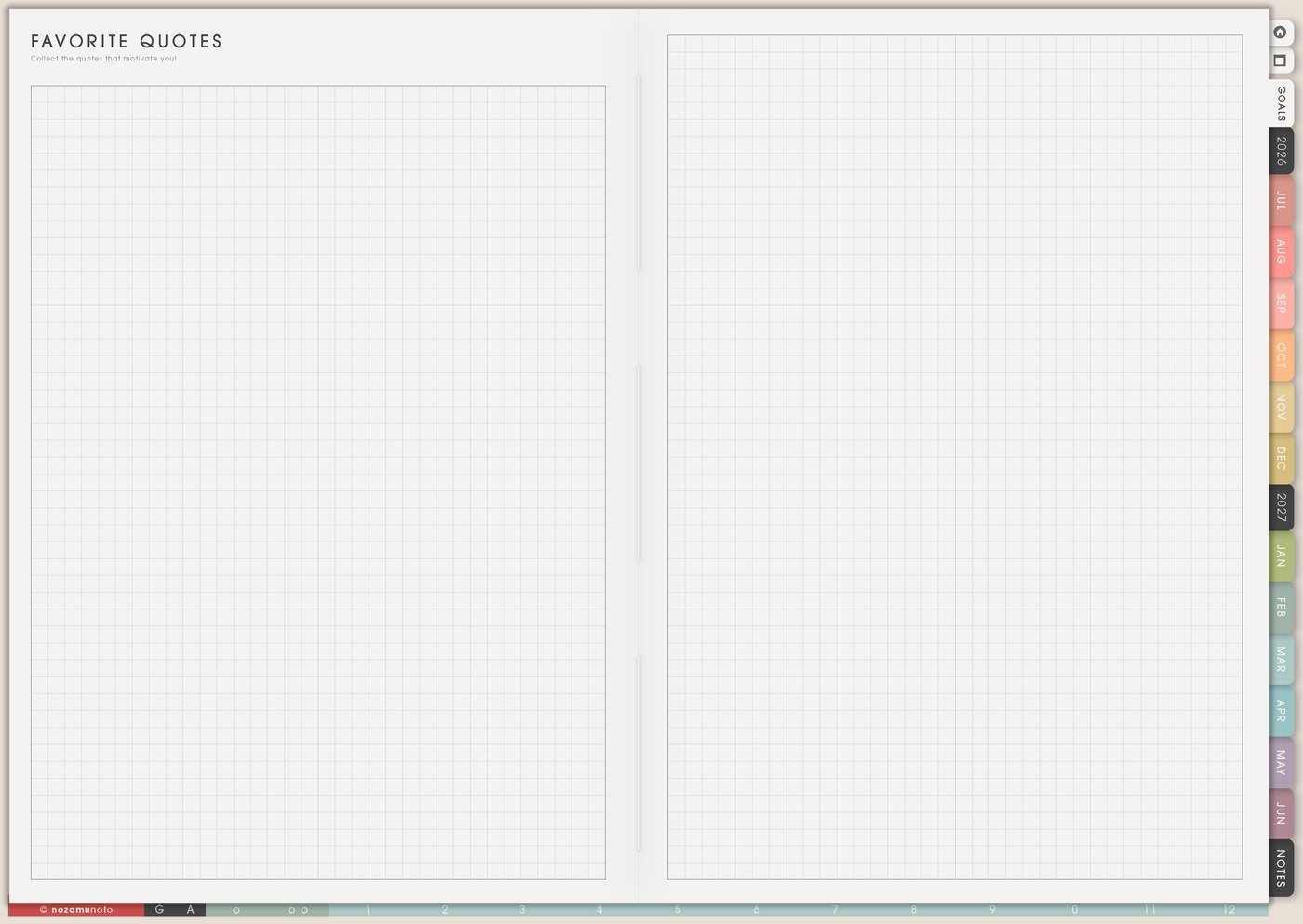
I use Favorite Quotes for my own favorite draft lines, advice from a teacher, writing reminders, theme words, tone notes, or sentences that remind me how the project should feel.
I add why each line matters: use this when the story gets too serious, remember the warm tone, this is the theme, write with more softness, or this sentence sounds like the narrator.
This page can become the emotional compass for the project.
7. Use Weekly Review for story recovery
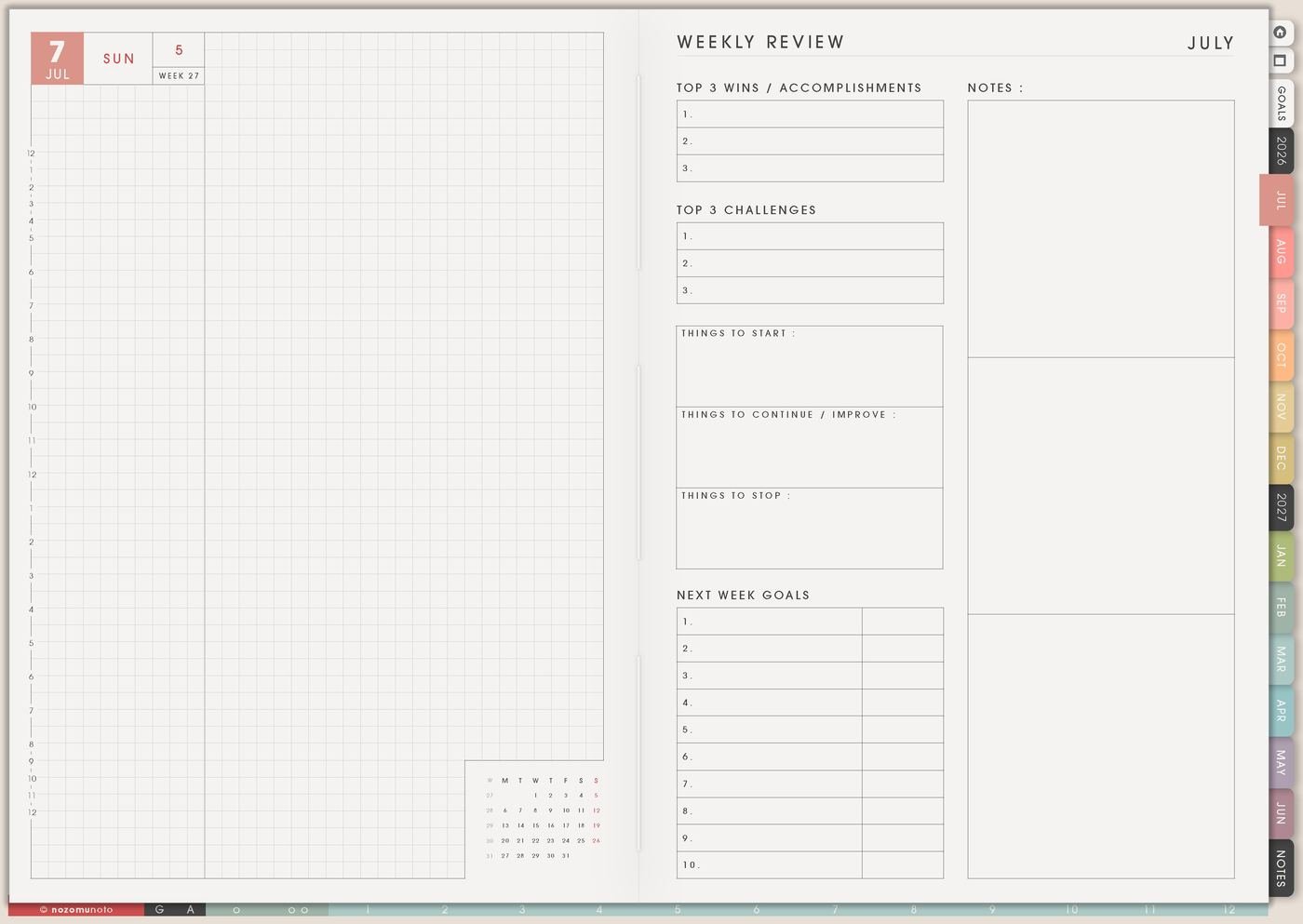
I use Weekly Review to leave a writing handoff: where I stopped, what the scene needs next, what question is blocking me, what changed, and the first sentence or action for the next session.
Examples: next time, write the argument from Mina’s point of view; reread chapter 2 and fix timeline; open the bakery scene and add sensory details; decide whether the letter arrives before dinner.
My future self is always grateful for a restart note. It keeps a break from becoming a full disappearance.
Related Tips: Weekly Review carry-forward ideas gives more ways to leave a useful handoff for next week.
Set it up in ten minutes
- Choose one active writing project. Other ideas can stay parked.
- Write the project seed. Working title, why it matters, feeling, first scene, and next experiment.
- Copy two template pages. One for structure and one for messy notes.
- Create a research holding page. Links, questions, names, references, and later checks.
- Plan one writing session. Use a visible action and a realistic size.
- Choose a minimum version. Five minutes, one sentence, or open the file.
- Leave a restart note. Where to begin next time.
What I usually use it for and how I use it
Tips for using this setup
- Park many ideas, but activate one. Projects To Make can hold twenty story seeds, but Weekly should show the one writing project that gets time now.
- Use templates as scaffolding, not a gate. Copy enough pages for characters, scenes, timeline, or revision, then write one imperfect scene before the planner becomes a hiding place.
- Name the writing session before opening the file. Write 300 words, revise scene 4, name side character, reread chapter 2, or draft one messy paragraph is easier to start than write.
- Label research by job. Mark each note as needed now, later, mood reference, name idea, submission rule, or chapter question so research helps the draft.
- Make the challenge version tiny enough to survive real life. Track opened file, one sentence, five minutes, one paragraph, or reread yesterday when a full writing session is impossible.
- Write restart notes for the next session. Leave where I stopped, what is unresolved, and the first sentence or action for next time.
- Break revision into passes. Use a table for plot, timeline, character, scene cuts, language, and proofread. Move only one pass to Weekly at a time.
When you need setup help
For the creative writing workflow, use Projects To Make for story starts, Template Pages for structure and notes, Resources / Tasks for research, Weekly for the next writing session, 30 Day Challenge Tracker for tiny practice, Favorite Quotes for voice or theme, and Weekly Review for the restart note. If the technical step is unclear, like importing Yume Techo, copying writing pages, adding links or images, or using hyperlinks, use the NozomuNoto Help Center for app-specific steps.
Final thought
I hope this setup helps your writing project stay easy to return to, even if the dream has to grow between work, study, parenting, and ordinary life. Protect the messy idea, choose one active project, write a small session goal, and leave a restart note for the next writing day.
Build this full setup in Yume Techo
Use the pages shown above as a complete workflow, then adjust the setup until it fits your real week.
Browse NozomuNoto products
Find the planner, notebook, e-reader file, or add-on that fits the way you actually plan.
About NozomuNoto
NozomuNoto creates Japanese-inspired digital planners, notebooks, stickers, and e-reader PDFs for people who want useful pages that still work in real life.
Yume Techo is built with dated yearly, monthly, weekly, daily, Life Planner, Planner Pages, and Template Pages so one planner can hold study, work, home, ADHD-friendly routines, lists, and creative projects without adding paper bulk.
New to digital planning? Start there, use the Help Center for setup help, or browse NozomuNoto products when you are ready to choose your planner.