

Browse tips
Yume Techo Use Cases
- As a Student
- As a Teacher
- For Moms & Family
- For Work
- For Creative Projects
- For Bible Study
- For Small Business
- For Content Creation
- For Fitness & Health
- For Travel
- For Rapid Logging
- For Life Planning
- For Journaling & Reflection
- For Budget & Finance
- For Meals & Grocery
- For Project Planning
- For Home Management
- For Creative Writing
- For Music Writing
- For Brainstorming
- For Homeschooling
Page-by-Page Use Ideas
Essential Template Pages
- Template Index
- Yearly Spread
- Yearly Grid
- Yearly - Day Month Tracker
- Monthly - Day Tracker
- Monthly Grid
- Monthly Overview
- Weekly Review
- Monthly Spread
- Weekly - Horizontal
- Weekly - Vertical
- Routines
- 30 Day Challenges
- 100 Day Challenges
- Vision Board
- 100 Things
- Multi Purpose Table
- Level 10 Life
- 31 Things
- Daily Page - Type 1
- Daily Page - Type 2
- Gantt Chart - Universal
- Gantt Chart - Weekly
- Photo Page
- World Map
- Multi Purpose Wheel
- Kanban - 4/6/8 columns
- Template Pages
- Level 10
- Daily Template
- Yearly Tracker
Life Planner Pages
- Life Planner Index
- Life Planner
- Vision Board
- Life Inspirations
- Favorite Quotes
- Things That Make Me Happy
- My Life Systems and Rules
- Level 10 Life
- Things I Need To Change
- Bucket List
- Skills To Learn
- Projects To Make
- Challenges To Try
- Resolutions
- Yearly Goal Overview
- Goal Planner
- Reward Ideas
- Distraction List
- My Achievements
- Note To My Future Self
- Routines
- 30 Day Challenges
- Kanban Board
Books
How to use the Yume Techo Yearly Grid for important dates and reminders
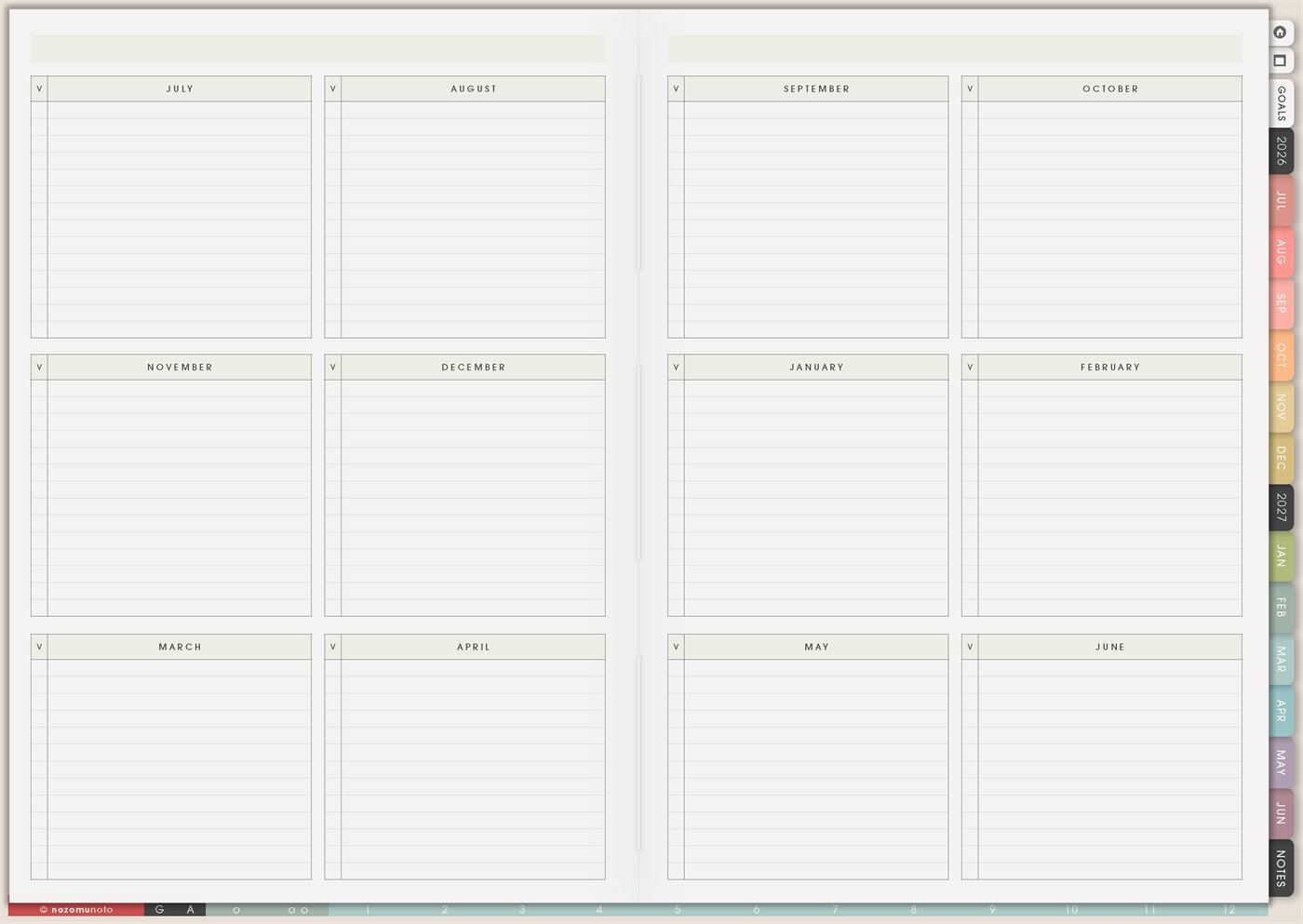
Use the Yume Techo Yearly Grid to track birthdays, deadlines, yearly reminders, school dates, renewals, and important dates in one view.
The Yume Techo Yearly Grid is a reusable template for keeping important dates grouped by month. It is best for birthdays, anniversaries, school dates, payment reminders, renewals, appointment windows, seasonal projects, travel prep, and any reminder that needs a home before you are ready to place it on a detailed Monthly page.
Use Yearly Grid when you want the whole academic year to feel visible without a row-by-row tracker. Each month has its own box, so everyone can quickly park future dates in the right month and come back to them during monthly setup.
How to use the Yearly Grid
Use the Yearly Grid when you want one place for important dates and yearly reminders.
Good things to track here include:
- Birthdays and anniversaries.
- School dates and exam weeks.
- Project deadlines and launch dates.
- Subscription or renewal reminders.
- Appointment windows and checkup reminders.
- Travel dates and family events.
- Seasonal tasks and yearly routines.
The Yearly Grid works best as a date directory. Keep the details short so you can scan the year quickly.
For goals and big-picture planning, use the Yearly Spread. For detailed tasks, use the monthly, weekly, or daily pages.
How to get to this page
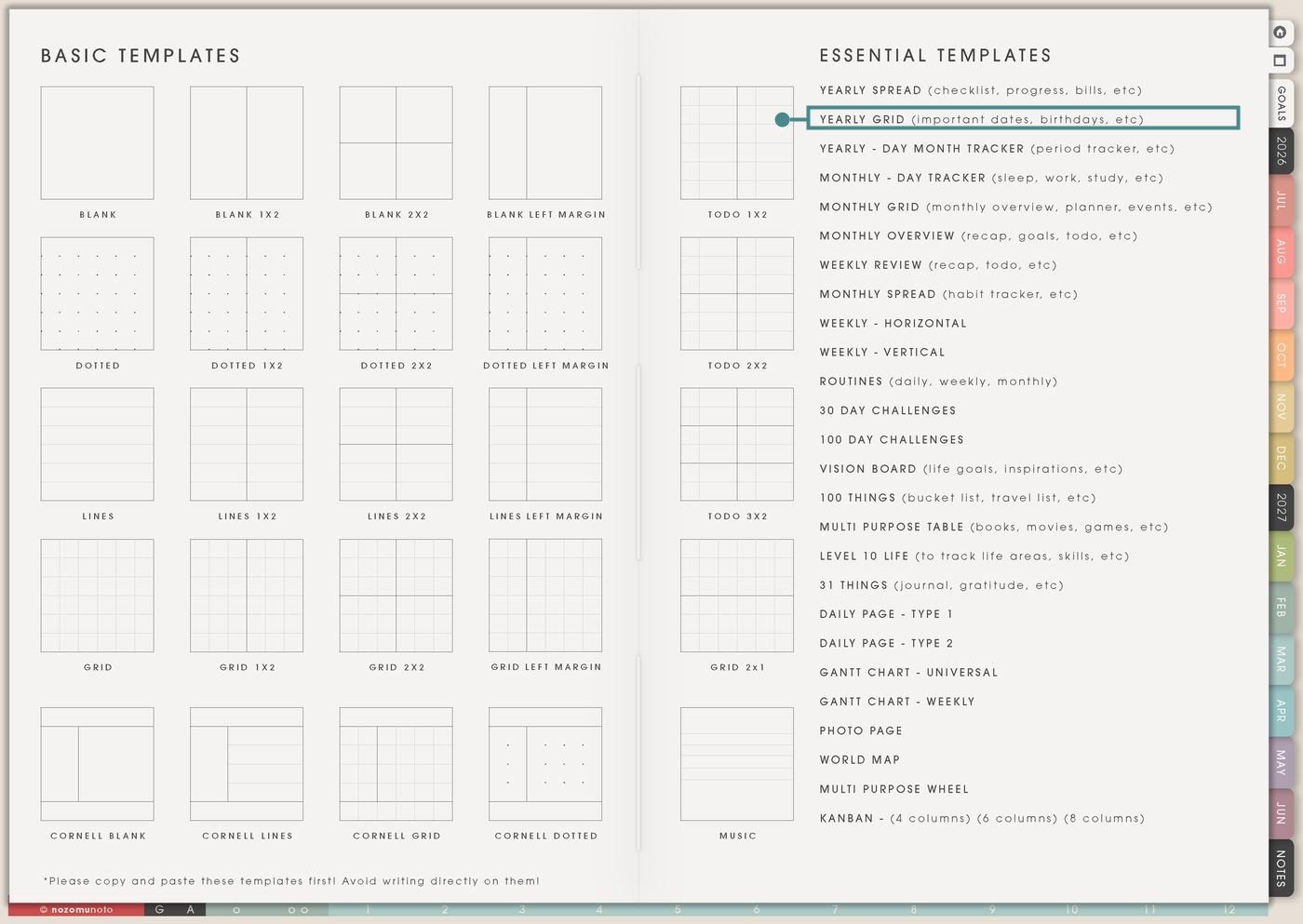
- Open the main Index page: use the planner Index if you are not sure where you are.
- Tap the Template Pages icon: this opens the Template Index with reusable clean pages.
- Tap Yearly Grid: it is directly under Yearly Spread in the Essential Templates list.
- Copy the page before writing: Yearly Grid is a clean template master. Duplicate it first, then write on the copy.
Before you write: copy the clean Yearly Grid first
Yearly Grid is a template page, so the clean original should stay reusable. Make a copy for the type of dates you want to collect, then write on the copy.
- Open Yearly Grid from Template Index.
- Duplicate or copy the page in your app. Use the page overview, thumbnail view, page manager, or page actions menu.
- Choose one purpose for the copy. Examples: Family Dates, School Year, Annual Bills, Shop Seasons, Health Appointments, or Travel Year.
- Move or bookmark the copy. Put it near Calendar, Study, Finance, Home, or the section where you will actually check it.
- Then write on the copy. One clean copy with one clear job is easier to keep than five half-used grids.
Ways to use this page
1. Birthdays, anniversaries, and gift planning
Put each person’s birthday or anniversary in the correct month box, then add tiny prep notes before the month arrives. This keeps gift thinking out of the last-minute panic zone.
2. School year dates and academic reminders
Use one copy for school dates: registration, tuition, orientation, class start, exam weeks, breaks, report deadlines, scholarship dates, supplies, and graduation tasks.
3. Bills, renewals, and yearly money reminders
Yearly Grid is helpful for money dates that are easy to forget because they happen once or twice a year. Use it for insurance, software, domains, subscriptions, school fees, taxes, membership renewals, and annual checkups.
4. Health appointments and follow-up windows
Use the month boxes for dentist visits, eye exams, medicine review months, lab work, therapy check-ins, pet appointments, vaccination windows, refill timing, or recurring body-care appointments.
5. Seasonal home maintenance
Use Yearly Grid for home tasks that belong to a season: air filter, deep clean, pantry review, seasonal clothes, tax papers, emergency supplies, garden tasks, holiday storage, and school paperwork.
6. Travel planning and booking windows
Use the grid for trips before the trip has a full itinerary. Add booking windows, passport reminders, budget deadlines, hotel cancellation dates, school break dates, packing deadlines, and family visit plans.
7. Content, shop, or product season planning
Use one copy for seasonal content, listing refreshes, sale prep, product education, photo days, email ideas, gift guides, freebies, and launch windows.
8. Kids, family, and shared-life reminders
Use Yearly Grid for school events, camp dates, dentist months, clothes sizing, family visits, forms, birthdays, activity registration, and anything that affects more than one person.
9. Reading, learning, and personal growth dates
Use the grid for book clubs, course modules, exam dates, library holds, challenge months, skill practice themes, workshop dates, or personal review months.
10. Memories and yearly highlights
Yearly Grid can also become a tiny memory index. At the end of each month, add one short line about what happened, what changed, or what you want to remember.
What I usually use it for and how I use it
Related guides: Yume Techo Yearly Spread for goals, bills, projects, and school, Yume Techo Monthly Grid for events, goals, projects, meals, and family planning, and digital family planner for schedules, meals, and mental load.
Tips for using this template
- Keep each month box short. Write birthday, renewal, exam week, passport check, or book dentist. Put exact times, addresses, links, and long notes on Monthly, Weekly, Daily, or a notes page.
- Let Yearly Grid park the date. Let Monthly become the active plan when the month arrives. This keeps the yearly page from duplicating every detail.
- Check this month and next month. During monthly setup, move anything that needs action to Monthly, Weekly, or Daily with a tiny verb: book, pay, ask, buy, print, call, prepare.
- Start with one general grid. Family dates, school dates, bills, health, work, travel, and memories can share one copy at first. Make a separate copy only when one category gets crowded.
- Add prep cues before the date. Birthday party in May can get a gift cue in April. Passport renewal in March can get a photo cue in February.
- Copy first, write second. The clean Yearly Grid is the reusable master. Write on the copy so the original stays ready for another year or another category.
Keep yearly date details safe
Yearly Grid can include birthdays, school dates, payment reminders, health appointments, travel windows, family plans, documents, work deadlines, client launches, shop seasons, and private memories. Keep account numbers, full addresses, passport numbers, medical records, financial documents, private family details, client information, and sensitive school or work files in a secure place outside the planner. In Yume Techo, use safe labels like birthday card, school form, renewal, health check, passport cue, shop season, family visit, or file to check.
Tips for using this page
- Choose the one part of this page that helps the current week instead of trying to fill everything at once.
- Move one small next action to Weekly or Daily so the page changes what happens next.
- Keep the page easy to return to by linking it from Index, favorites, bookmarks, or the related planner section.
Final thought
Yearly Grid is useful because it gives future dates a simple place to land. Copy the clean template, choose one purpose, keep each month box short, and review this month plus next month when you set up the month. I hope this tiny habit makes the whole year feel easier to hold!
Need exact app steps for copying pages?
If you need the exact buttons for duplicating, moving, or bookmarking this template in your app, use the Help Center app guide for your device.
Browse NozomuNoto products
Find the planner, notebook, e-reader file, or add-on that fits the way you actually plan.
About NozomuNoto
NozomuNoto creates Japanese-inspired digital planners, notebooks, stickers, and e-reader PDFs for people who want useful pages that still work in real life.
Yume Techo is built with dated yearly, monthly, weekly, daily, Life Planner, Planner Pages, and Template Pages so one planner can hold study, work, home, ADHD-friendly routines, lists, and creative projects without adding paper bulk.
New to digital planning? Start there, use the Help Center for setup help, or browse NozomuNoto products when you are ready to choose your planner.