

Browse tips
Yume Techo Use Cases
- As a Student
- As a Teacher
- For Moms & Family
- For Work
- For Creative Projects
- For Bible Study
- For Small Business
- For Content Creation
- For Fitness & Health
- For Travel
- For Rapid Logging
- For Life Planning
- For Journaling & Reflection
- For Budget & Finance
- For Meals & Grocery
- For Project Planning
- For Home Management
- For Creative Writing
- For Music Writing
- For Brainstorming
- For Homeschooling
Page-by-Page Use Ideas
Essential Template Pages
- Template Index
- Yearly Spread
- Yearly Grid
- Yearly - Day Month Tracker
- Monthly - Day Tracker
- Monthly Grid
- Monthly Overview
- Weekly Review
- Monthly Spread
- Weekly - Horizontal
- Weekly - Vertical
- Routines
- 30 Day Challenges
- 100 Day Challenges
- Vision Board
- 100 Things
- Multi Purpose Table
- Level 10 Life
- 31 Things
- Daily Page - Type 1
- Daily Page - Type 2
- Gantt Chart - Universal
- Gantt Chart - Weekly
- Photo Page
- World Map
- Multi Purpose Wheel
- Kanban - 4/6/8 columns
- Template Pages
- Level 10
- Daily Template
- Yearly Tracker
Life Planner Pages
- Life Planner Index
- Life Planner
- Vision Board
- Life Inspirations
- Favorite Quotes
- Things That Make Me Happy
- My Life Systems and Rules
- Level 10 Life
- Things I Need To Change
- Bucket List
- Skills To Learn
- Projects To Make
- Challenges To Try
- Resolutions
- Yearly Goal Overview
- Goal Planner
- Reward Ideas
- Distraction List
- My Achievements
- Note To My Future Self
- Routines
- 30 Day Challenges
- Kanban Board
Books
How to use the Yume Techo Weekly Review to plan next week
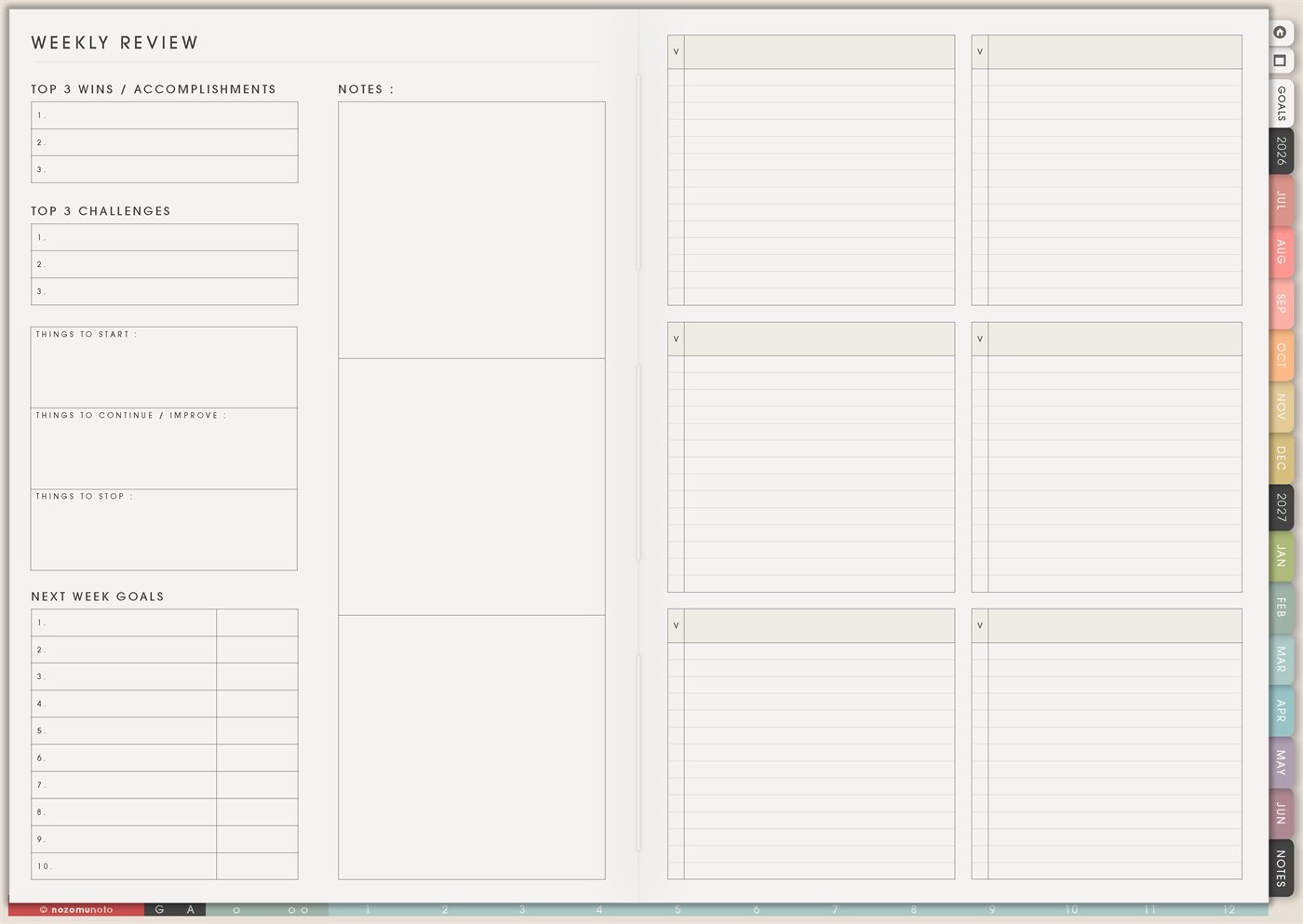
Use the Yume Techo Weekly Review to reflect on the week, carry tasks forward, remove what no longer matters, and plan next week.
The Yume Techo Weekly Review page is a reusable weekly review page for looking back without getting stuck there. It has space for top wins, top challenges, things to start, things to continue or improve, things to stop, next week goals, notes, and six flexible review boxes.
This page is for closing the week, rescuing the tasks that still matter, and choosing a more realistic plan for next week. It is especially helpful when the week was messy, because it gives everyone a way back without rewriting the whole planner.
How to use the Weekly Review
Use the Weekly Review to close the week and choose what comes next.
Try this review flow:
- Write what worked this week.
- Write what felt difficult.
- Check unfinished tasks.
- Move important tasks to next week.
- Turn bigger unfinished tasks into project steps.
- Remove tasks that no longer matter.
- Choose the first few priorities for next week.
Unfinished tasks are information. They show what needs more time, a smaller next step, or a different place in your planner.
Do not carry everything forward automatically. Choose what still matters.
How to get to this page
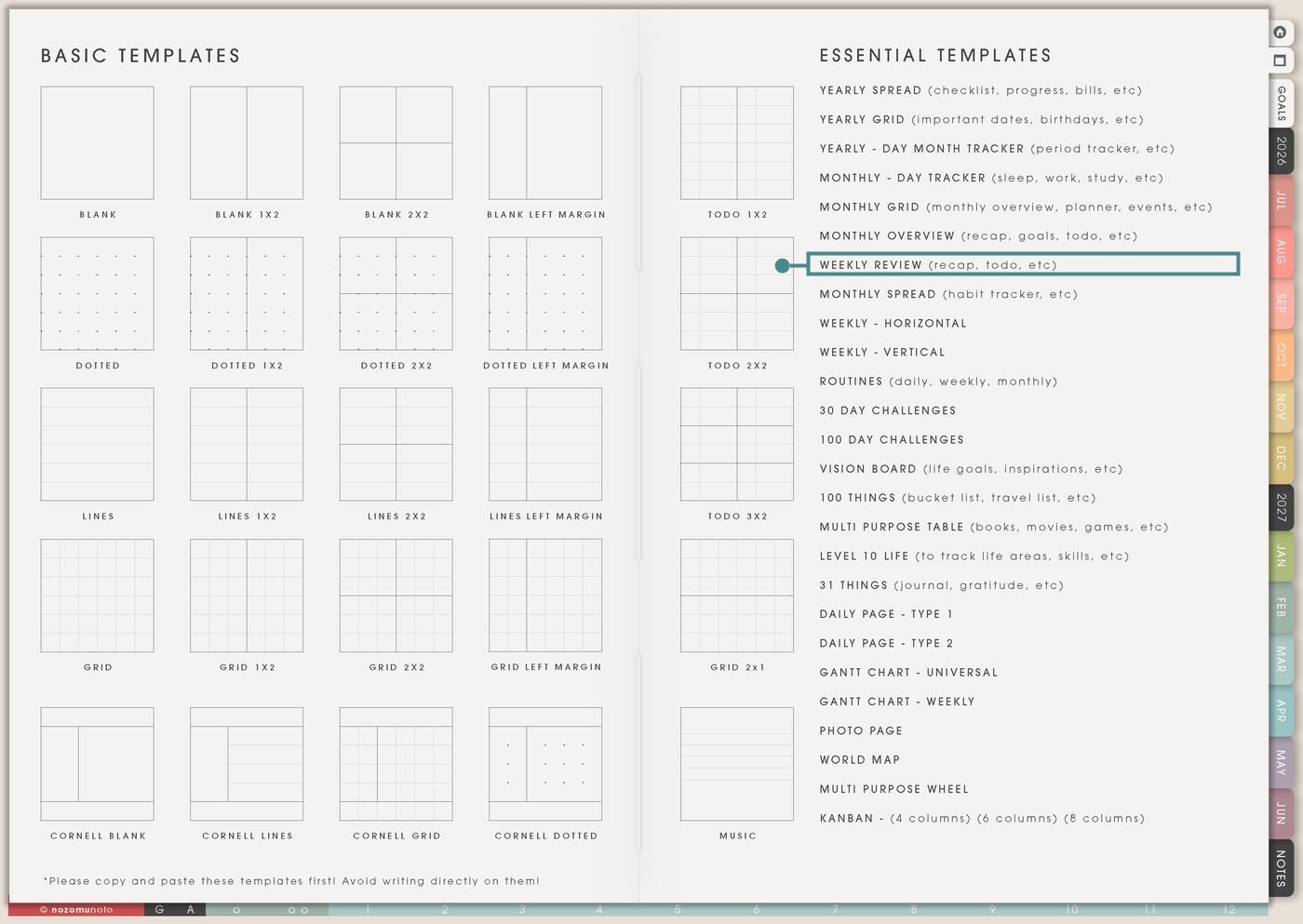
- Open the main Index page: use the planner Index if you need to return to the map.
- Tap the Template Pages icon: this opens the Template Index with reusable clean pages.
- Tap Weekly Review: it is under Monthly Overview in the Essential Templates list.
- Copy the page before writing: this is a clean template master. Duplicate it first, then write on the copy.
Before you write: copy the clean Weekly Review first
Weekly Review is a template page. Keep the original clean, then make one copy for the week you are reviewing.
- Open Weekly Review from Template Index.
- Duplicate or copy the page in your app. Use the page overview, thumbnail view, page manager, or page actions menu.
- Name the copy by week. Examples: Week 32 Review, June Week 2 Review, Exam Week Review, or Launch Week Review.
- Review before planning next week. This page works best before you fill the next weekly page.
- Keep it short enough to finish. A ten-minute review that actually happens is better than a beautiful review you avoid.
Related guides: Yume Techo Monthly Overview for reflection, goals, and carry-forward tasks, Yume Techo Weekly – Horizontal for time blocking, routines, school, work, and family plans, and rapid logging in a digital planner without losing thoughts.
Use scenario ideas
1. Weekly review after a normal busy week
Use the page to collect what happened, what helped, and what needs to move forward. Start with wins so the review does not become only a complaint list.
Example: wins can be “finished assignment,” “answered customer message,” and “cooked twice.” Challenges can be “too many errands,” “late bedtime,” and “forgot Friday admin.” Next week goals can be smaller because you can see the real pattern.
2. Carry forward tasks without copying the whole week
The Weekly Review page helps you decide which unfinished tasks deserve a new home. Some tasks still matter. Some expired. Some need to become smaller.
Example: carry forward “pay invoice” and “book appointment.” Shrink “clean house” into “clear kitchen counter.” Delete “organize all files” if it was a fuzzy stress task that never had a real deadline.
3. ADHD-friendly recovery after missed days
If the planner disappeared for a few days, use Weekly Review as the return point. Skip backfilling every missed day and find today plus next week instead.
Example: write one win, even if it is “came back.” Write one challenge, like “too many open tasks.” Then choose one rescue action: open current Weekly, move only urgent tasks, and leave the rest in Notes.
4. School or study weekly review
Use the page to review classes, assignments, reading, study blocks, exam prep, and what study method actually worked. This makes next week more realistic.
Example: wins: “finished reading,” “submitted quiz,” “asked question.” Challenges: “started paper late,” “forgot review notes,” “too tired after work.” Next week goals: outline paper, review notes Friday, one practice set before class.
5. Work, shop, or client week review
Use Weekly Review for work weeks that include open loops: messages, orders, projects, launches, meetings, invoices, help questions, or content tasks.
Example: top wins can include shipped orders, solved a customer issue, updated a listing, or finished screenshots. Things to stop might be checking stats too often. Things to continue might be batching customer replies once in the morning and once in the afternoon.
6. Home and family weekly review
Use the page for household rhythms: meals, school forms, appointments, laundry, groceries, family plans, cleaning loops, and energy. It can show what needs a better system instead of more effort.
Example: challenge: “dinner was last-minute all week.” Start: “choose three dinner anchors on Sunday.” Continue: “grocery list before shopping.” Stop: “planning complicated meals on late work nights.”
7. Health, energy, and capacity review
Use the page to review sleep, symptoms, movement, food, rest, medication, appointments, mood, or energy. Keep the review short and practical.
Example: wins can be “rested after migraine” or “took vitamins four days.” Challenges can be “too many errands after work.” Next week goal can be “one recovery evening after appointment,” not “fix health forever.”
8. Creative project or content review
Use Weekly Review to look at creative work without turning it into pressure. Notice what moved, what got stuck, what needs input, and what should be smaller next week.
Example: wins: drafted captions, edited photos, saved ideas. Challenge: filming felt too big. Start: record one short clip. Continue: idea list. Stop: waiting for perfect lighting before doing anything.
9. Relationship, social, or people review
Use the flexible boxes for people-related notes: messages to send, follow-ups, birthdays, family needs, help you received, or help you need to ask for.
Example: write “reply to Maya,” “ask teacher about form,” “call mom,” or “thank friend.” A weekly review can catch human things that sit outside work tasks but still matter.
10. Memory keeping and proof that the week happened
Weekly Review can hold small memories and proof of progress, especially in weeks that felt like a blur. The wins box is not only for productivity.
Example: write “rainy movie night,” “kid laughed at breakfast,” “finished hard call,” “quiet morning,” or “kept going.” These notes can make the planner feel warmer and less like a scoreboard.
What I usually use it for and how I use it
Tips for using this template
- Move forward only tasks with a real next action. Sort unfinished tasks into do, shrink, schedule, save for later, or delete. The new week does not need every old task.
- Write small wins on purpose. A win can be returning, resting, asking, finishing, trying, noticing, or making the week a little less hard.
- Choose three main goals for next week. Make each one visible on the next Weekly page. If a goal has no place to land, it is not ready to be a weekly goal yet.
- Describe friction instead of blaming yourself. Write “too many errands after work,” “task was fuzzy,” “no reminder,” or “started too late.” Friction can be redesigned.
- Label the flexible boxes before writing. Useful labels are Work, School, Home, Health, Money, Family, Waiting, Lessons, Questions, or Next Week.
- Review earlier or smaller. Friday afternoon, Saturday morning, or a ten-minute Monday review can still work. The review belongs where it can actually happen.
- Copy first, write second. Keep the clean Weekly Review as the reusable master. Write on a copy so next week starts clean.
Keep weekly review details safe
Weekly Review can include customer messages, client work, invoices, school notes, health details, family plans, money tasks, personal challenges, private memories, and people-related follow-ups. Keep passwords, account numbers, private addresses, medical records, financial documents, full client details, school files, and sensitive family information in a secure place outside the planner. In Yume Techo, use safe labels like client reply, invoice, school form, health cue, family plan, money check, private note elsewhere, or next action.
Final thought
Weekly Review is useful because it lets the planner recover with you. Copy the clean template, notice a few wins, name the real challenges, move forward only what still matters, and choose a next week that fits the life you actually have. I hope this page helps every weekly return feel possible, even when the return is small!
Need exact app steps for copying pages?
If you need the exact buttons for duplicating, moving, or bookmarking this template in your app, use the Help Center app guide for your device.
Browse NozomuNoto products
Find the planner, notebook, e-reader file, or add-on that fits the way you actually plan.
About NozomuNoto
NozomuNoto creates Japanese-inspired digital planners, notebooks, stickers, and e-reader PDFs for people who want useful pages that still work in real life.
Yume Techo is built with dated yearly, monthly, weekly, daily, Life Planner, Planner Pages, and Template Pages so one planner can hold study, work, home, ADHD-friendly routines, lists, and creative projects without adding paper bulk.
New to digital planning? Start there, use the Help Center for setup help, or browse NozomuNoto products when you are ready to choose your planner.