

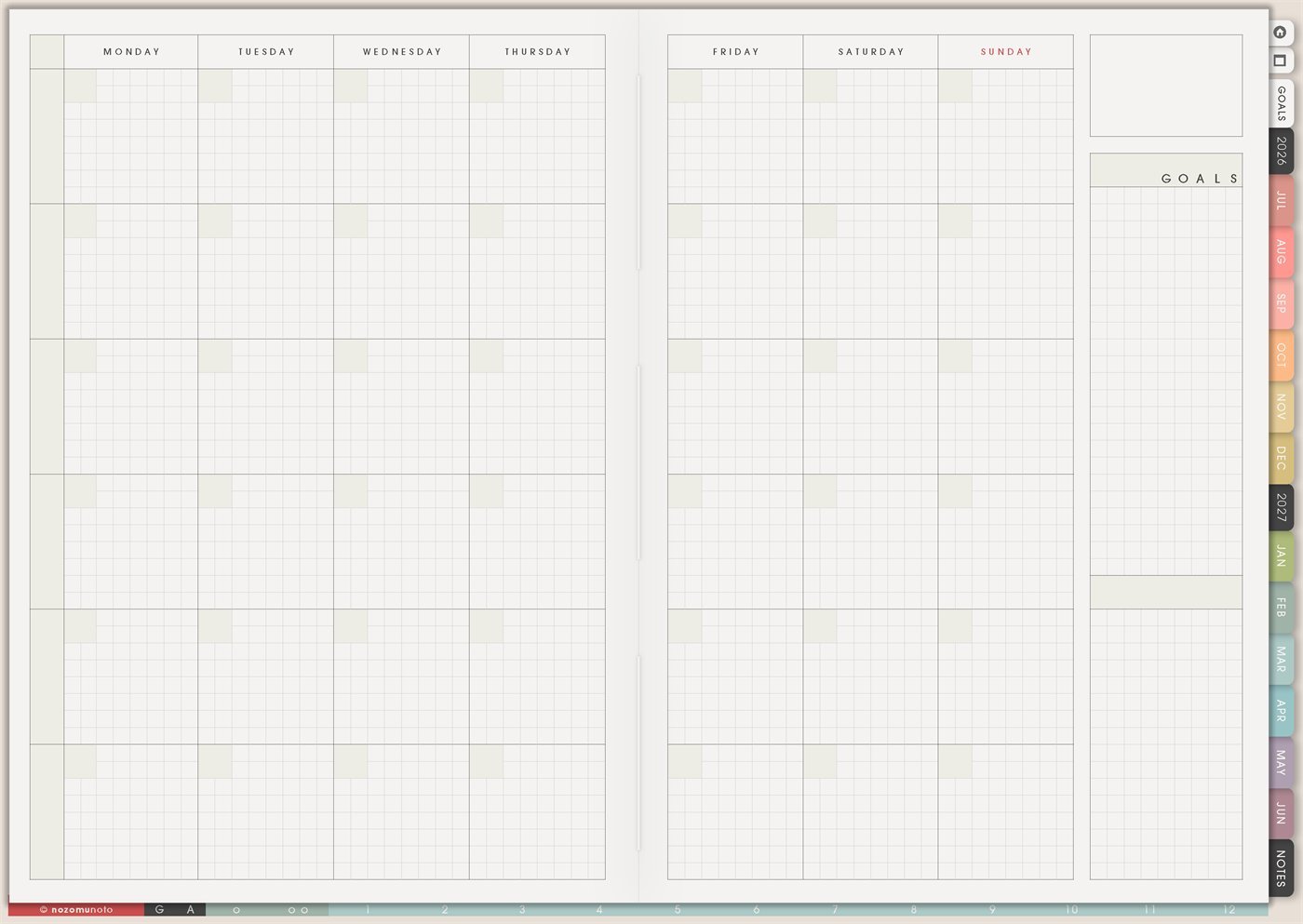
The Yume Techo Monthly Grid is a reusable blank month view with Monday to Sunday columns, large open day boxes, and a Goals area on the side. It is helpful when everyone needs a clean visual map of the month before adding details to Weekly or Daily pages.
This page works when the month needs to be visible at a glance: events, deadlines, meals, school rhythm, work projects, family logistics, content plans, bills, appointments, and the few goals that guide the month. It is a calendar-style planning page, not a habit tracker.
How to get to this page
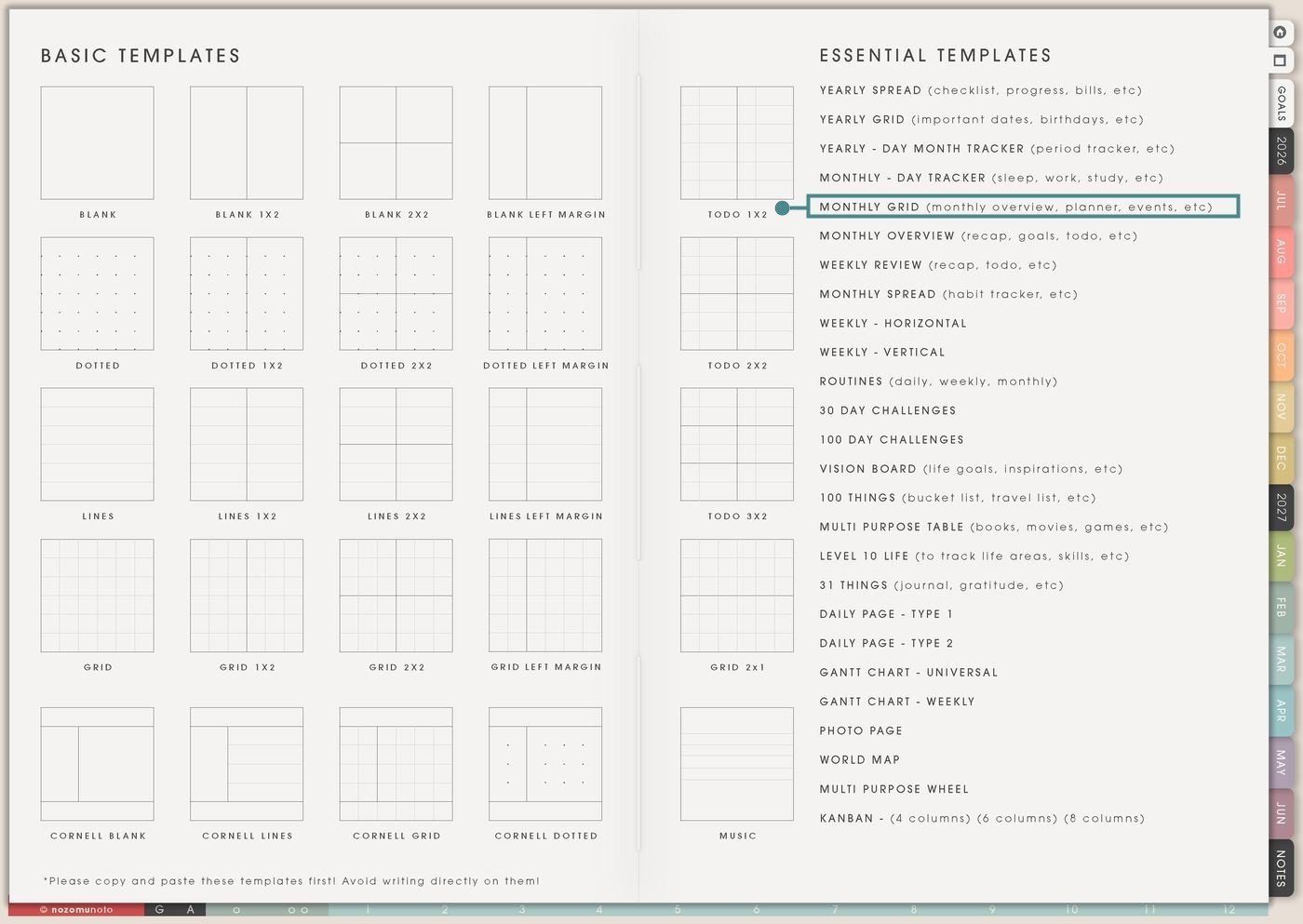
- Open the main Index page: use the planner Index if you need to return to the map.
- Tap the Template Pages icon: this opens the Template Index with reusable clean pages.
- Tap Monthly Grid: it is under Monthly – Day Tracker in the Essential Templates list.
- Copy the page before writing: this is a clean template master. Duplicate it first, then write on the copy.
Before you write: copy the clean Monthly Grid first
Monthly Grid is a template page. Keep the original clean so it stays ready for any month, theme, project, or planning area later.
- Open Monthly Grid from Template Index.
- Duplicate or copy the page in your app. Use the page overview, thumbnail view, page manager, or page actions menu.
- Name the copy by month or purpose. Examples: August Overview, September School Month, Launch Month, Family Calendar, Meal Plan, or Home Reset.
- Add the dates first. Write the date numbers into the small boxes so the weekday layout matches the real month.
- Place fixed events before optional tasks. Appointments, deadlines, paydays, school dates, travel, and rest days go in first.
- Use the Goals area last. After the month is visible, choose the few goals that actually fit.
Related Tips: Template Index ideas shows where the clean Monthly Grid lives, Monthly – Day Tracker ideas is better for habit rows and daily marks, Monthly Overview ideas helps review the month before planning the next one, and Weekly page setup helps move monthly plans into the current week.
Ways to use this page
1. Monthly overview for appointments and deadlines
Use Monthly Grid as the first map of the month. Add appointments, school dates, renewals, due dates, paydays, travel, holidays, birthdays, and any fixed event that should not be hidden inside a weekly spread.
2. Family, parenting, and household logistics
Use one copy for the shared month: school events, activity days, pickup changes, appointments, birthdays, bills, grocery days, laundry catch-up, family visits, and rest days. It helps when more than one person’s schedule affects the household.
3. Meal planning without planning every meal forever
Use the day boxes for dinner themes, leftovers, grocery days, freezer meals, eating out, prep days, lunchbox notes, or pantry reset. A few dinner anchors can make the week easier, even when many meal boxes stay blank.
4. School month and academic rhythm
Use Monthly Grid for the academic month when you need to see classes, due dates, exams, study blocks, reading goals, project milestones, registration dates, and break days together.
5. Work projects and launch planning
Use Monthly Grid when a project has visible phases: planning, writing, making, editing, testing, publishing, shipping, follow-up, and review. The month view helps you avoid putting all the invisible work right before the deadline.
6. Content calendar or shop marketing month
Use the page for content ideas, blog posts, Pinterest pins, Instagram posts, YouTube notes, emails, product education, seasonal gift guides, photo days, freebie reminders, and launch prep.
7. Home reset and cleaning rhythm
Use Monthly Grid for home tasks that need spacing: laundry catch-up, sheets, pantry, fridge, paperwork, donation run, deep clean, school papers, photo backup, medicine refill, pet care, and seasonal home tasks.
8. Bills, paydays, and money dates
Use a copy for money visibility: paydays, bill due dates, subscription renewals, savings transfer, invoice follow-up, tax prep, refund deadline, no-spend week, and shopping windows.
9. Health, body care, and appointment month
Use the grid for appointment-heavy months, therapy homework, medicine refill, movement days, rest days, meal prep, sleep reset, cycle notes, or recovery weeks. Keep the labels short and practical.
10. Memories and monthly highlights
Monthly Grid can become a simple memory map. Add one tiny highlight on days that mattered: dinner with a friend, a good study day, finished a project, kid milestone, cozy rest day, favorite meal, or a small win.
What I usually use it for and how I use it
Tips for using this template
- Keep day boxes short. Write dentist, rent, school form, photo day, payday, rest, or family visit. Put exact times, addresses, subtasks, and long notes on Weekly, Daily, or Notes pages.
- Add the date numbers before adding plans. Check the real month calendar first so the 1st, 15th, and 31st land on the correct weekdays.
- Choose goals after the fixed events are visible. Three to five goals are enough. If a goal has no room in the month, shrink it or move it to a later month.
- Give each page a job. Dated Monthly can hold official date planning, Monthly Grid can hold a themed overview, Weekly can hold current action, and Daily can hold details.
- Use fewer colors than you want to use. Two or three colors are usually enough: fixed events, deadlines, and rest days. Simple labels also work.
- Let blank days stay blank. Label some as rest, buffer, catch-up, or family time. Empty space is part of a usable month.
- Copy first, write second. Keep the clean Monthly Grid as the reusable master. Write on a copy so the next month starts clean.
Keep monthly planning details safe
Monthly Grid can include appointments, school dates, payment reminders, family plans, health appointments, client deadlines, shop launches, travel windows, home tasks, and private memories. Keep full addresses, phone numbers, account numbers, passwords, medical records, insurance details, private school files, client information, and sensitive family details in a secure place outside the planner. In Yume Techo, use safe labels like dentist, school form, payday, refill, client draft, shop update, family visit, or file to check.
Tips for using this page
- Choose the one part of this page that helps the current week instead of trying to fill everything at once.
- Move one small next action to Weekly or Daily so the page changes what happens next.
- Keep the page easy to return to by linking it from Index, favorites, bookmarks, or the related planner section.
Final thought
Monthly Grid works best as a visual map, not a crowded command center. Copy the clean template, add the dates, place fixed events first, choose a few goals that fit the real month, and leave enough white space for life to happen. I hope this page helps the month feel visible before it starts rushing at you!
Need exact app steps for copying pages?
If you need the exact buttons for duplicating, moving, or bookmarking this template in your app, use the Help Center app guide for your device.