

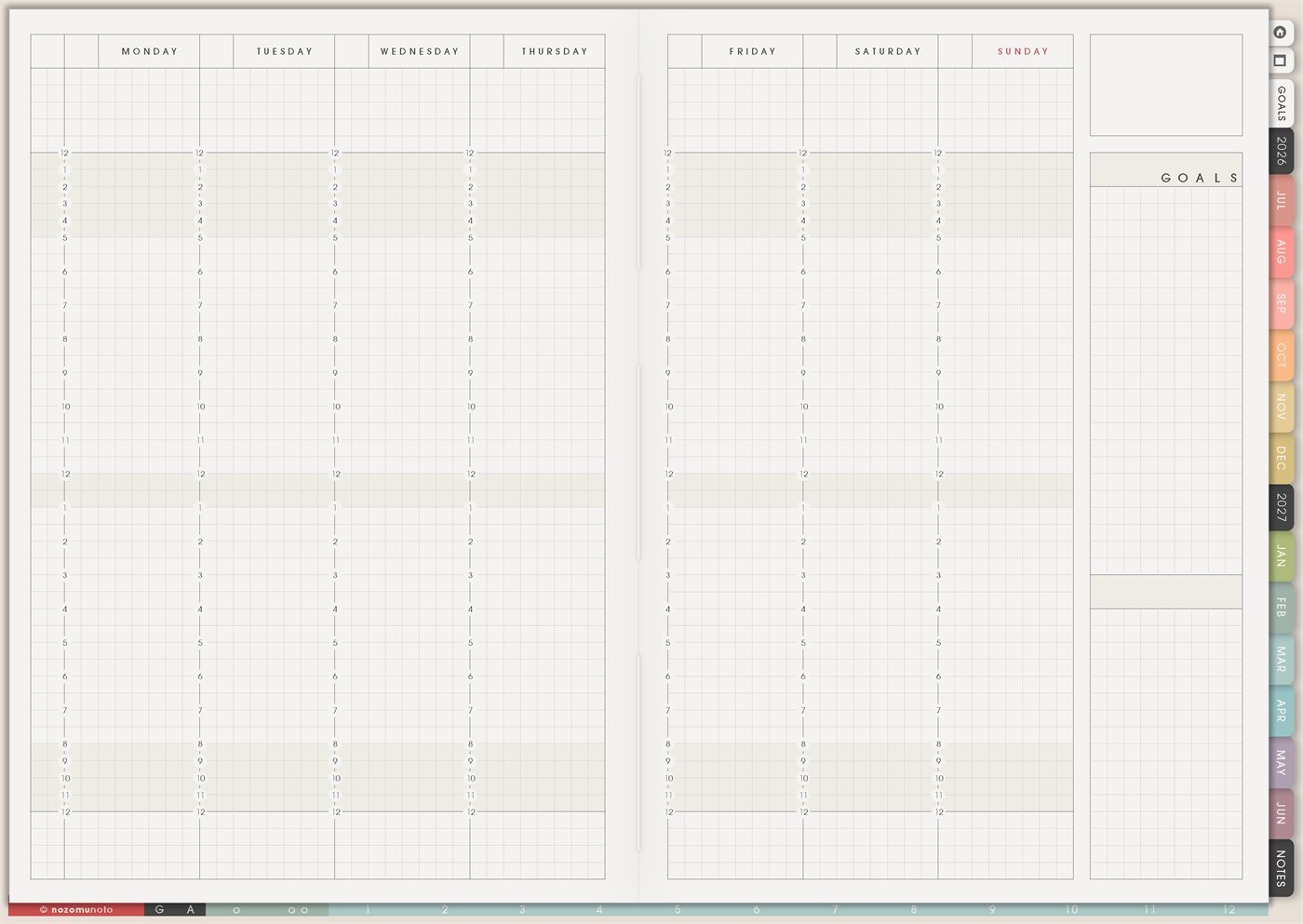
The Yume Techo Weekly – Horizontal page is a reusable weekly layout with Monday to Sunday across the spread, time lines inside each day, and a right-side space for Goals and extra notes. It is helpful when everyone wants to see the whole week in one glance and understand where time, energy, appointments, classes, work, errands, and rest actually fit.
Weekly – Horizontal works when the shape of the week matters. It is especially good for school schedules, work shifts, family logistics, time blocking, routines, appointments, content days, and busy seasons where seeing all seven days side by side makes the week easier to read.
How to get to this page
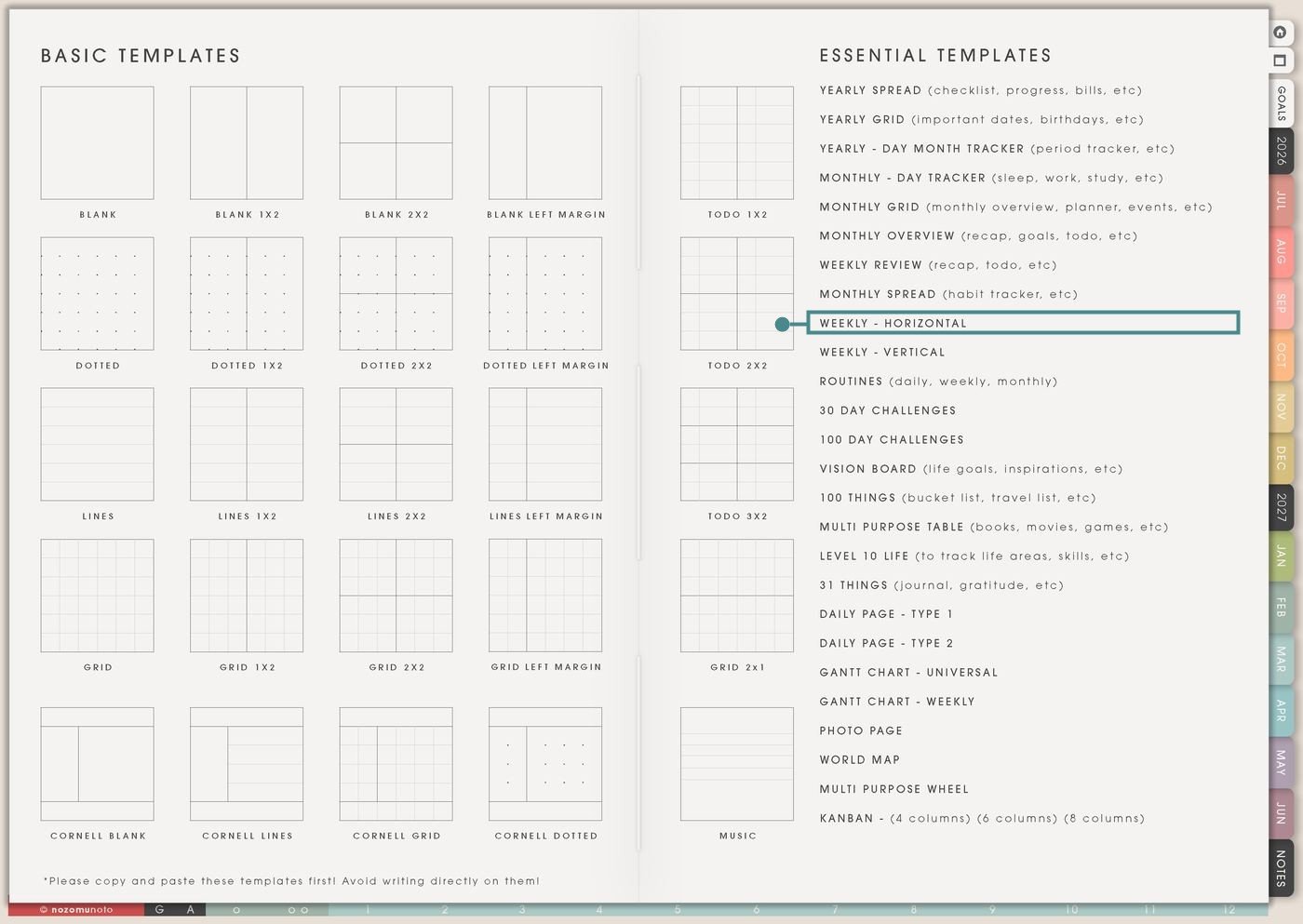
- Open the main Index page: use the planner Index if you need to return to the map.
- Tap the Template Pages icon: this opens the Template Index with reusable clean pages.
- Tap Weekly – Horizontal: it is under Monthly Spread in the Essential Templates list.
- Copy the page before writing: this is a clean template master. Duplicate it first, then write on the copy.
Before you write: copy the clean Weekly – Horizontal first
Weekly – Horizontal is an Essential Template Page. Keep the original clean and make a fresh copy for the week, class schedule, project week, work week, family week, or event week you want to plan.
- Open Weekly – Horizontal from Template Index.
- Duplicate or copy the page in your app. Use the page overview, thumbnail view, page manager, or page actions menu.
- Name the copy by week or purpose. Examples: July Week 2, Exam Week, Launch Week, Family Schedule, or Work Shift Week.
- Add fixed things first. Write appointments, classes, work shifts, school drop-offs, deadlines, and non-movable commitments before optional tasks.
- Use Goals for the week, not the whole life. Keep the right-side Goals area to a short list so it can guide the week instead of overwhelming it.
Related Tips: Template Index ideas shows where the clean Weekly – Horizontal page lives, Weekly Review ideas helps decide what belongs in the next week, Weekly page setup gives a simpler weekly planning flow, and Monthly Grid ideas helps when the week needs to connect back to the month.
Ways to use this page
1. Time blocking a realistic week
Use the time lines to block fixed commitments and then place flexible tasks around them. This helps everyone see whether the plan actually fits before the week begins.
2. School, classes, assignments, and exam week
Use each day column for classes, study blocks, tutoring, library time, club meetings, work shifts, and due dates. The horizontal view makes it easier to see heavy days and lighter days.
3. Work shifts, meetings, clients, and admin
Use Weekly – Horizontal for work weeks that include fixed hours and floating tasks. The time lines show availability, while the right-side Goals area keeps the main outcomes visible.
4. Family logistics and shared household planning
Use the page when one week has school, appointments, groceries, kids’ activities, meal prep, errands, and home care. Seeing all seven days helps prevent overloading one day by accident.
5. ADHD-friendly weekly anchor page
Use Weekly – Horizontal as the one page to return to when the week feels noisy. It can hold the fixed structure while notes pages catch overflow thoughts.
6. Meal planning, chores, and home rhythm
Use the day columns to connect meals and chores to the real week. This works better than making a perfect meal plan that ignores late work days, errands, or tired evenings.
7. Content, shop, or launch week planning
Use Weekly – Horizontal to spread creative work across the week so every step does not land on the same day. It helps separate idea, photo, edit, write, upload, and follow-up.
8. Health, energy, rest, and appointment weeks
Use the layout to plan around energy, not only tasks. This is helpful for weeks with appointments, symptoms, medication reminders, recovery time, therapy, exercise, or medical admin.
9. Travel, event, or special week planning
Use Weekly – Horizontal for weeks that are not normal: trips, holidays, launches, exams, moving, birthdays, markets, or family visits. The full spread helps show travel time, prep time, and recovery time.
10. Weekly review plus next-week setup
Use this page with Weekly Review when you want a simple rhythm. Review the old week first, then copy Weekly – Horizontal for the new week and place only what still matters.
What I usually use it for and how I use it
Tips for using this template
- Add fixed commitments first, then buffers. If the week is already full, choose the top three Goals and let the rest move to Notes, Monthly, or another week.
- Use bigger time blocks. Try Morning, Midday, Afternoon, Evening, or 60- to 90-minute blocks. The page should show the shape of the week, not trap everyone inside tiny boxes.
- Limit Goals to 3 to 5 outcomes. Put small tasks on a day. Put ideas in Notes. Goals are the week’s compass, not the whole backpack.
- Give floating tasks a day. “Book appointment” becomes “call clinic Monday at 10.” If it cannot be scheduled this week, move it to a waiting or later list.
- Edit the page when real life changes. Circle only what still matters, draw a small arrow to a new day, or rewrite the top three tasks in the notes area.
- Store details outside the weekly page. Put long links, research, grading rules, and project notes on Notes, project pages, or the matching planner page. Keep only the next action here.
- Copy first, write second. Keep the clean Weekly – Horizontal as the reusable master. Write on a copy so next week starts clean.
Keep weekly planning details safe
Weekly – Horizontal can include appointments, school schedules, work shifts, client calls, invoices, family logistics, meals, travel, health appointments, medication reminders, content plans, and private notes. Keep full addresses, passwords, account numbers, medical records, financial documents, private school files, full client details, confirmation codes, and sensitive family information in a secure place outside the planner. In Yume Techo, use safe labels like appointment, client call, invoice, school pickup, refill, grocery, trip prep, file to check, or private note elsewhere.
Tips for using this page
- Choose the one part of this page that helps the current week instead of trying to fill everything at once.
- Move one small next action to Weekly or Daily so the page changes what happens next.
- Keep the page easy to return to by linking it from Index, favorites, bookmarks, or the related planner section.
Final thought
Weekly – Horizontal is useful because it makes the whole week visible before the week asks too much from you. Copy the clean template, place fixed commitments first, choose a few honest Goals, and leave room for normal human life. I hope this page helps the week feel easier to choose, not like a perfect performance!
Need exact app steps for copying pages?
If you need the exact buttons for duplicating, moving, or bookmarking this template in your app, use the Help Center app guide for your device.