
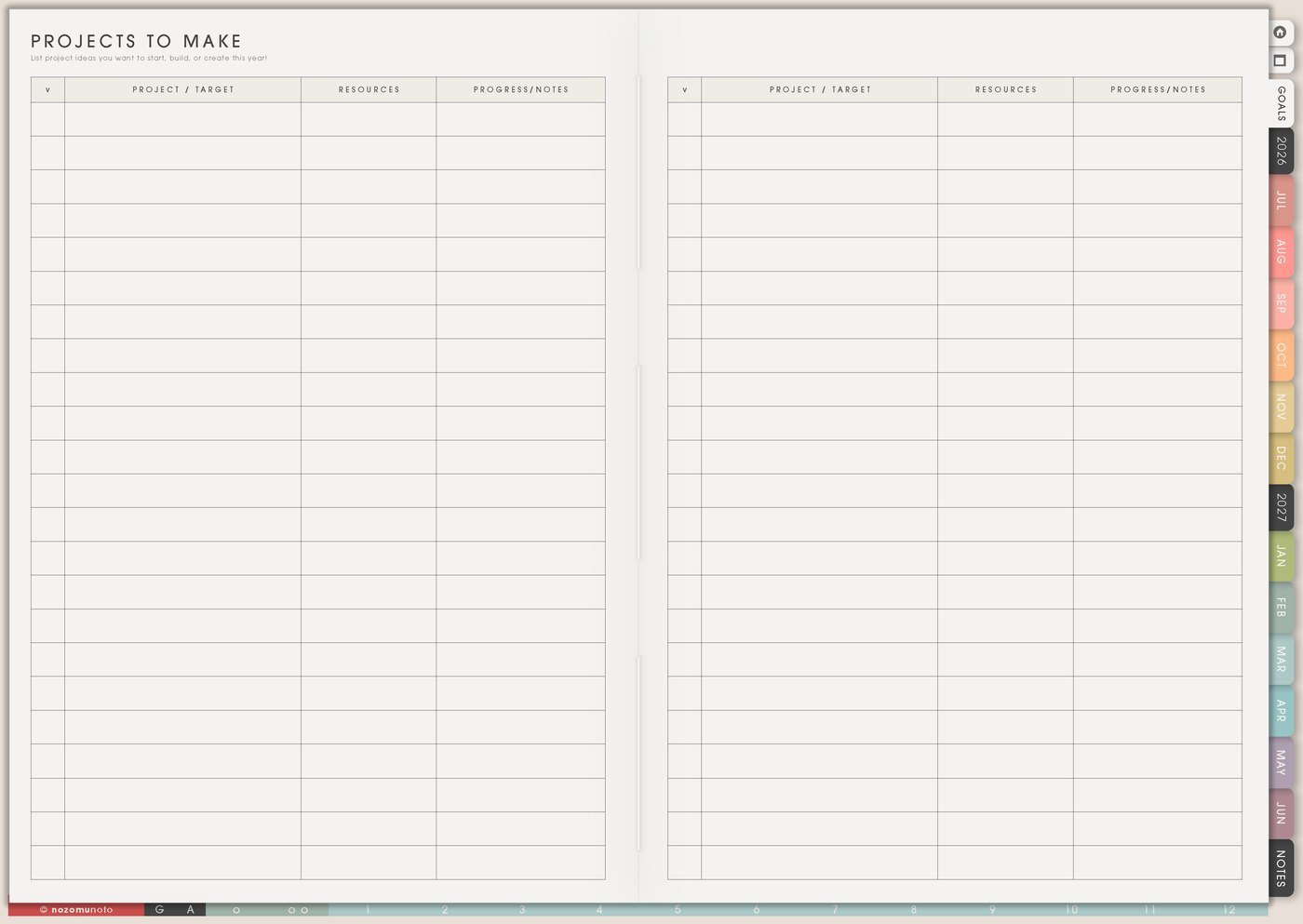
I use this Yume Techo project planning setup when an idea has too many pieces to keep inside Daily: NozomuNoto updates, illustration study, home repairs, freelance design work, sewing projects, school forms, family admin, and anything that needs money, time, decisions, and follow-up.
The point is simple: the whole project needs a home, but the week should only carry the next few real actions. Projects To Make holds the full idea, Kanban shows what is moving or waiting, Resources / Tasks stores links and materials, Monthly shows real dates, and Weekly carries the part that can move now.
How I split a project across Yume Techo
1. Use Projects To Make for the full project
I put the full project story in Projects To Make: project name, finished outcome, why it matters, deadline, supplies, people involved, links to check, possible blockers, and the first next action.
This works for an office refresh, birthday party, class assignment, product launch, handmade gift, room reset, closet declutter, website update, homeschool unit, Bible study series, picture book draft, or craft fair prep.
I write the finish line in plain words. Office refresh might mean clear desk, working lamp, labeled storage, donation bag gone, and one after photo. A clear finish line keeps the project from growing forever.
Related Tips: Projects To Make page ideas has more ways to hold project ideas without starting everything at once.
2. Use Kanban for project stages
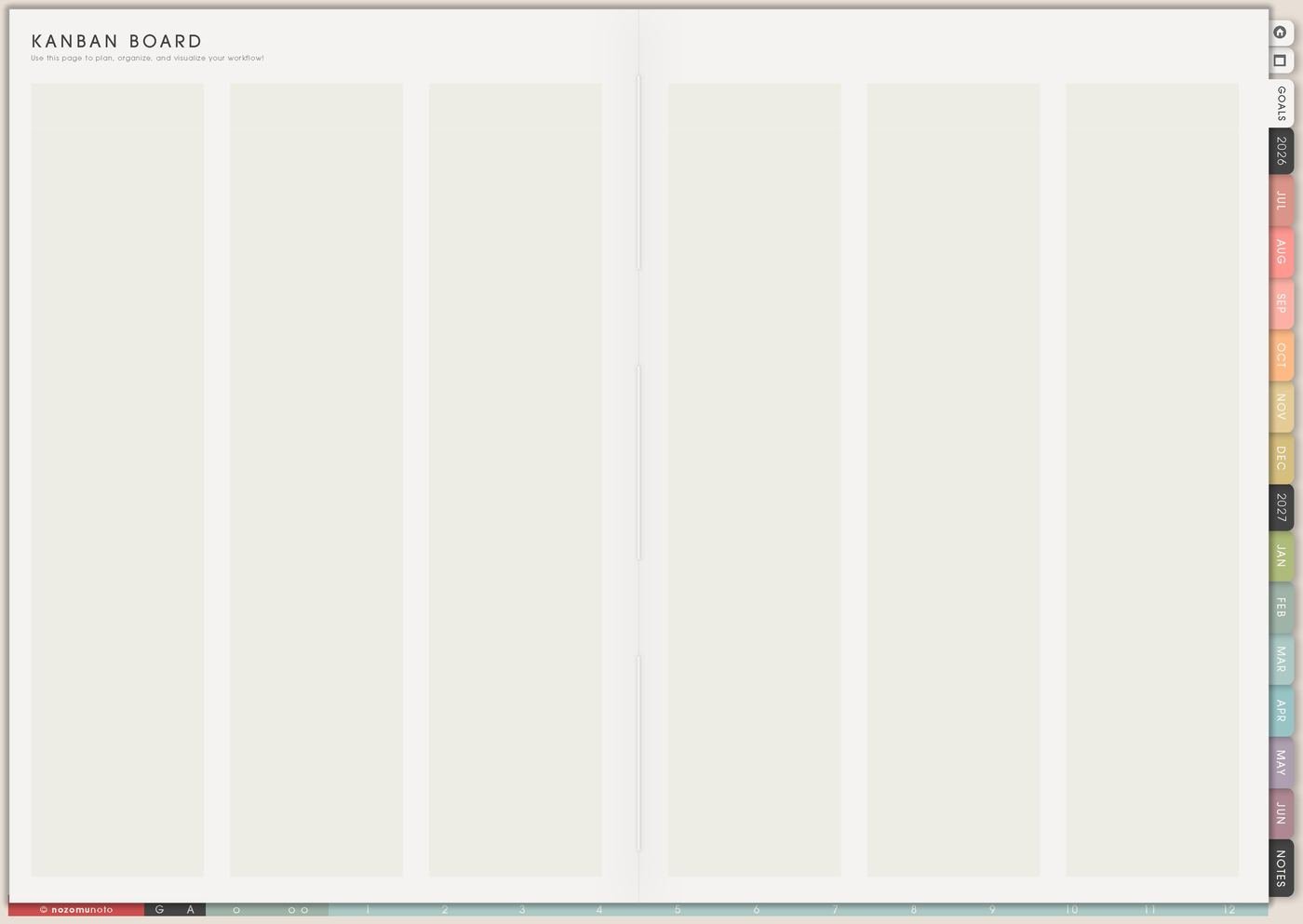
I use Kanban when a project has stages. My simple columns are Ideas, Next, Doing, Waiting, Done. Waiting matters because delayed tasks should stop draining the active list.
I move tasks to Waiting when they depend on replies, supplies, money, approval, energy, delivery, a decision, a file export, or somebody else. A waiting task can stay visible without pretending it is today work.
I keep Doing small. If everything is Doing, the board is not telling the truth yet. I choose the few pieces that can actually move now.
Related Tips: Kanban Board ideas shows more ways to separate ideas, active work, waiting items, and finished projects.
3. Use Monthly for deadlines and decision dates
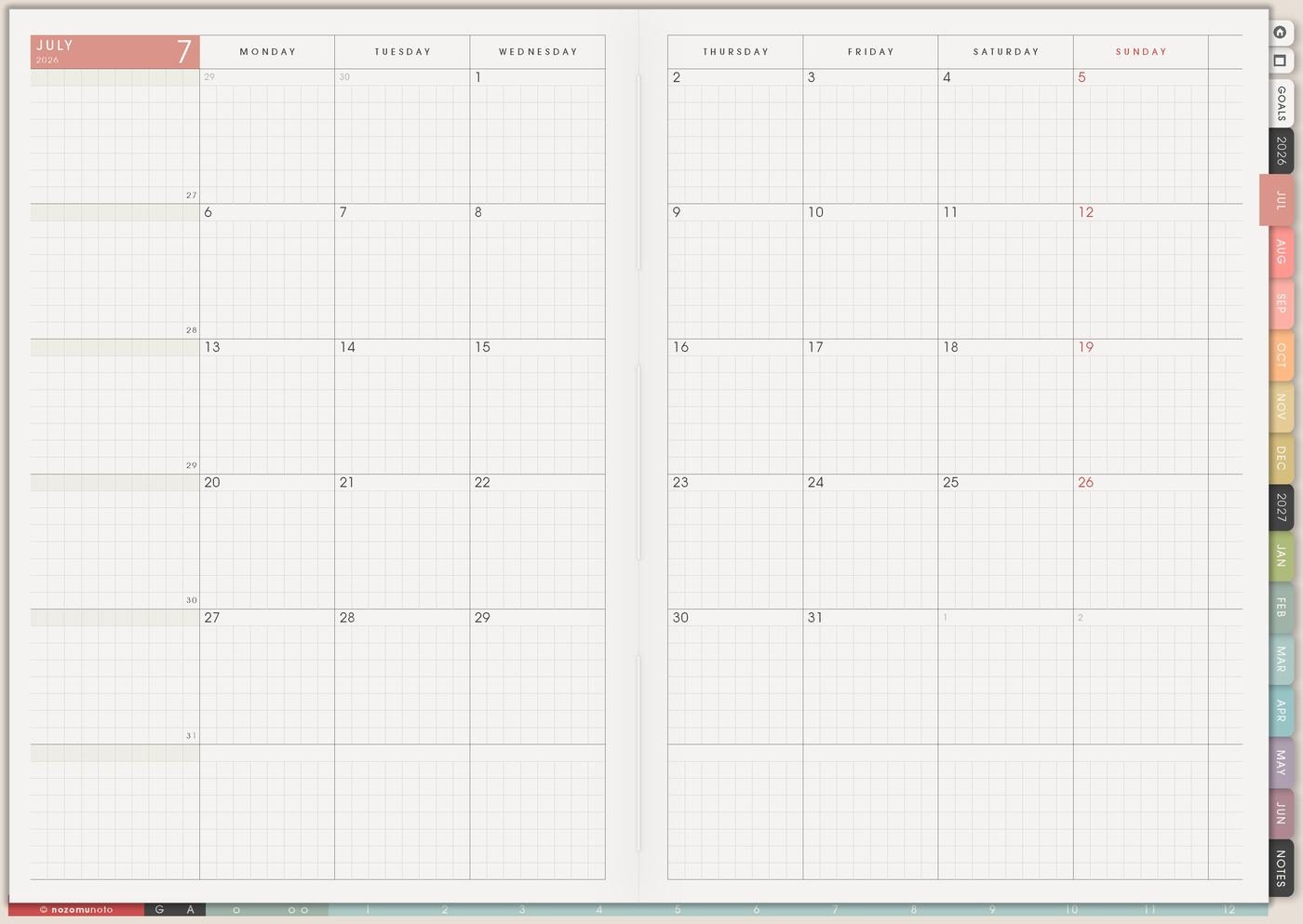
I use Monthly for time reality: due dates, launch dates, order-by dates, delivery estimates, appointment dates, decision dates, review dates, and buffer days.
If a handmade gift is needed by May 10, Monthly can hold order supplies by April 20, finish assembly by May 5, wrap by May 8, and deliver by May 10. The deadline becomes less scary when it creates preparation.
I put decisions on the calendar too: choose color by Friday, pick supplier by Monday, decide whether to continue by the 15th. Some projects stall because the decision date is missing.
4. Use Resources / Tasks for links, materials, and loose details
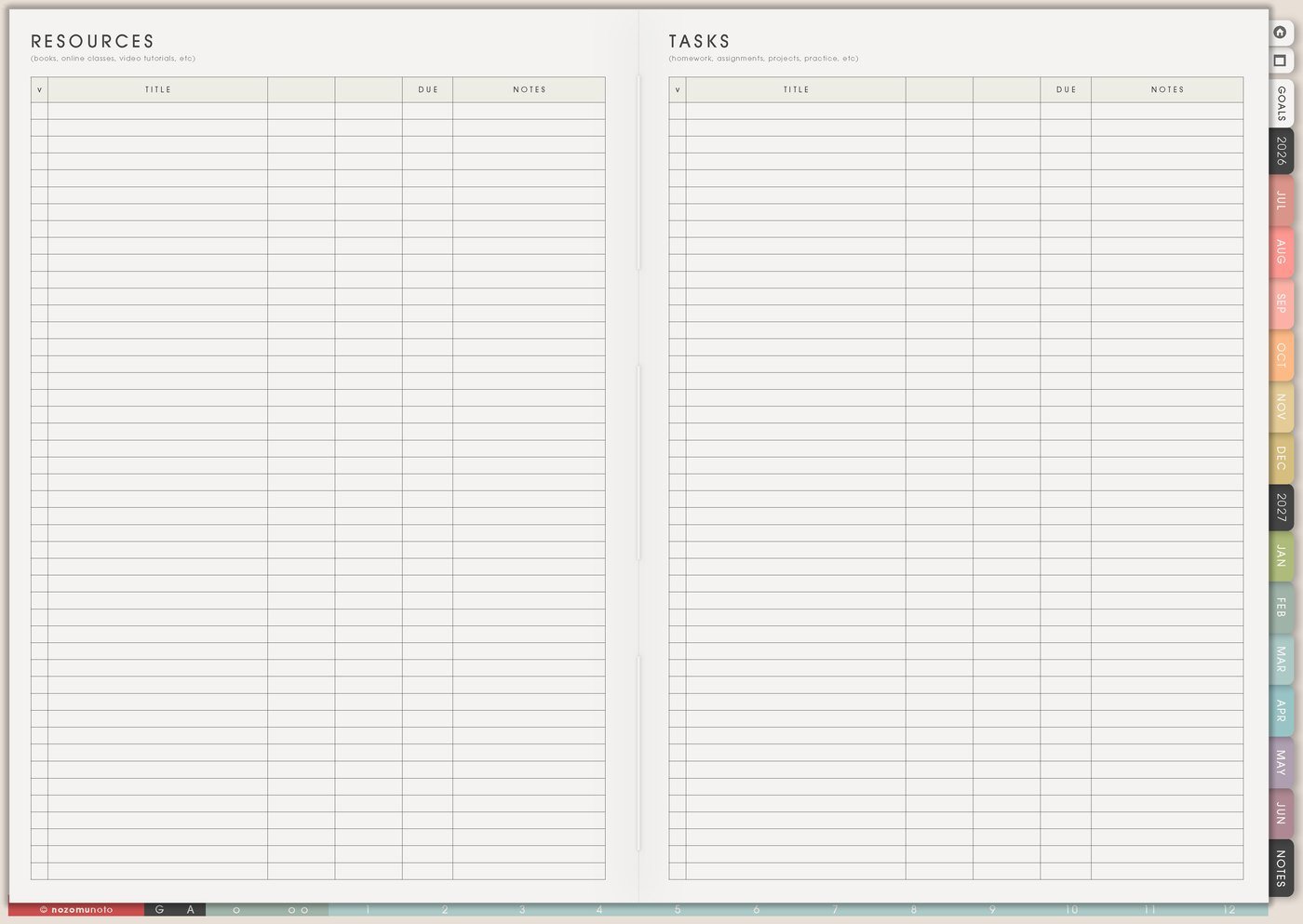
I use Resources / Tasks for links, measurements, reference photos, color codes, screenshots, files, supply lists, tutorial notes, safe contact reminders, price comparisons, and questions to ask.
I keep passwords, private client details, full addresses, account numbers, and sensitive documents somewhere secure. Resources / Tasks can hold the reminder without holding the private detail.
This keeps Kanban readable. The board shows movement. Resources / Tasks holds the details that help movement.
When a resource needs action, I copy only the action to Weekly: download file, compare two options, ask question, print template, measure wall, test link, or order missing item.
Related Tips: Resources / Tasks page ideas shows how to keep links, notes, and follow-ups together without crowding Weekly.
5. Use Weekly for the next few project actions
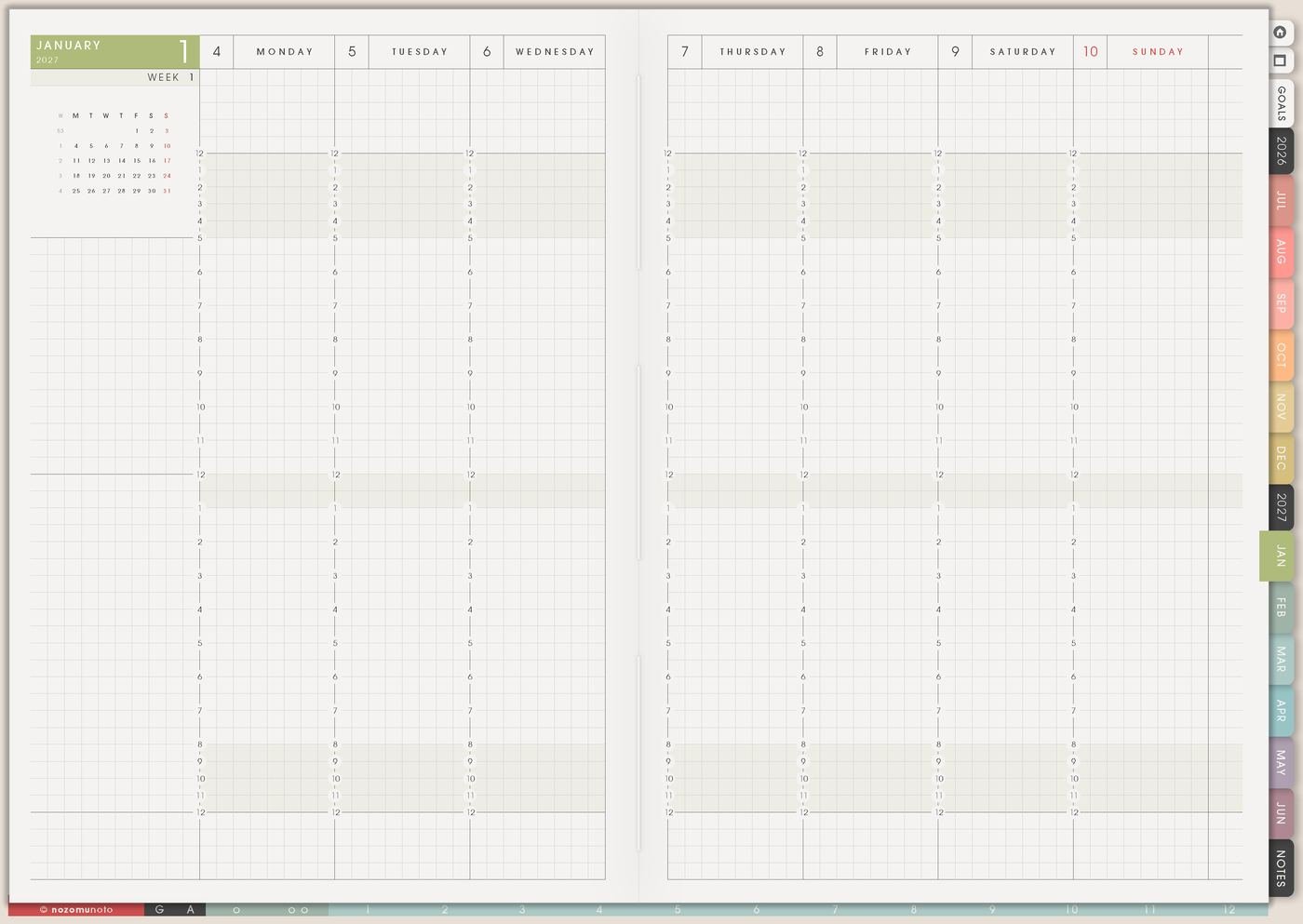
I use Weekly for two or three actions that actually fit this week. I write physical verbs: open, measure, email, draft, print, choose, order, test, upload, submit, review, clean, label, or take photo.
If Weekly says work on project, the task is still hiding. I make it smaller: measure shelf, email supplier, draft outline, test download link, buy hooks, choose color, upload listing, print worksheet, or submit form.
The project page can hold the whole story. Weekly only needs the part that can move now.
6. Use Weekly Review as the project handoff
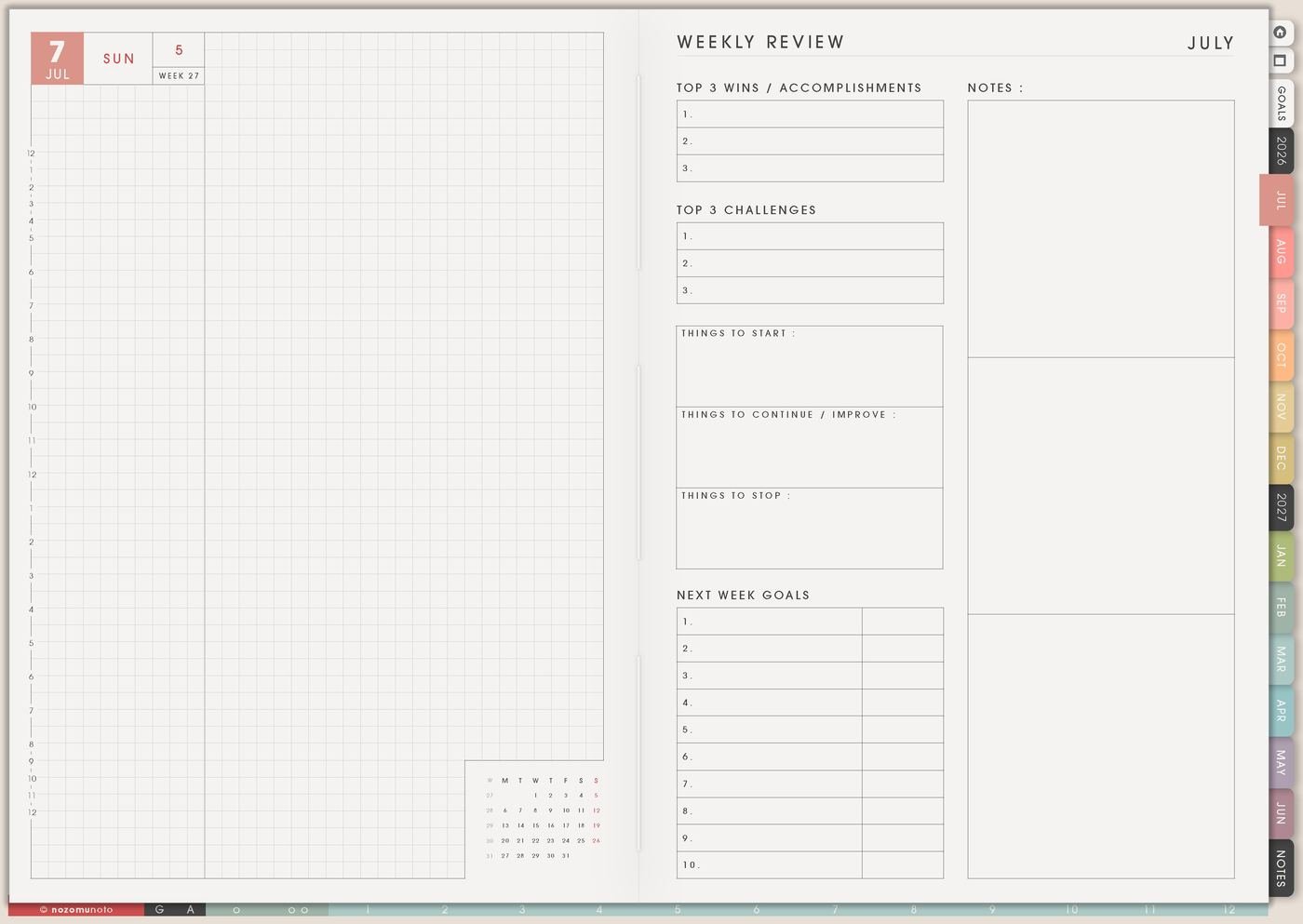
I use Weekly Review to write a project handoff: what moved, what is waiting, what changed, what can be dropped, and what the next honest move is.
This is especially helpful for long projects. A handoff note means next week can begin from the truth instead of from memory.
My three-line version is done, waiting, next. Done: ordered hooks. Waiting: delivery. Next: label bins after hooks arrive.
Related Tips: Weekly Review reset ideas shows how to restart the next week without dragging every old task forward.
7. Use Memory Photos or Achievements when the project is finished
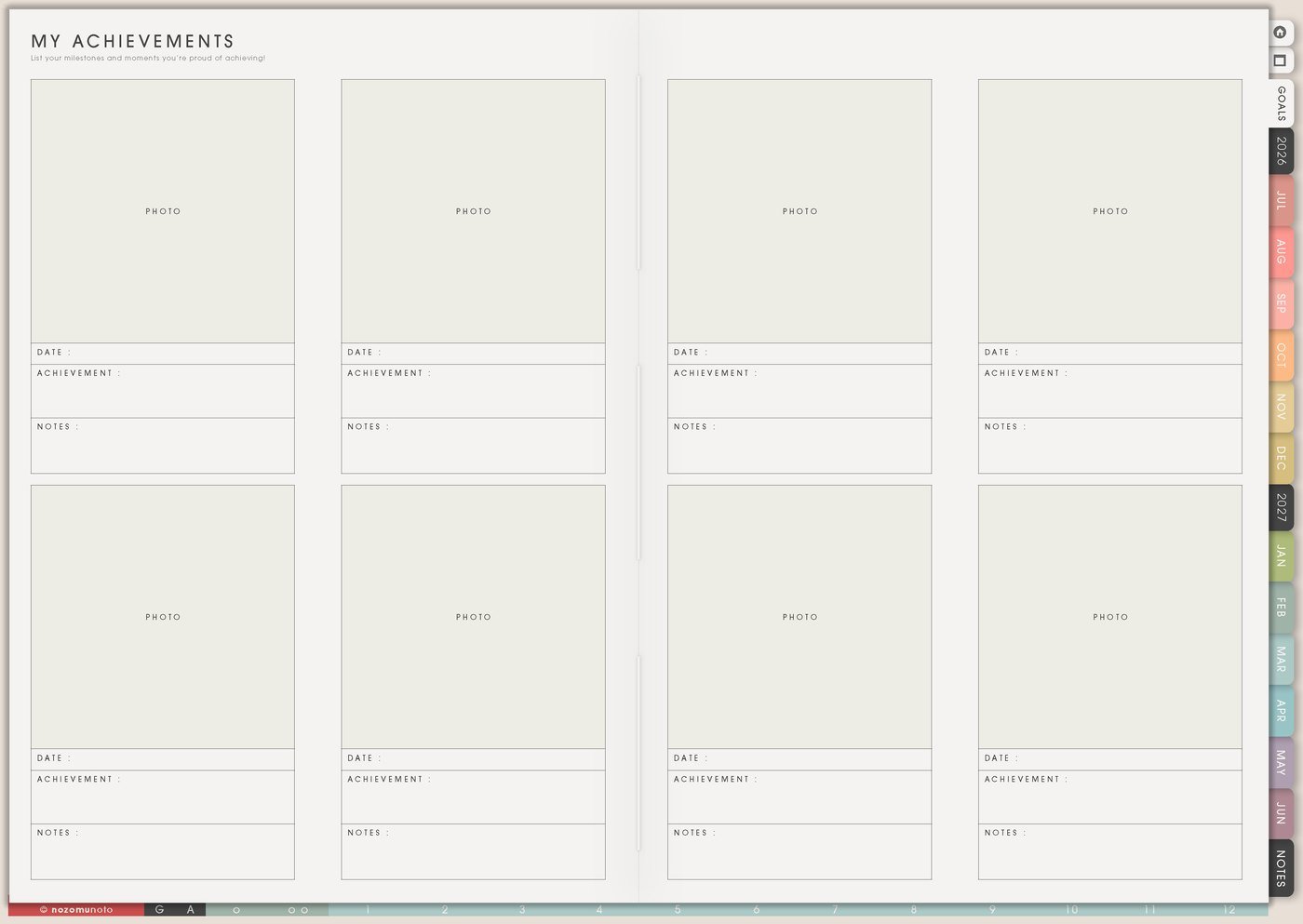
I use Achievements, Memory Photos, or Best Life Moments when the project is finished. I add a photo, date, what changed, what I learned, and what I want to adjust next time.
This matters because finished projects disappear from memory quickly when life gets busy. Saving the finish gives proof that effort turned into something real.
For creative projects, I take a final photo. For school or work, I write what was submitted. For home projects, I add before and after notes. For business projects, I write what was published or improved.
Set it up in ten minutes
- Name the project. Write the finished outcome in plain words.
- List the big pieces. Supplies, people, links, dates, cost, energy, and blockers.
- Create a simple Kanban board. Ideas, Next, Doing, Waiting, Done.
- Put real dates on Monthly. Deadlines, order-by dates, decision dates, review dates, and buffer days.
- Move details to Resources / Tasks. Keep links and materials out of the weekly list.
- Choose two or three weekly actions. Use visible verbs.
- Write a handoff at review. Done, waiting, next.
What I usually use it for and how I use it
Tips for using this setup
- Make one project page the home base. Put the finish line, deadline, materials, links, people, money notes, and first action there before scattering tasks across the week.
- Use Kanban to tell the truth. Move blocked items to Waiting when they depend on delivery, replies, money, approval, energy, feedback, or another person’s schedule.
- Keep Doing small. If Doing has ten tasks, choose the two or three that can move this week and park the rest in Next.
- Turn unclear tasks into physical verbs. Replace work on project with measure shelf, draft outline, email supplier, choose image, test download, order hooks, upload listing, or print worksheet.
- Add decision dates to Monthly. Research is useful, but it needs a decision day: choose color, choose supplier, choose template, choose budget, or choose to wait on purpose.
- Protect Weekly from project overload. Weekly is for the next few actions, not the whole project. The full story can stay in Projects To Make and Resources / Tasks.
- Write a weekly handoff. Use three lines: done, waiting, next. This makes a long project easier to restart after work, parenting, study, or family care interrupts it.
- Record the finish. Add a photo or short note to Achievements, Memory Photos, or Best Life Moments so the finished work does not disappear from memory.
When you need setup help
For the project workflow, use Projects To Make for the full idea, Kanban for active and waiting stages, Monthly for real dates, Resources / Tasks for links and materials, Weekly for the next few actions, and Weekly Review for the restart note. If the technical step is unclear, like importing Yume Techo, copying a project page, adding links or images, or using hyperlinks, use the NozomuNoto Help Center for app-specific steps.
Final thought
I hope this setup helps a big project feel easier to return to, even when life keeps interrupting the perfect plan. Give the project one home, give Weekly only the next honest moves, and let the review note carry the restart for you.