
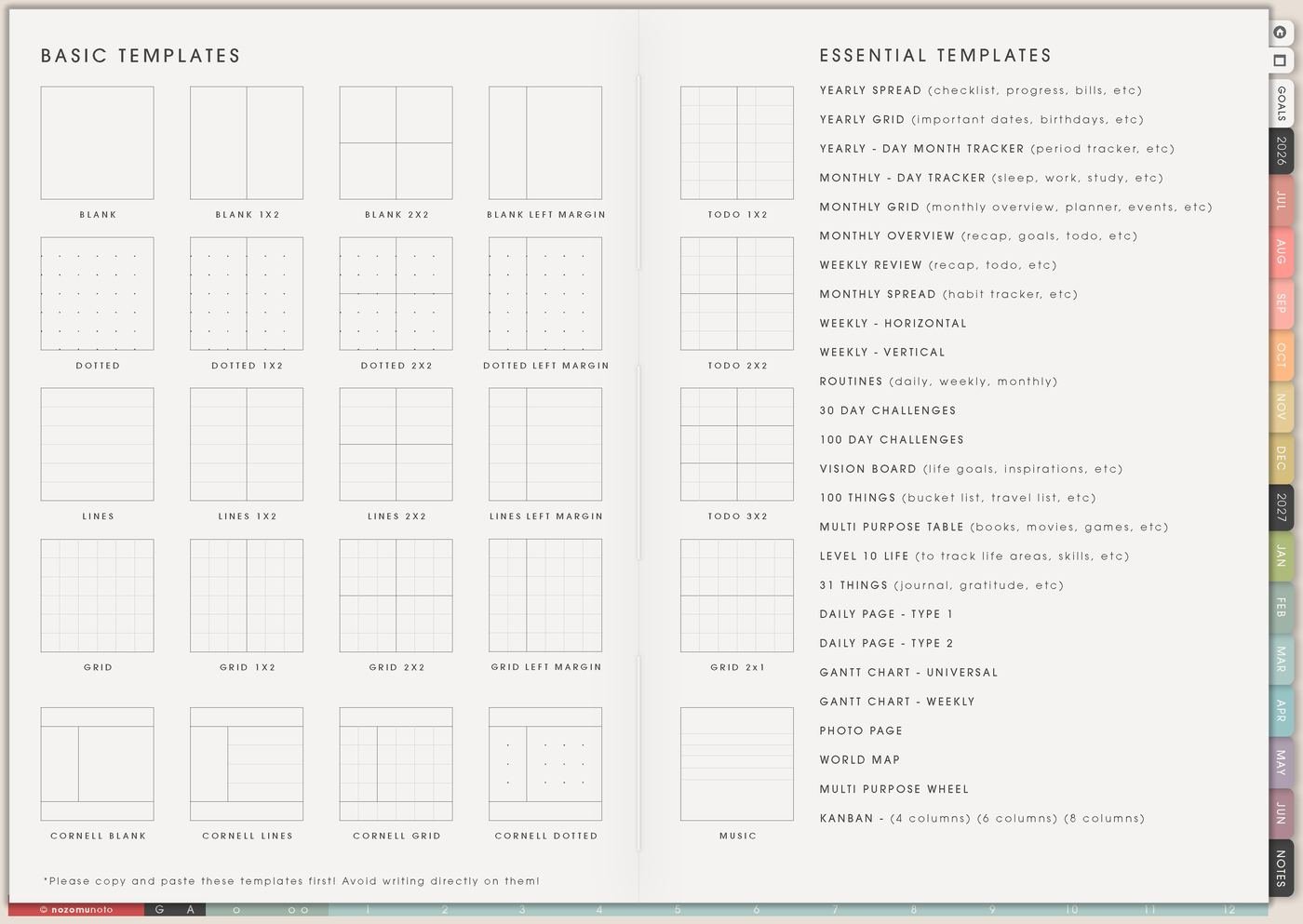
The Yume Techo Template Index is the clean supply shelf for reusable planner pages: yearly trackers, monthly trackers, weekly layouts, routines, challenge pages, daily templates, photo pages, Kanban boards, lists, tables, maps, and blank layouts.
I open Template Index when a normal dated page is too crowded and I need one fresh page for one real job. The rule is simple: copy the clean template first, move the copy where it belongs, then write on the copy. The original stays clean for next time!
What the Template Index is for
Think of the Template Index as the planner supply shelf. It is not the page for writing every plan. It is the page for choosing the right reusable structure when a normal Monthly, Weekly, or Daily page needs backup.
- Use it for repeated pages: copy a Daily Page – Type 1 or Daily Page – Type 2 when you want the same day layout again and again.
- Use it for trackers: copy Yearly – Day Month Tracker, Monthly – Day Tracker, Monthly Spread, or 30 Day Challenges when you want to see a pattern.
- Use it for projects: copy Kanban, Gantt Chart – Universal, Gantt Chart – Weekly, or Multi Purpose Table when a project has moving parts.
- Use it for ideas and lists: copy 100 Things, 31 Things, Photo Page, Vision Board, or World Map when you need a clean collection page.
- Use it for reset pages: copy Weekly Review, Routines, or Level 10 Life when you need a clear place to check what is working.
How to get to this page
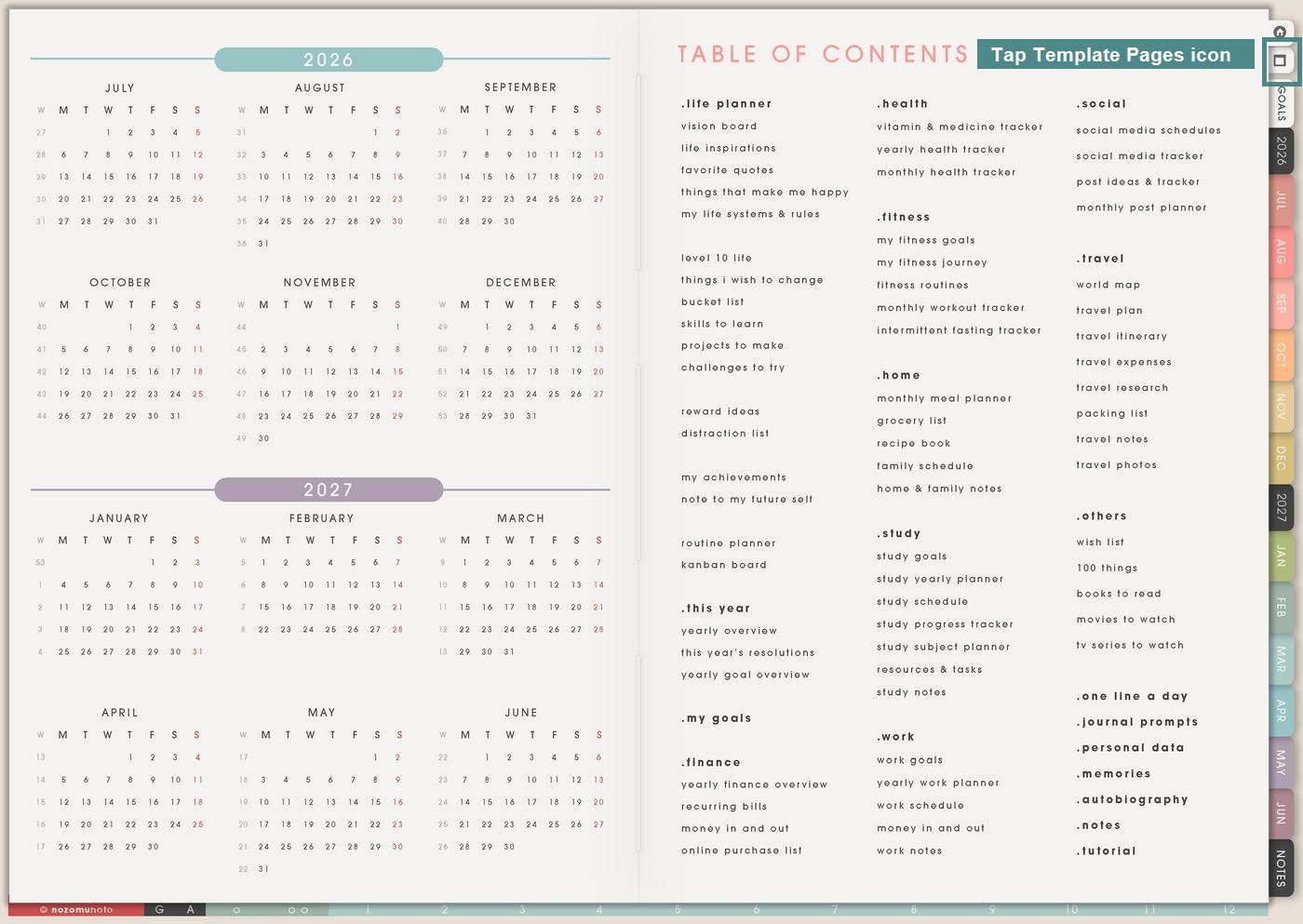
- Open the main Index page: use the home/index area of the planner first if you feel lost.
- Tap the Template Pages icon: on the right side of the Index page, tap the small Template Pages icon marked in the screenshot above.
- Choose the template name: on the Template Index, tap the exact page you want, such as Yearly Spread, Weekly Review, Daily Page – Type 1, or Kanban.
- Copy before writing: once the template opens, duplicate or copy that page in your app before adding handwriting, stickers, or notes.
How to use the index without getting lost
The Template Index has many useful pages, so the easiest way to use it is to start with the real job, not with the prettiest page. One clear job usually needs one copied page. That keeps the planner helpful instead of heavy.
- If you need to see the year: start with Yearly Spread, Yearly Grid, or Yearly – Day Month Tracker.
- If you need to see the month: start with Monthly Grid, Monthly Overview, Monthly – Day Tracker, or Monthly Spread.
- If you need a repeatable week or day: use Weekly – Horizontal, Weekly – Vertical, Daily Page – Type 1, or Daily Page – Type 2.
- If a project has stages: use Kanban for moving tasks, or Gantt Chart for a timeline.
- If your brain needs a clean list: use 100 Things, 31 Things, Multi Purpose Table, or Photo Page.
Before you write: copy the clean template first
Template pages are meant to stay reusable. If you write directly on the original, that clean master becomes filled, and the next time you need the page you may have to erase, undo, or hunt for a backup.
- Open the template: tap the page name from Template Index.
- Duplicate or copy the page: use your app page menu, page overview, thumbnail view, or page manager.
- Move the copy near the place you will use it: put a study tracker near Study pages, a Kanban board near Work pages, or a routine page near the current Weekly page.
- Name or bookmark the copy if your app has that option: practical names like June Habit Tracker, Quilt Project Kanban, or Exam Review Tracker are easier to find later.
- Then write on the copy: the original template stays clean for next time. Tiny magic, very useful!
What I usually use it for and how I use it
Related Tips: Kanban Board ideas helps me choose a project board copy, Routine page ideas helps me choose a routine copy, Level 10 Life ideas helps me choose a reset copy, and Weekly Review reset ideas helps me decide what copied page is still worth keeping.
Tips for using this page
- Copy before writing. The Template Index is the master shelf. Write on the copied page, not the original template.
- Copy one page for one job. If I copy six pages before choosing the real need, the planner starts feeling like extra homework.
- Move the copy near its section. A health tracker belongs near Health, a study tracker near Study, a Kanban board near the project, and a routine copy near Weekly or Life Planner.
- Name the copy plainly. June Habit Tracker, Exam Review Tracker, Shop Photo Kanban, Family Trip Map, or Friday Reset is easier to find than Copy 3.
- Review copied pages weekly. Keep the ones that earn their place. Archive or ignore copies that stopped helping.
Keep copied template details safe
Copied templates can hold school work, client work, shop plans, money notes, health patterns, family plans, travel ideas, private photos, and personal projects. Keep passwords, account numbers, full client details, private family information, medical records, financial documents, and sensitive school or work files in a secure place outside the planner. In Yume Techo, use safe labels like June tracker, shop board, exam review, health note, family trip, or file to check.
Final thought
The Template Index is useful because it lets Yume Techo grow with real life. Start with one clean copied page, give it one clear job, and place it where you will naturally look for it. I hope this page helps you copy fewer templates, use the right one sooner, and keep the original pages clean for later!
Need exact app steps for copying pages?
If you need the exact buttons for duplicating, copying, moving, or bookmarking pages, use the Help Center app guide for your device.