

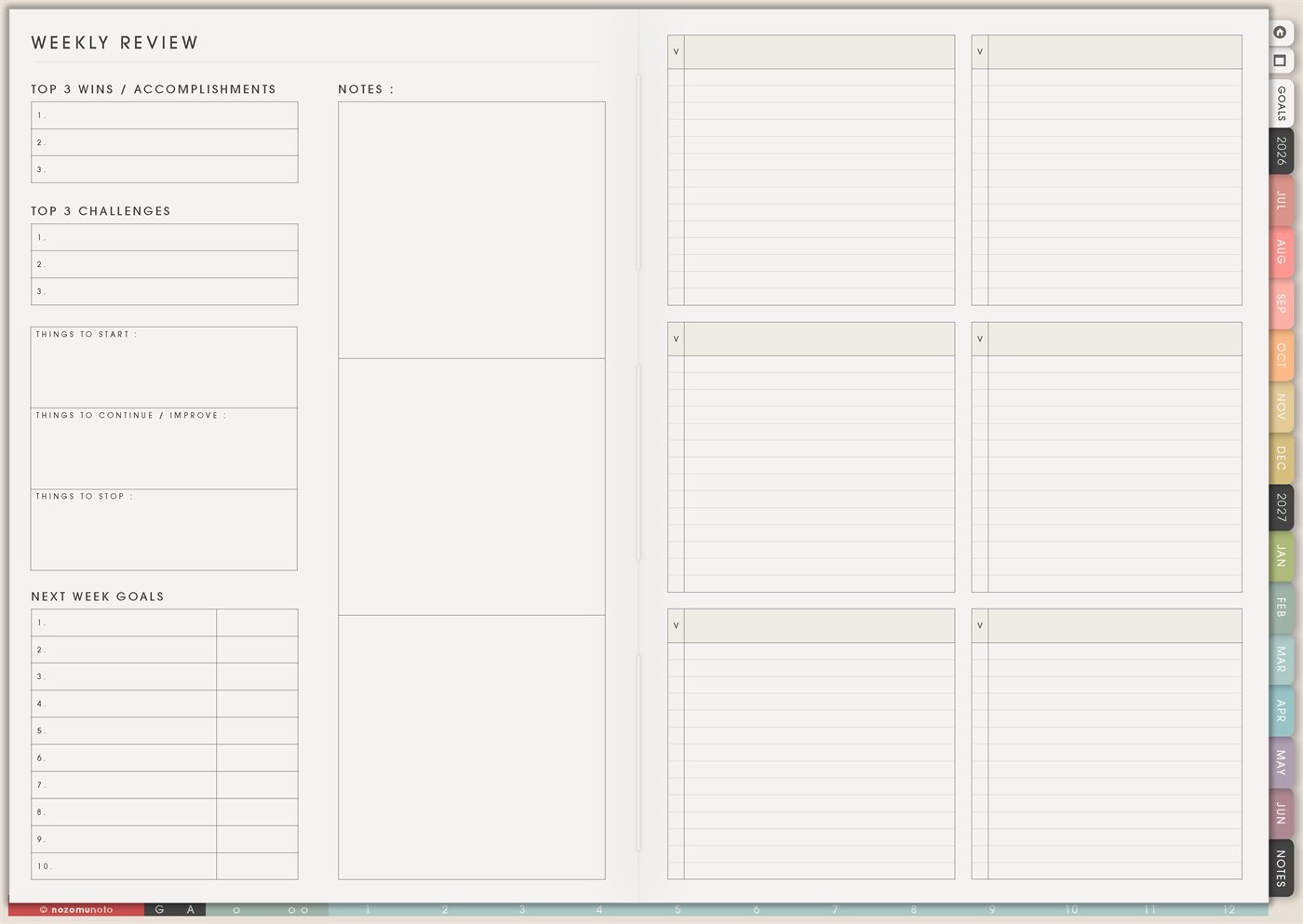
The Yume Techo Weekly Review page is a reusable weekly reset page for looking back without getting stuck there. It has space for top wins, top challenges, things to start, things to continue or improve, things to stop, next week goals, notes, and six flexible review boxes.
This page is for closing the week, rescuing the tasks that still matter, and choosing a more realistic plan for next week. It is especially helpful when the week was messy, because it gives everyone a way back without rewriting the whole planner.
How to get to this page
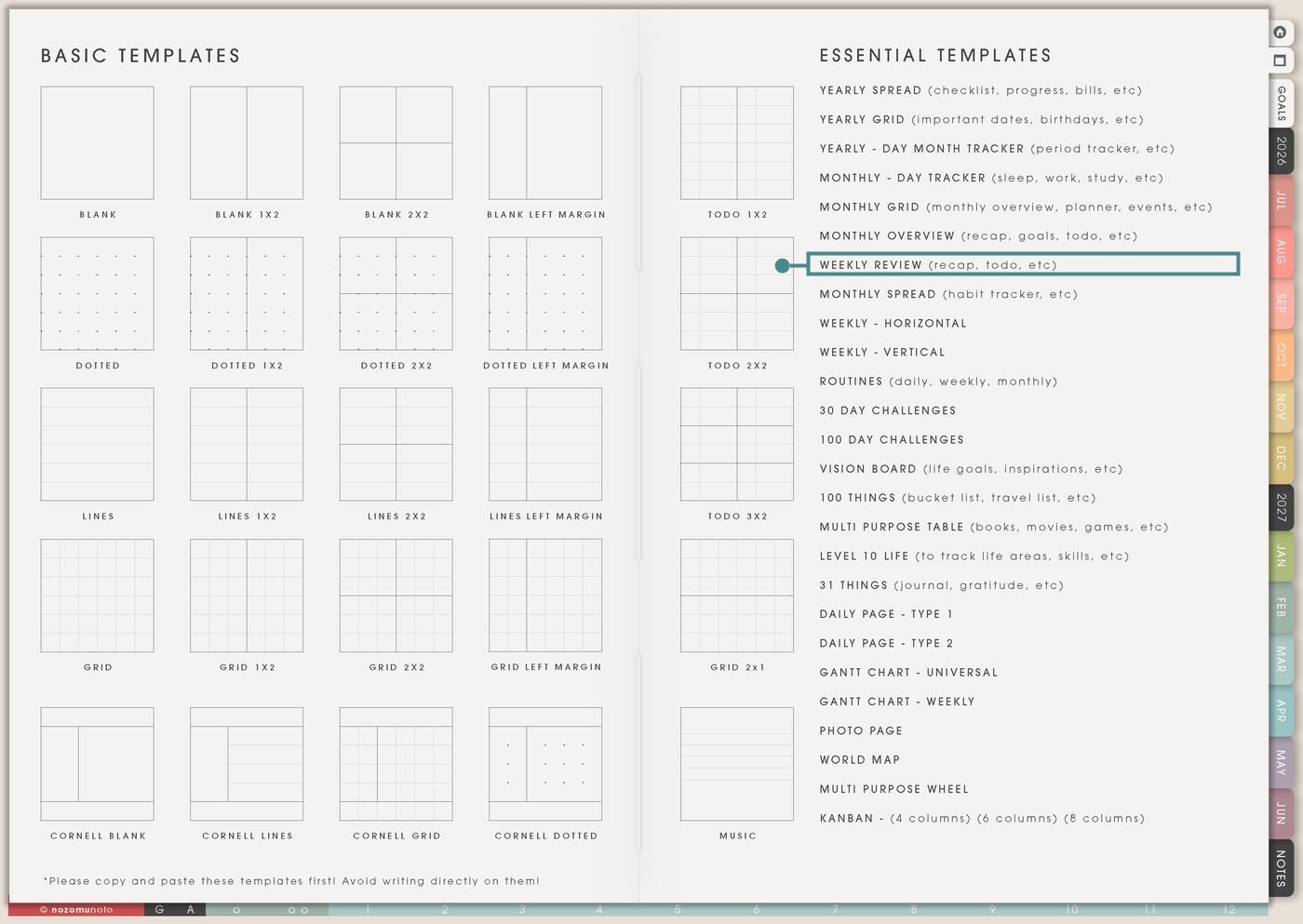
- Open the main Index page: use the planner Index if you need to return to the map.
- Tap the Template Pages icon: this opens the Template Index with reusable clean pages.
- Tap Weekly Review: it is under Monthly Overview in the Essential Templates list.
- Copy the page before writing: this is a clean template master. Duplicate it first, then write on the copy.
Before you write: copy the clean Weekly Review first
Weekly Review is a template page. Keep the original clean, then make one copy for the week you are reviewing.
- Open Weekly Review from Template Index.
- Duplicate or copy the page in your app. Use the page overview, thumbnail view, page manager, or page actions menu.
- Name the copy by week. Examples: Week 32 Review, June Week 2 Reset, Exam Week Review, or Launch Week Review.
- Review before planning next week. This page works best before you fill the next weekly page.
- Keep it short enough to finish. A ten-minute review that actually happens is better than a beautiful review you avoid.
Related Tips: Template Index ideas shows where the clean Weekly Review lives, Monthly Overview ideas helps review a bigger time period, Weekly page setup helps turn the review into next-week action, and Routine page ideas for ADHD and low-energy days helps when the review shows a repeated rhythm issue.
Ways to use this page
1. Weekly reset after a normal busy week
Use the page to collect what happened, what helped, and what needs to move forward. Start with wins so the review does not become only a complaint list.
2. Carry forward tasks without copying the whole week
The Weekly Review page helps you decide which unfinished tasks deserve a new home. Some tasks still matter. Some expired. Some need to become smaller.
3. ADHD-friendly recovery after missed days
If the planner disappeared for a few days, use Weekly Review as the return point. Skip backfilling every missed day and find today plus next week instead.
4. School or study weekly review
Use the page to review classes, assignments, reading, study blocks, exam prep, and what study method actually worked. This makes next week more realistic.
5. Work, shop, or client week review
Use Weekly Review for work weeks that include open loops: messages, orders, projects, launches, meetings, invoices, help questions, or content tasks.
6. Home and family weekly reset
Use the page for household rhythms: meals, school forms, appointments, laundry, groceries, family plans, cleaning loops, and energy. It can show what needs a better system instead of more effort.
7. Health, energy, and capacity review
Use the page to review sleep, symptoms, movement, food, rest, medication, appointments, mood, or energy. Keep the review short and practical.
8. Creative project or content review
Use Weekly Review to look at creative work without turning it into pressure. Notice what moved, what got stuck, what needs input, and what should be smaller next week.
9. Relationship, social, or people review
Use the flexible boxes for people-related notes: messages to send, follow-ups, birthdays, family needs, help you received, or help you need to ask for.
10. Memory keeping and proof that the week happened
Weekly Review can hold small memories and proof of progress, especially in weeks that felt like a blur. The wins box is not only for productivity.
What I usually use it for and how I use it
Tips for using this template
- Move forward only tasks with a real next action. Sort unfinished tasks into do, shrink, schedule, save for later, or delete. The new week does not need every old task.
- Write small wins on purpose. A win can be returning, resting, asking, finishing, trying, noticing, or making the week a little less hard.
- Choose three main goals for next week. Make each one visible on the next Weekly page. If a goal has no place to land, it is not ready to be a weekly goal yet.
- Describe friction instead of blaming yourself. Write “too many errands after work,” “task was fuzzy,” “no reminder,” or “started too late.” Friction can be redesigned.
- Label the flexible boxes before writing. Useful labels are Work, School, Home, Health, Money, Family, Waiting, Lessons, Questions, or Next Week.
- Review earlier or smaller. Friday afternoon, Saturday morning, or a ten-minute Monday reset can still work. The review belongs where it can actually happen.
- Copy first, write second. Keep the clean Weekly Review as the reusable master. Write on a copy so next week starts clean.
Keep weekly review details safe
Weekly Review can include customer messages, client work, invoices, school notes, health details, family plans, money tasks, personal challenges, private memories, and people-related follow-ups. Keep passwords, account numbers, private addresses, medical records, financial documents, full client details, school files, and sensitive family information in a secure place outside the planner. In Yume Techo, use safe labels like client reply, invoice, school form, health cue, family plan, money check, private note elsewhere, or next action.
Tips for using this page
- Choose the one part of this page that helps the current week instead of trying to fill everything at once.
- Move one small next action to Weekly or Daily so the page changes what happens next.
- Keep the page easy to return to by linking it from Index, favorites, bookmarks, or the related planner section.
Final thought
Weekly Review is useful because it lets the planner recover with you. Copy the clean template, notice a few wins, name the real challenges, move forward only what still matters, and choose a next week that fits the life you actually have. I hope this page helps every reset feel possible, even when the reset is small!
Need exact app steps for copying pages?
If you need the exact buttons for duplicating, moving, or bookmarking this template in your app, use the Help Center app guide for your device.