

Use these steps to work with NozomuNoto PDF planners, notebooks, stickers, covers, and template pages in Noteshelf. The official links below are for downloads, updates, and current help pages.
Reference links
Use these for current app or device help, downloads, updates, official guides, and manual references.
Before changing your cover
Save a clean backup of your planner or notebook first. Then check the cover file type and choose the Noteshelf method that matches it.
- PDF cover: use this when you want to insert or replace a full planner page.
- PNG or JPG cover: use this when you want to place the cover as an image on an existing page.
- Noteshelf cover file: use this only when the product clearly includes a Noteshelf-ready cover file.
- Decide whether you want to replace the first page or insert a new cover page.
- After the cover change, open the planner and test the Index or one main link.
Keep your original file saved outside Noteshelf so you can start again with a clean copy.
Change the visible cover in Noteshelf
- Save the original NozomuNoto download outside Noteshelf as your clean backup.
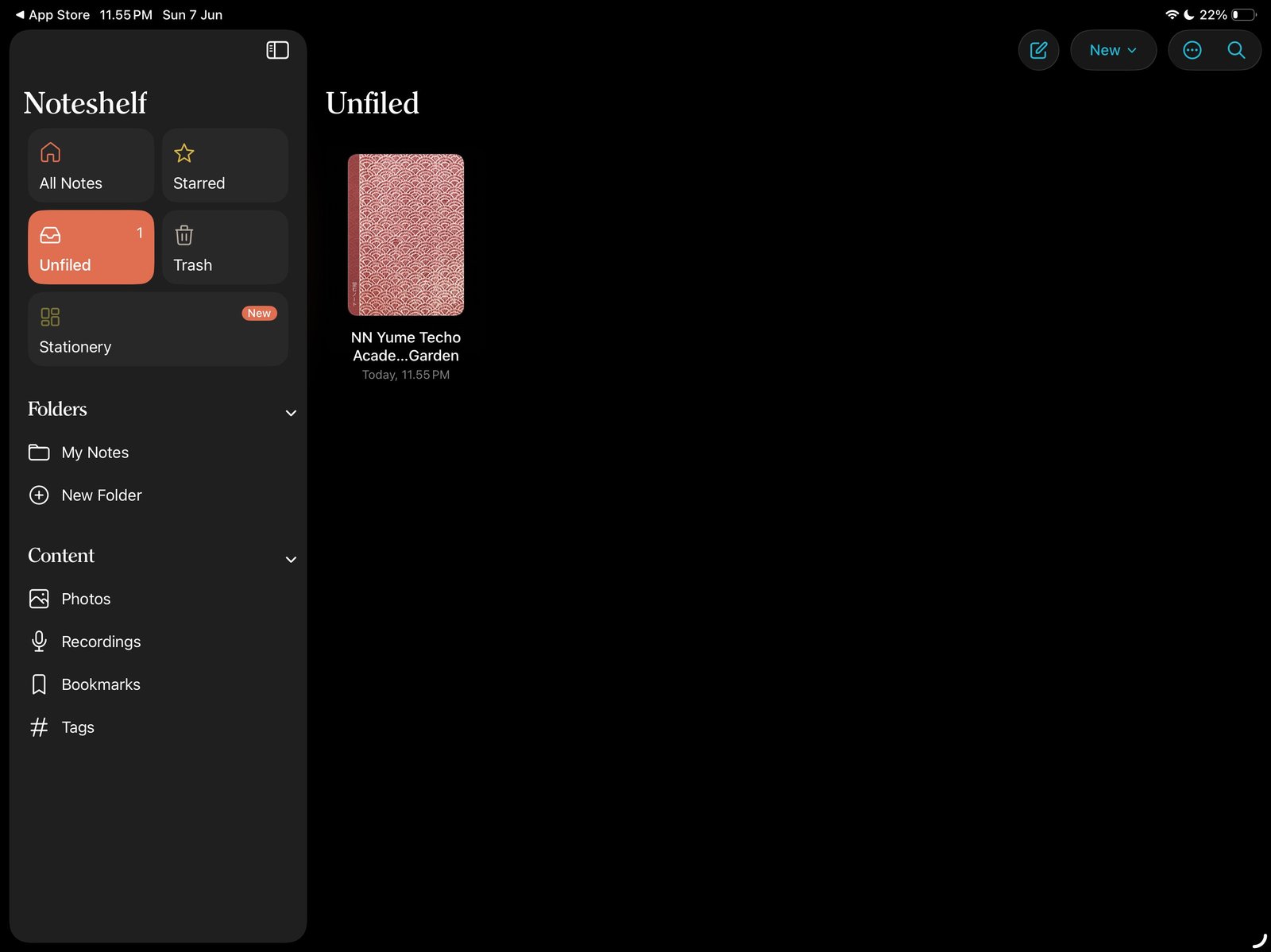
Planner thumbnailNoteshelf All Notes shows the planner thumbnail after import. Product shown: Yume Techo Academic 26-27 Landscape. - Check whether your cover is a PDF, a PNG or JPG image, or a Noteshelf-ready cover file.
- For a PDF cover, open the planner, use the Finder or page-thumbnail menu, then insert, copy, or move the cover page to the front.
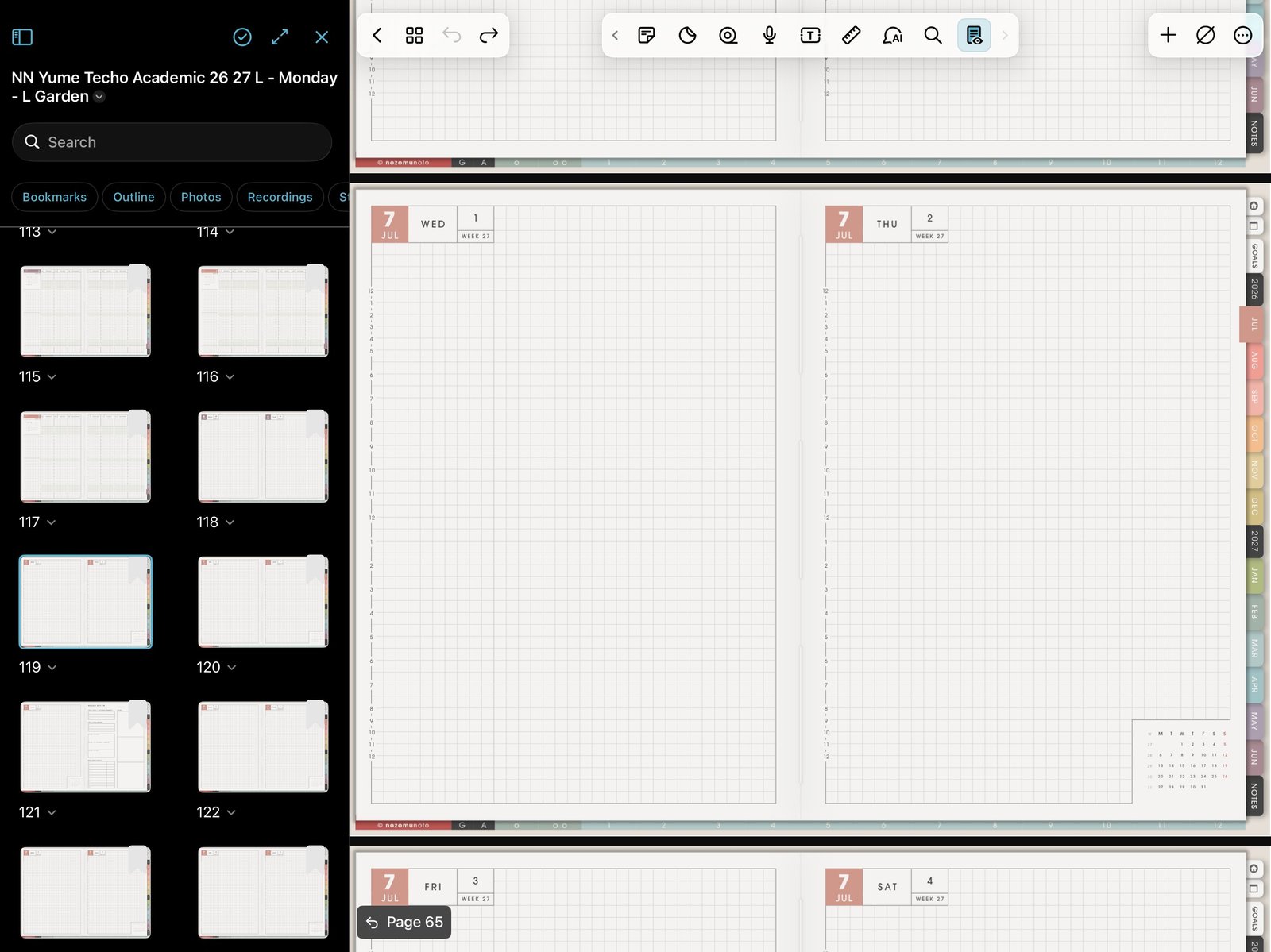
Pages for cover checksUse Pages or Finder to check the first page before changing covers. Product shown: Yume Techo Academic 26-27 Landscape. - For a PNG or JPG cover, open the first page or a blank cover page, tap the Add menu, choose Photo or image import, place the cover, then resize it carefully.
- Open the planner again and test the Index or one main tab before editing more pages.
Cover file choices
1. PDF cover page
Use a PDF cover when you want the cover to behave like a full planner page. Put it at the front with Noteshelf Finder or page-thumbnail tools when you want it to become the visible first page.
2. PNG or JPG cover image
Use a PNG or JPG cover when you want to place the cover as an image on an existing page. Noteshelf image tools can place, resize, crop, or edit the image on the page.
3. Noteshelf-ready cover file
Use a Noteshelf-ready cover file only when your NozomuNoto product clearly includes one for Noteshelf.
Replace first page or insert new cover page
If you only want the planner thumbnail or first visible page to change, insert or move one cover page to the front and leave dated pages, Index pages, and template source pages in their original order.
If the cover looks wrong
Use a cover made for the same planner orientation and product size. A landscape cover belongs with a landscape planner. A portrait cover belongs with a portrait planner. If the cover still looks squeezed, cropped, or off-center, return to a clean imported copy and try the matching cover file again.
If links feel strange after cover work
Open the Index, tap one main tab, and test one dated or template link. If the planner map feels confusing, go back to the clean backup and change only the cover page.