

Use these steps to work with NozomuNoto PDF planners, notebooks, stickers, covers, and template pages in Noteful. The official links below are for downloads, updates, and current help pages.
Reference links
Use these for current app or device help, downloads, updates, vendor support, and manual references.
- Noteful: Import a file as a new notebook
- Noteful: Import a file as part of a notebook
- Noteful: Insert a page in a notebook
- Noteful: Add and rename a bookmark in a notebook
- Noteful: Add, resize, style and crop an image
- Noteful: Export one or more pages of a notebook
- Noteful: Add a page at the beginning or the end of a notebook
- Noteful: Clear the content of a page of your notebook
Import the PDF into Noteful
- Save and extract the NozomuNoto download first so the PDF is visible outside the ZIP file.
- Open the Noteful library.
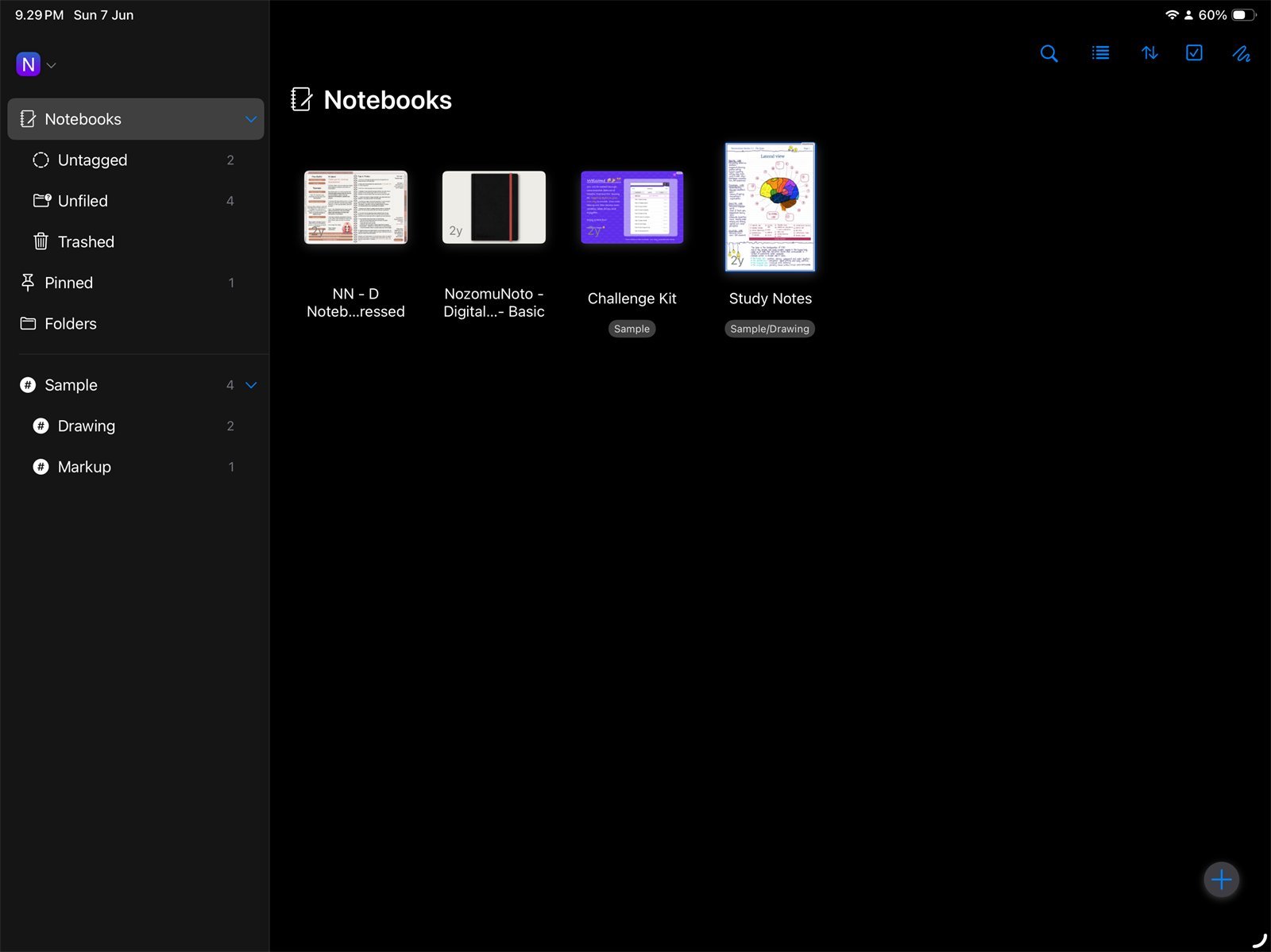
Noteful LibraryNoteful on iPad showing Yume Techo Academic 26-27 Landscape in the notebook library. - Tap the Add button in the bottom-right corner.
- Tap Import File and choose the NozomuNoto PDF.
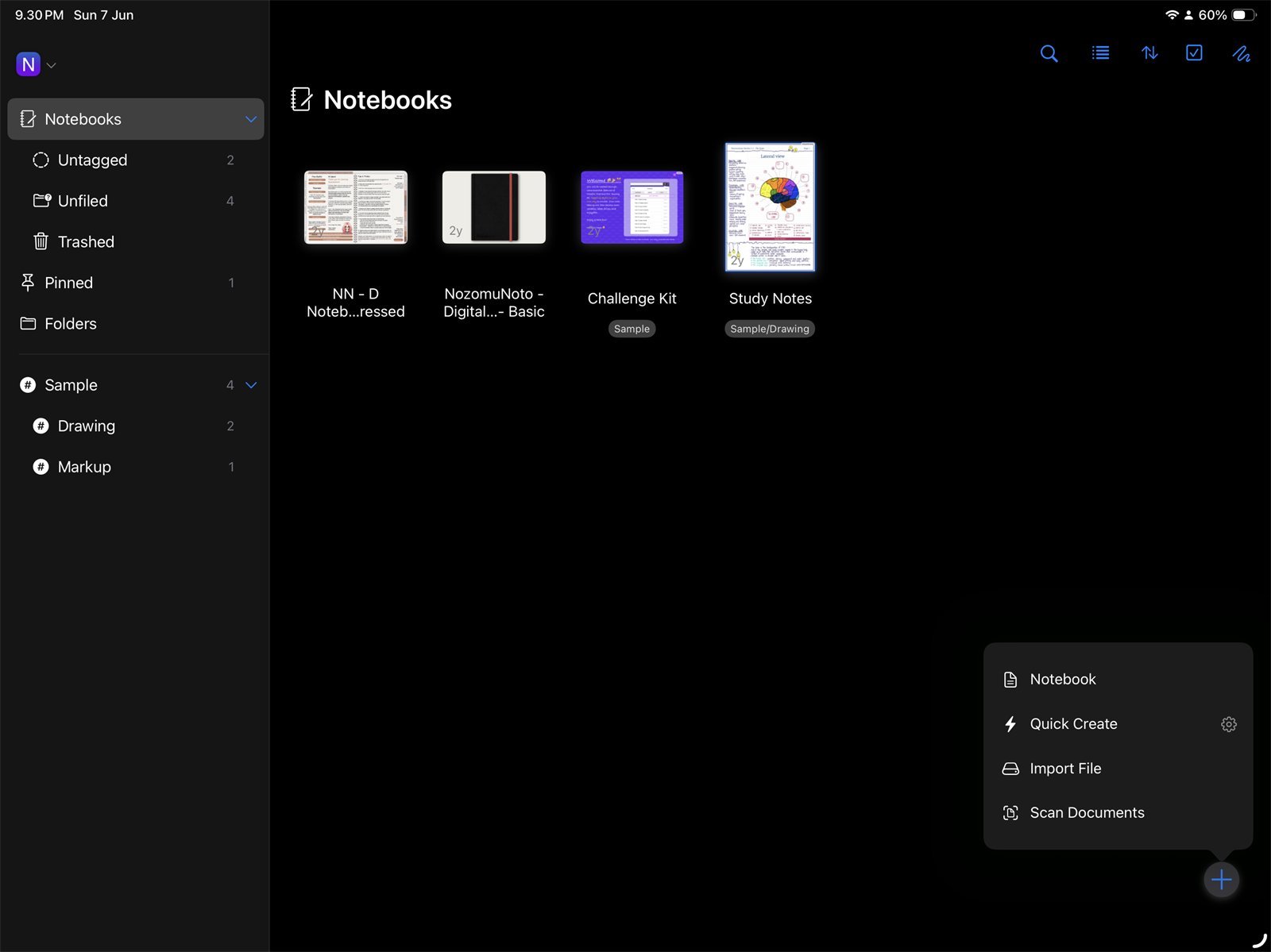
Import FileNoteful on iPad. Tap the Add button, then choose Import File for the NozomuNoto PDF. 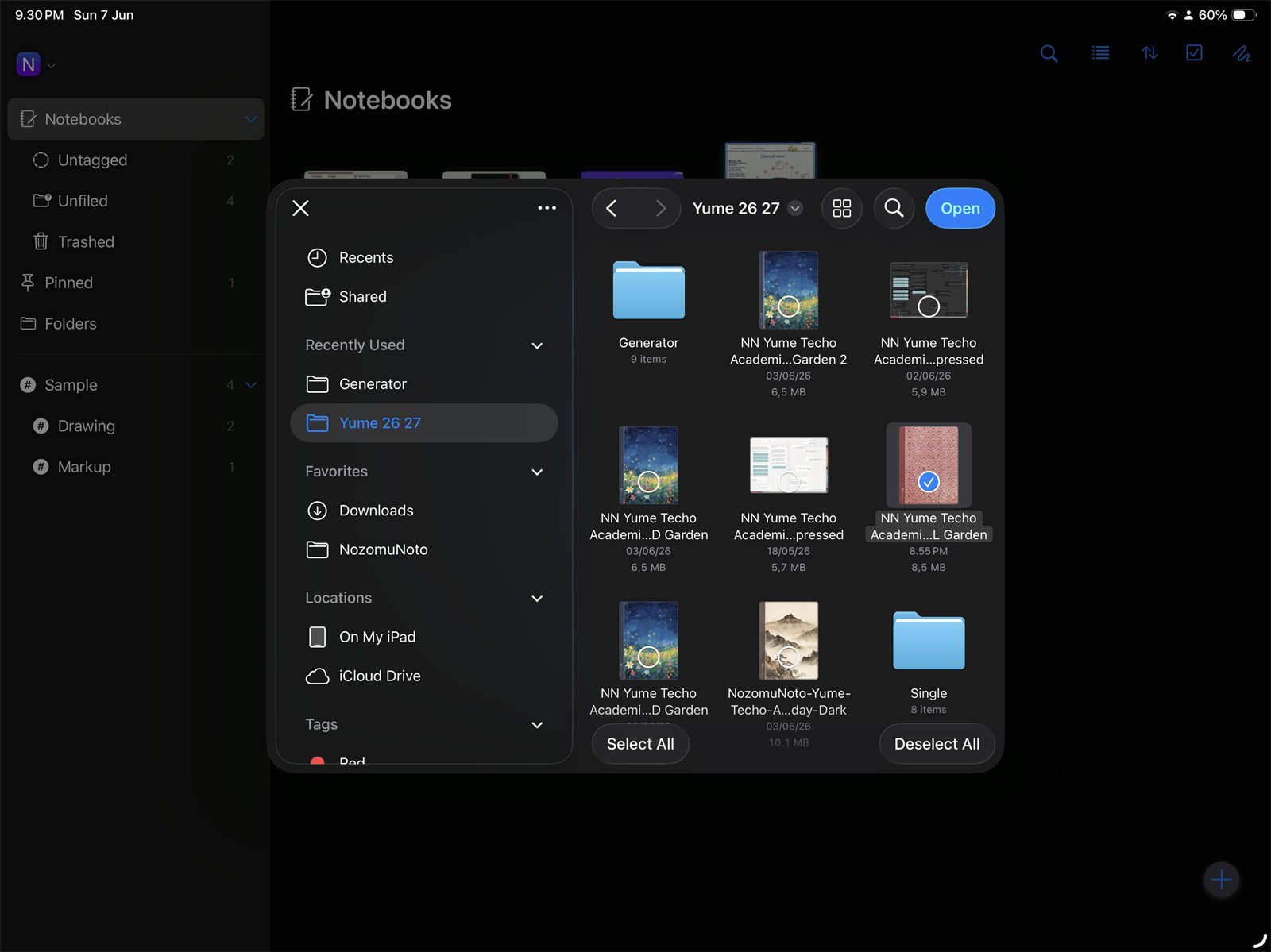
Choose the PDF fileNoteful file picker on iPad. Choose the Yume Techo Academic 26-27 Landscape PDF, not the ZIP file. - Tap Import in the top-right corner of the preview so the PDF is added as a new notebook.
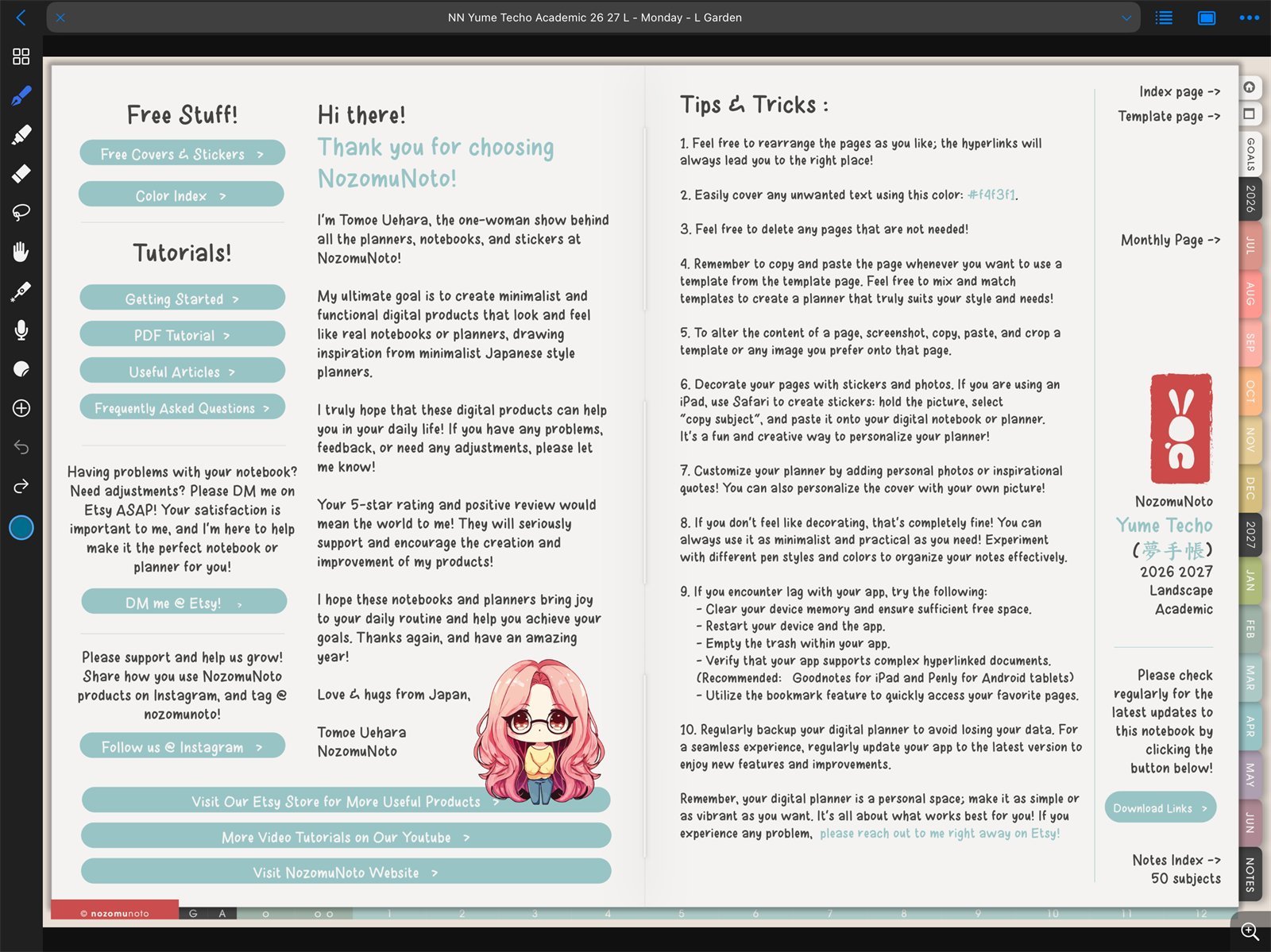
Imported planner openYume Techo Academic 26-27 Landscape open as a Noteful notebook after import.
Notes
- Best import choice: For the first setup, import the NozomuNoto planner as a new Noteful notebook. It is easier to find, rename, back up, and troubleshoot than a PDF inserted into another notebook.
Import into an existing notebook
If you really need to insert the PDF into another notebook, open that notebook, tap Grid view, tap the page after which the PDF should be inserted, tap Insert + in the top toolbar, tap Import File, then tap Import.
If import gets confusing
1. You imported the ZIP
What happens: Noteful cannot open the product properly, or you cannot find the planner pages.
What to do: extract the ZIP first and import the PDF file only.
2. The planner is inside the wrong notebook
What happens: the planner pages are mixed with other notes, so page management becomes messy.
What to do: re-import the PDF as a new notebook and keep that copy as the main planner.
3. You have many duplicate imports
What happens: the Library shows several similar NozomuNoto files.
What to do: keep one working copy, keep the original PDF outside Noteful, and delete test copies only after the working copy opens correctly.
- If the planner imports more than once or the wrong file opens, keep the newest clean copy and remove test copies only after the working copy opens correctly.