

Use these steps to work with NozomuNoto PDF planners, notebooks, stickers, covers, and template pages in Noteful. The official links below are for downloads, updates, and current help pages.
Reference links
Use these for current app or device help, downloads, updates, vendor support, and manual references.
- Noteful: Import a file as a new notebook
- Noteful: Import a file as part of a notebook
- Noteful: Insert a page in a notebook
- Noteful: Add and rename a bookmark in a notebook
- Noteful: Add, resize, style and crop an image
- Noteful: Export one or more pages of a notebook
- Noteful: Add a page at the beginning or the end of a notebook
- Noteful: Clear the content of a page of your notebook
Tap planner links in Noteful
- Open the imported NozomuNoto PDF notebook.
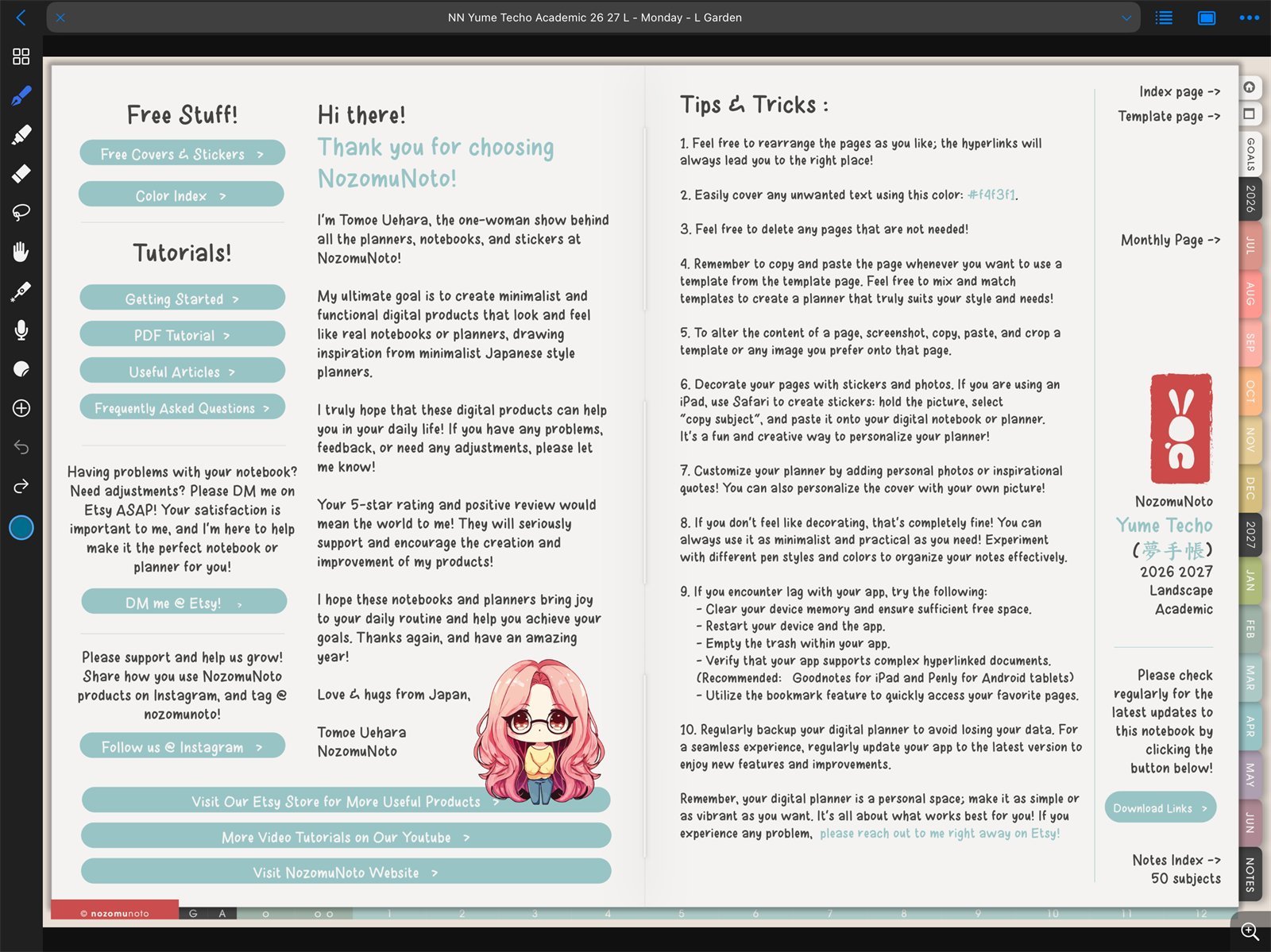
Planner open in NotefulYume Techo Academic 26-27 Landscape open in Noteful on iPad. - Use Noteful navigation mode, shown with the hand icon, when you want to move through planner links instead of writing.
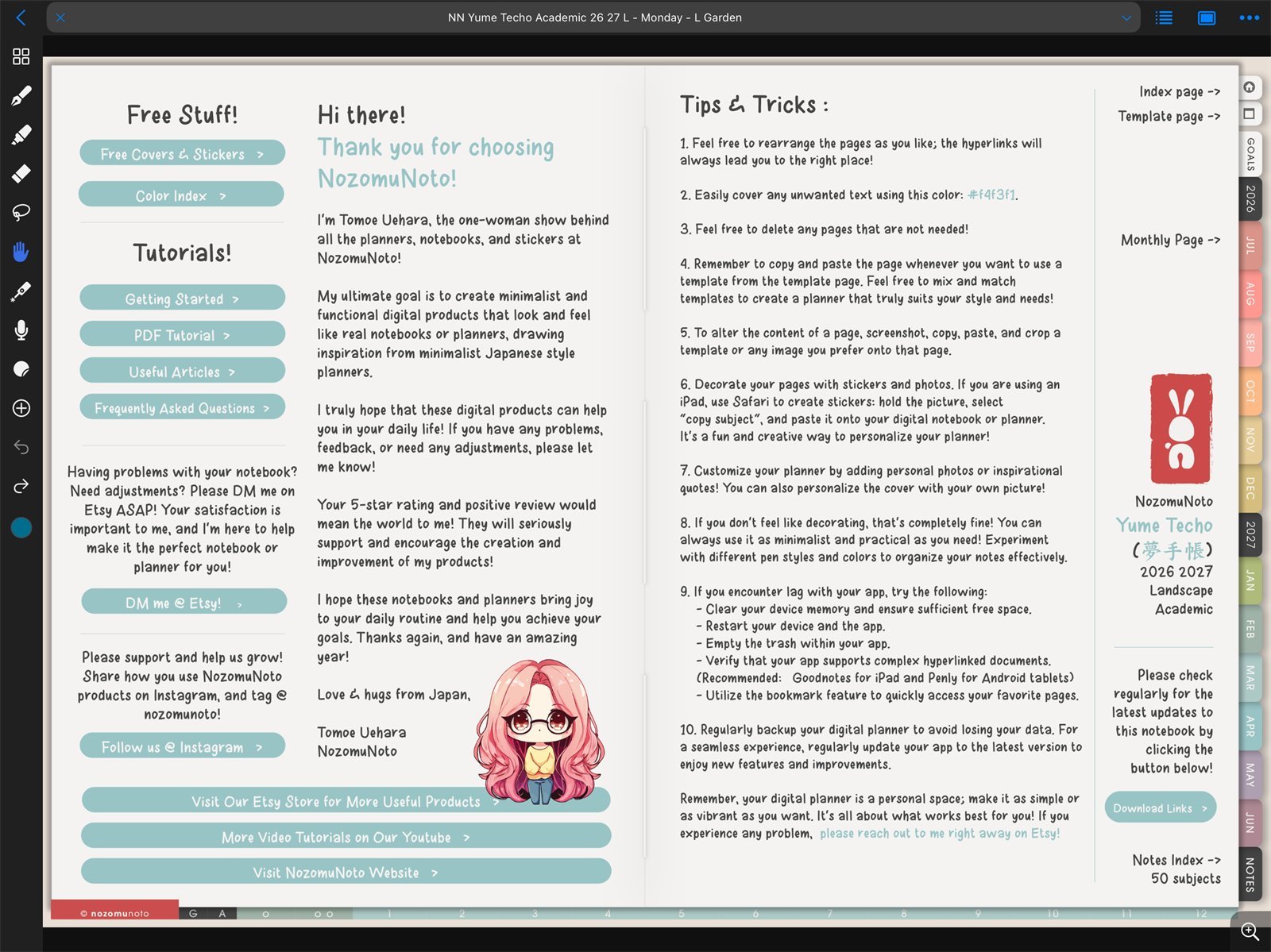
Hand tool for navigationNoteful navigation mode on iPad. Use the hand tool when you want tabs and Index links to move. - Tap a planner tab, index item, month, week, date, or linked button.
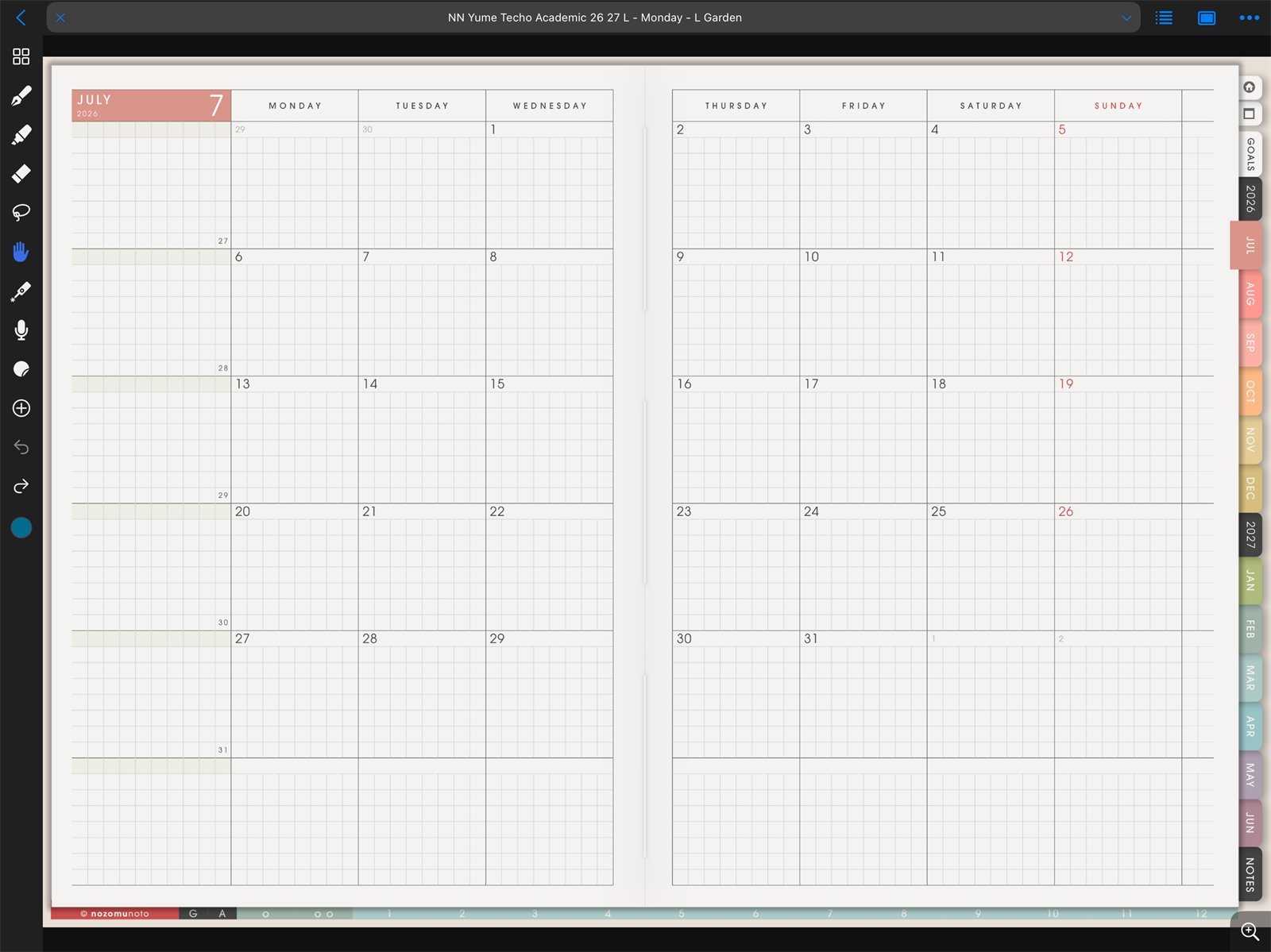
Tap a linked planner itemUse Noteful navigation mode before tapping a Yume Techo tab, Index item, month, week, or date link. 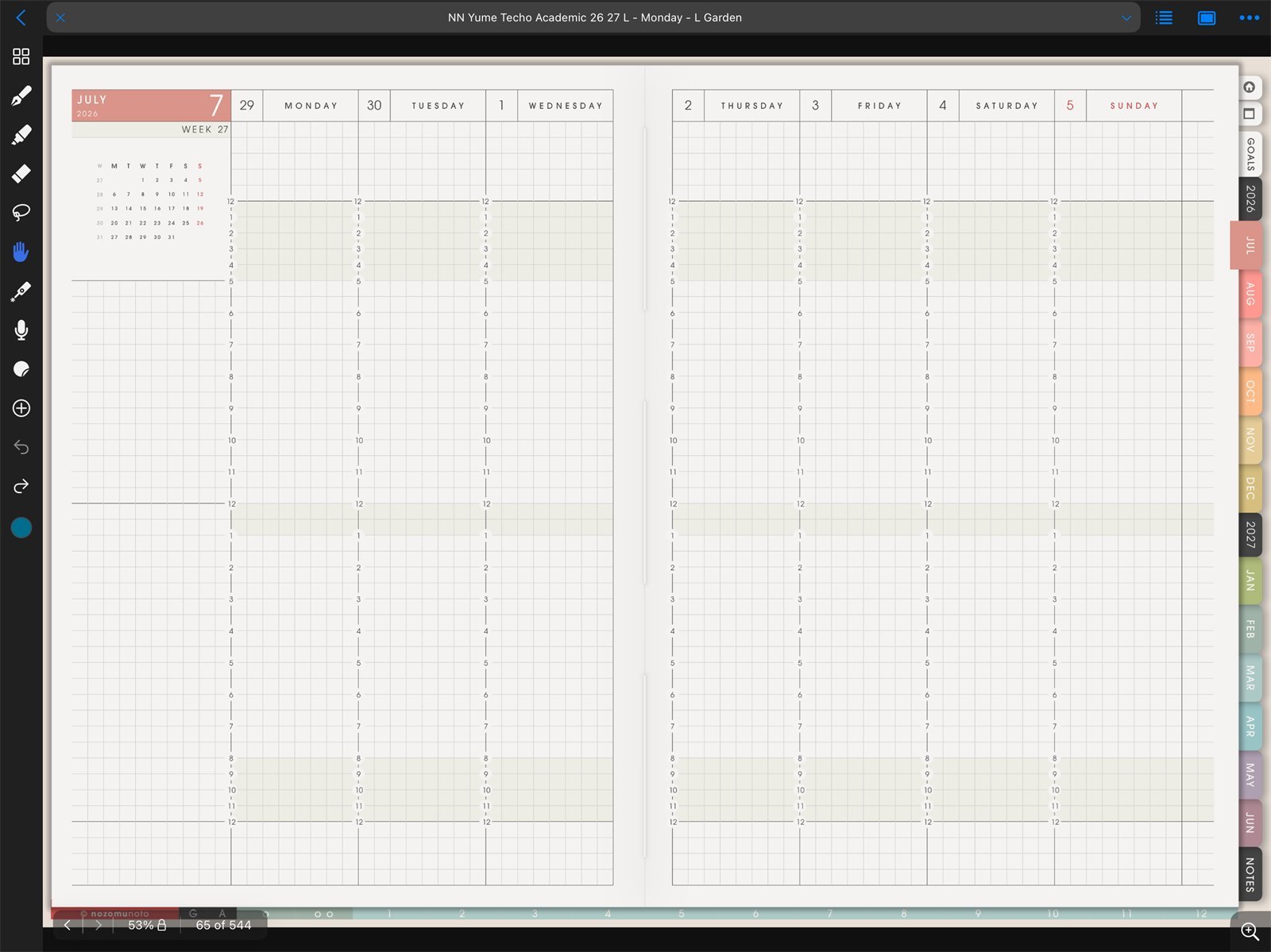
Weekly page destinationYume Techo Academic 26-27 Landscape after a link opens the weekly planner page in Noteful. 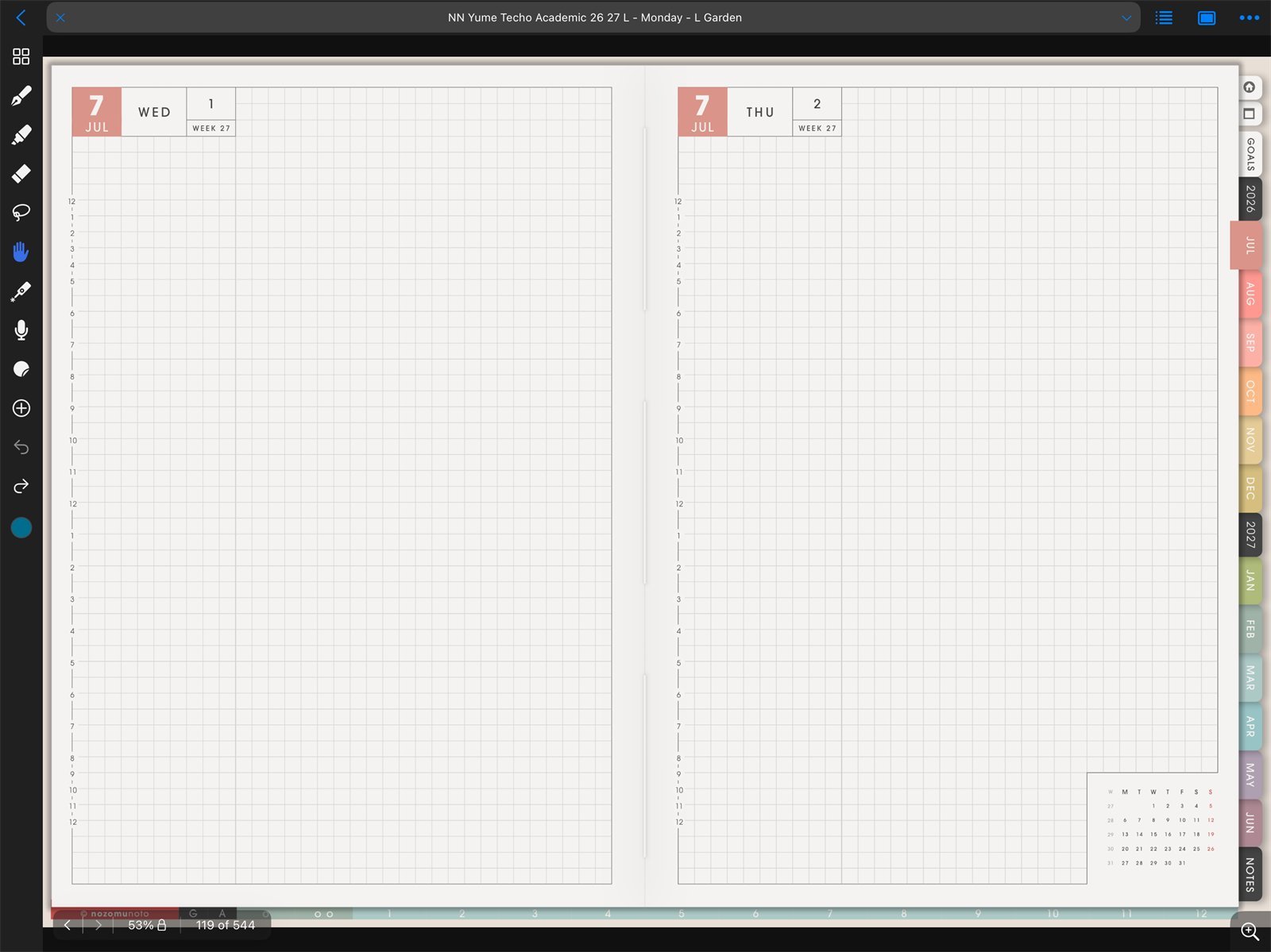
Linked page destinationNoteful after using a Yume Techo Academic 26-27 Landscape planner link. - Switch back to the pen, highlighter, text, image, or other writing tools when you want to write again.
- If the tap writes, selects, or does nothing, test the same link in Apple Files to confirm the planner links are present.
- If the original links work in Apple Files, re-import a clean copy into Noteful before editing more pages.
Notes
- Quick link test: Before decorating the planner, test one side tab, one Index item, one month, and one dated page link. This tells you that Noteful is reading the PDF links correctly.
If links do not move
1. The wrong tool is active
What happens: tapping a tab creates ink, selects an object, or opens editing controls.
What to do: choose the hand/navigation tool, then tap the link again.
2. The working copy was edited heavily
What happens: links worked before, then became hard to use after page changes.
What to do: test a fresh import of the original PDF. If the fresh copy works, keep page movement smaller.
3. The app is not the problem
What happens: the same link fails in Apple Files too.
What to do: contact NozomuNoto with the product name, page, link you tapped, device, iPadOS version, and Noteful version.
- If planner links still fail, test the same original PDF in another PDF viewer before changing pages or exporting.