

Use these steps to work with NozomuNoto PDF planners, notebooks, stickers, covers, and template pages in Noteful. The official links below are for downloads, updates, and current help pages.
Reference links
Use these for current app or device help, downloads, updates, vendor support, and manual references.
- Noteful: Import a file as a new notebook
- Noteful: Import a file as part of a notebook
- Noteful: Insert a page in a notebook
- Noteful: Add and rename a bookmark in a notebook
- Noteful: Add, resize, style and crop an image
- Noteful: Export one or more pages of a notebook
- Noteful: Add a page at the beginning or the end of a notebook
- Noteful: Clear the content of a page of your notebook
Save useful pages in Noteful
- Open the page you want to find quickly later.
- Tap the List Format button in the top-right corner.
- Tap Bookmarks, then tap Add.
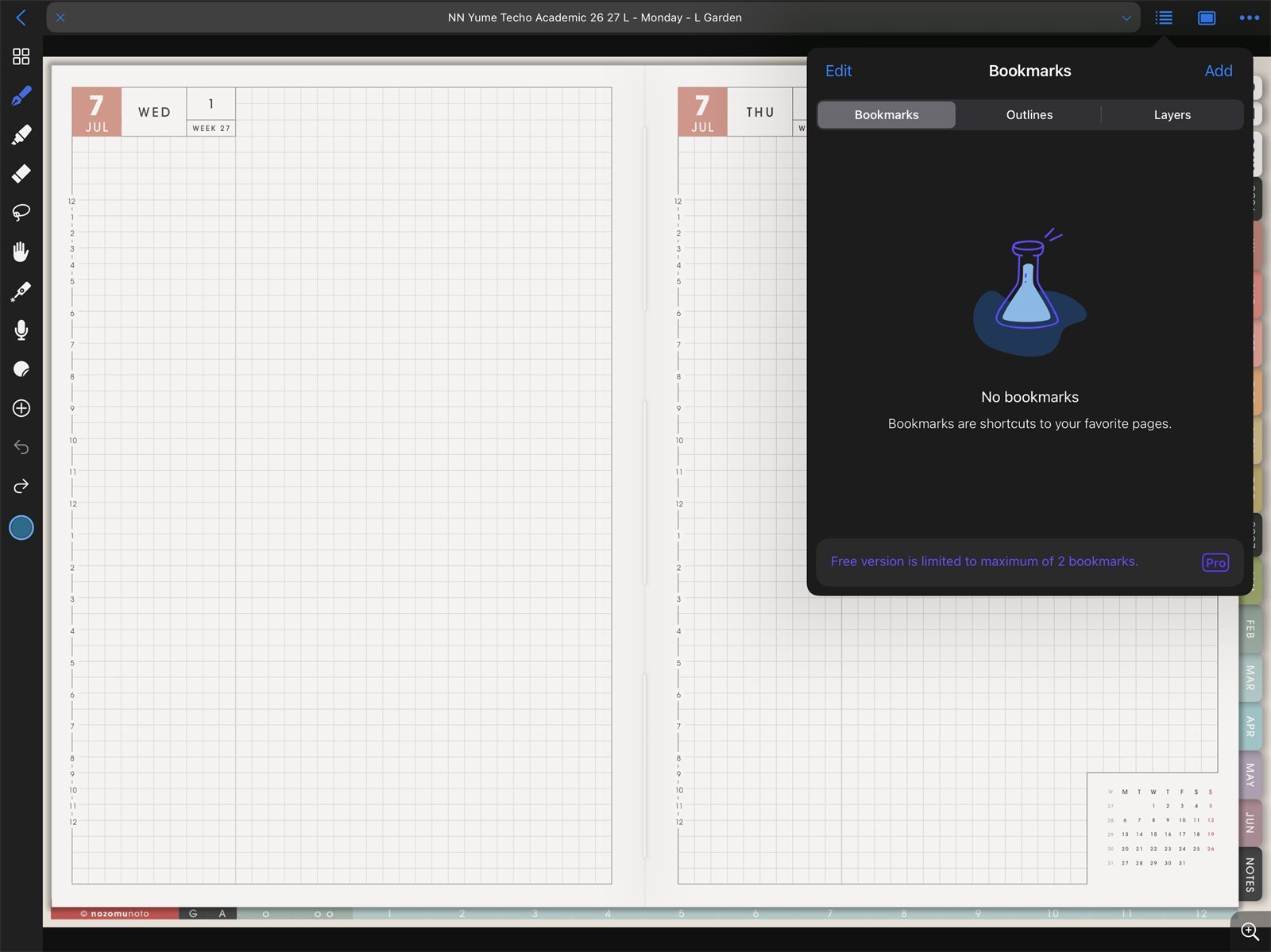
Bookmarks panelNoteful Bookmarks panel on iPad before adding a shortcut page. - Use More Options beside the bookmark if you want to rename it.
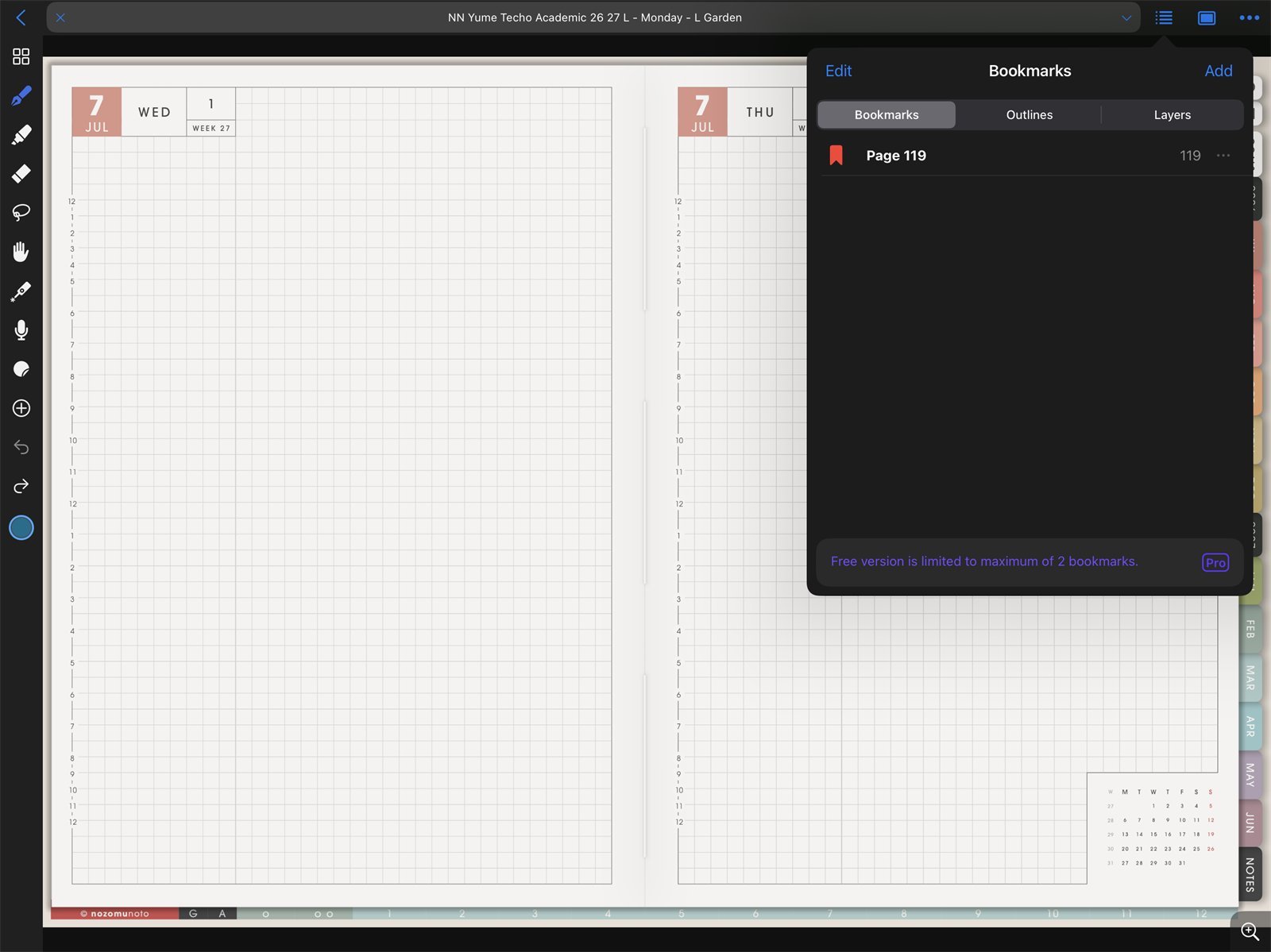
Saved bookmarkNoteful Bookmarks panel showing a saved bookmark for a Yume Techo page. - Use a clear title, such as Index, Current Month, Weekly Plan, Budget, or Class Schedule.
- Use Bookmarks to return to that page later.
Notes
- Bookmark only the pages that work like shortcuts: Bookmarks are most helpful when the list stays short. If the free version shows a bookmark limit, choose the pages that reduce the most daily friction.
Good bookmark choices
- Index. Best if you want one master jump point.
- Current weekly page. Best if the week is your command center.
- Current monthly page. Best if appointments and deadlines matter most.
- One active project, class, or routine page. Best if you keep returning to the same copied page.
If Bookmarks become messy
Delete old temporary bookmarks and keep the list practical. A bookmark list with five important pages is more useful than a bookmark list full of pages you liked once.
- If bookmarks become crowded, keep only Index, current month, current week, and pages you reopen often.