

Use these steps to work with NozomuNoto PDF planners, notebooks, stickers, covers, and template pages in Noteful. The official links below are for downloads, updates, and current help pages.
Reference links
Use these for current app or device help, downloads, updates, vendor support, and manual references.
- Noteful: Import a file as a new notebook
- Noteful: Import a file as part of a notebook
- Noteful: Insert a page in a notebook
- Noteful: Add and rename a bookmark in a notebook
- Noteful: Add, resize, style and crop an image
- Noteful: Export one or more pages of a notebook
- Noteful: Add a page at the beginning or the end of a notebook
- Noteful: Clear the content of a page of your notebook
Change the visible cover in Noteful
- Open the NozomuNoto cover file or cover section.
- Import, insert, or copy the cover page into the planner notebook.
- Tap Grid view.
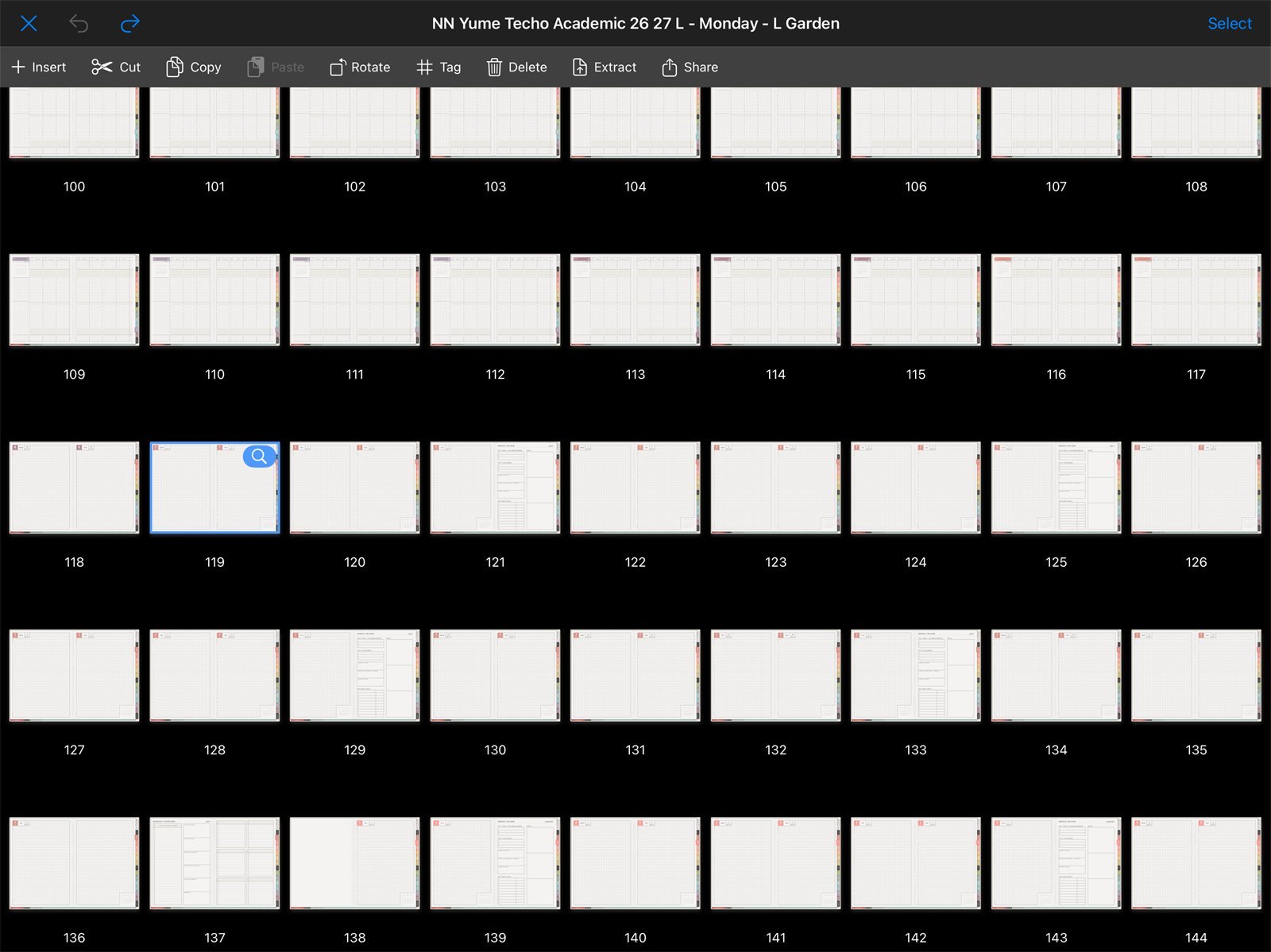
Move pages in Grid viewUse Noteful Grid view when moving a cover page toward the front of the notebook. - Drag the cover page to the first position in the notebook.
- Return to the library and check the notebook thumbnail before deleting the old cover page.
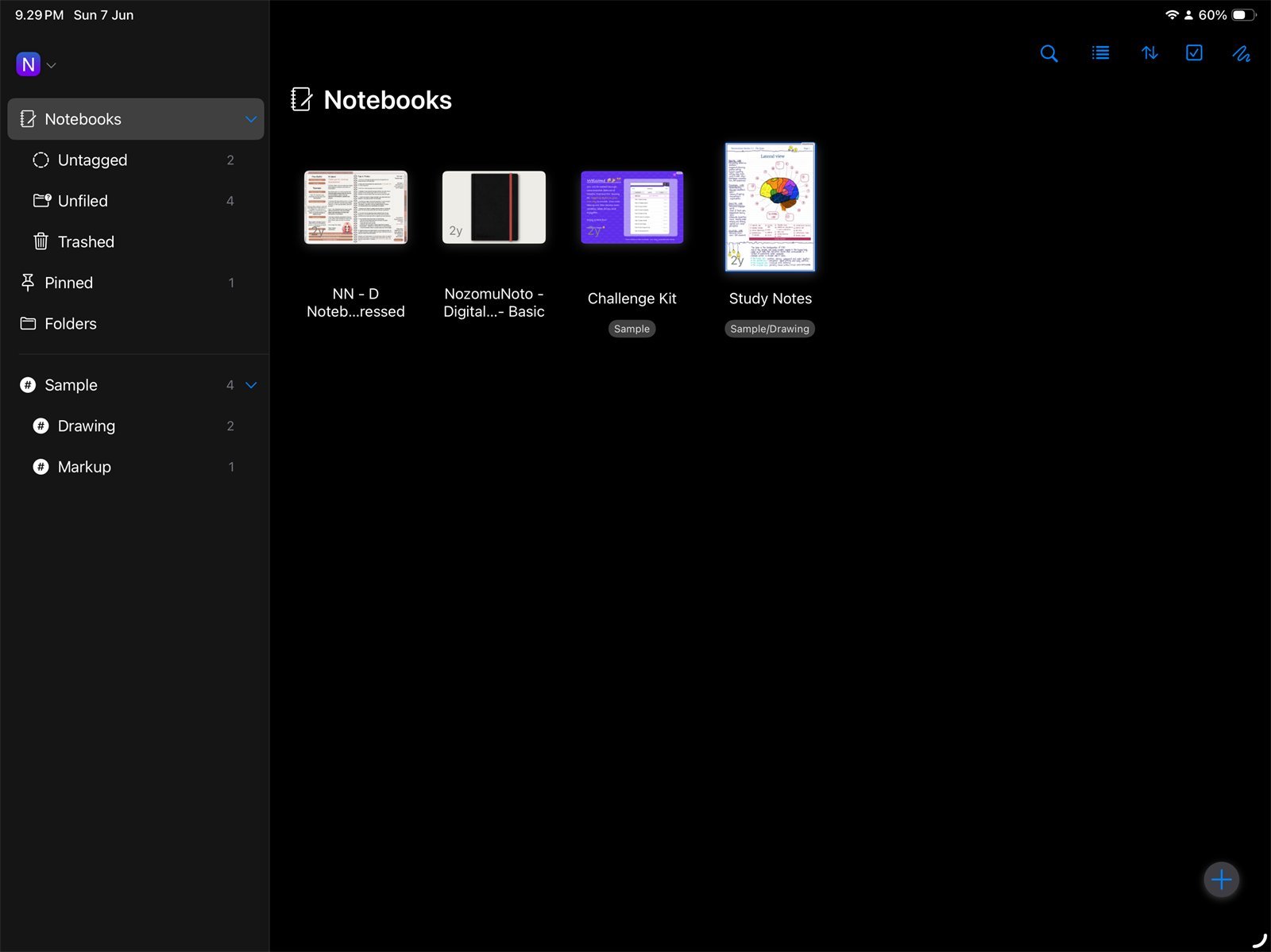
Visible notebook thumbnailNoteful Library thumbnail for Yume Techo Academic 26-27 Landscape. The visible first page affects how the notebook is recognized.
Notes
- Simple cover rule: Noteful usually shows the notebook using the visible first page or library thumbnail. For NozomuNoto planners, the safest cover change is to put the chosen cover page at the front without moving core planner pages around too much.
If the cover does not look right
1. Wrong orientation
What happens: a portrait cover looks cramped on a landscape planner, or a landscape cover looks cropped in a portrait planner.
What to do: use a cover made for the same orientation.
2. The planner structure gets messy
What happens: the first pages no longer feel clear after moving pages.
What to do: return to a clean imported copy and change only the cover page.
- If the cover looks wrong or the thumbnail does not update as expected, keep the original cover page and use a clear document name.