

Use these steps to work with NozomuNoto PDF planners, notebooks, stickers, covers, and template pages in Noteful. The official links below are for downloads, updates, and current help pages.
Reference links
Use these for current app or device help, downloads, updates, vendor support, and manual references.
- Noteful: Import a file as a new notebook
- Noteful: Import a file as part of a notebook
- Noteful: Insert a page in a notebook
- Noteful: Add and rename a bookmark in a notebook
- Noteful: Add, resize, style and crop an image
- Noteful: Export one or more pages of a notebook
- Noteful: Add a page at the beginning or the end of a notebook
- Noteful: Clear the content of a page of your notebook
Use stickers in Noteful
- Extract the sticker ZIP so the PNG files are visible in Files or Photos.
- Open the planner page in Noteful.
- Tap the Insert button, then choose Image for PNG stickers or sticker sheets.
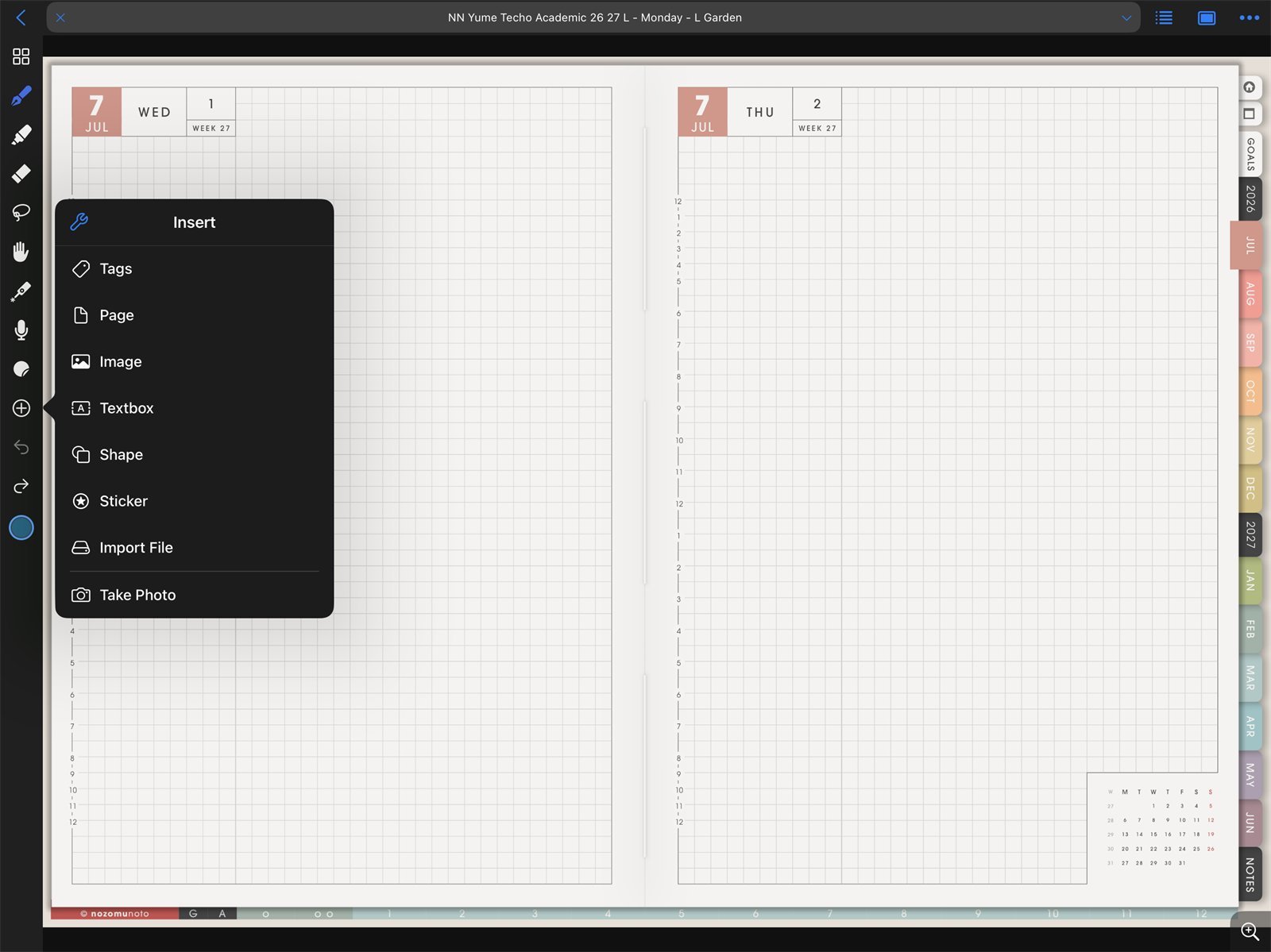
Insert imageNoteful Insert menu on iPad. Choose Image when placing NozomuNoto PNG stickers on Yume Techo Academic 26-27 Landscape. - Resize from the corner and keep the sticker close to its original size.
- Insert one sticker, close and reopen the notebook, then continue with the rest of the sticker pack.
Sticker checks
1. PNG stickers are images
NozomuNoto PNG stickers should be inserted as images. Keep the original PNG folder outside Noteful so you can reuse the stickers later.
2. Do not stretch tiny stickers too far
If a sticker looks blurry, delete it and insert the original PNG again. Keep it close to the intended size instead of enlarging it many times.
3. Test one before building a whole spread
Place one sticker, resize it, close and reopen the notebook, and check that it still looks clear. Then decorate the rest of the page.