

Use these steps to work with NozomuNoto PDF planners, notebooks, stickers, covers, and template pages in Noteful. The official links below are for downloads, updates, and current help pages.
Reference links
Use these for current app or device help, downloads, updates, vendor support, and manual references.
- Noteful: Import a file as a new notebook
- Noteful: Import a file as part of a notebook
- Noteful: Insert a page in a notebook
- Noteful: Add and rename a bookmark in a notebook
- Noteful: Add, resize, style and crop an image
- Noteful: Export one or more pages of a notebook
- Noteful: Add a page at the beginning or the end of a notebook
- Noteful: Clear the content of a page of your notebook
Noteful tips for a calmer NozomuNoto setup
- Use the hand/navigation tool when you want to move through planner links.
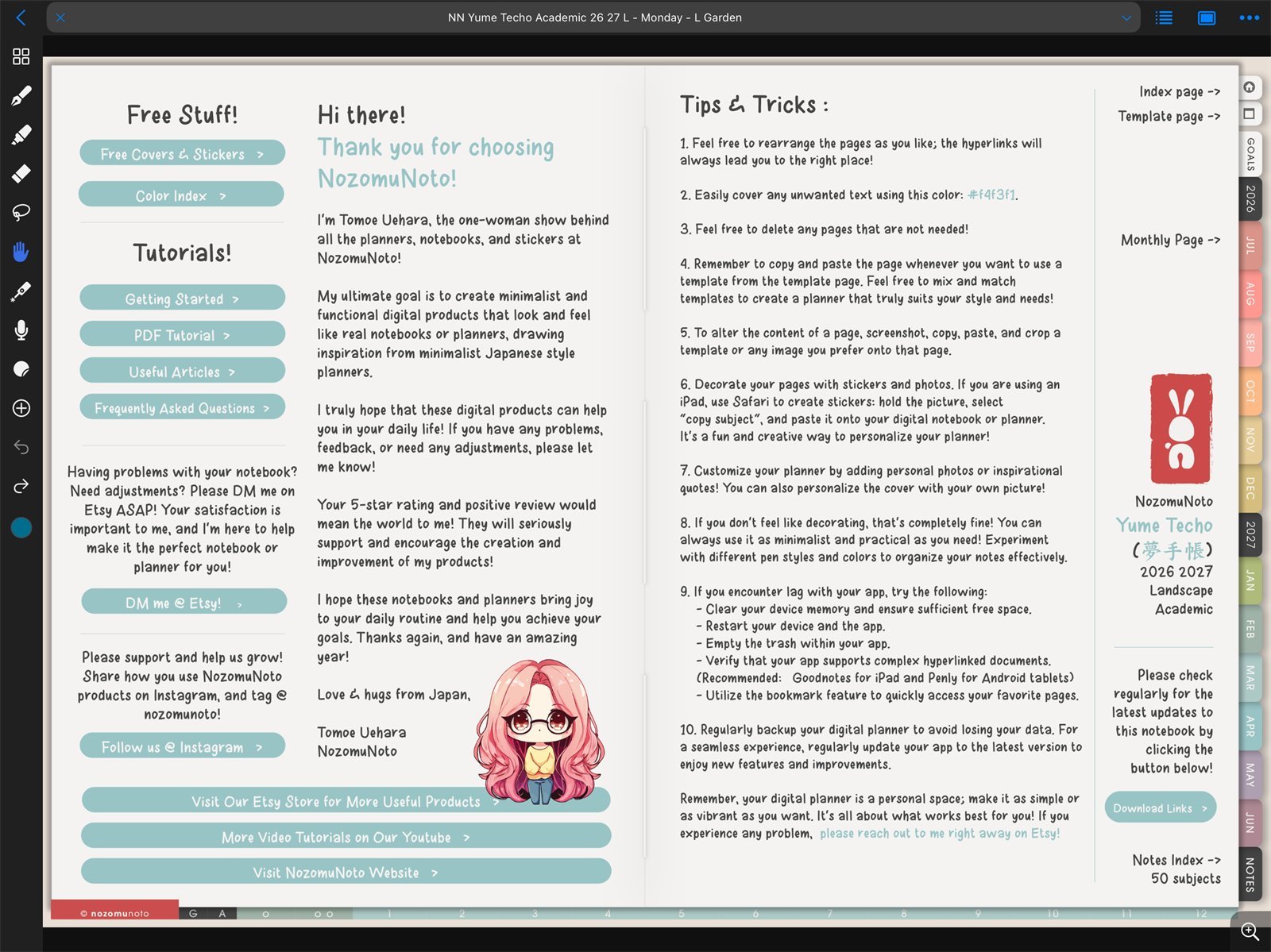
Use tools by jobNoteful toolbar on iPad. Use navigation mode for links and writing tools for handwriting. - Use writing tools only when you are ready to write, highlight, type, or place objects.
- Use Grid view for thumbnails, page actions, page export, page insert, and page order checks.
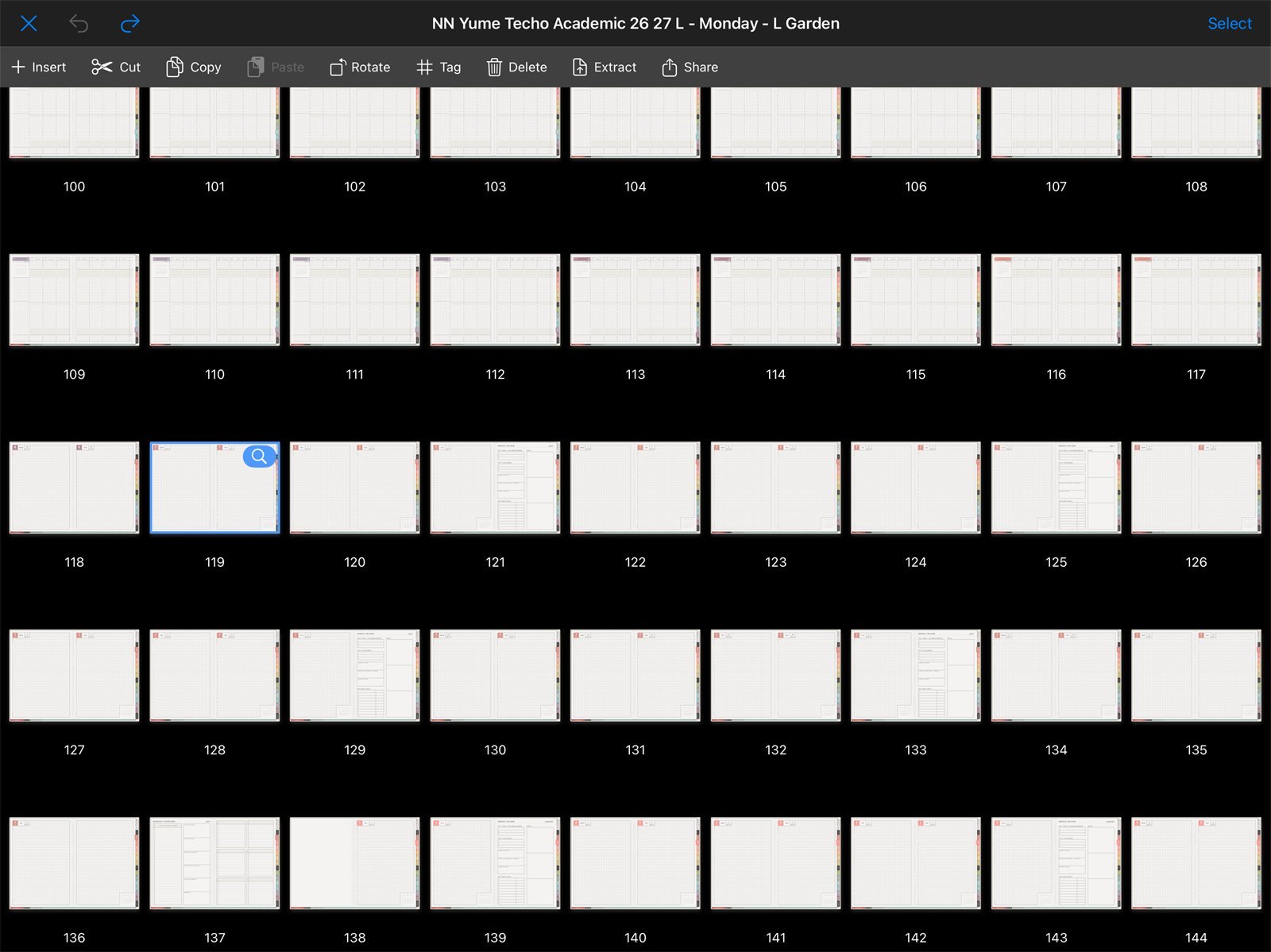
Use Grid view for structureNoteful Grid view is the clearest place to check page order, inserted pages, exported pages, and page actions. - Keep the original NozomuNoto PDF outside Noteful as your reset copy.
- Bookmark only pages you reopen often.
- Test import, links, Grid view, one bookmark, and one image before decorating the planner.
Notes
- Best Noteful workflow: Import one clean planner notebook, test hand-tool navigation, check Grid view, add one or two bookmarks, then insert stickers or extra pages after the structure works.
Use the right Help Center article
Use import help for file access, hyperlink help for navigation, page management help for Grid view, sticker help for PNG images, and known problems when something behaves differently than expected.
- If the app starts to feel heavy, return to import, links, page navigation, and one small test page first.