

Use these steps to work with NozomuNoto PDF planners, notebooks, stickers, covers, and template pages in Kilonotes. The official links below are for downloads, updates, and current help pages.
Reference links
Use these for current app or device help, downloads, updates, vendor support, and manual references.
Tap planner links in Kilonotes on iPad
- Open the imported NozomuNoto planner.
- Tap the hand / navigation tool on the top toolbar before using planner links.
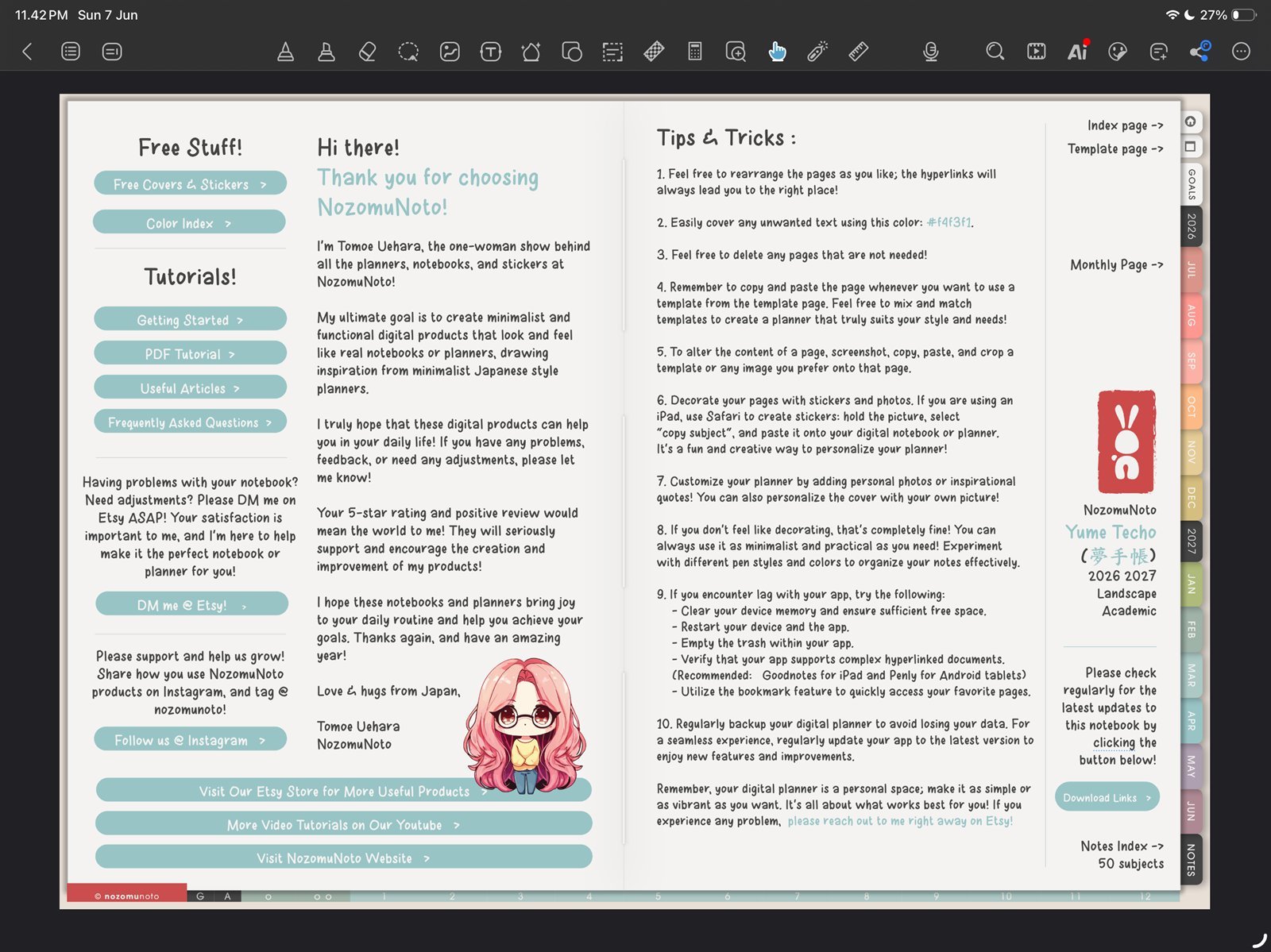
Hand / navigation toolTap the hand tool before using planner links. Product shown: Yume Techo Academic 26-27 Landscape. - Tap a planner tab, index item, month, week, or linked button.
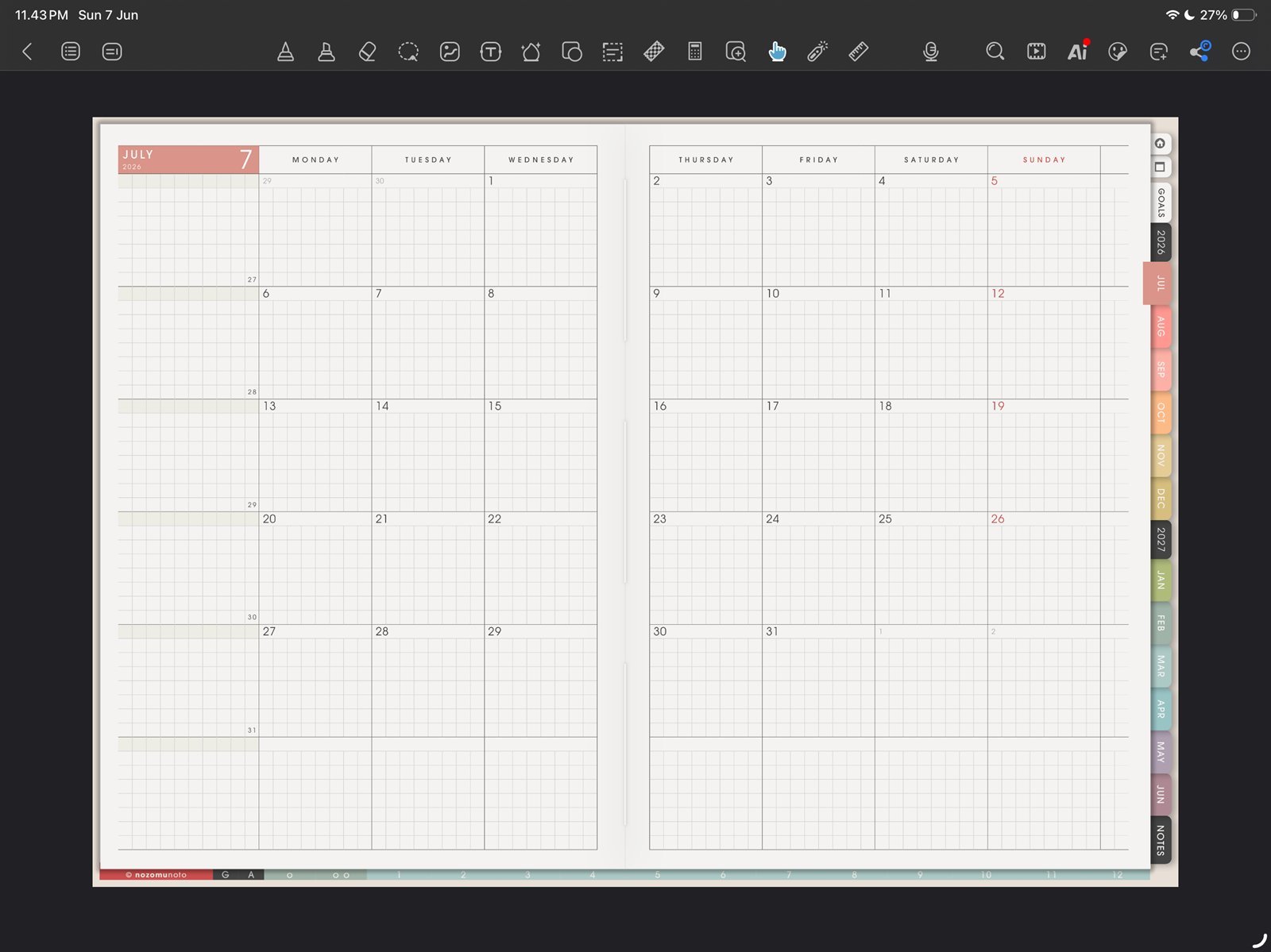
Monthly link testTest one monthly tab or link before writing heavily. Product shown: Yume Techo Academic 26-27 Landscape. 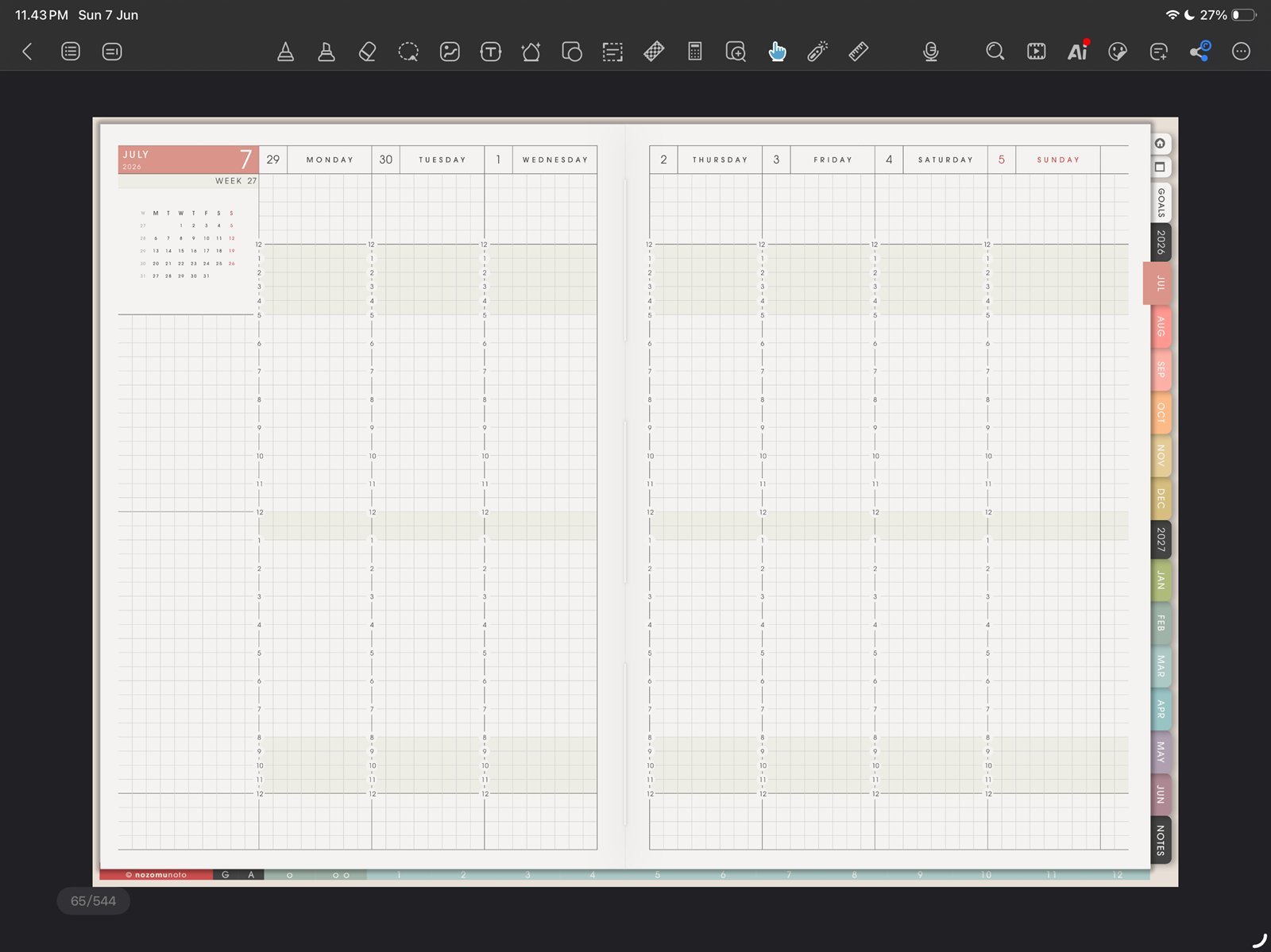
Weekly link testTest one weekly link after the month link works. Product shown: Yume Techo Academic 26-27 Landscape. 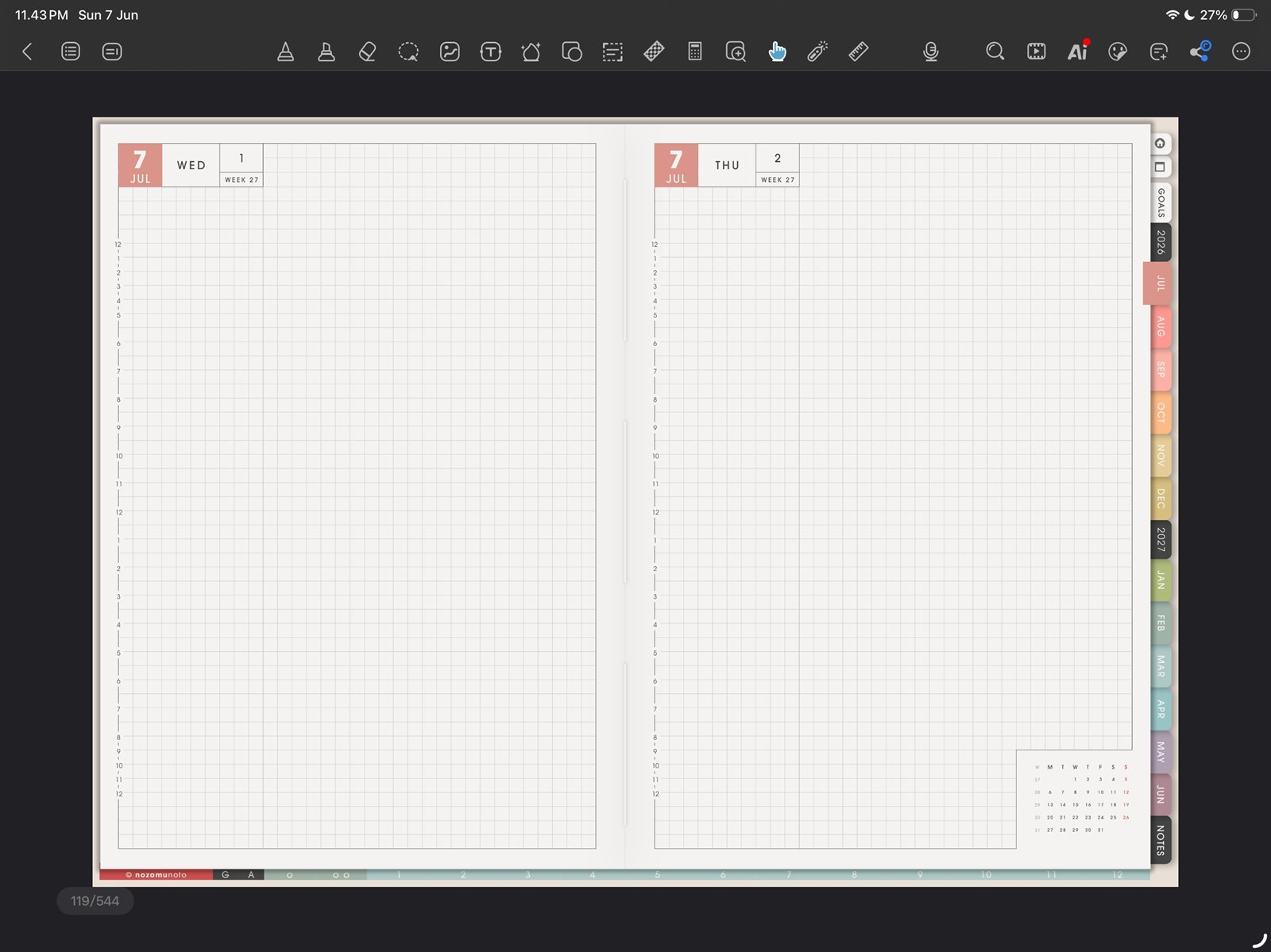
Daily link testTest one daily link before building a full planning routine. Product shown: Yume Techo Academic 26-27 Landscape. - If the tap writes, selects, or opens a tool instead, tap the hand / navigation tool again and test the link before editing more pages.
- Keep one clean copy of the original PDF outside Kilonotes so you can re-import if a heavily edited copy starts behaving strangely.