

Use these steps to work with NozomuNoto PDF planners, notebooks, stickers, covers, and template pages in Kilonotes. The official links below are for downloads, updates, and current help pages.
Reference links
Use these for current app or device help, downloads, updates, vendor support, and manual references.
Use template pages in Kilonotes on iPad
- Open the NozomuNoto Template Pages section and find the clean template page you want to reuse.
- Open the page thumbnail panel from the top-left page button.
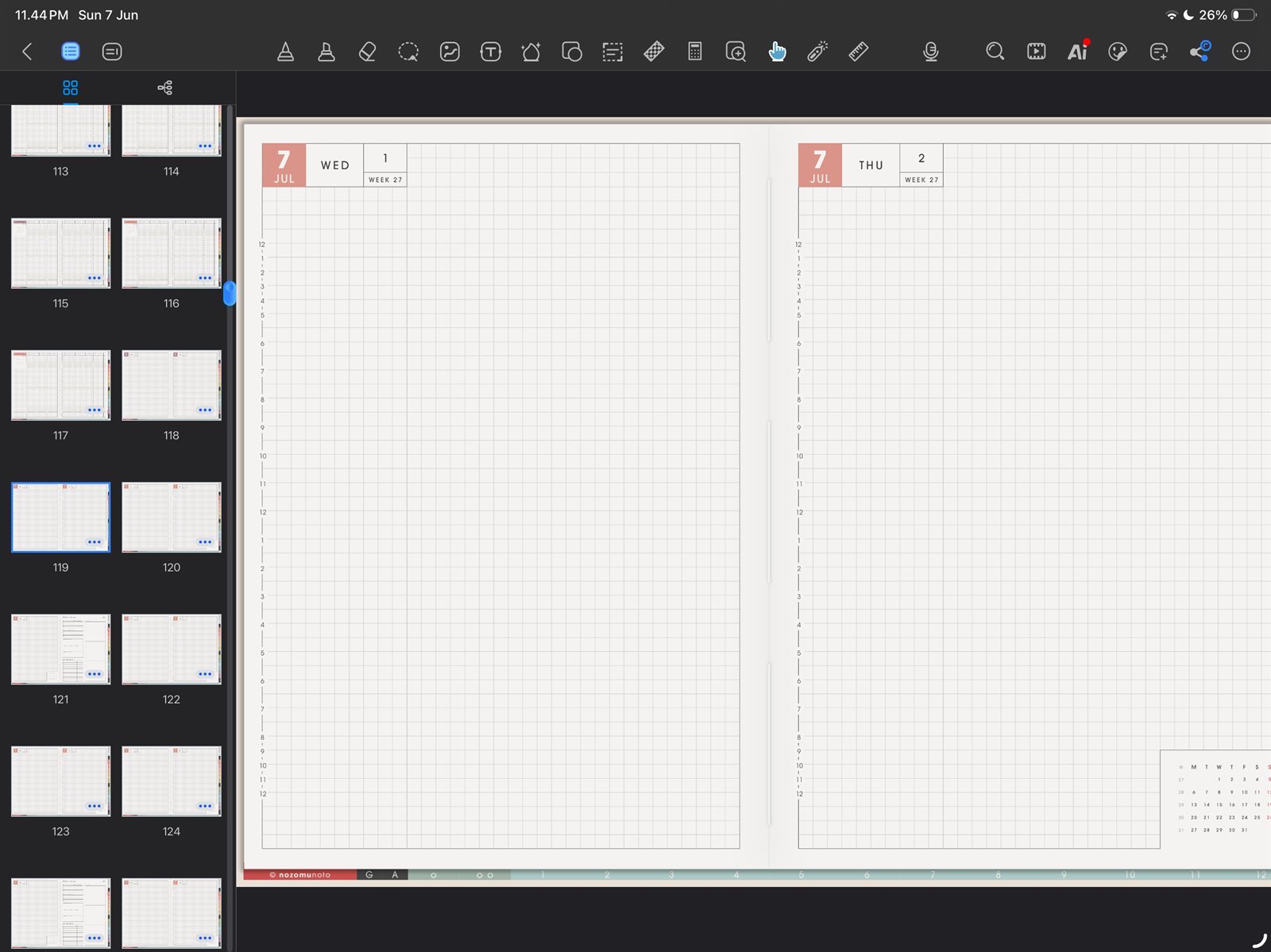
Find a clean templateUse thumbnails to find the clean NozomuNoto template page before writing on it. Product shown: Yume Techo Academic 26-27 Landscape. - Tap the small … menu on the clean template page thumbnail.
- Choose Copy Page when you want to reuse that NozomuNoto page.
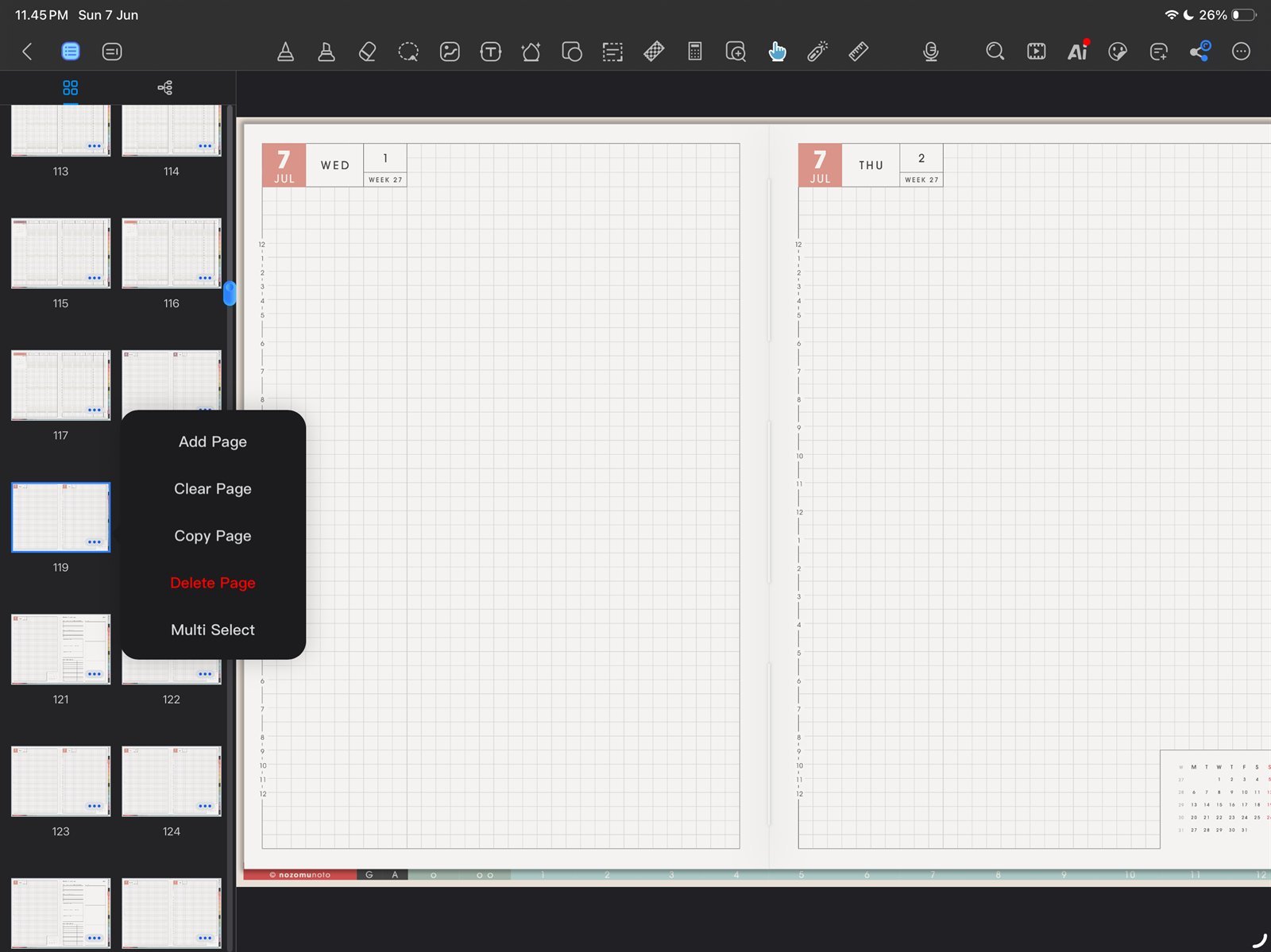
Copy PageUse Copy Page from the thumbnail menu for reusable NozomuNoto template pages. Product shown: Yume Techo Academic 26-27 Landscape. - Use Add Page only when you want a Kilonotes paper page, such as Dot Paper, Lined Paper, Tianzi Grid, Blank, Squared Paper, Daily Plan, or another built-in style.
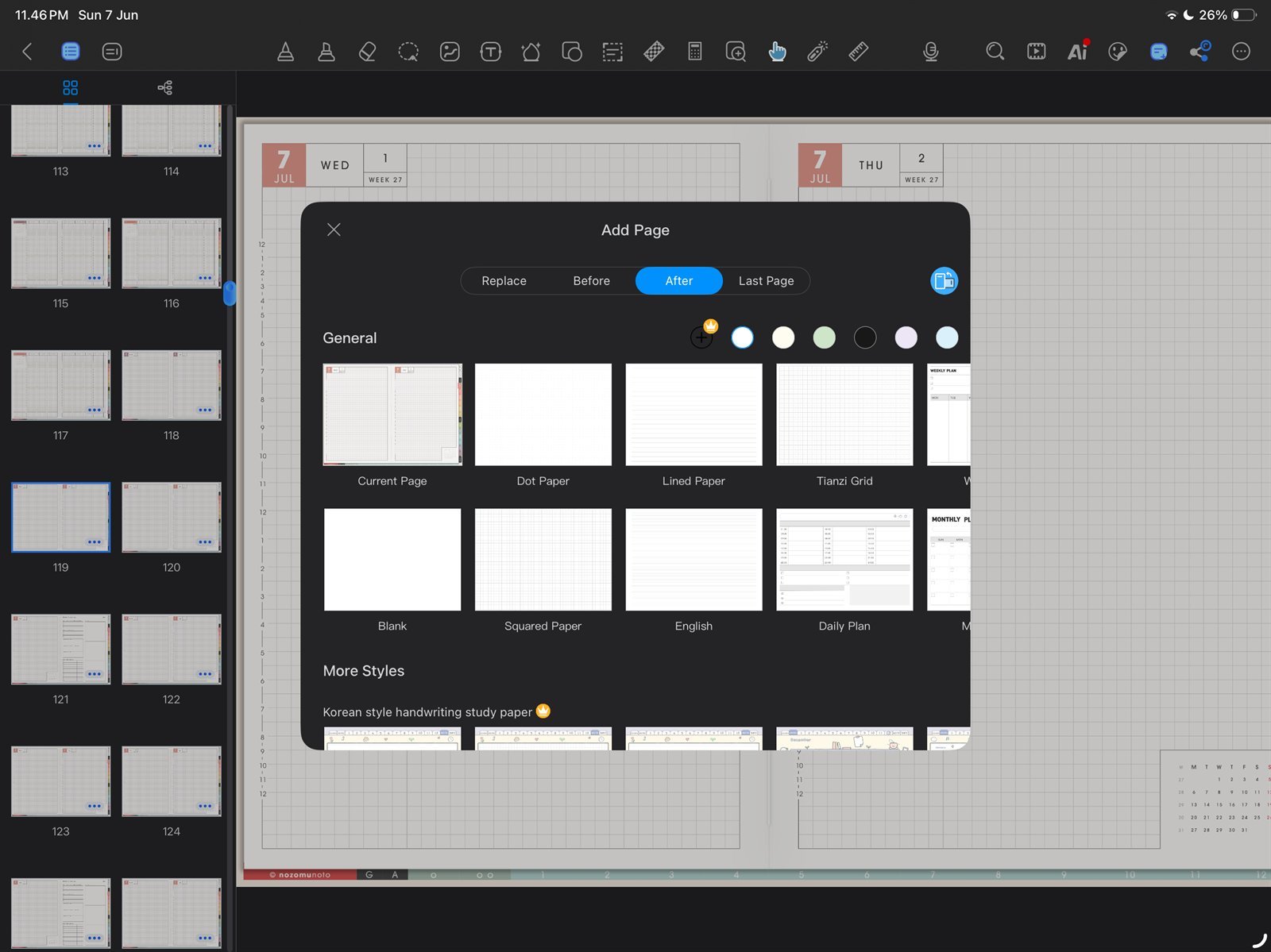
Add PageUse Add Page for built-in Kilonotes paper styles, not as a replacement for linked NozomuNoto template pages. Product shown: Yume Techo Academic 26-27 Landscape. - Keep one clean original template page untouched and write on the copied page.