

Use these steps to work with NozomuNoto PDF planners, notebooks, stickers, covers, and template pages in Kilonotes. The official links below are for downloads, updates, and current help pages.
Reference links
Use these for current app or device help, downloads, updates, vendor support, and manual references.
Copy and add pages in Kilonotes on iPad
- Open the imported planner and open the page thumbnail panel.
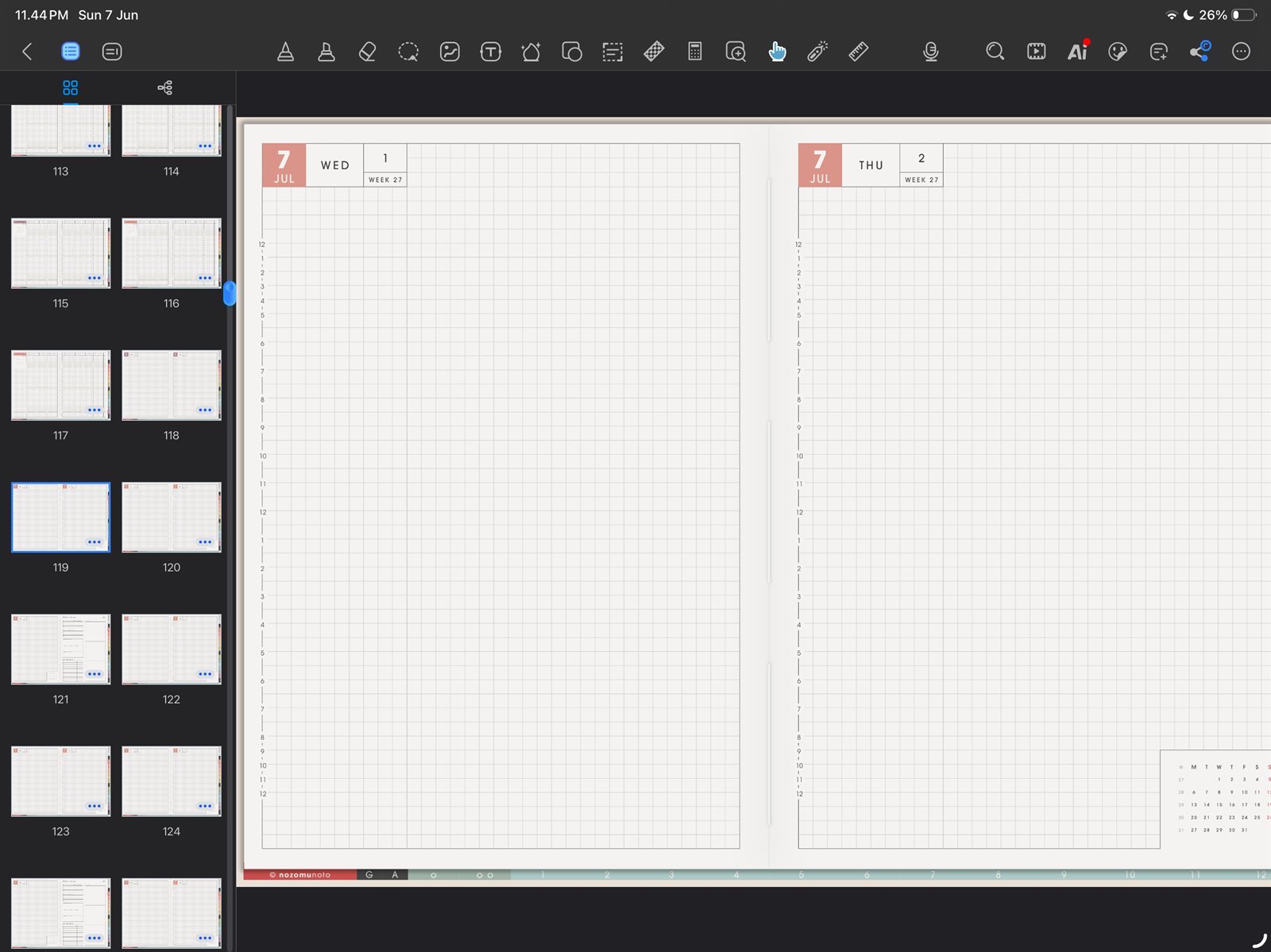
Page thumbnailsOpen thumbnails before managing pages. Product shown: Yume Techo Academic 26-27 Landscape. - Tap the small … menu on the page thumbnail you want to manage.
- Choose Copy Page when you want to reuse a clean NozomuNoto template page.
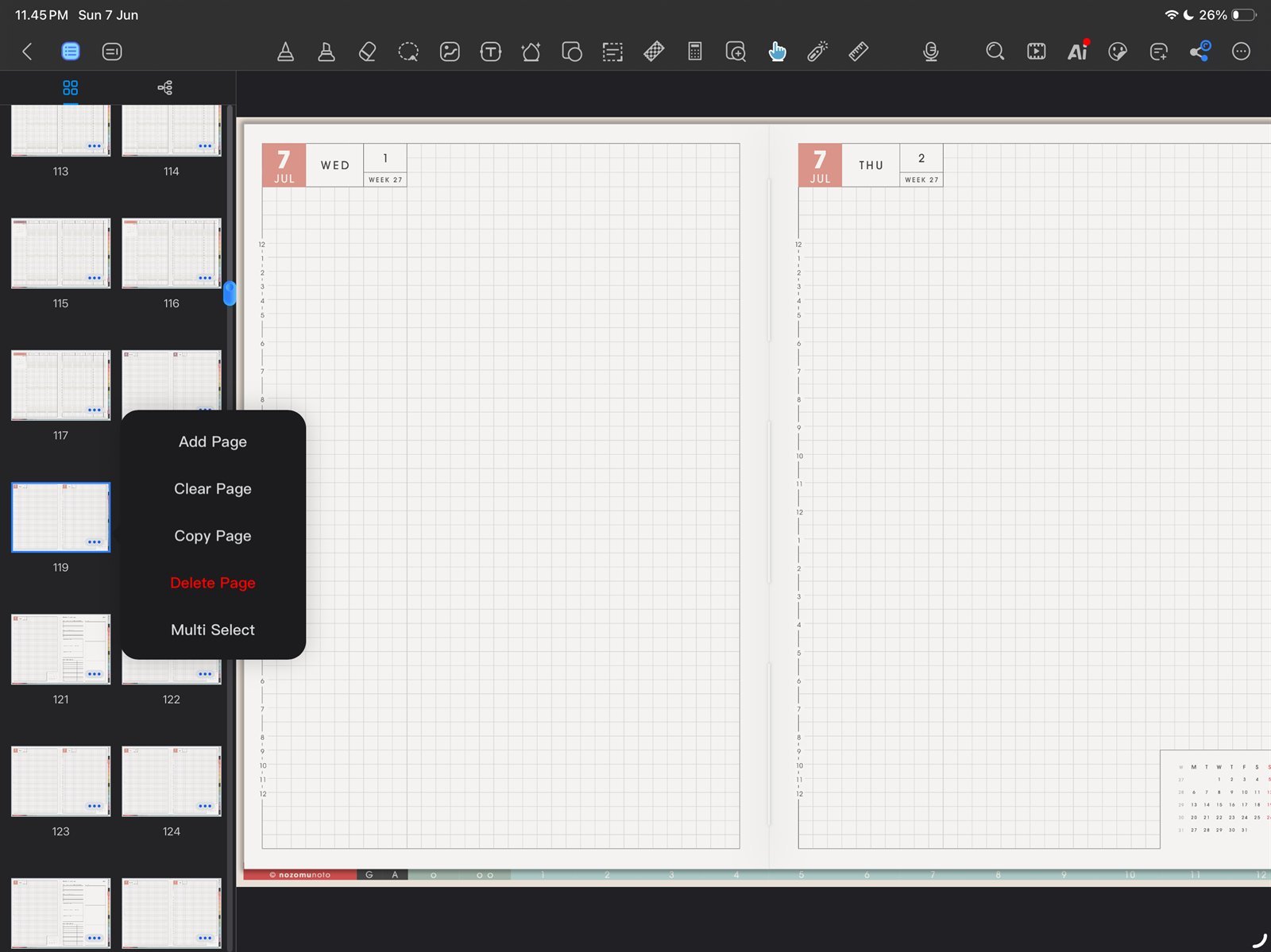
Page menuUse Add Page, Clear Page, Copy Page, Delete Page, or Multi Select from the page menu. Product shown: Yume Techo Academic 26-27 Landscape. - Choose Add Page when you want a new Kilonotes built-in paper page, then pick Replace, Before, After, or Last Page.
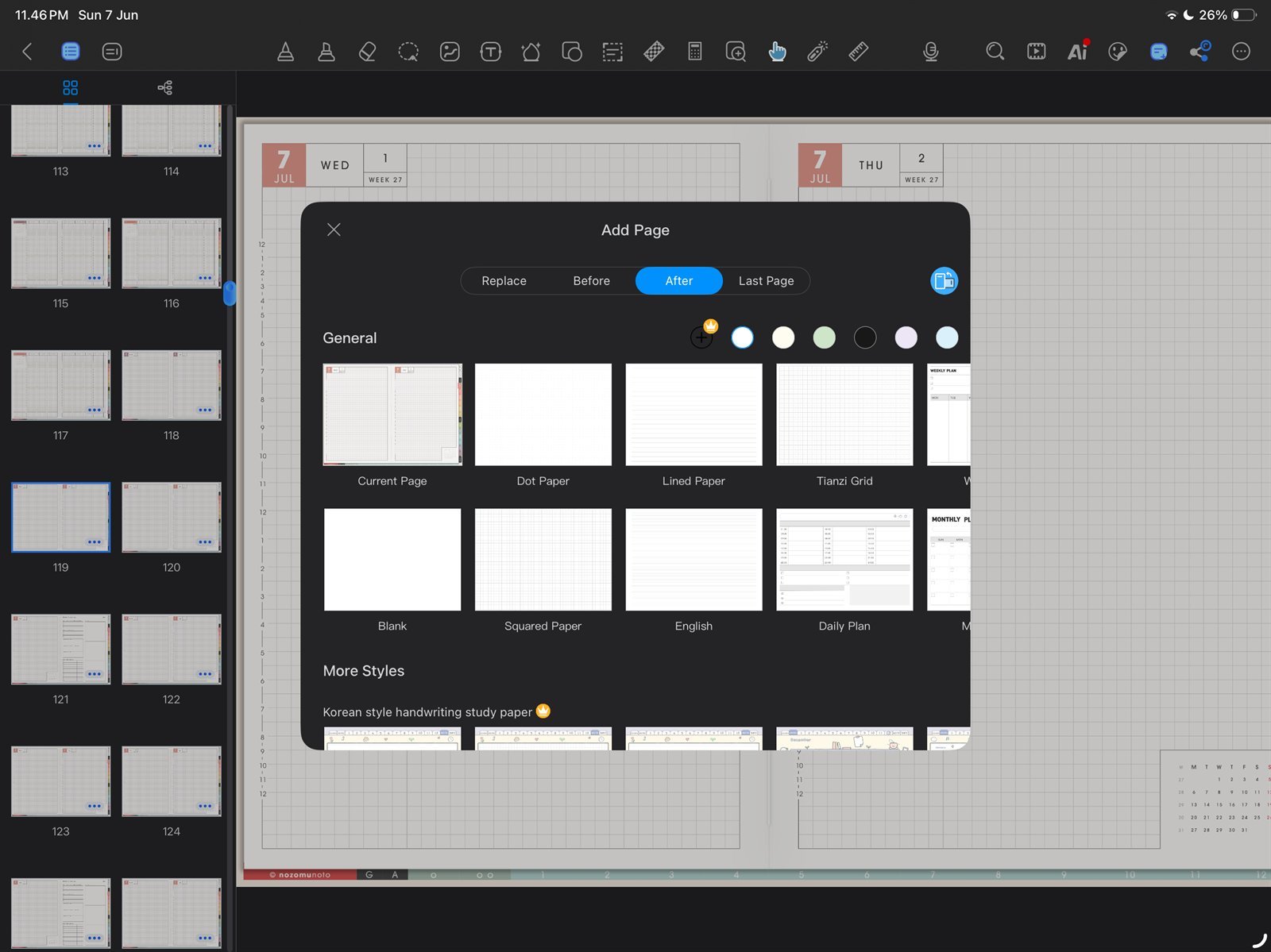
Add Page placementChoose Replace, Before, After, or Last Page when adding a Kilonotes built-in page. Product shown: Yume Techo Academic 26-27 Landscape. - Use copied pages mainly for NozomuNoto template pages. Avoid rearranging dated planner pages unless you have tested links afterward.
- After copying or adding pages, test Index, one monthly tab, and one weekly or daily link.