

Use these steps to work with NozomuNoto PDF planners, notebooks, stickers, covers, and template pages in CollaNote. The official links below are for downloads, updates, and current help pages.
Reference links
Use these for current app or device help, downloads, updates, vendor support, and manual references.
Keep the cover simple in CollaNote on iPad
- Open the CollaNote library and check the planner thumbnail first.
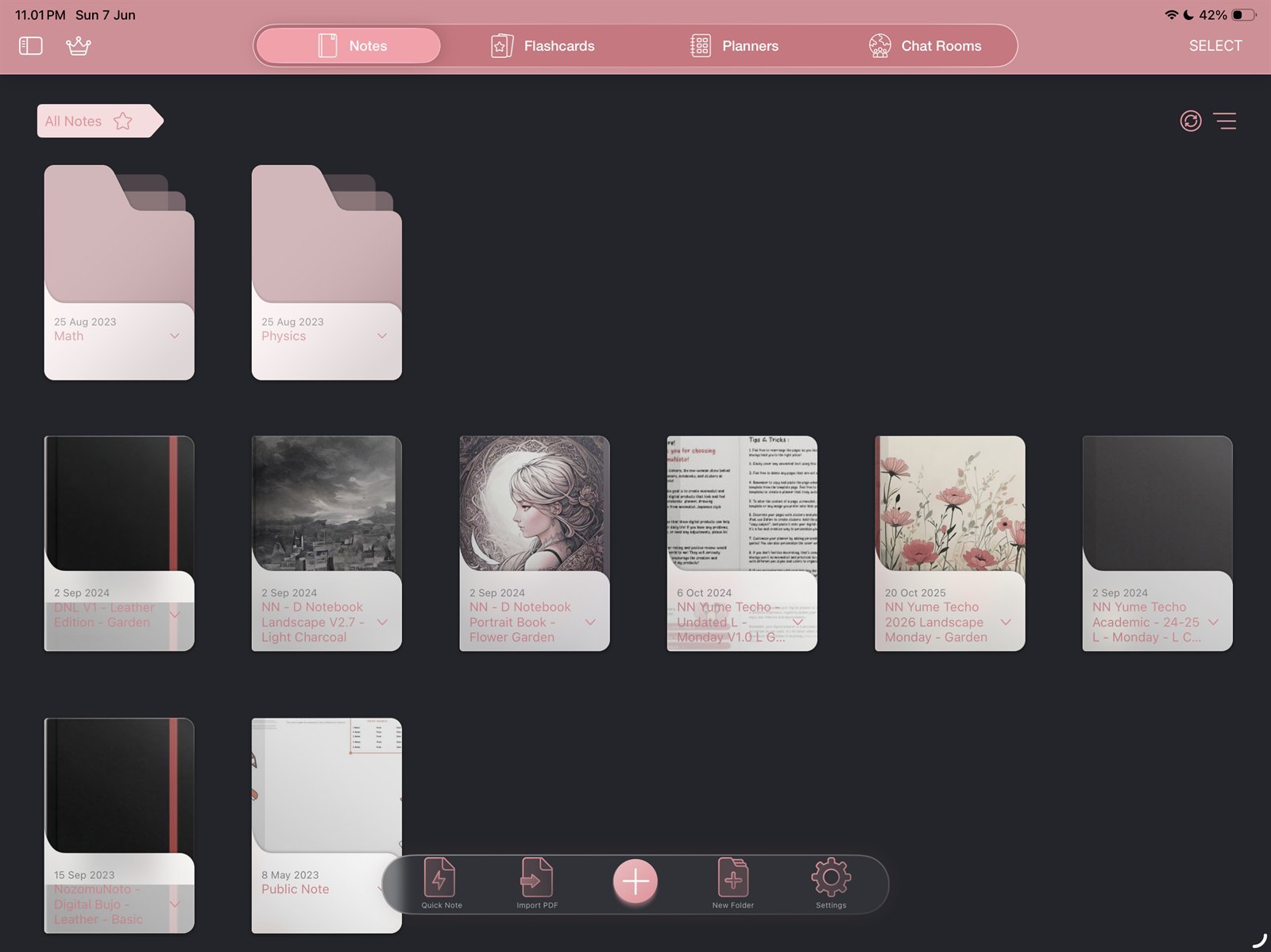
Library thumbnailCheck the planner thumbnail in the CollaNote library before changing anything. Product shown: Yume Techo Academic 26-27 Landscape. - If the thumbnail already shows the imported planner clearly, keep the cover as-is.
- If you want a different visible first page, decide before writing heavily in the planner.
- Use the page thumbnail panel only if you understand which page should become the first page.
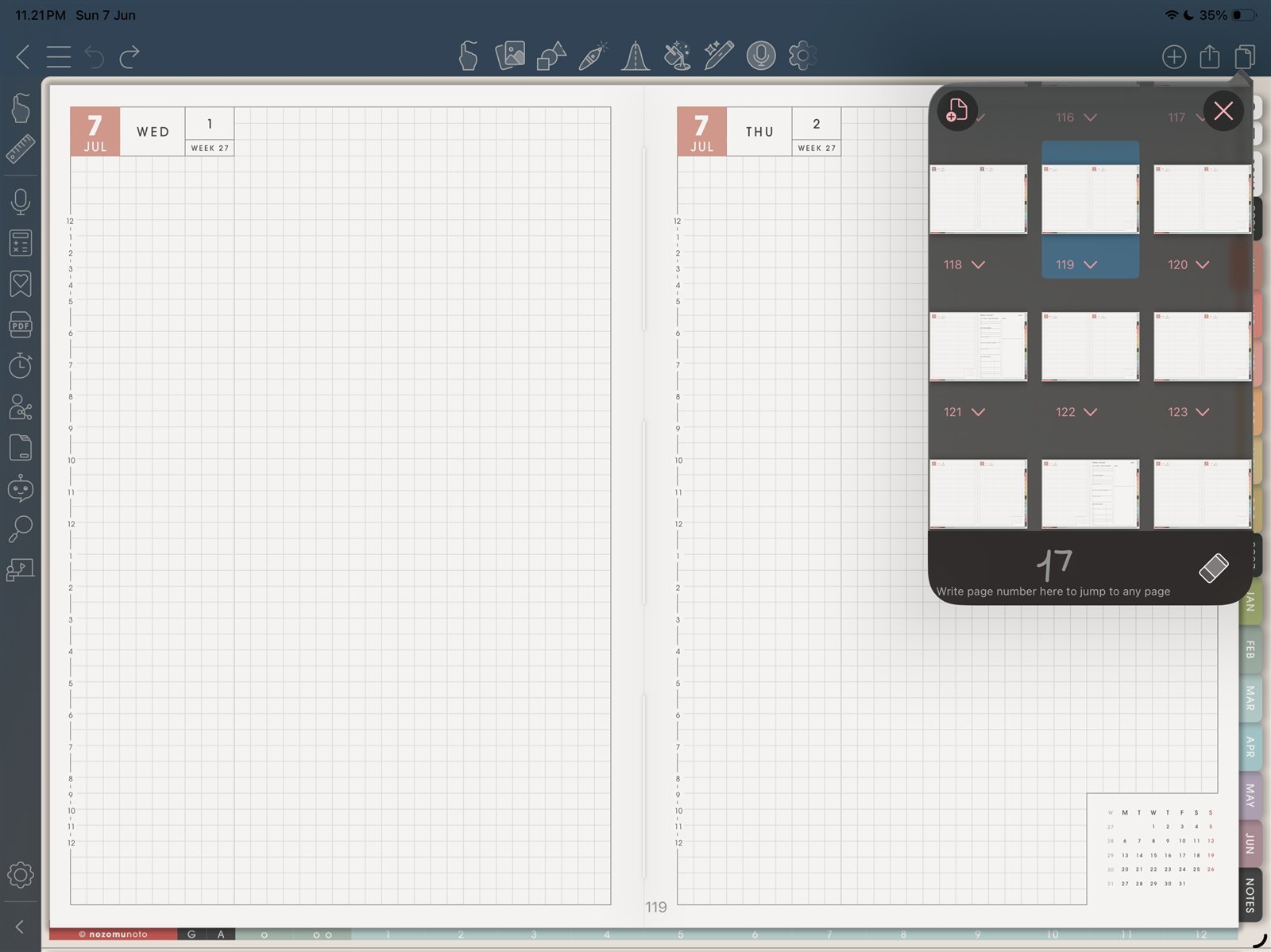
First page checkUse the page thumbnail panel only if you understand which page should stay first. Product shown: Yume Techo Academic 26-27 Landscape. - Do not move linked dated planner pages only to force a new cover thumbnail.
- Keep the original NozomuNoto PDF outside CollaNote so you can restart cleanly if the visible cover or first page becomes confusing.
Notes
- Simple cover rule: If the CollaNote library thumbnail already identifies the planner clearly, leave the cover alone. A working planner is more important than a perfect thumbnail.
If the cover does not look right
1. Wrong orientation
What happens: a portrait cover looks squeezed on a landscape planner, or a landscape cover looks cropped on a portrait planner.
What to do: use a cover made for the same orientation and product size.
2. Cover changes make the planner confusing
What happens: page order feels messy after trying to force a new visible first page.
What to do: re-import the original PDF and keep the included cover or first page. Use a clear file name or bookmark instead.
- If the cover looks wrong or the thumbnail does not update as expected, keep the original cover page and use a clear document name.