

Use these steps to work with NozomuNoto PDF planners, notebooks, stickers, covers, and template pages in CollaNote. The official links below are for downloads, updates, and current help pages.
Reference links
Use these for current app or device help, downloads, updates, vendor support, and manual references.
Use stickers and images in CollaNote on iPad
- Extract the NozomuNoto sticker ZIP so PNG files are visible in Files, Photos, or another image location.
- Open the planner page where the sticker should go.
- Tap the + insert button, then use the Insert Menu image tab.
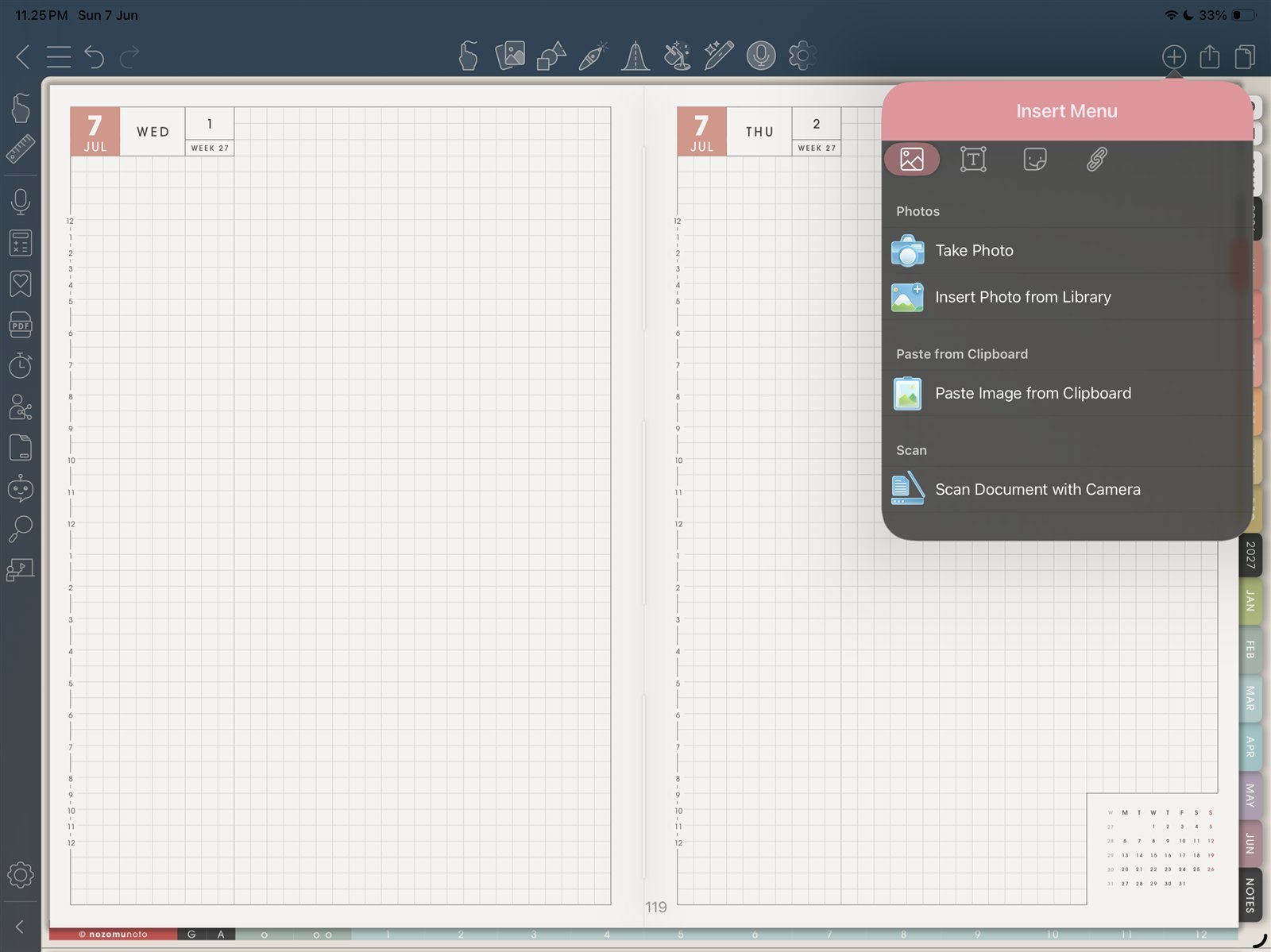
Insert MenuUse Insert Photo from Library or Paste Image from Clipboard for one PNG sticker test. Product shown: Yume Techo Academic 26-27 Landscape. - Choose Insert Photo from Library or Paste Image from Clipboard for the PNG sticker.
- Resize and move one sticker gently after placing it.
- Close and reopen the planner before decorating many pages so you know the image stayed where you placed it.
Sticker checks
1. Use the original PNG
NozomuNoto PNG stickers should be inserted as images. Extract the sticker ZIP first so CollaNote can access the real PNG files.
2. Keep the first test small
Place one sticker on a notes page or blank area, resize it, then close and reopen the planner. If it stays clear and in place, add more.
3. Avoid heavy decoration too early
If the planner feels slow after many images, use fewer large PNGs and decorate the most-used pages first instead of every page.