

Use these steps to work with NozomuNoto PDF planners, notebooks, stickers, covers, and template pages in Penly. The official links below are for downloads, updates, and current help pages.
Reference links
Use these for current app or device help, downloads, updates, vendor support, and manual references.
Tap planner links in Penly
- Open the imported NozomuNoto PDF in Penly.
- Start from a normal planner page, such as the monthly, daily, or index page.
- Tap a planner tab, month, week, index item, or linked button.
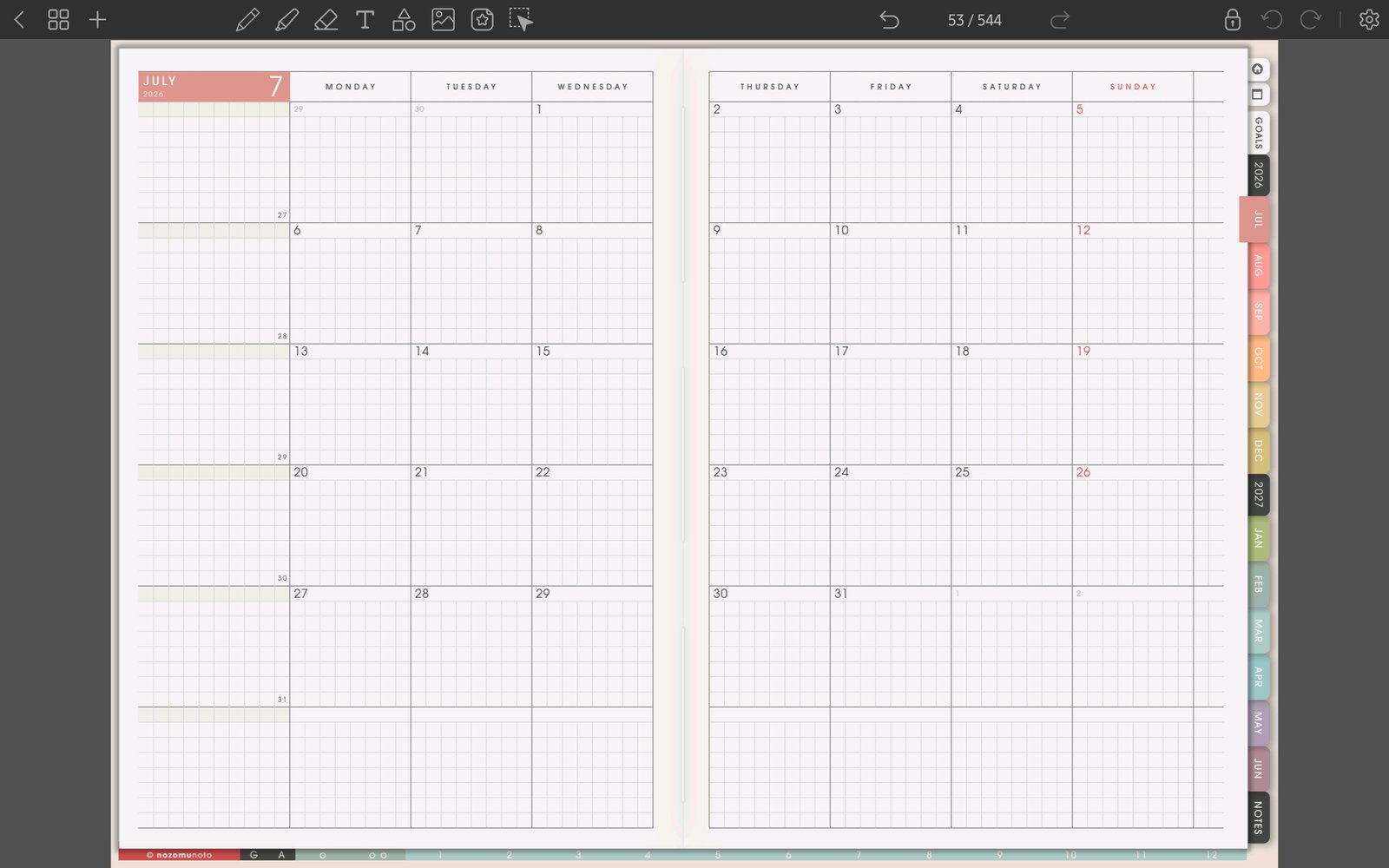
Full monthly tab screenFull screen view first, then use the cropped highlight below to see the exact area. 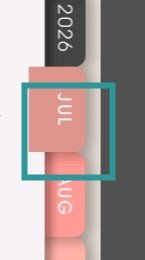
Month side tabPenly planner page with the July side tab highlighted as a link test. - If Penly selects writing or objects instead of opening the link, leave the active writing, image, text, shape, or selection tool and tap the link again from the page view.
- If the same link still does not open, test a fresh imported copy of the original PDF before moving pages or adding more stickers.
Notes
- What to test first: Test one side tab, one month tab, one index link, and one template link before decorating the planner. This confirms the PDF links are working before the file becomes your everyday planner.
- If planner links still fail, test the same original PDF in another PDF viewer before changing pages or exporting.