

Use these steps to work with NozomuNoto PDF planners, notebooks, stickers, covers, and template pages in Penly. The official links below are for downloads, updates, and current help pages.
Reference links
Use these for current app or device help, downloads, updates, vendor support, and manual references.
Use the index page in Penly
- Open the imported NozomuNoto planner or notebook in Penly.
- Go to the NozomuNoto index or table of contents page near the beginning of the PDF.
- Tap the linked section, month, template, life planner page, or notes area you want to open.
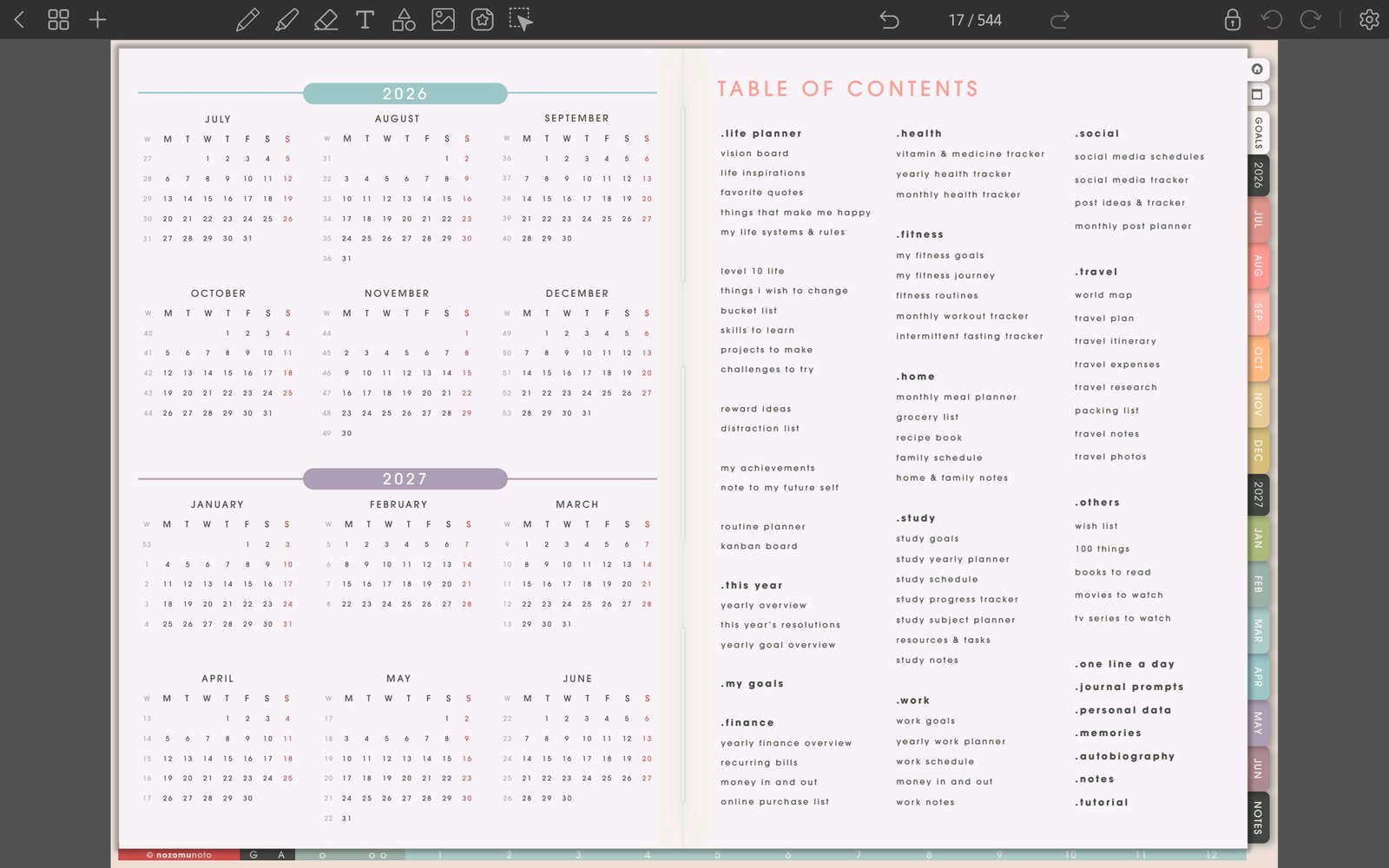
Full planner navigation screenFull screen view first, then use the cropped highlight below to see the exact area. 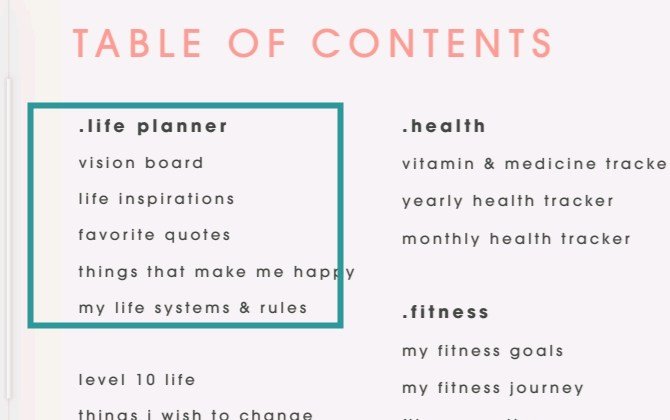
NozomuNoto index in PenlyTable of Contents area highlighted as the planner map in Penly. - Use the side tabs or the page overview icon when you need to return to another part of the planner.
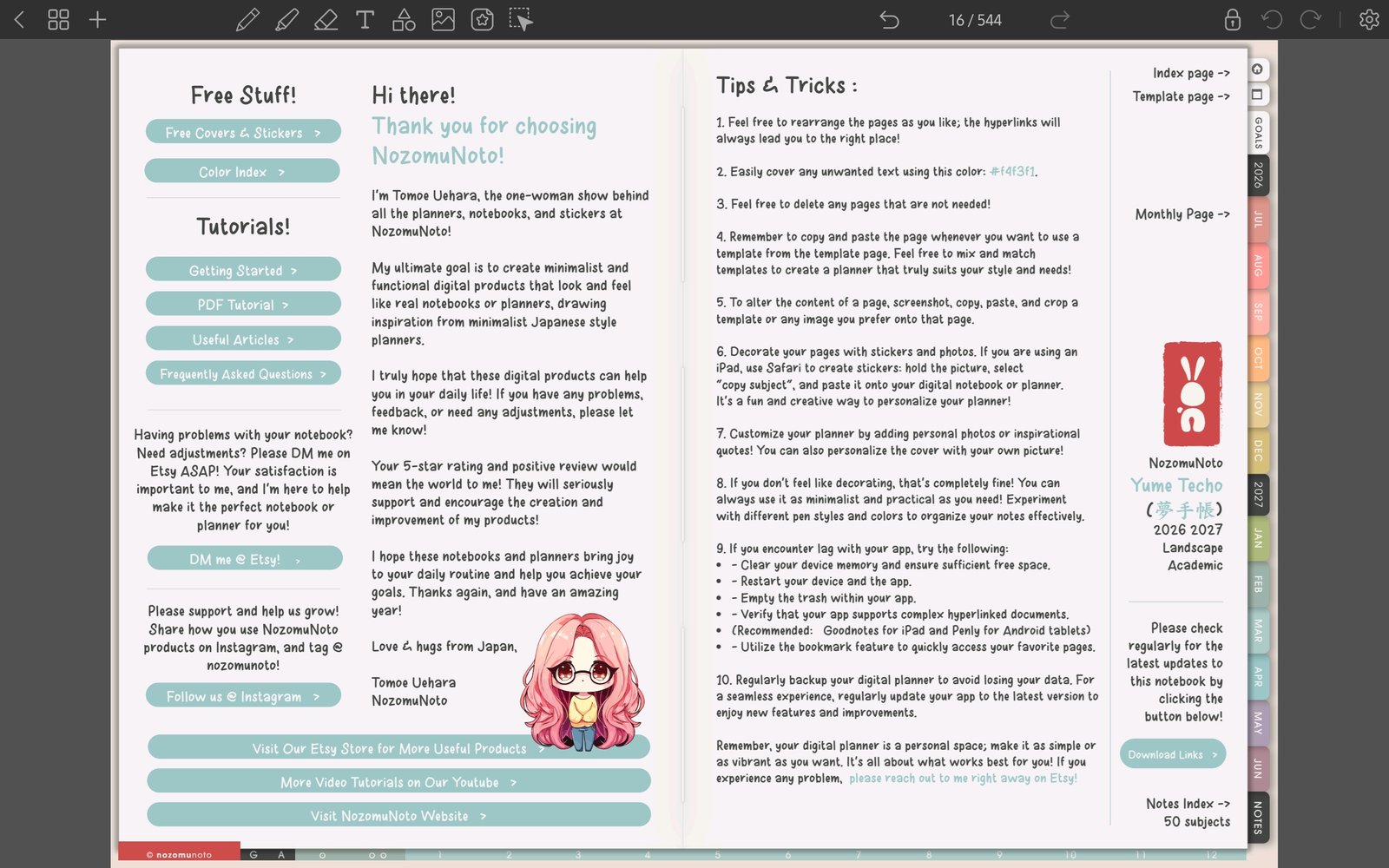
Full Penly toolbar screenFull screen view first, then use the cropped highlight below to see the exact area. 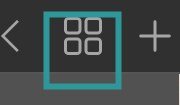
Page overview iconTap the grid icon when you need to return by page thumbnail. - Keep the index clean and use it as the home base when the planner starts to feel big.