

Use these steps to work with NozomuNoto PDF planners, notebooks, stickers, covers, and template pages in Penly. The official links below are for downloads, updates, and current help pages.
Reference links
Use these for current app or device help, downloads, updates, vendor support, and manual references.
Use template pages in Penly
- Open the NozomuNoto Template Pages section.
- Tap the page overview icon, shown as a small grid near the top-left of the Penly toolbar.
- Find the clean template page you want to reuse.
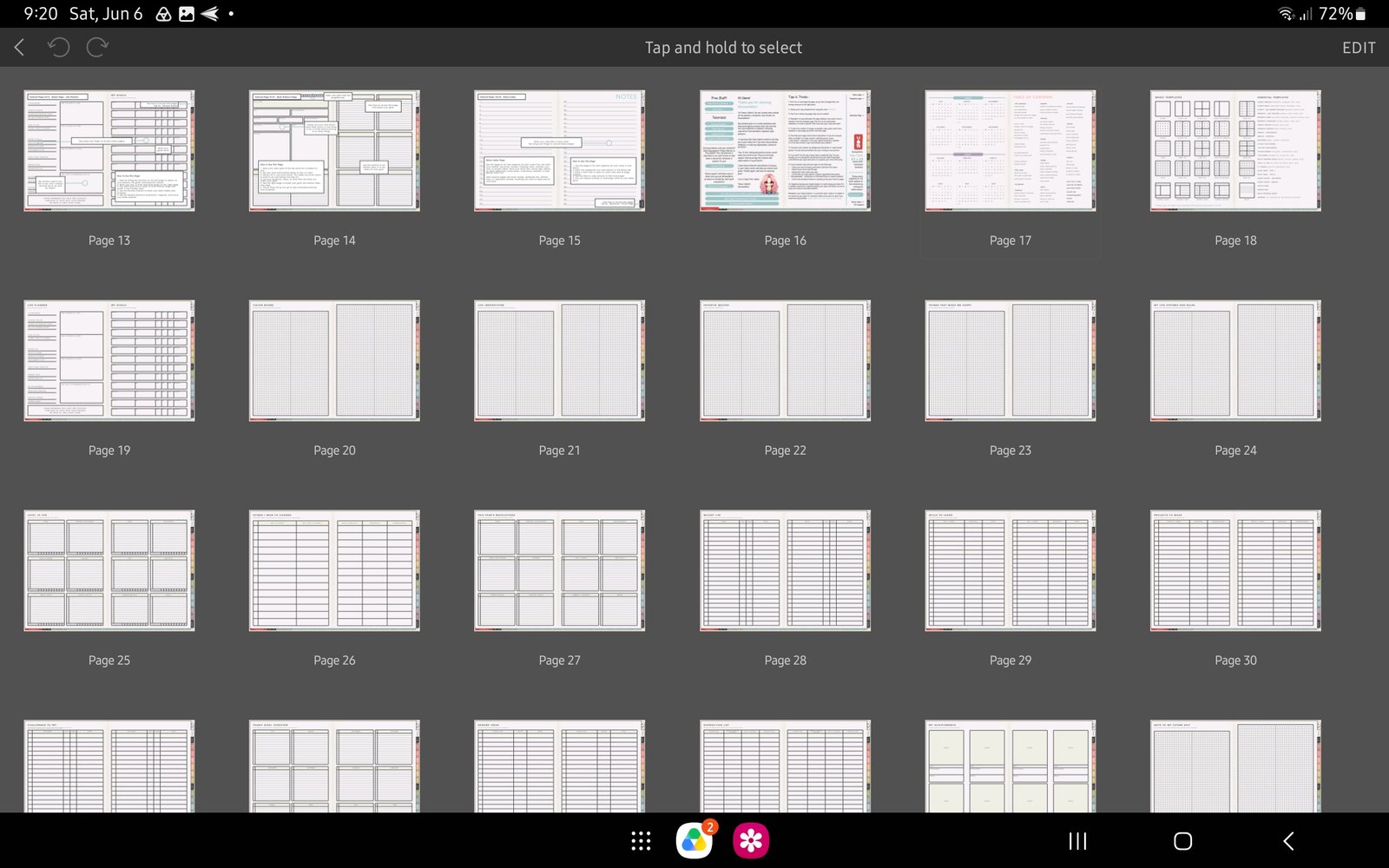
Full thumbnails screenFull screen view first, then use the cropped highlight below to see the exact area. 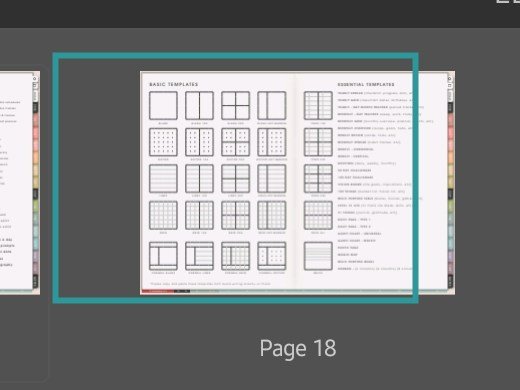
Template pages in page overviewPage overview with the NozomuNoto Template Pages thumbnail highlighted in Penly. Product shown: Yume Techo Academic 26-27 Landscape. - Tap and hold the page thumbnail to select it.
- Use the page actions on the top bar, such as the stacked-pages icon for copying or duplicating, then place the copied page where you want to use it.
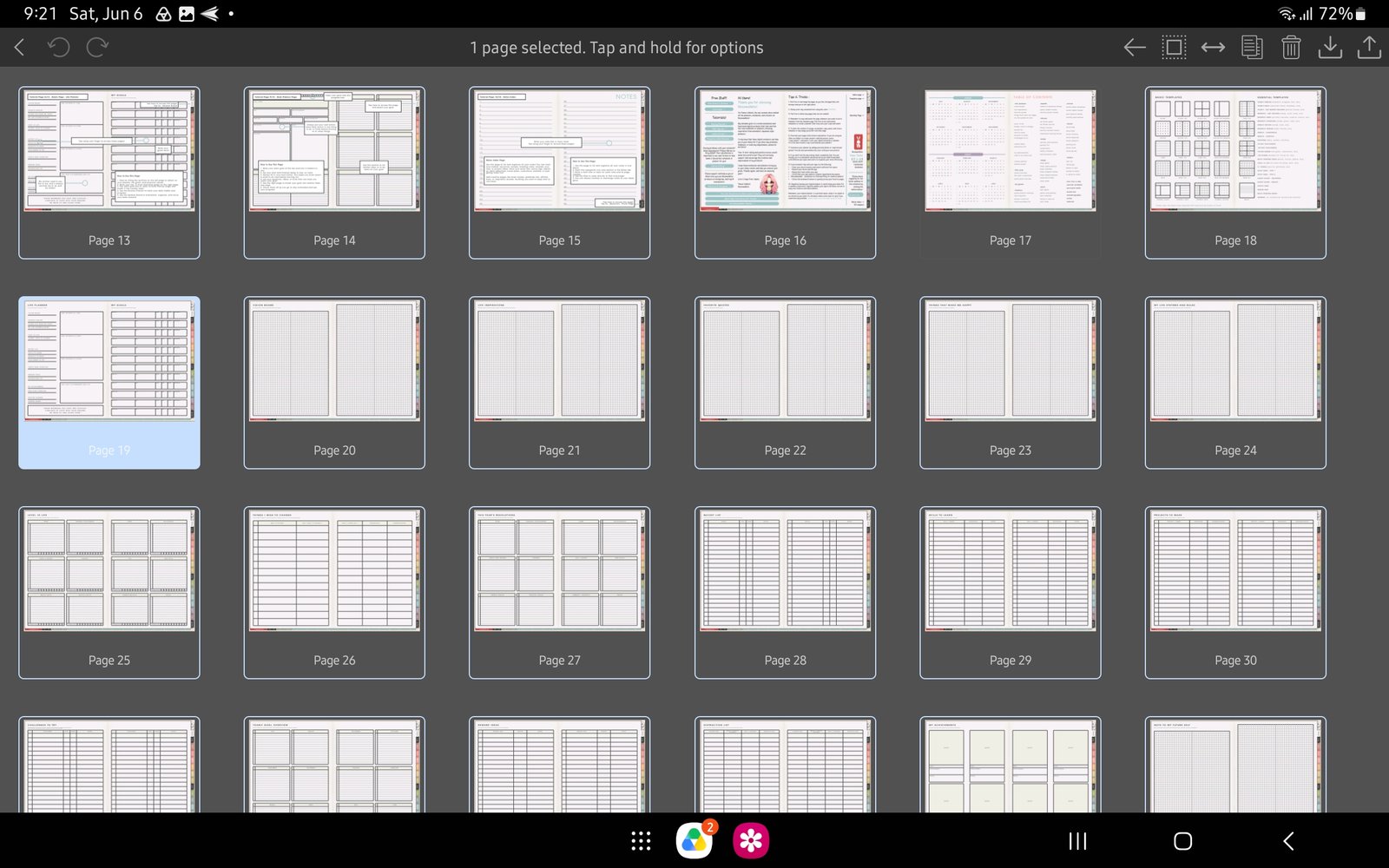
Full page actions screenFull screen view first, then use the cropped highlight below to see the exact area. 
Selected page actionsSelected page toolbar with the copy or duplicate action highlighted in Penly. Product shown: Yume Techo Academic 26-27 Landscape. - Keep the original template page untouched so you can copy it again later.
Notes
- Clean template habit: Write on the copied page, not the original template. If the copied page is hard to find later, use the page overview and the NozomuNoto index as your map.
- If the clean template is already filled, re-import a fresh copy, find the clean template page, and duplicate it again.