

Use these steps to work with NozomuNoto PDF planners, notebooks, stickers, covers, and template pages in Penly. The official links below are for downloads, updates, and current help pages.
Reference links
Use these for current app or device help, downloads, updates, vendor support, and manual references.
Change the visible cover in Penly
- Open the NozomuNoto cover file or cover pages included with your product.
- Choose a cover made for the same planner orientation and size.
- Copy or import the cover page into the Penly planner.
- Use the page overview to move the cover page to the beginning of the document.
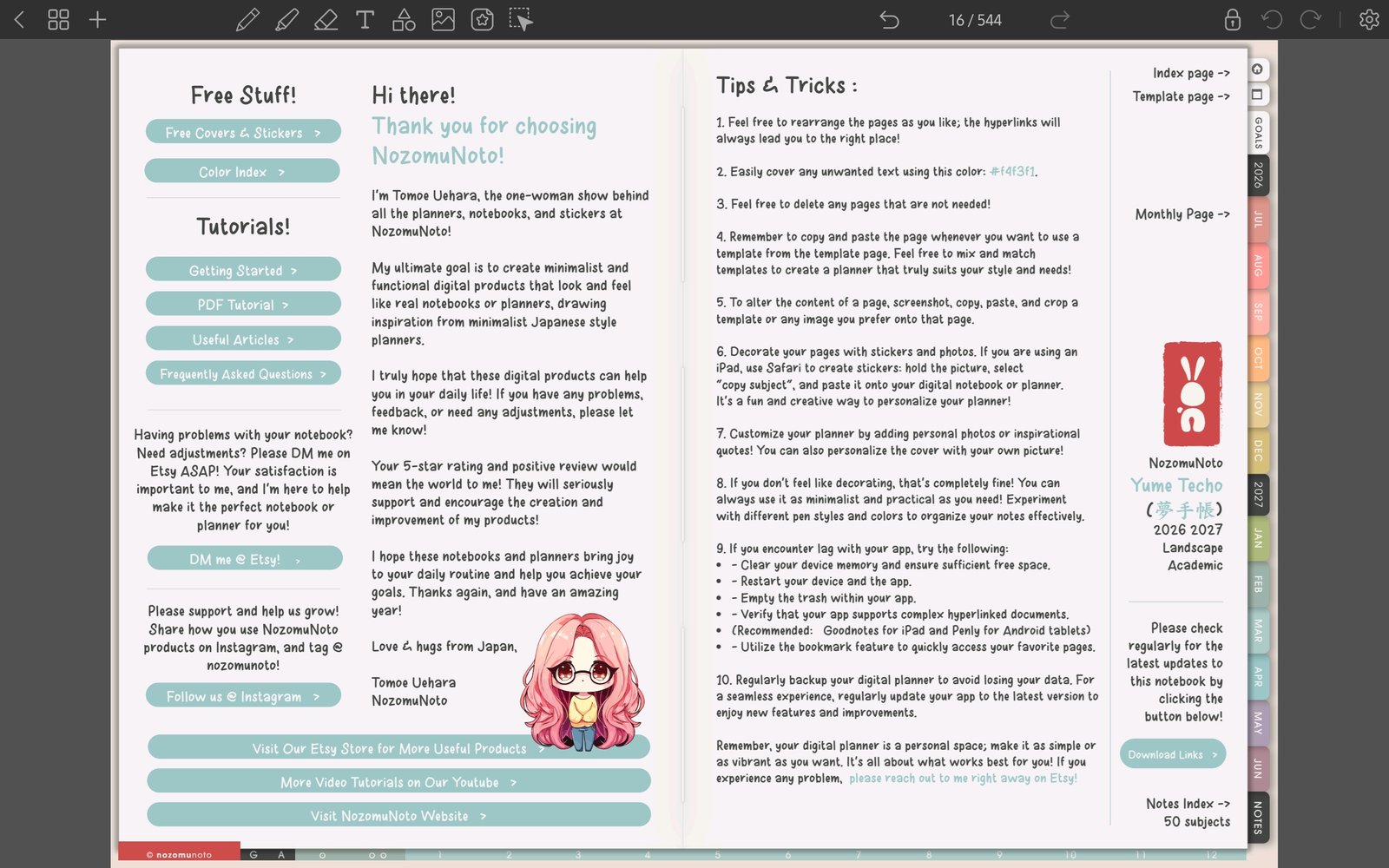
Full Penly toolbar screenFull screen view first, then use the cropped highlight below to see the exact area. 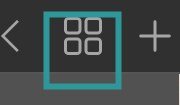
Open page overviewTap the grid icon near the top-left toolbar before moving the cover page to the beginning. - Return to the Penly library and check that the planner thumbnail looks correct before deleting any old cover page.
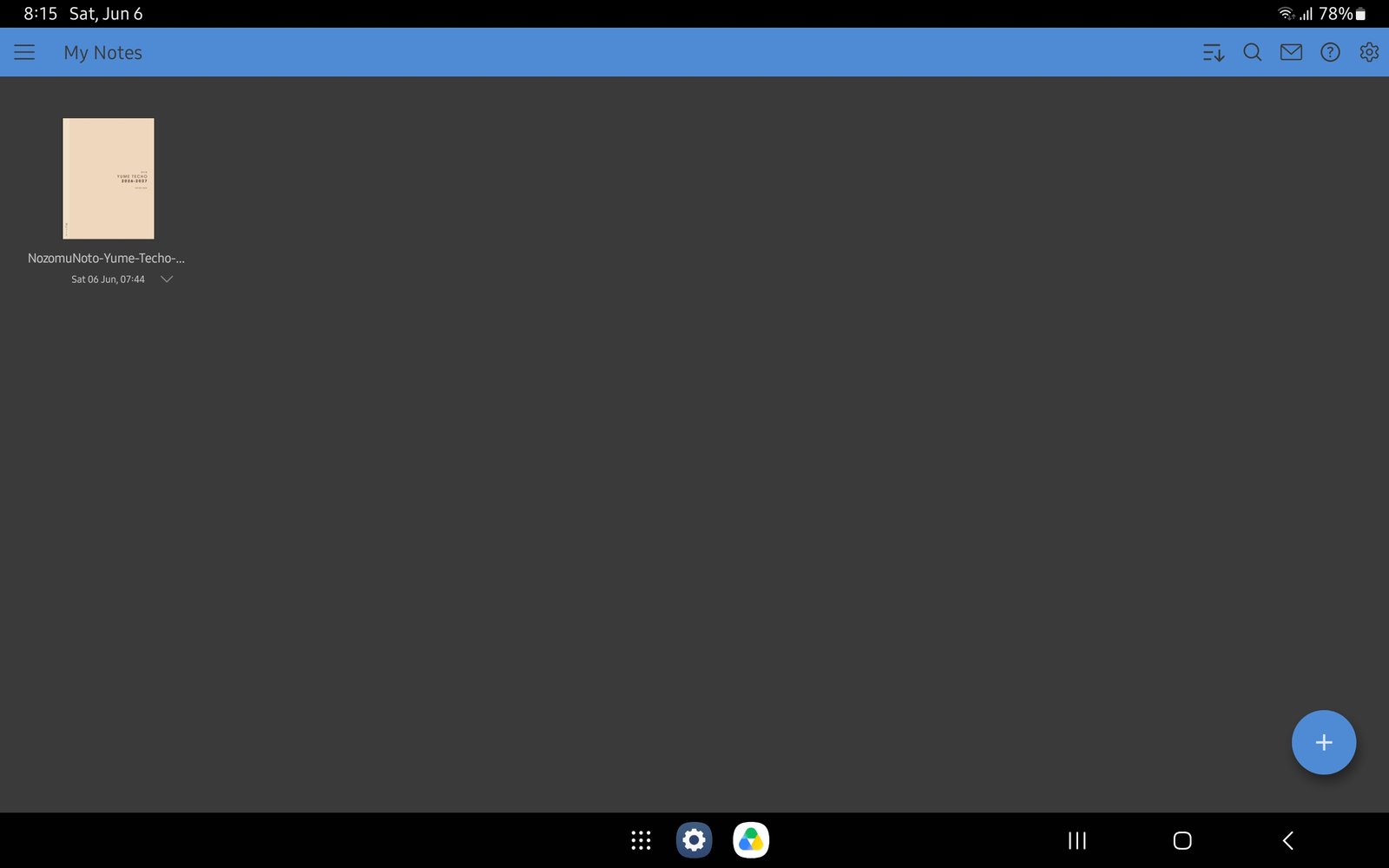
Full Penly library screenFull screen view first, then use the cropped highlight below to see the exact area. 
Penly library cover thumbnailPenly library with the planner thumbnail highlighted.