

Use these steps to work with NozomuNoto PDF planners, notebooks, stickers, covers, and template pages in Samsung Notes. The official links below are for downloads, updates, and current help pages.
Reference links
Use these for current app or device help, downloads, updates, vendor support, and manual references.
Tap planner links in Samsung Notes
- Open the imported NozomuNoto PDF planner in Samsung Notes.
- Tap the book/read mode icon on the top toolbar before testing planner tabs or index links.
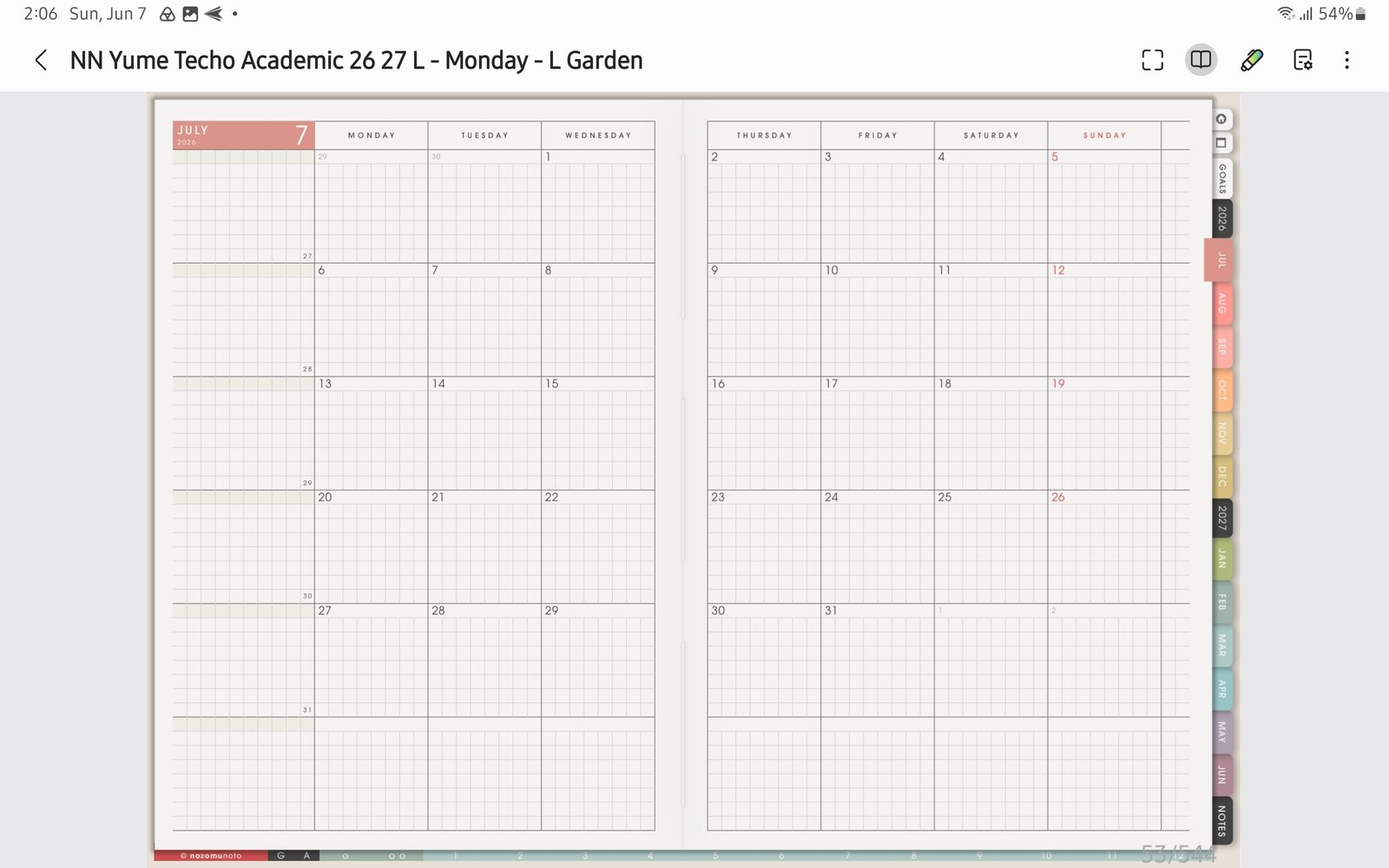
Book / read modeTap the book icon before testing planner tabs and links. Product shown: Yume Techo Academic 26-27 Landscape. - Tap one obvious planner link, such as a month tab, week link, day link, or Index button.
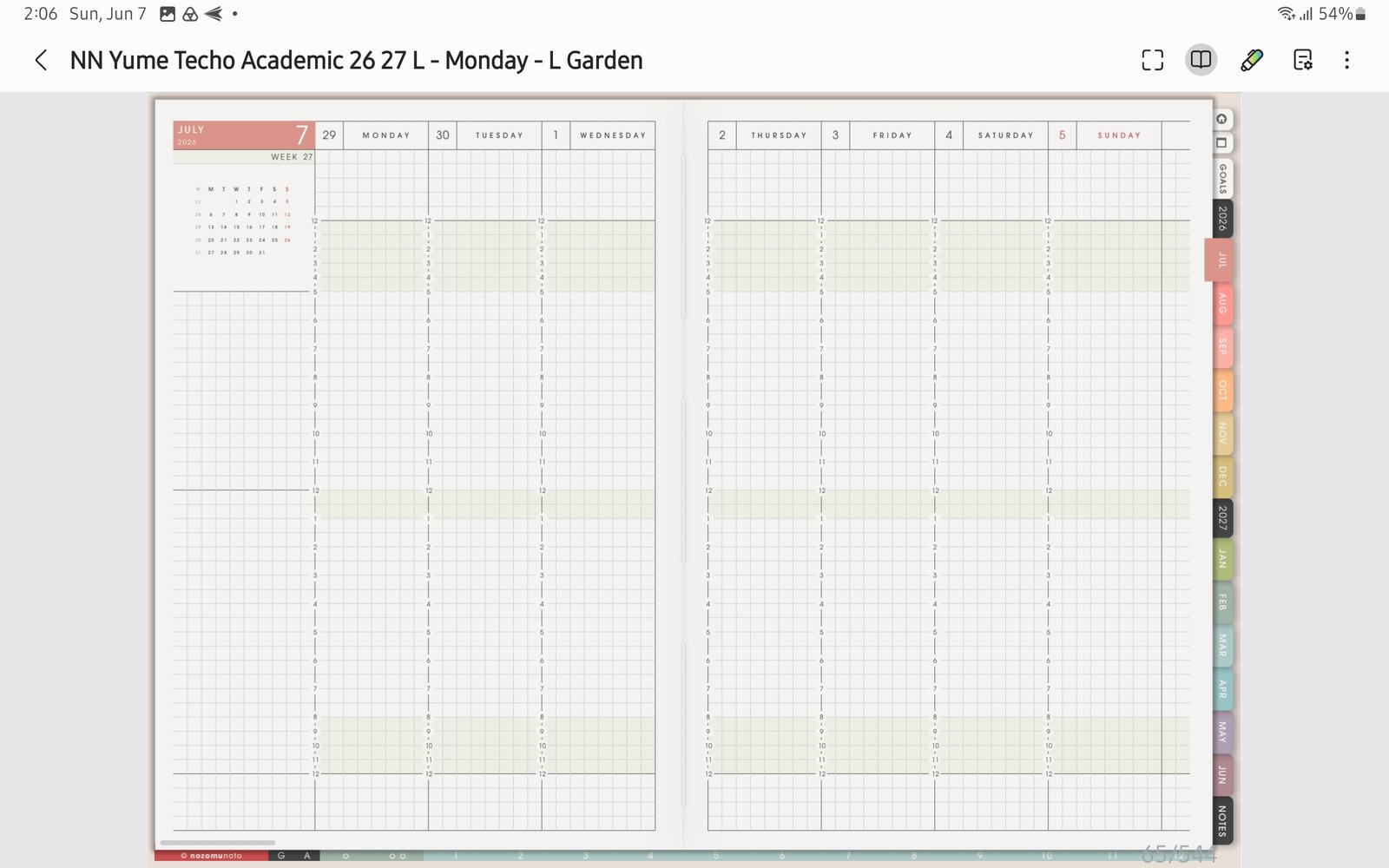
Weekly page link testA planner tab opens the weekly page when link mode is working. Product shown: Yume Techo Academic 26-27 Landscape. 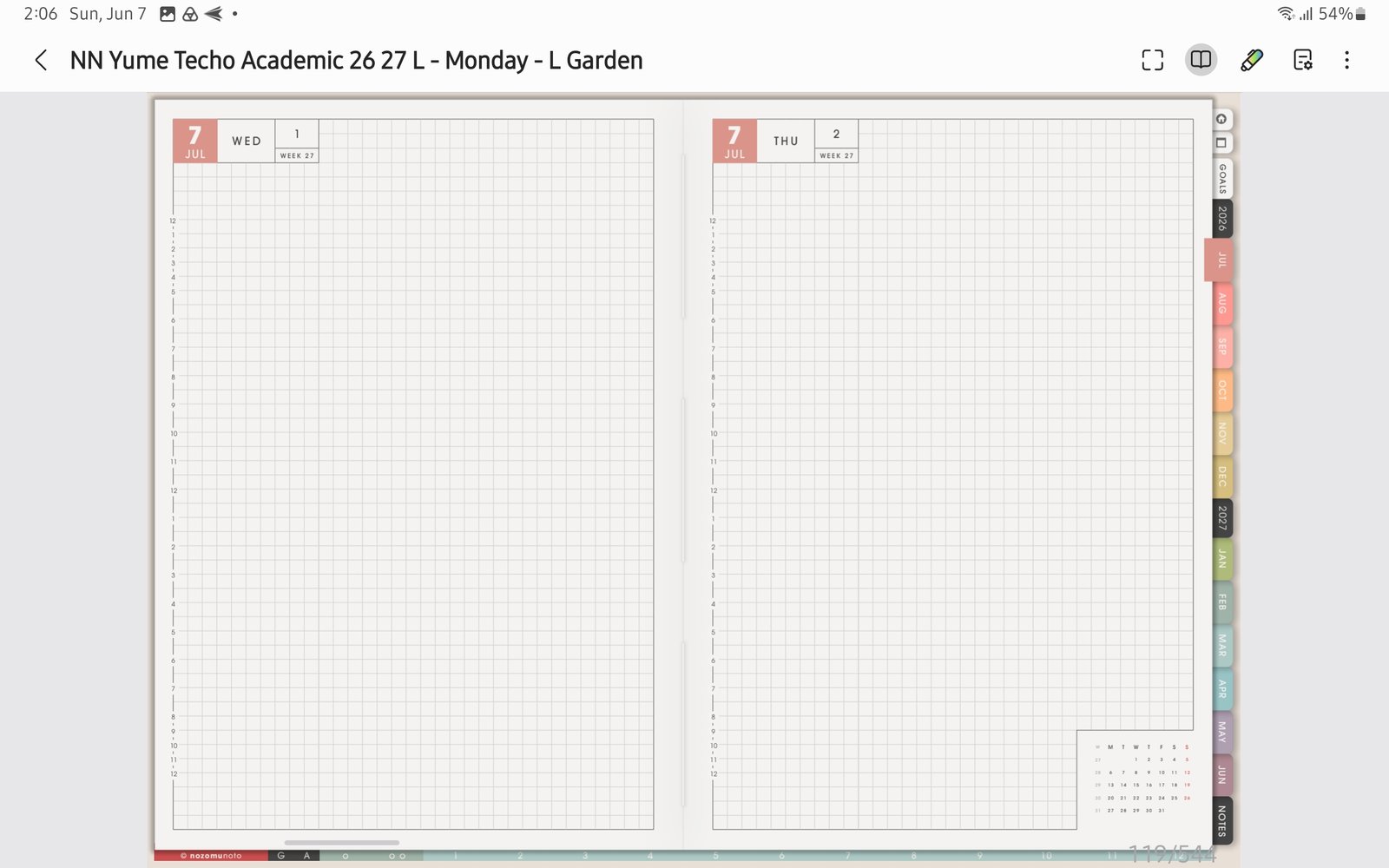
Daily page link testTest one daily page link before writing heavily in the planner. Product shown: Yume Techo Academic 26-27 Landscape. - Tap the pen icon when you want to return to writing.
- If links still do not move, open the original PDF in another PDF viewer. If links work there, set Samsung Notes to Split pages and re-import a fresh copy.
Notes
- Good link test: Test one month tab, one weekly or daily page, and the Index before writing a lot. If those work, the planner links are okay and you can start planning.
- If planner links still fail, test the same original PDF in another PDF viewer before changing pages or exporting.