

Use these steps to work with NozomuNoto PDF planners, notebooks, stickers, covers, and template pages in Samsung Notes. The official links below are for downloads, updates, and current help pages.
Reference links
Use these for current app or device help, downloads, updates, vendor support, and manual references.
Use templates in Samsung Notes
- Open the imported NozomuNoto planner and go to the Template Pages section.
- Tap the page sorter / thumbnail icon on the top-right toolbar.
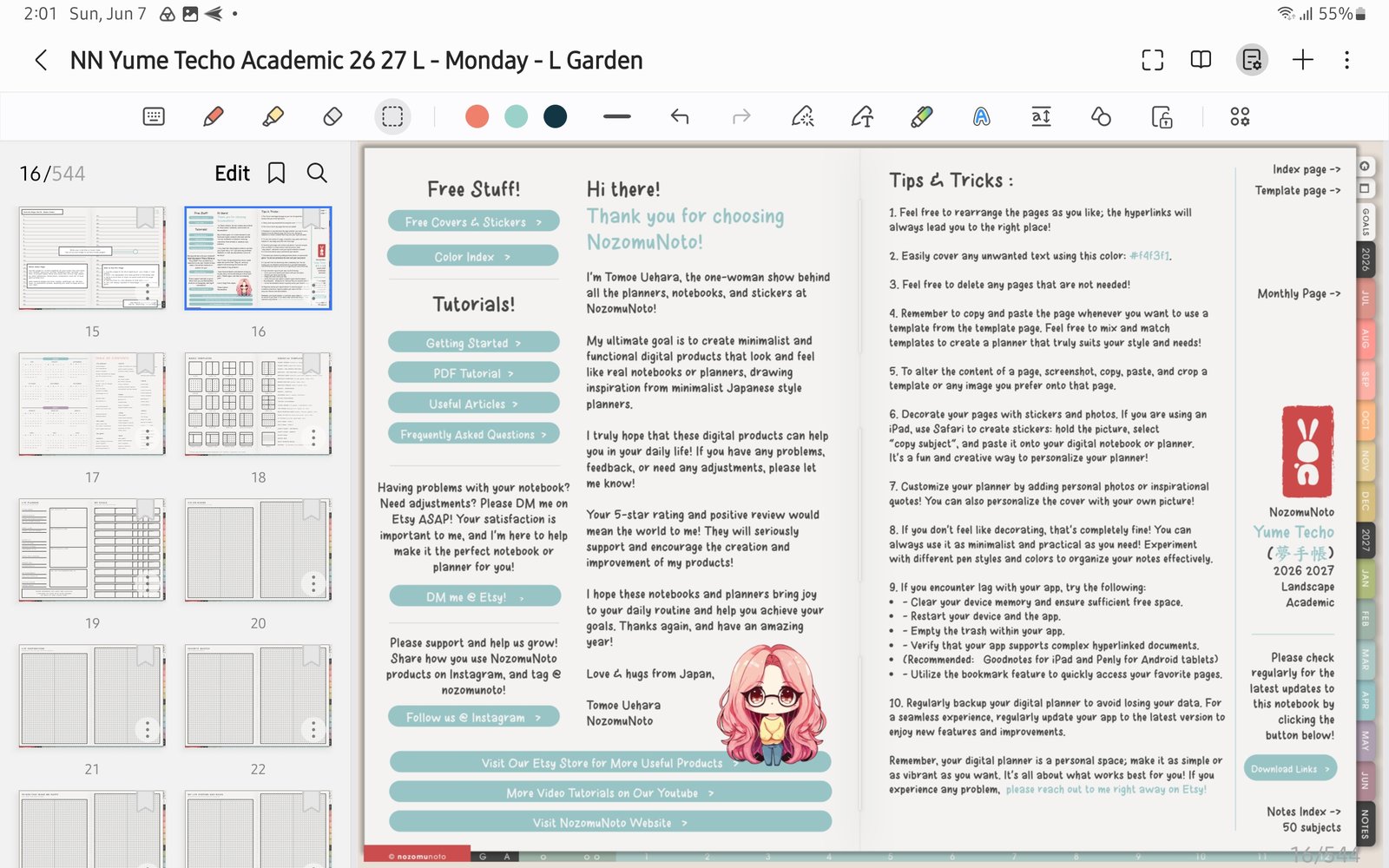
Page sorterUse the page sorter / thumbnail panel to find Template Pages. Product shown: Yume Techo Academic 26-27 Landscape. - Find the clean template page you want to reuse.
- Open the page action menu on the thumbnail, then use Copy, Add page, or the page action your Samsung Notes version shows.
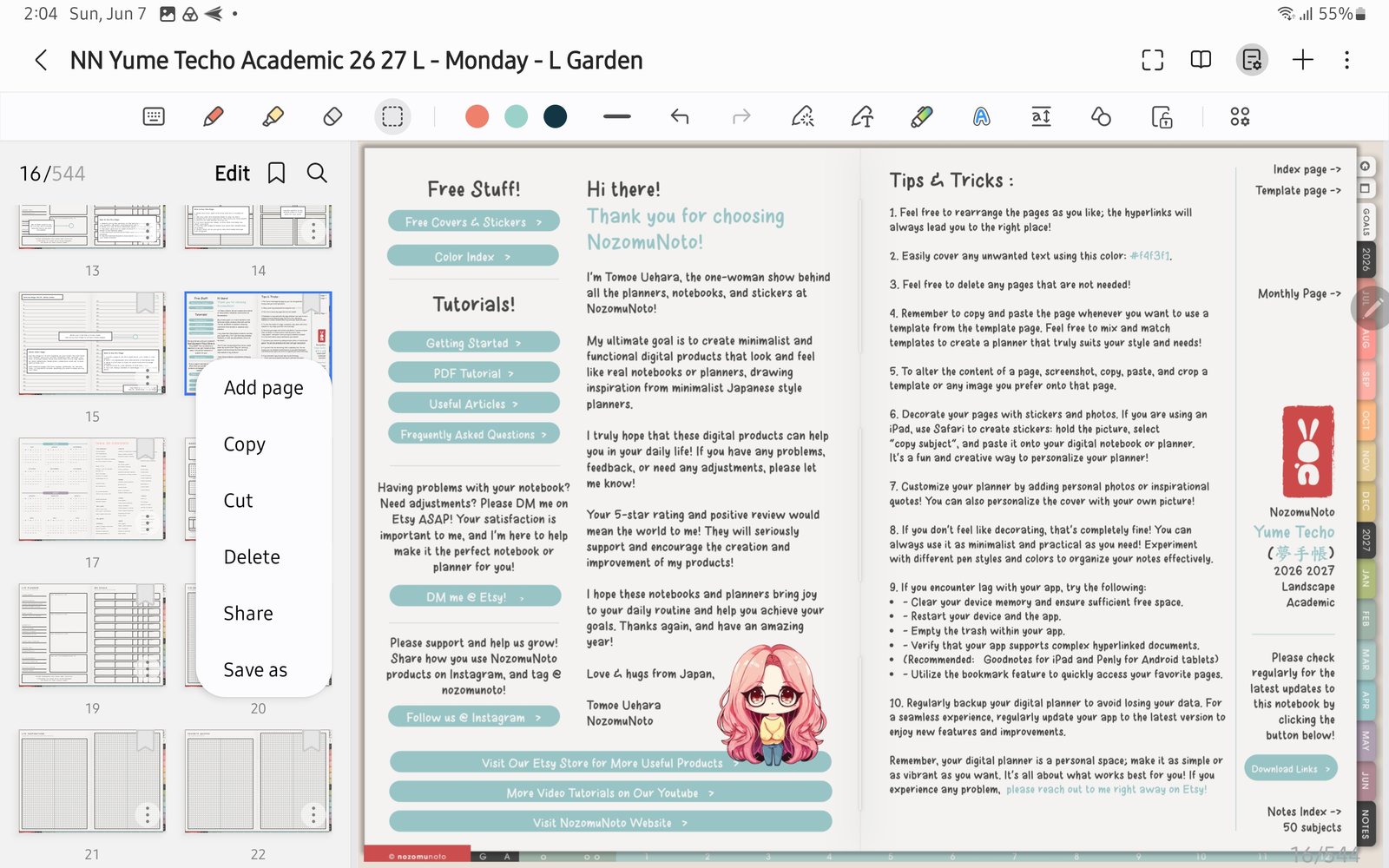
Template page actionsThe thumbnail menu can show Add page, Copy, Cut, Delete, Share, and Save as. Product shown: Yume Techo Academic 26-27 Landscape. - Keep the original template page clean. Write on the copied or added page instead.
- For Samsung Notes blank note pages, Samsung also has Page template, but Samsung says this cannot be applied to a note imported from a PDF.
- If template-page work is the main thing you do every day, Penly or another planner-first app may feel easier than Samsung Notes.
Notes
- Template note: Use the NozomuNoto template pages already inside the PDF. Samsung Notes page templates are separate app templates and do not replace the templates inside an imported planner PDF.
- If the clean template is already filled, re-import a fresh copy, find the clean template page, and duplicate it again.