

Use these steps to work with NozomuNoto PDF planners, notebooks, stickers, covers, and template pages in Samsung Notes. The official links below are for downloads, updates, and current help pages.
Reference links
Use these for current app or device help, downloads, updates, vendor support, and manual references.
Save quick access in Samsung Notes
- For the whole planner note, open the note, tap More options (three vertical dots), then tap the Star icon.
- Tap Back, then open Menu and Favorites to find the planner later.
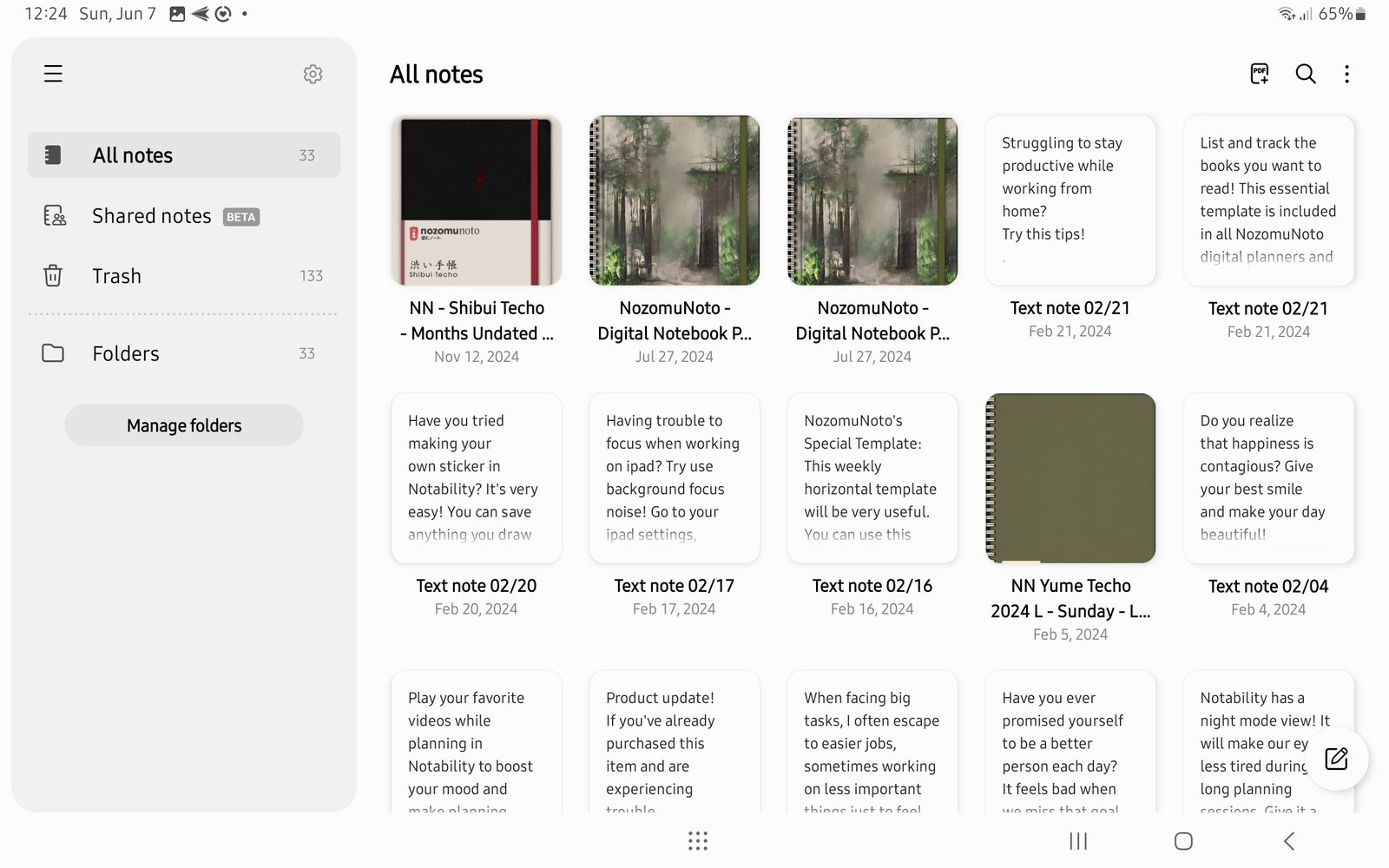
Samsung Notes libraryFavorite the whole planner note, then use the NozomuNoto Index and thumbnails for exact pages. Product shown: Yume Techo Academic 26-27 Landscape. - For a specific planner page, use the NozomuNoto Index page first. It is usually clearer than trying to bookmark many individual Samsung Notes pages.
- Use the page sorter / thumbnail panel when you need to jump by page preview.
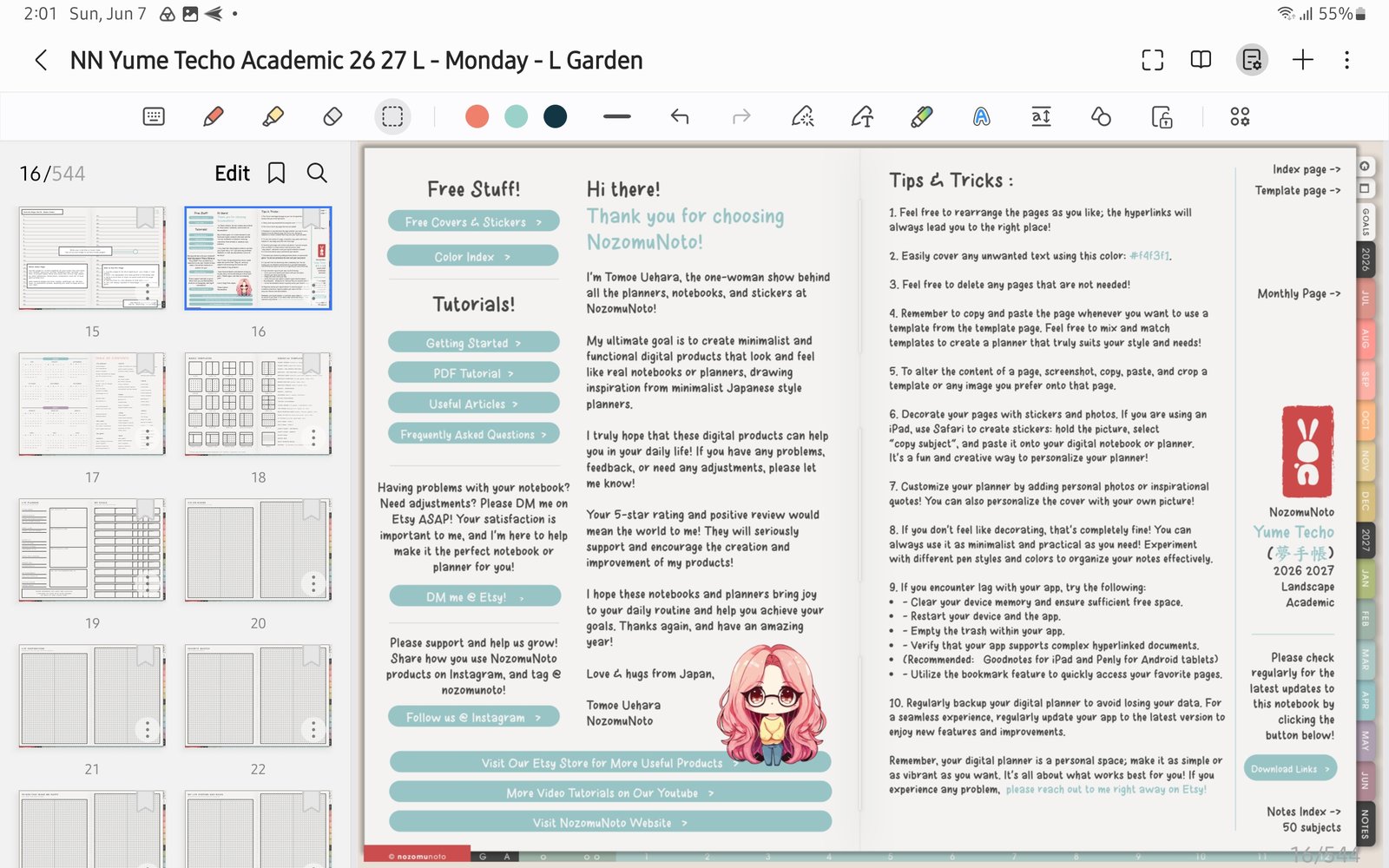
Page sorter for quick returnUse page thumbnails when you need to return to a visible planner page. Product shown: Yume Techo Academic 26-27 Landscape. - Keep quick access simple: favorite the whole planner, then rely on Index, month tabs, current week, and page thumbnails inside the planner.
Notes
- Bookmark note: Samsung Notes favorites are best for finding the whole planner note. For exact planner pages, the NozomuNoto Index and the page sorter are more reliable.
- If bookmarks become crowded, keep only Index, current month, current week, and pages you reopen often.