

Use these steps to work with NozomuNoto PDF planners, notebooks, stickers, covers, and template pages in Samsung Notes. The official links below are for downloads, updates, and current help pages.
Reference links
Use these for current app or device help, downloads, updates, vendor support, and manual references.
Change the Samsung Notes note cover
- Go to the Samsung Notes Home page.
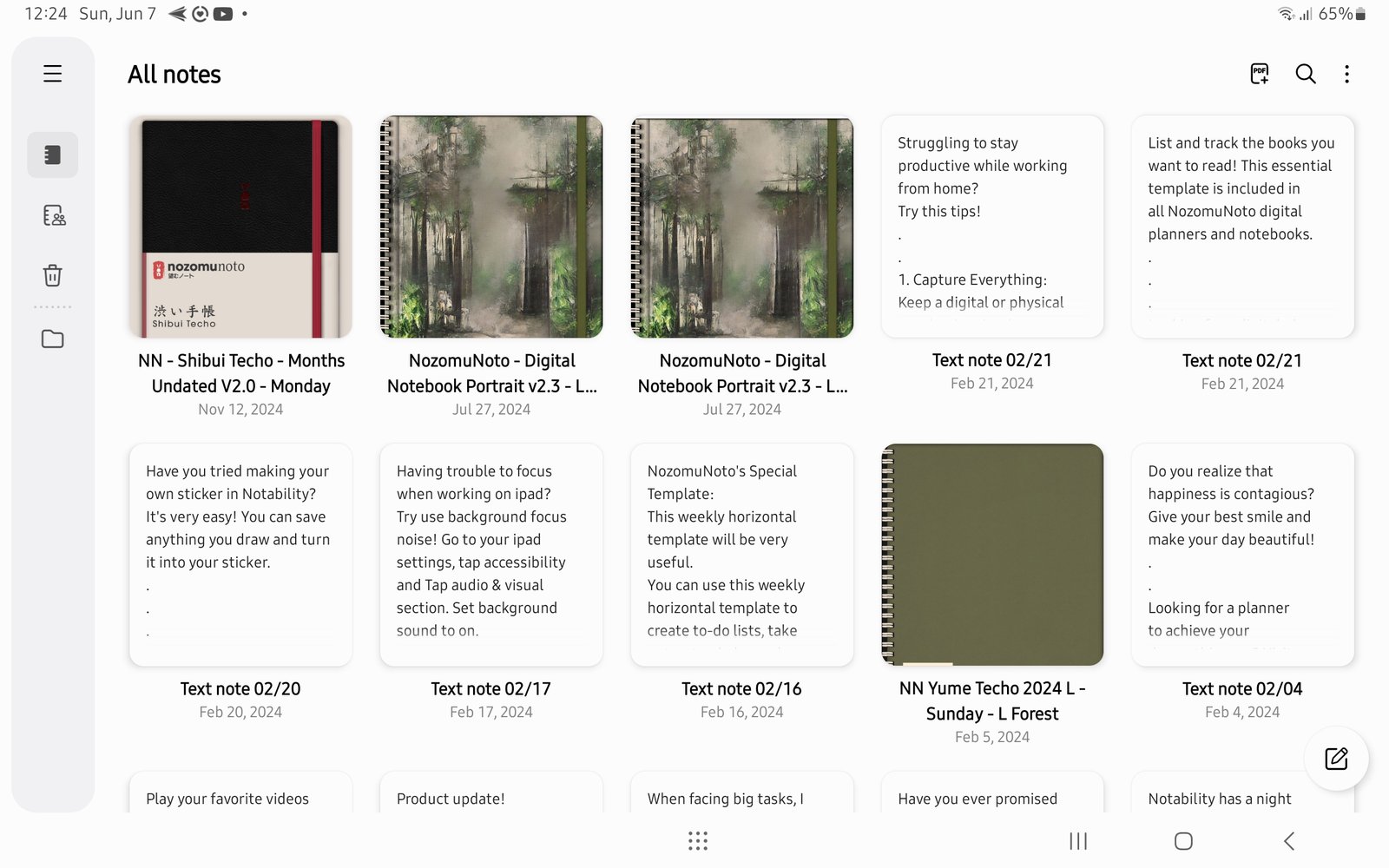
Samsung Notes HomeSamsung Notes Home shows planner notes by thumbnail or cover. Product shown: Yume Techo Academic 26-27 Landscape. - Touch and hold the note.
- Tap Edit cover.
- Choose the cover color or style shown in Samsung Notes.
- For a PDF planner, keep the first PDF page as the visible planner cover if Samsung Notes uses the first page thumbnail.
- If changing the note cover does not change the PDF planner thumbnail the way you expected, keep the NozomuNoto cover page as page one instead of deleting linked planner pages.
Notes
- Cover note: Samsung Notes can treat the note cover and the imported PDF pages differently. Do not delete important linked planner pages just to change a thumbnail.
- If the cover looks wrong or the thumbnail does not update as expected, keep the original cover page and use a clear document name.