

Use these steps to work with NozomuNoto PDF planners, notebooks, stickers, covers, and template pages in Noteshelf. The official links below are for downloads, updates, and current help pages.
Reference links
Use these for current app or device help, downloads, updates, vendor support, and manual references.
Use the Index page in Noteshelf on Android
- Open the planner and switch to Read-Only / link mode.
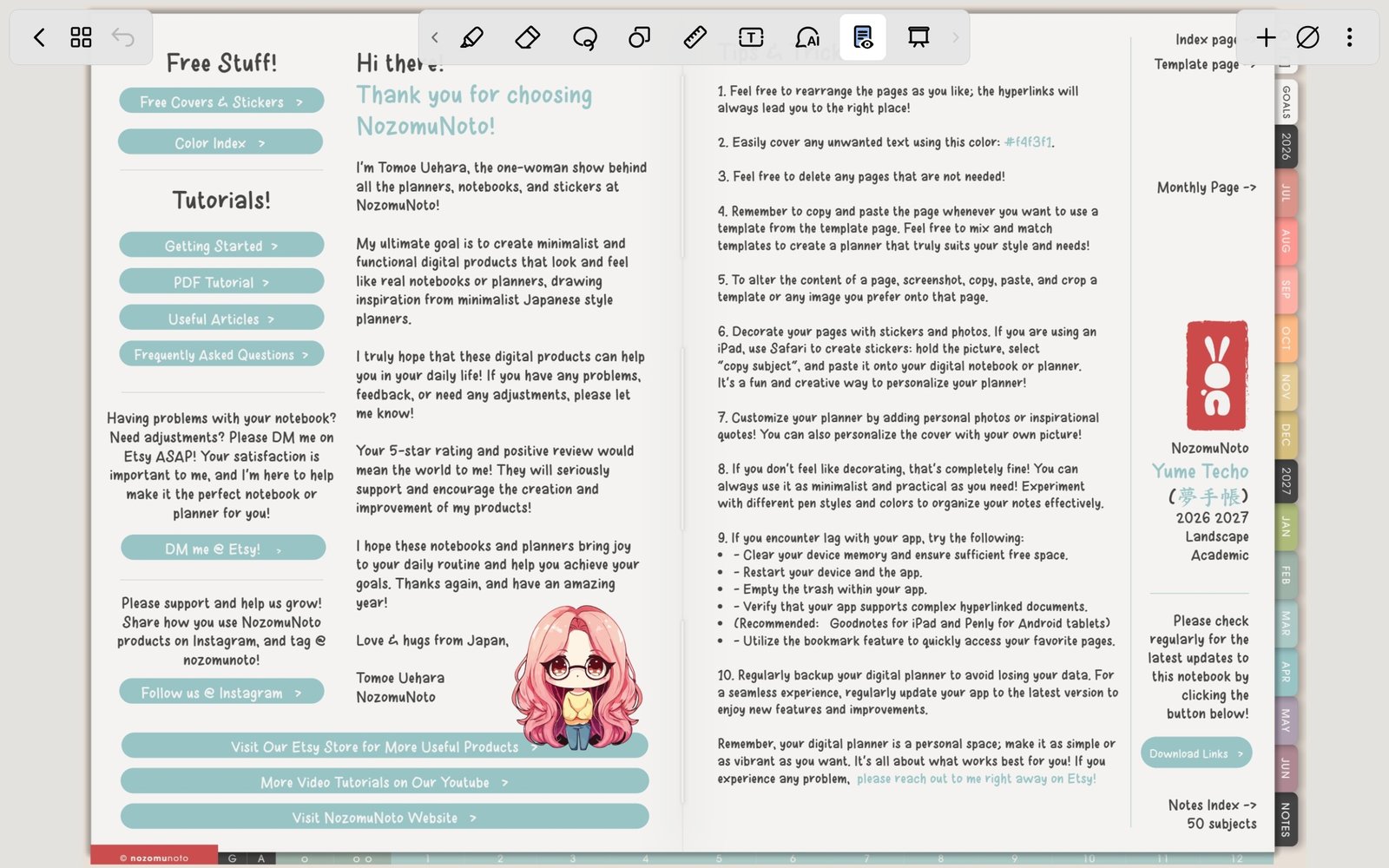
Read-Only / link mode firstSwitch to Read-Only / link mode before using the NozomuNoto Index. Product shown: Yume Techo Academic 26-27 Landscape. - Go to the NozomuNoto Index page or tap the printed Index tab inside the planner.
- Tap the linked section, month, template group, or planner area you want to open.
- Use the Pages panel / thumbnail grid when you want a visual page map.
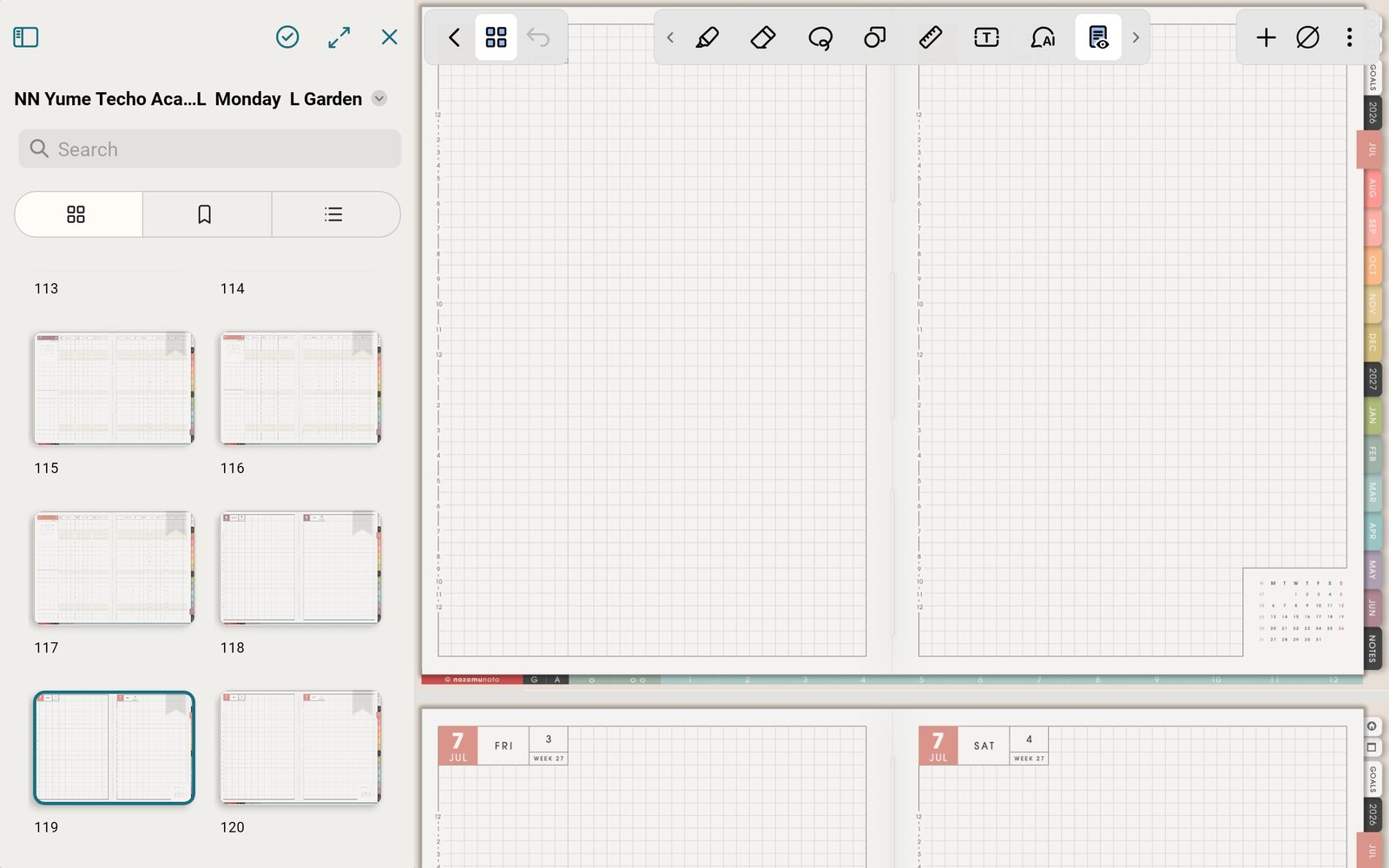
Pages panelUse the Pages panel / thumbnail grid when you want a visual page map. Product shown: Yume Techo Academic 26-27 Landscape. - Bookmark Index, current month, or current week if you return to those pages every day.
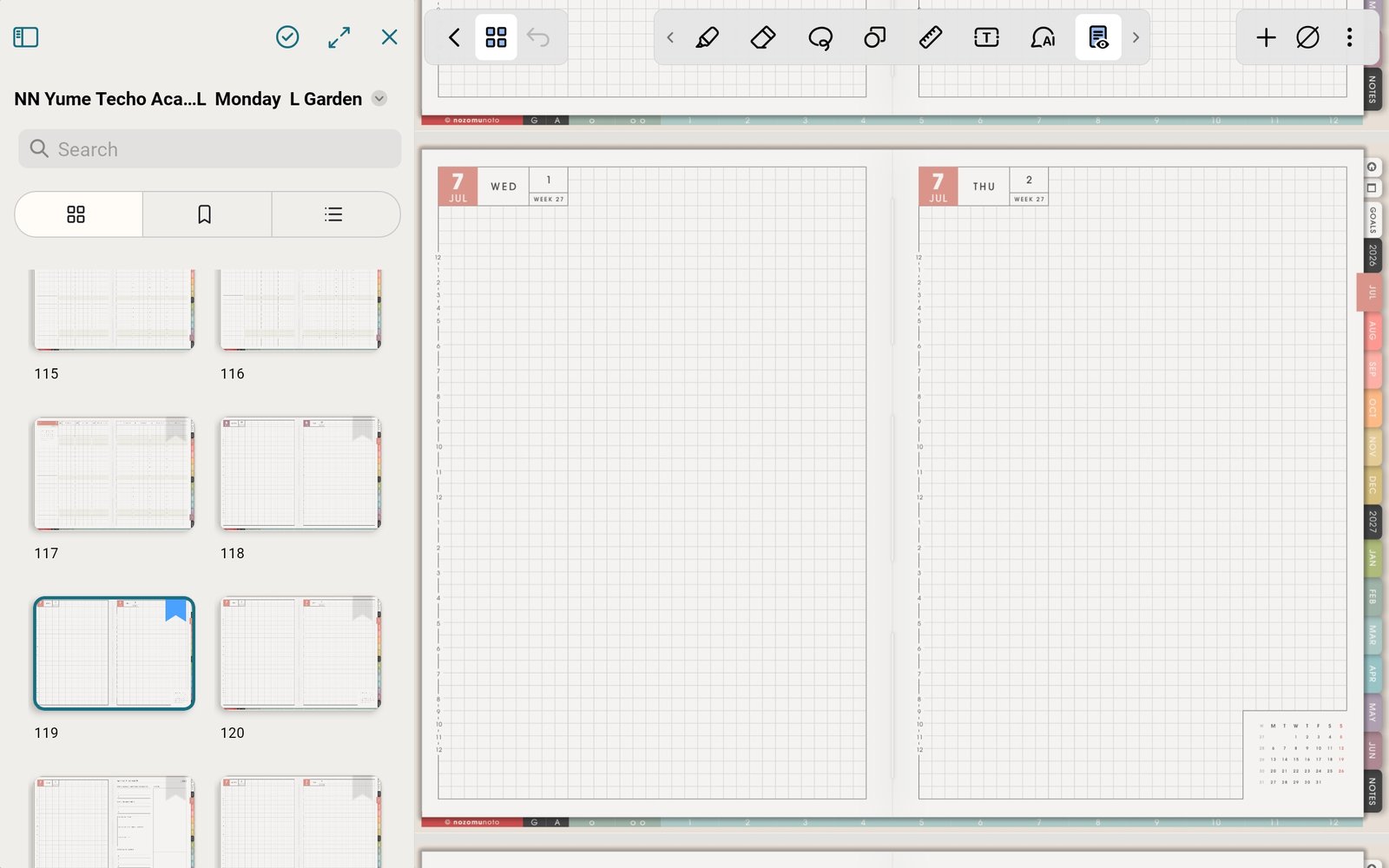
Bookmark a return pointBookmark Index, current month, or current week if you return there often. Product shown: Yume Techo Academic 26-27 Landscape.