

Use these steps to work with NozomuNoto PDF planners, notebooks, stickers, covers, and template pages in Noteful. The official links below are for downloads, updates, and current help pages.
Reference links
Use these for current app or device help, downloads, updates, vendor support, and manual references.
- Noteful: Import a file as a new notebook
- Noteful: Import a file as part of a notebook
- Noteful: Insert a page in a notebook
- Noteful: Add and rename a bookmark in a notebook
- Noteful: Add, resize, style and crop an image
- Noteful: Export one or more pages of a notebook
- Noteful: Add a page at the beginning or the end of a notebook
- Noteful: Clear the content of a page of your notebook
Set up your first NozomuNoto planner in Noteful
- Save the original NozomuNoto download outside Noteful and extract the ZIP if needed.
- Open Noteful, tap the Add button, tap Import File, choose the PDF, and tap Import.
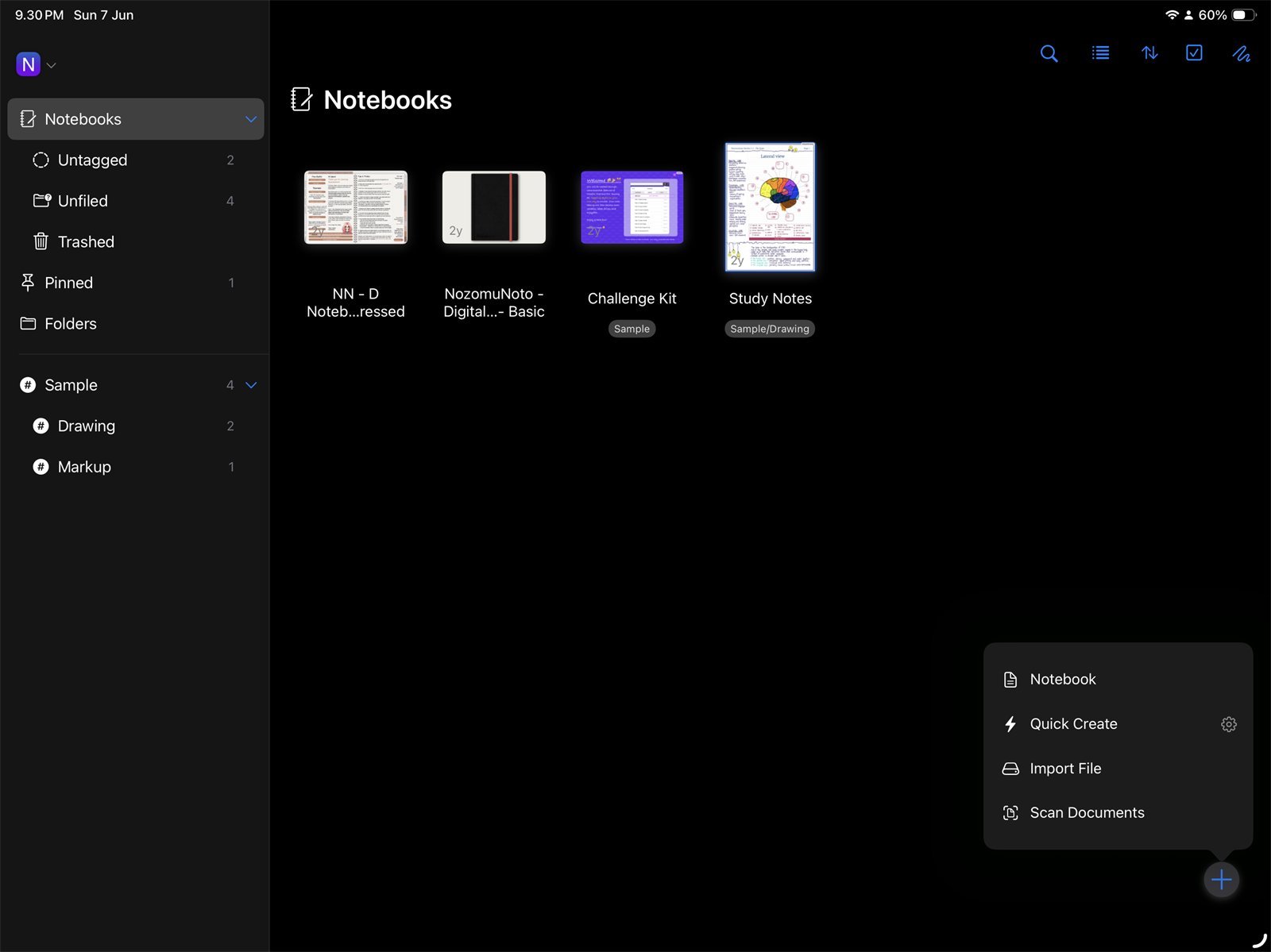
Import File firstStart by importing the Yume Techo Academic 26-27 Landscape PDF into Noteful as its own notebook. - Rename or identify the notebook with product name, year, orientation, week start, and color if your library has many planners.
- Use the hand/navigation tool and test Index, one month, one week, and one date link.
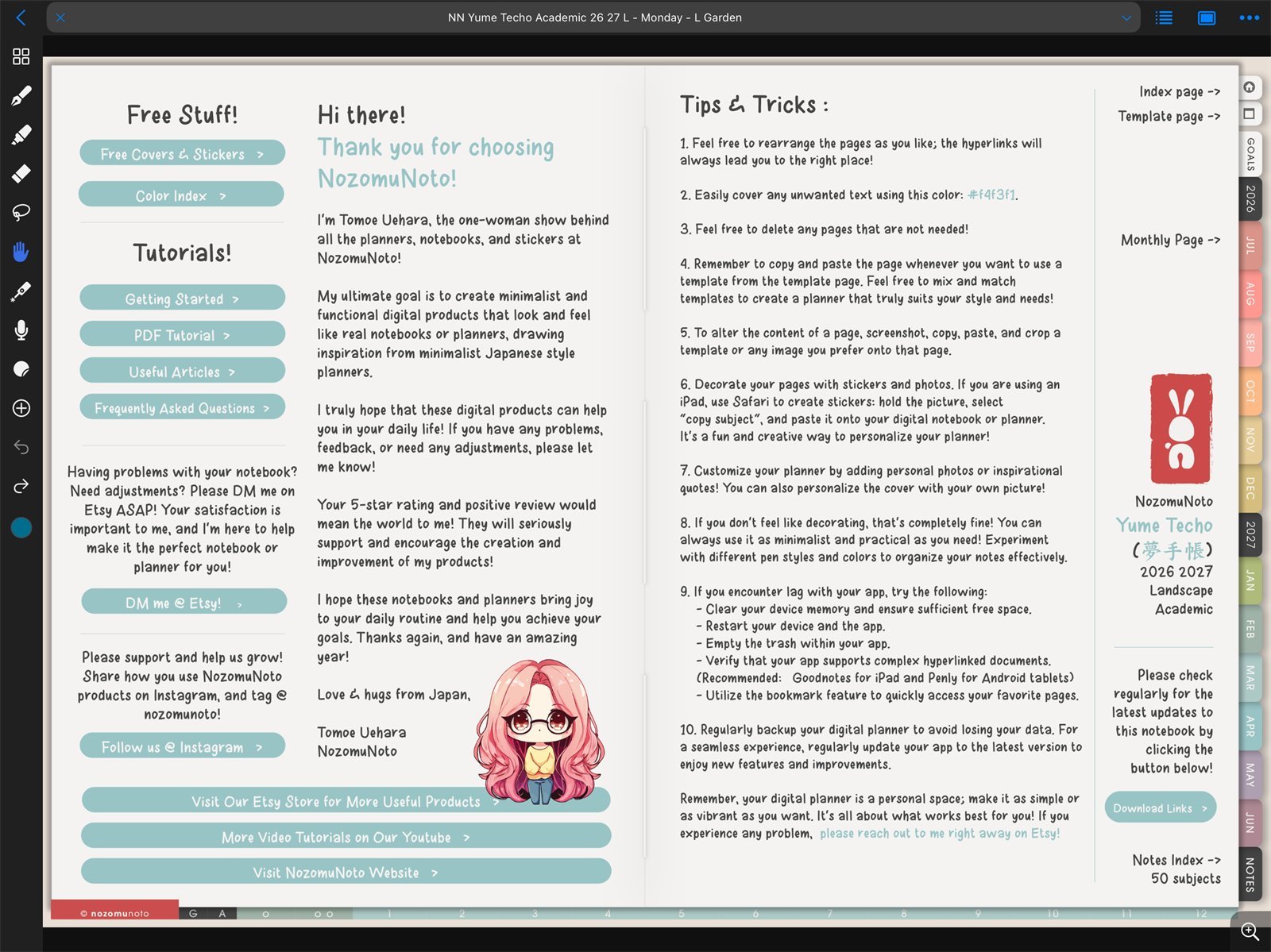
Test navigationUse the Noteful hand tool before testing Index, month, week, and date links. - Open Grid view and confirm page thumbnails load.
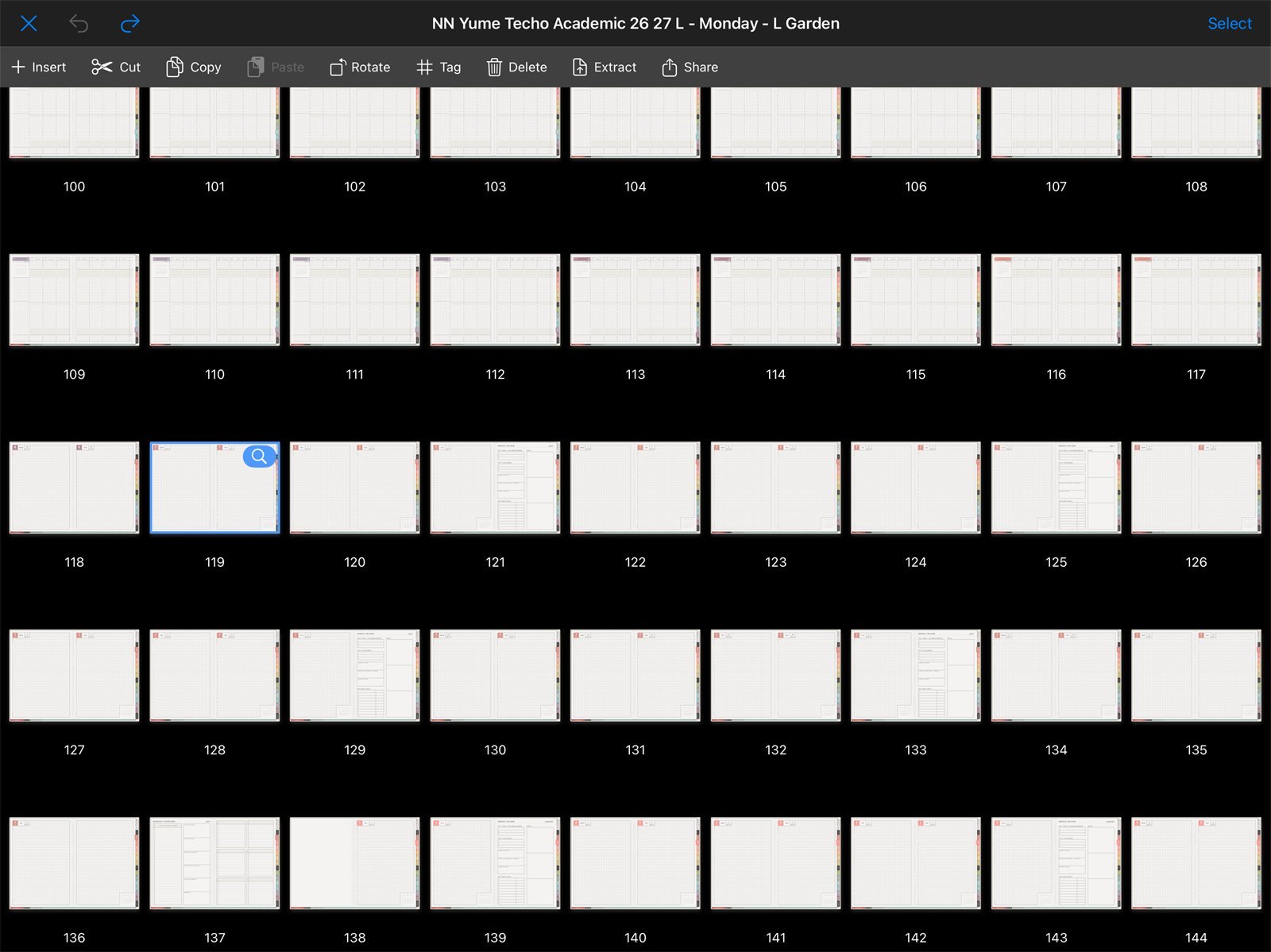
Check page thumbnailsNoteful Grid view showing Yume Techo Academic 26-27 Landscape thumbnails. - Add one or two practical bookmarks, such as Index and current week.
- Try one template or inserted page only after the links and thumbnails work.
- Insert one PNG sticker or image only after the planner navigation works.
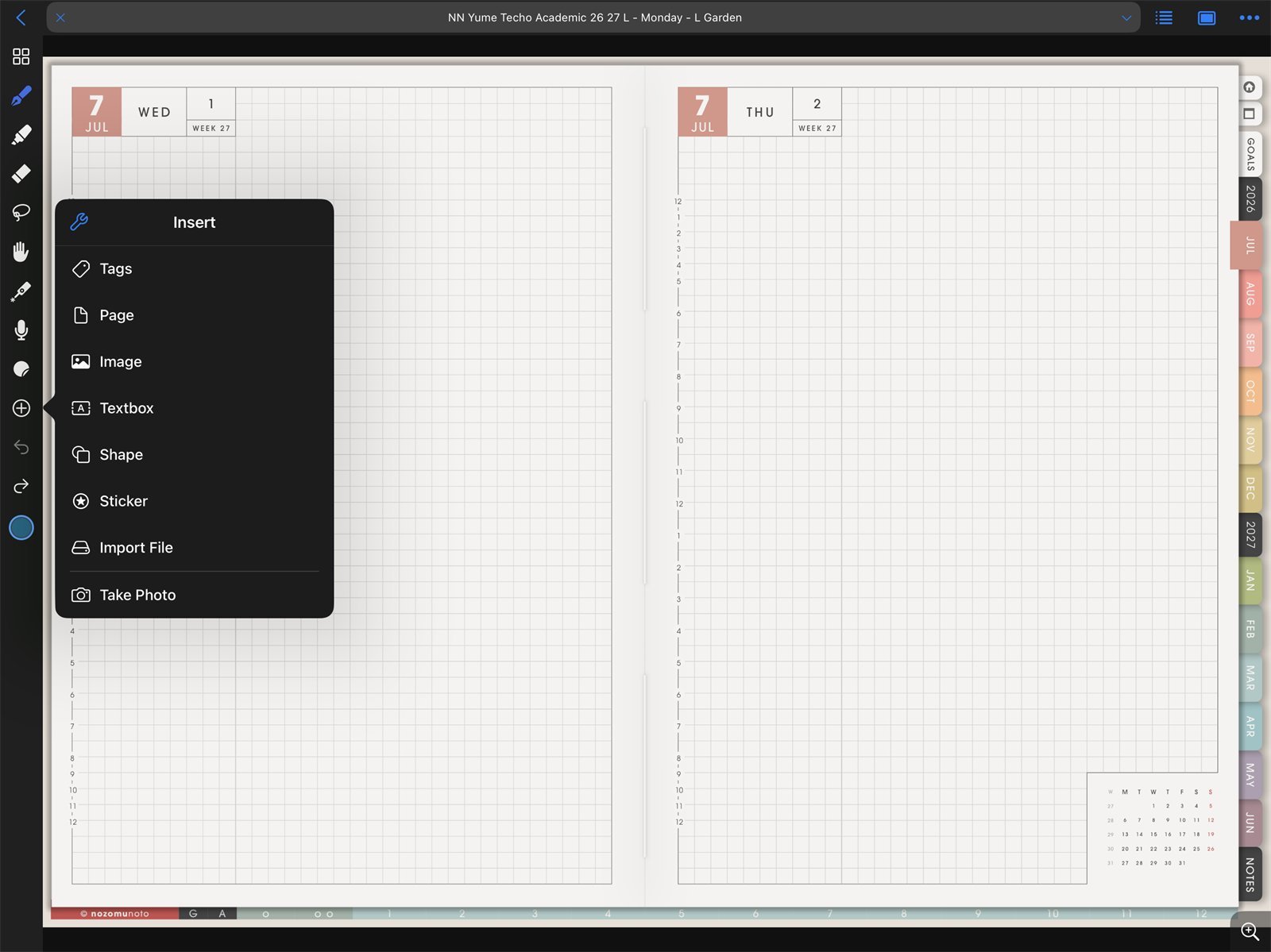
Test one imageUse the Noteful Insert menu to test one PNG sticker or image after navigation works. - Keep the first week small: Index, current month, current week, one notes page, and one active template page.
Notes
- Good first-day setup in Noteful: The first day is not for building the perfect planner. It is for proving that the PDF imports, links move, Grid view opens, bookmarks are findable, and one image can be inserted.
When Noteful feels confusing
1. Too many notebooks look the same
What happens: you cannot tell which copy is the real planner.
What to do: keep one working copy and delete only test copies after the working copy is confirmed.
2. Links and writing tools fight each other
What happens: you try to tap a link but the app edits instead.
What to do: switch to the hand/navigation tool for links, then back to writing tools for ink.
3. The planner becomes too big too fast
What happens: you set up every section and stop using the planner after a few days.
What to do: use only Index, month, week, today, and one helpful template until the habit feels normal.
- If the full planner feels too big, use only Index, current month, current week, and one notes or template page for the first week.