

Use these steps to work with NozomuNoto PDF planners, notebooks, stickers, covers, and template pages in Noteful. The official links below are for downloads, updates, and current help pages.
Reference links
Use these for current app or device help, downloads, updates, vendor support, and manual references.
- Noteful: Import a file as a new notebook
- Noteful: Import a file as part of a notebook
- Noteful: Insert a page in a notebook
- Noteful: Add and rename a bookmark in a notebook
- Noteful: Add, resize, style and crop an image
- Noteful: Export one or more pages of a notebook
- Noteful: Add a page at the beginning or the end of a notebook
- Noteful: Clear the content of a page of your notebook
Noteful known problems with NozomuNoto planners
- If the PDF does not import, confirm the ZIP is extracted and import the PDF as a new notebook.
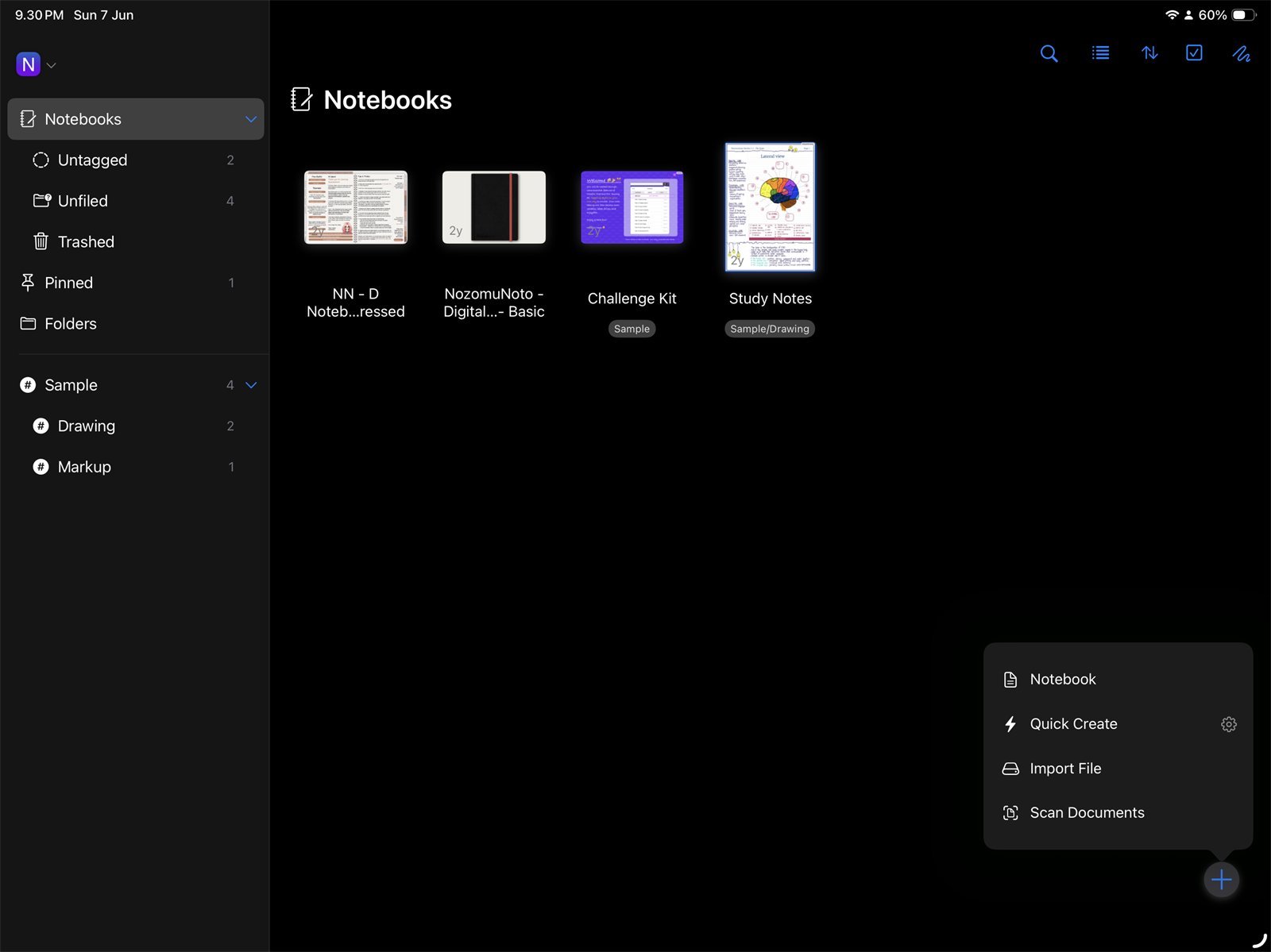
Fresh importIf the planner did not import correctly, import the extracted NozomuNoto PDF again from Noteful Library. - If links do not move, choose the hand/navigation tool and test again.
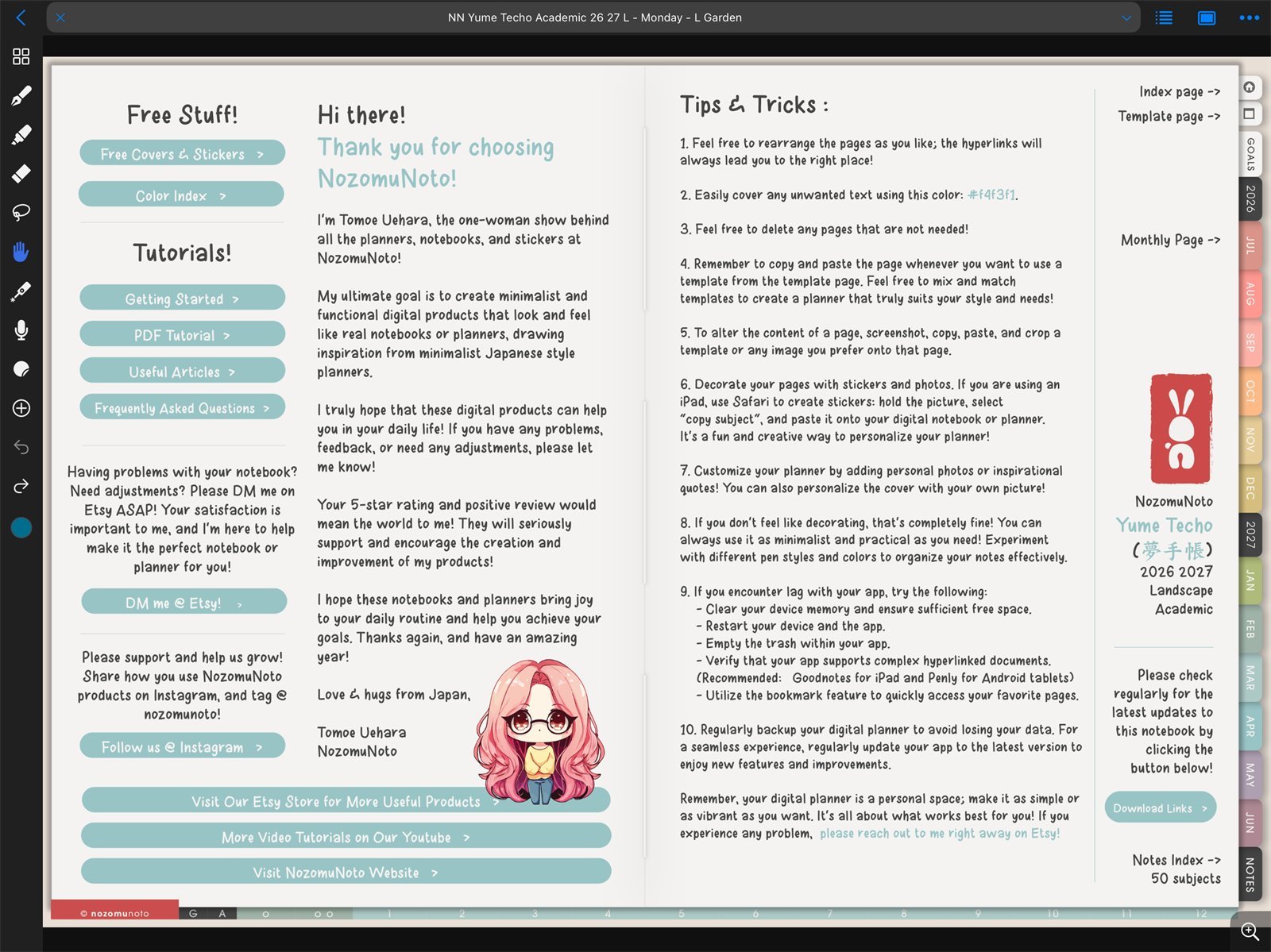
Use navigation modeIf links do not move, switch to the Noteful hand/navigation tool and test the same link again. - If the planner is hard to find, reduce duplicate library copies and keep one working notebook.
- If copied or inserted pages are hard to manage, use Grid view to see the page order.
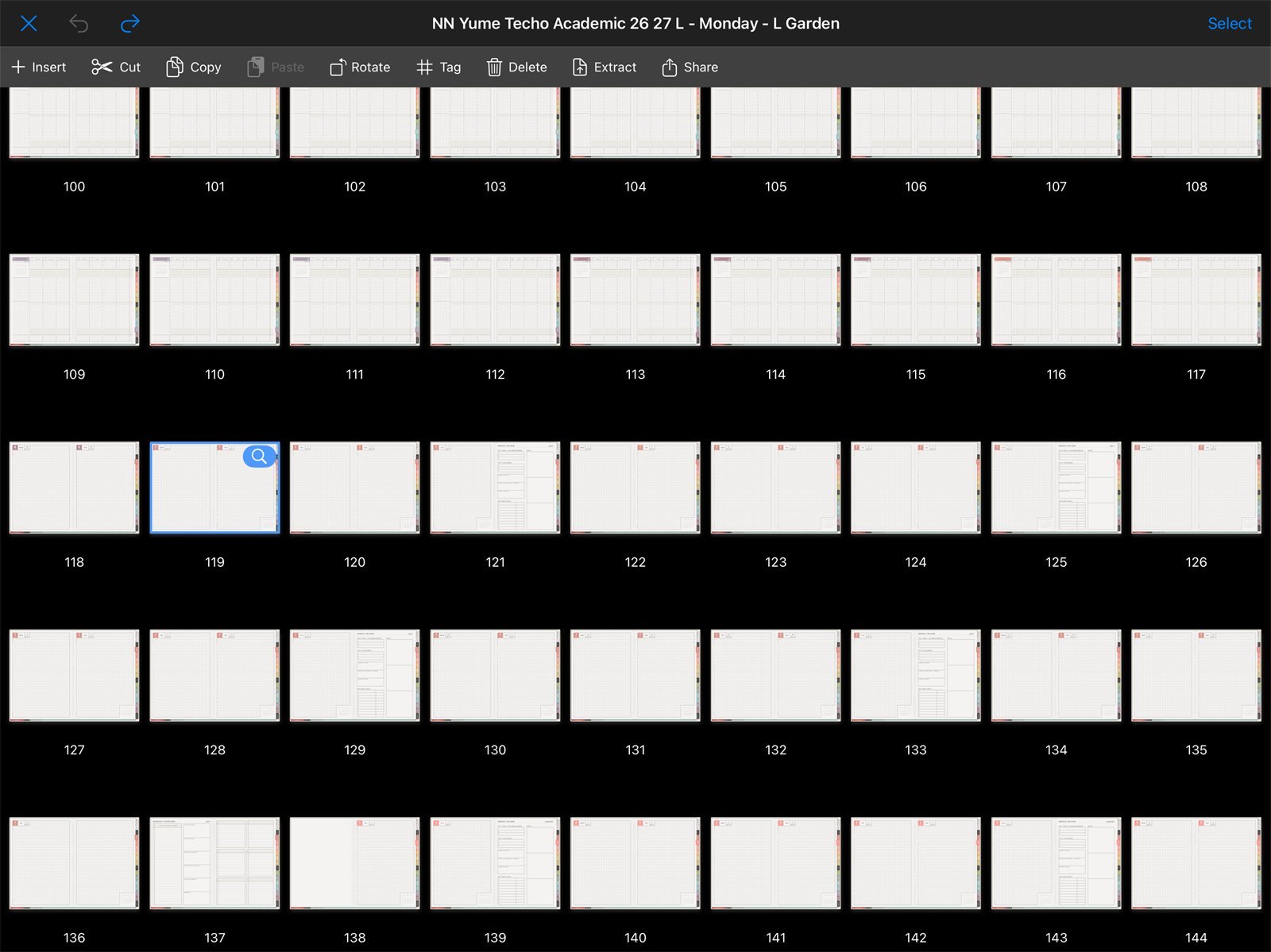
Use Grid viewIf pages feel hard to manage, use Noteful Grid view to see Yume Techo page order. - If bookmarks are limited or cluttered, keep only Index, current week, or the most important page.
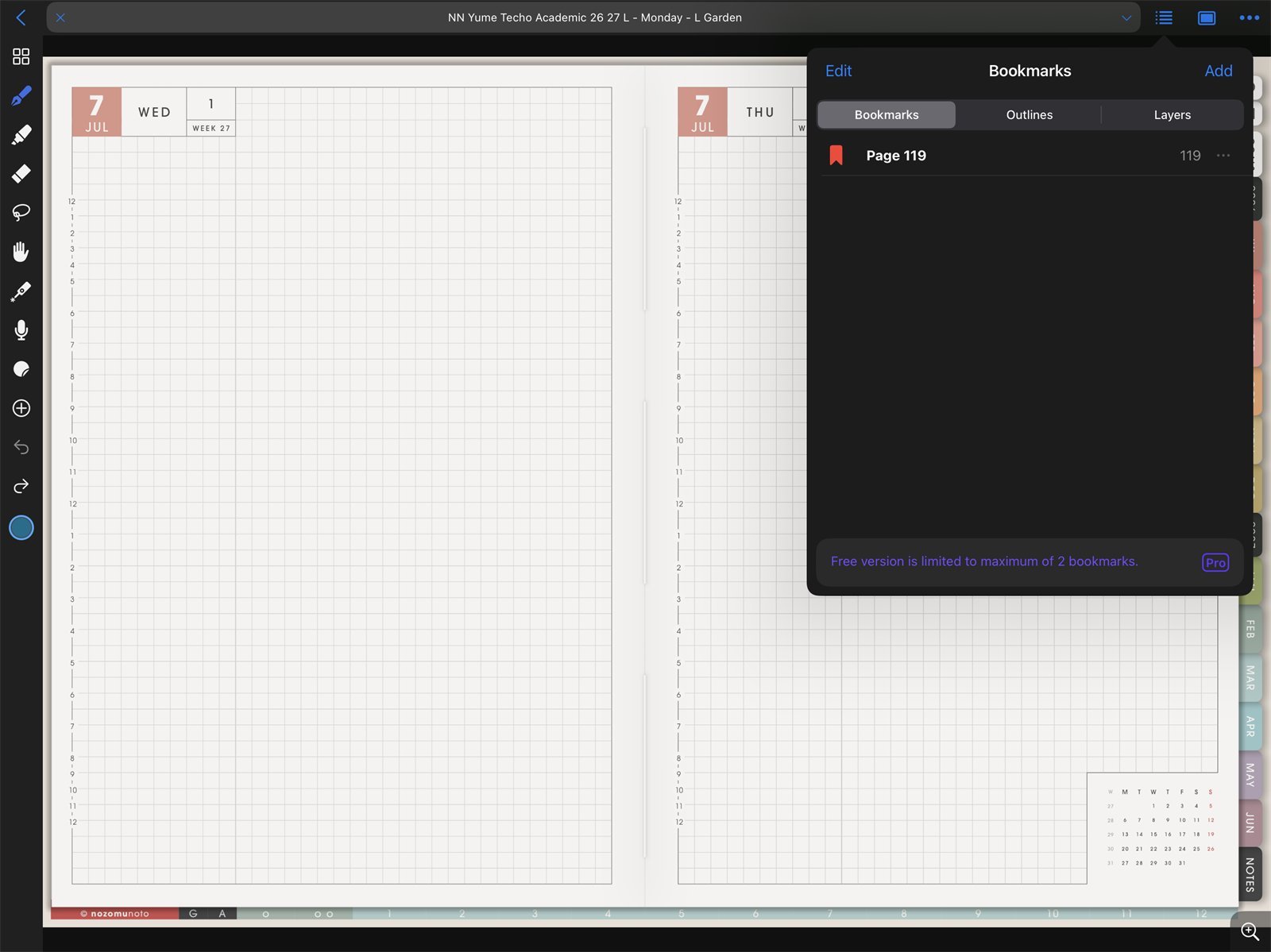
Keep bookmarks simpleIf bookmarks become cluttered or limited, keep only the most useful Noteful shortcuts. - If a sticker looks blurry, insert the original PNG again and keep it close to its original size.
Before asking for help
- Test a fresh import. Import the original NozomuNoto PDF again without page moves or exports.
- Test the same link in Apple Files. This separates file-link problems from Noteful mode problems.
- Write down the exact product and app version. Include product name, year, orientation, week start, color, device, iPadOS/iOS version, and Noteful version.
- Send a short screen recording if possible. Show the exact step where the problem happens.
Common Noteful fixes
1. Use the PDF, not the ZIP
Planner and notebook products should be imported as PDF files after extraction.
2. Use the hand/navigation tool for links
Writing tools are for editing the page. Navigation mode is for moving through hyperlinked planner pages.
3. Use Grid view for page structure
When pages feel lost, Grid view gives the clearest overview of page order, inserts, exports, and page actions.
4. Keep a clean backup
If the working notebook gets messy, re-import the original NozomuNoto PDF and move only the notes or copied pages you still need.