

Use these steps to work with NozomuNoto PDF planners, notebooks, stickers, covers, and template pages in Kilonotes. The official links below are for downloads, updates, and current help pages.
Reference links
Use these for current app or device help, downloads, updates, vendor support, and manual references.
Fix common Kilonotes planner problems
- If the planner is not in Kilonotes, go back to the library and import the extracted PDF again from Create > Import.
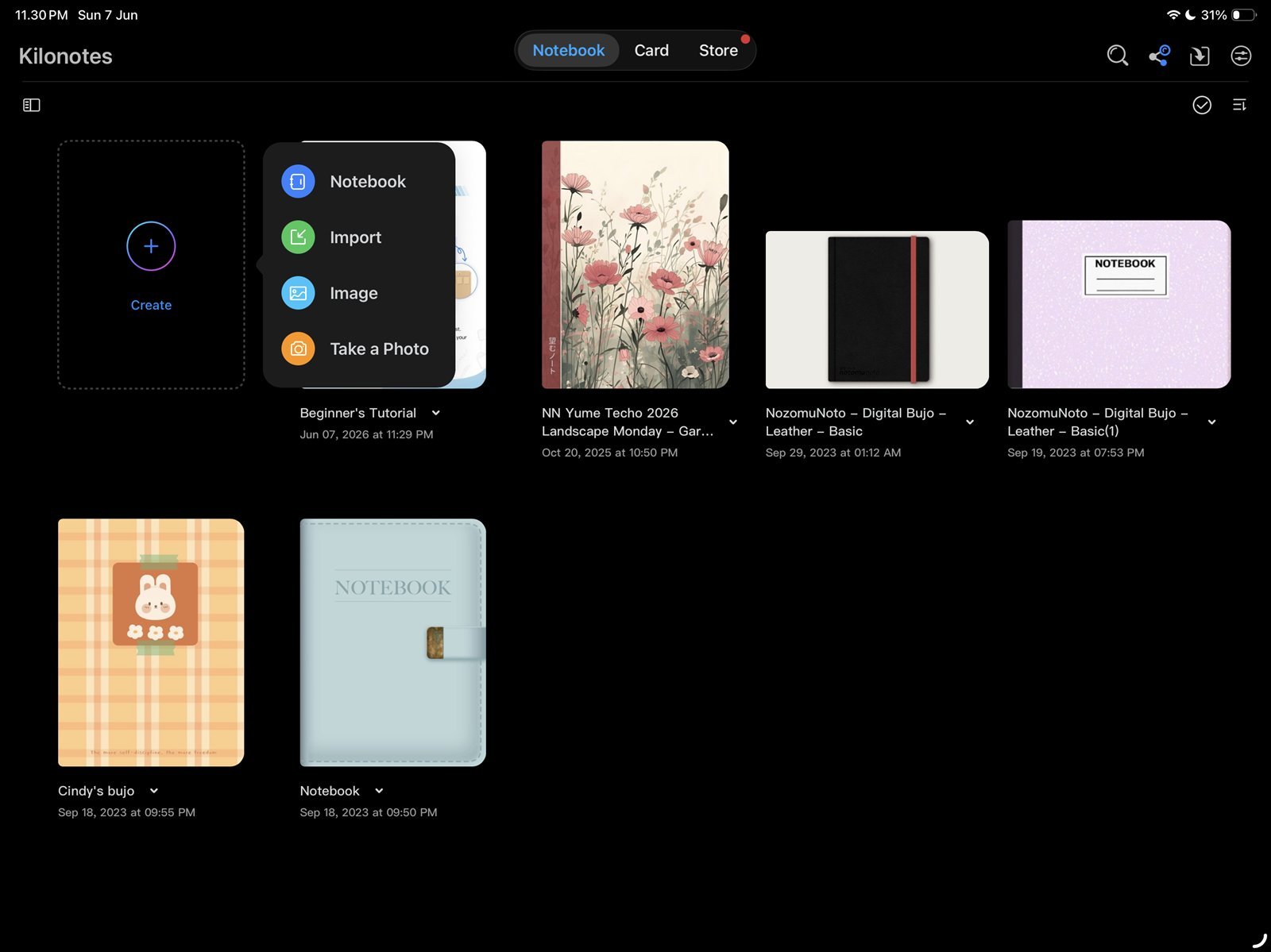
Import againIf the planner is missing, import the extracted PDF again from Create > Import. Product shown: Yume Techo Academic 26-27 Landscape. - If links do not move, tap the hand / navigation tool and test the same link again before writing more.
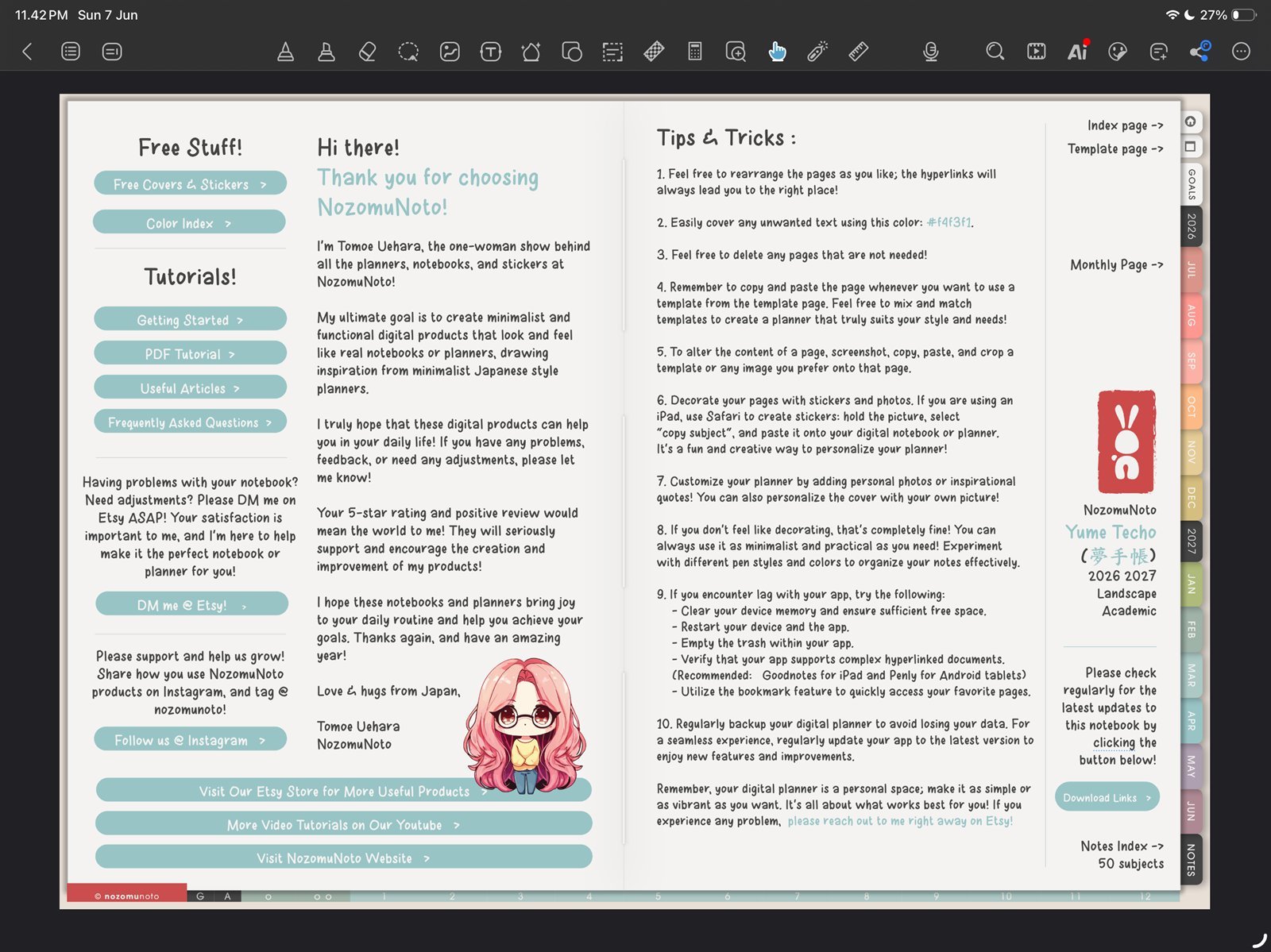
Hand tool for linksIf links do not move, tap the hand tool and test again. Product shown: Yume Techo Academic 26-27 Landscape. - If you copied the wrong page, return to the clean template page and use Copy Page again.
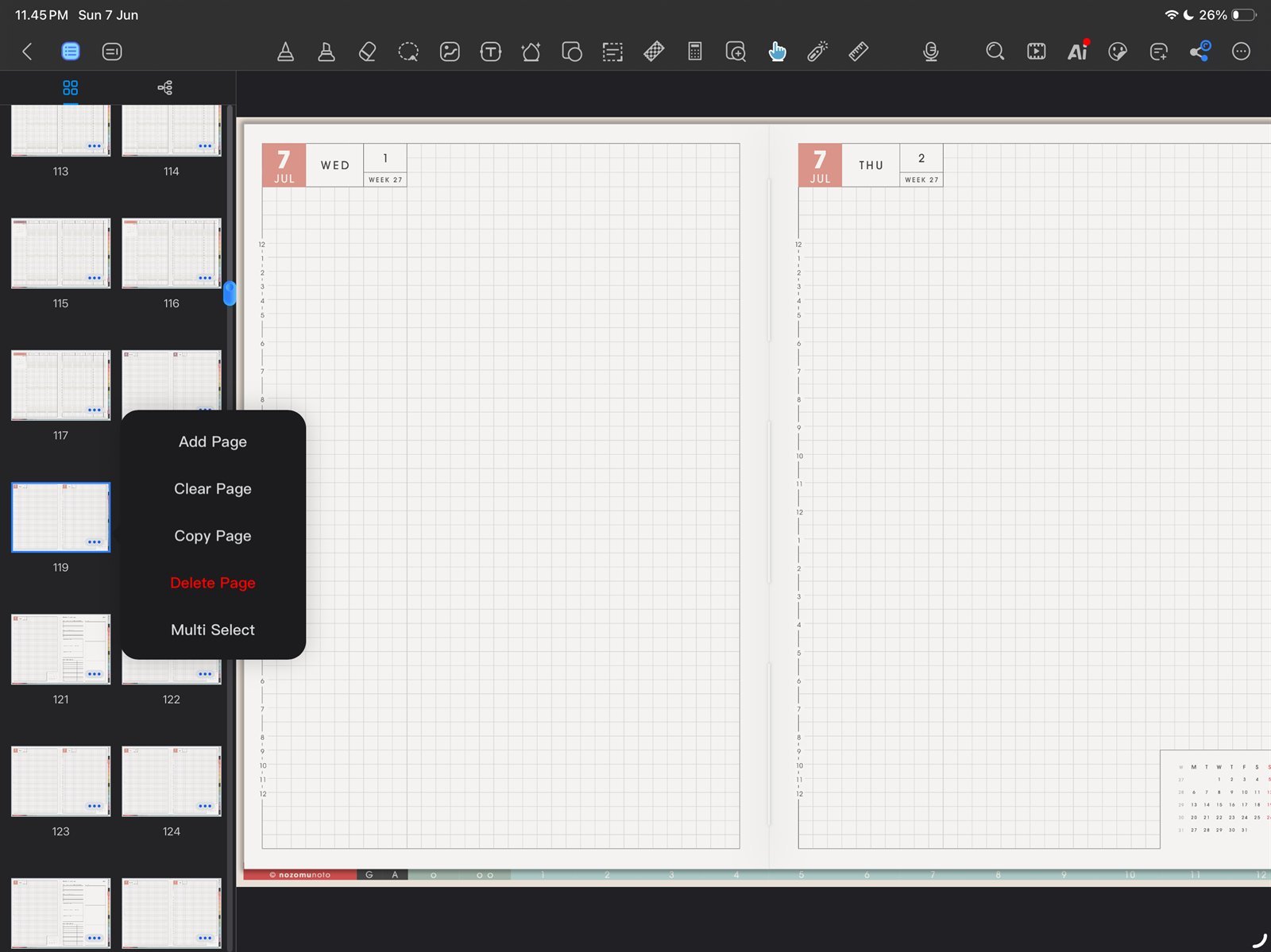
Page menu for copiesIf you copied the wrong page, return to the clean template and use Copy Page again. Product shown: Yume Techo Academic 26-27 Landscape. - If bookmarks feel confusing, create a simple outline entry with a clear name and Link current page.
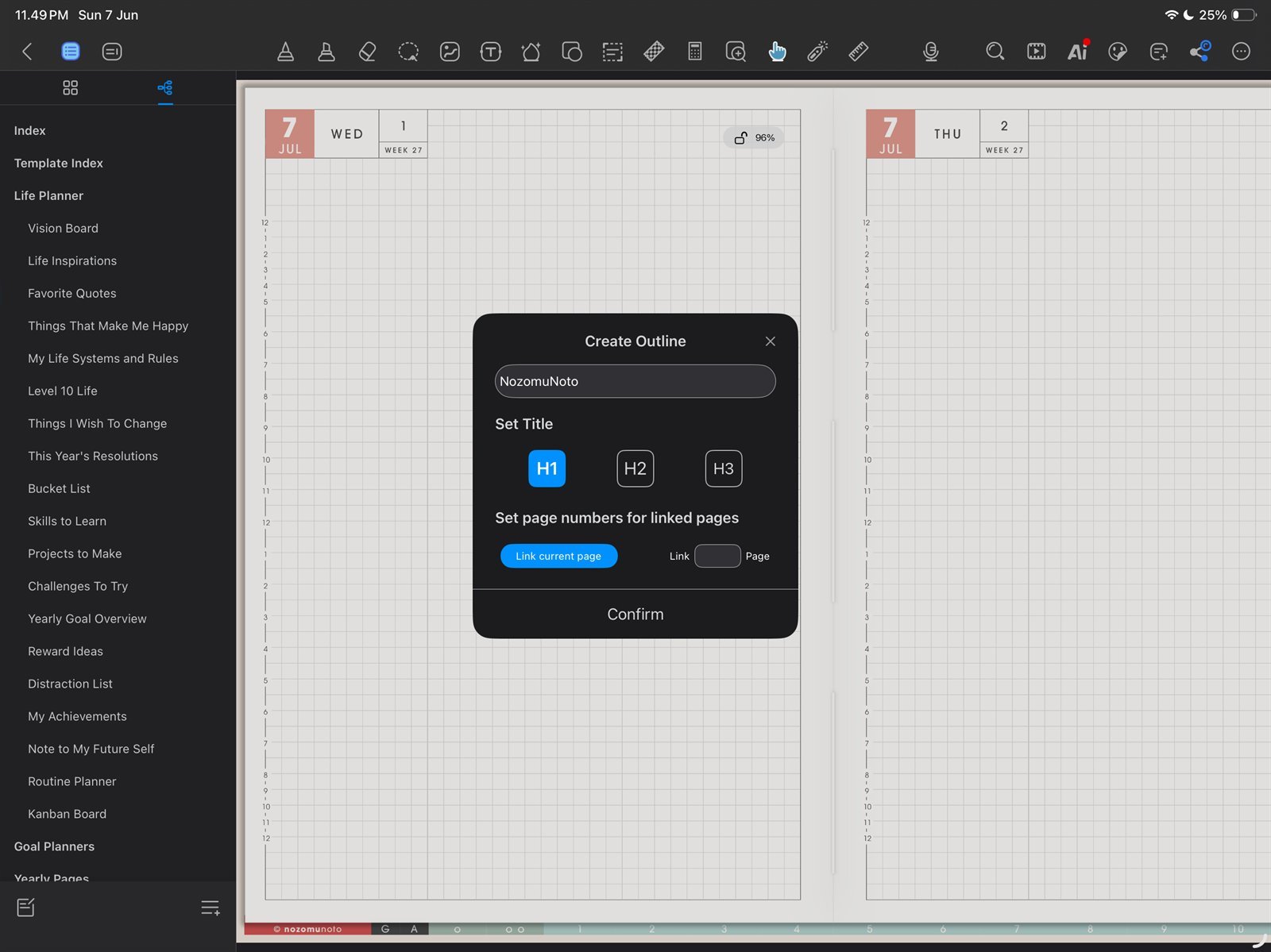
Create OutlineIf return points are confusing, make one clear outline entry first. Product shown: Yume Techo Academic 26-27 Landscape. - If stickers or images feel heavy, insert one small PNG first and keep large decorative pages light.
- If a heavily edited planner behaves strangely, re-import a clean copy of the original NozomuNoto PDF.