

Use these steps to work with NozomuNoto PDF planners, notebooks, stickers, covers, and template pages in CollaNote. The official links below are for downloads, updates, and current help pages.
Reference links
Use these for current app or device help, downloads, updates, vendor support, and manual references.
A good first CollaNote planner setup on iPad
- Import one clean NozomuNoto PDF with + > Import PDF.
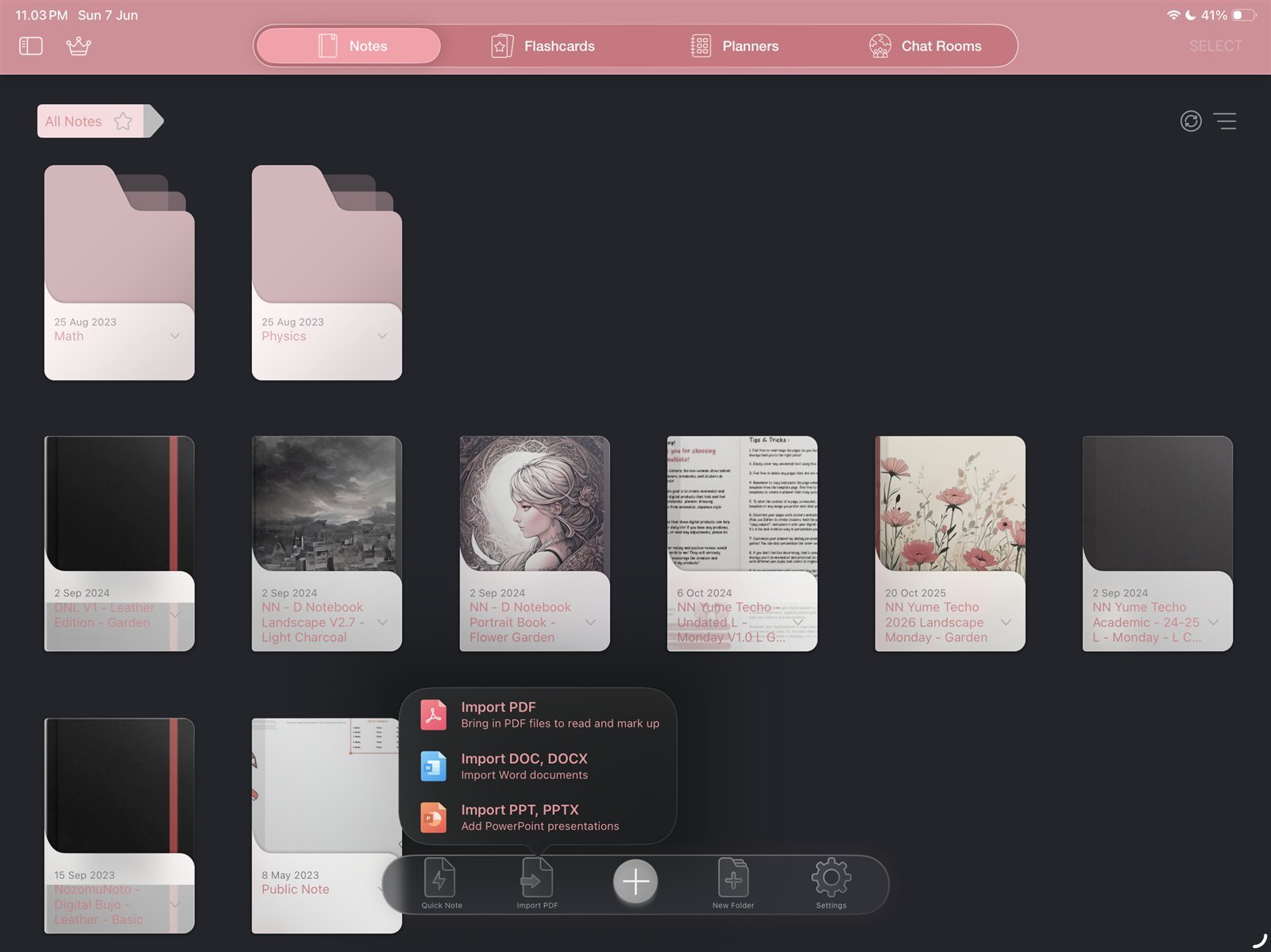
Import PDFStart with one clean imported planner copy. Product shown: Yume Techo Academic 26-27 Landscape. - Open the planner and switch to the hand / navigation tool.
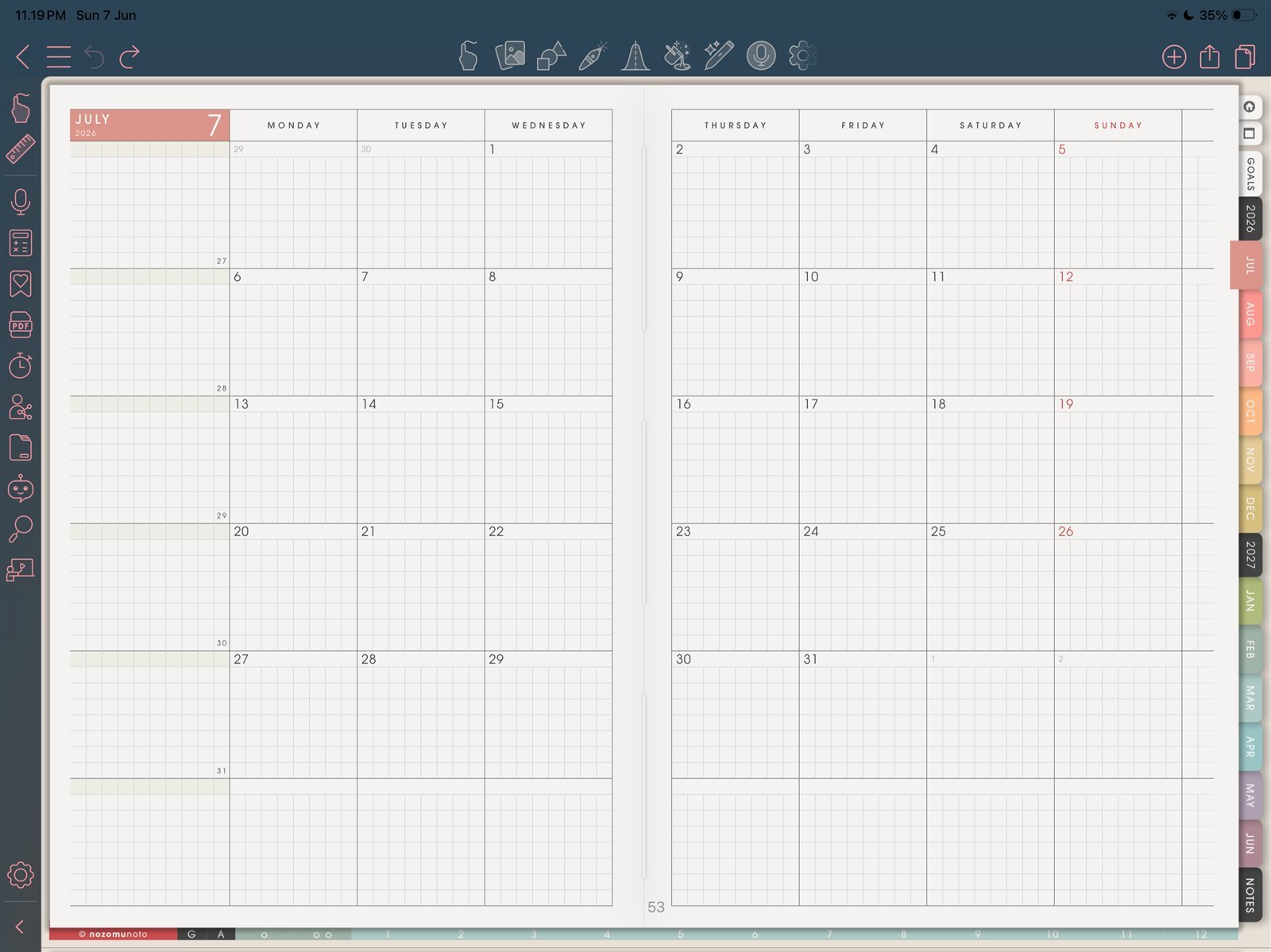
Hand tool link testTest links with the hand tool before writing heavily. Product shown: Yume Techo Academic 26-27 Landscape. - Test one month tab, one weekly link, and one daily link before writing heavily.
- Open the page thumbnail panel and confirm you can see planner pages clearly.
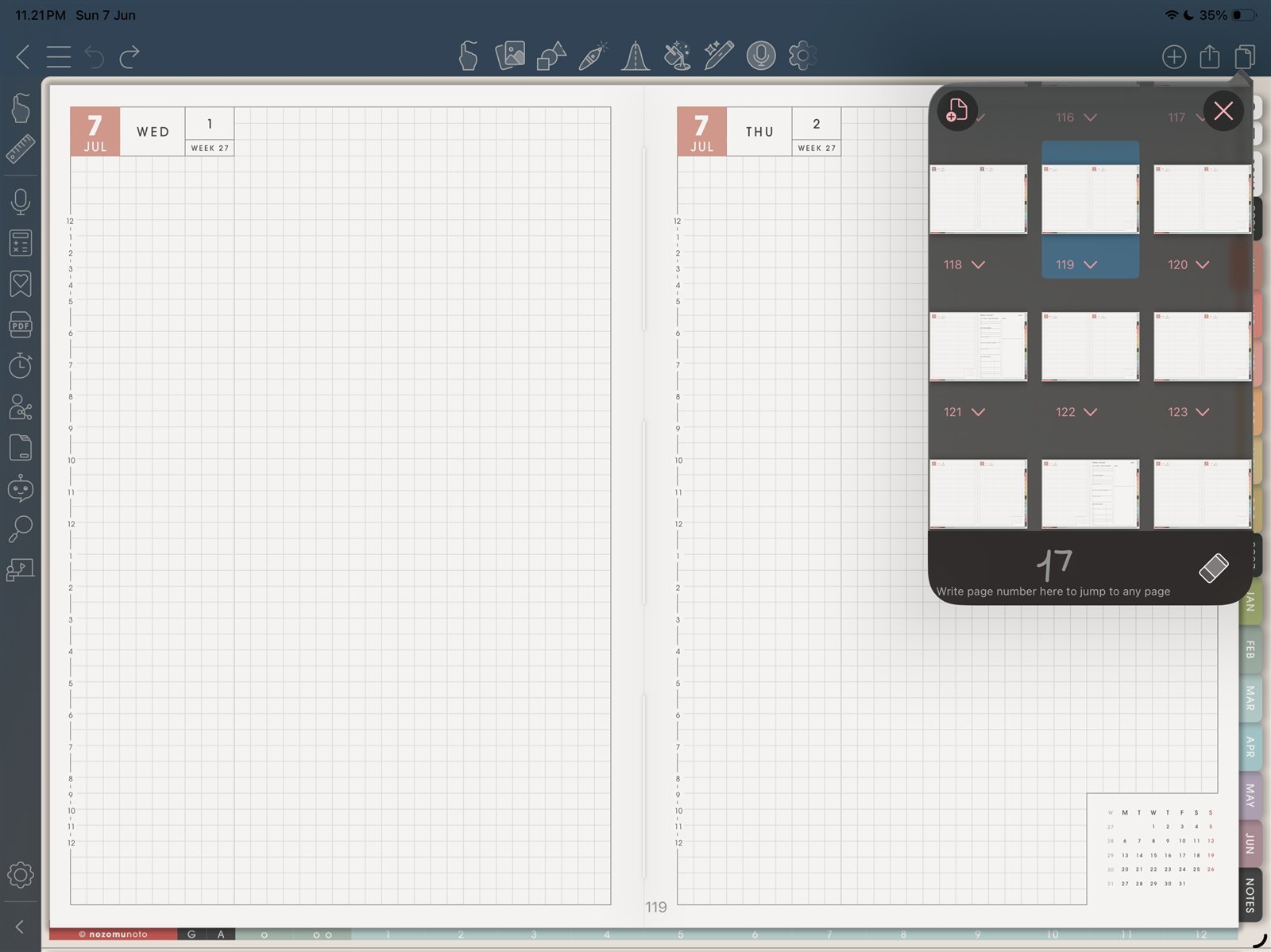
Page thumbnailsConfirm the page thumbnail panel is easy to find. Product shown: Yume Techo Academic 26-27 Landscape. - Bookmark Index or the current month so you have a quick return point.
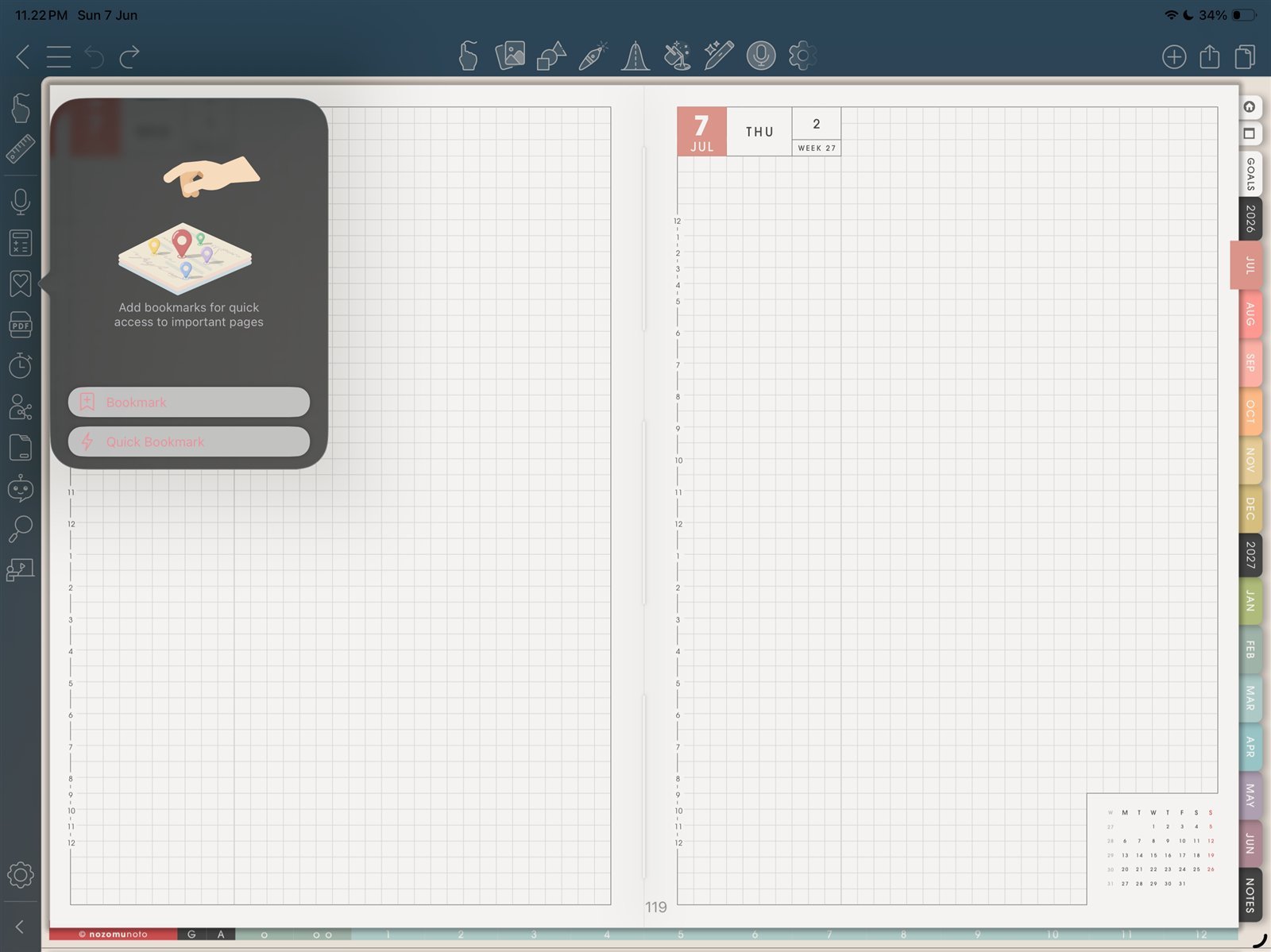
Bookmark one return pointBookmark Index or the current month before making many shortcuts. Product shown: Yume Techo Academic 26-27 Landscape. - Insert one small PNG sticker or image as a test.
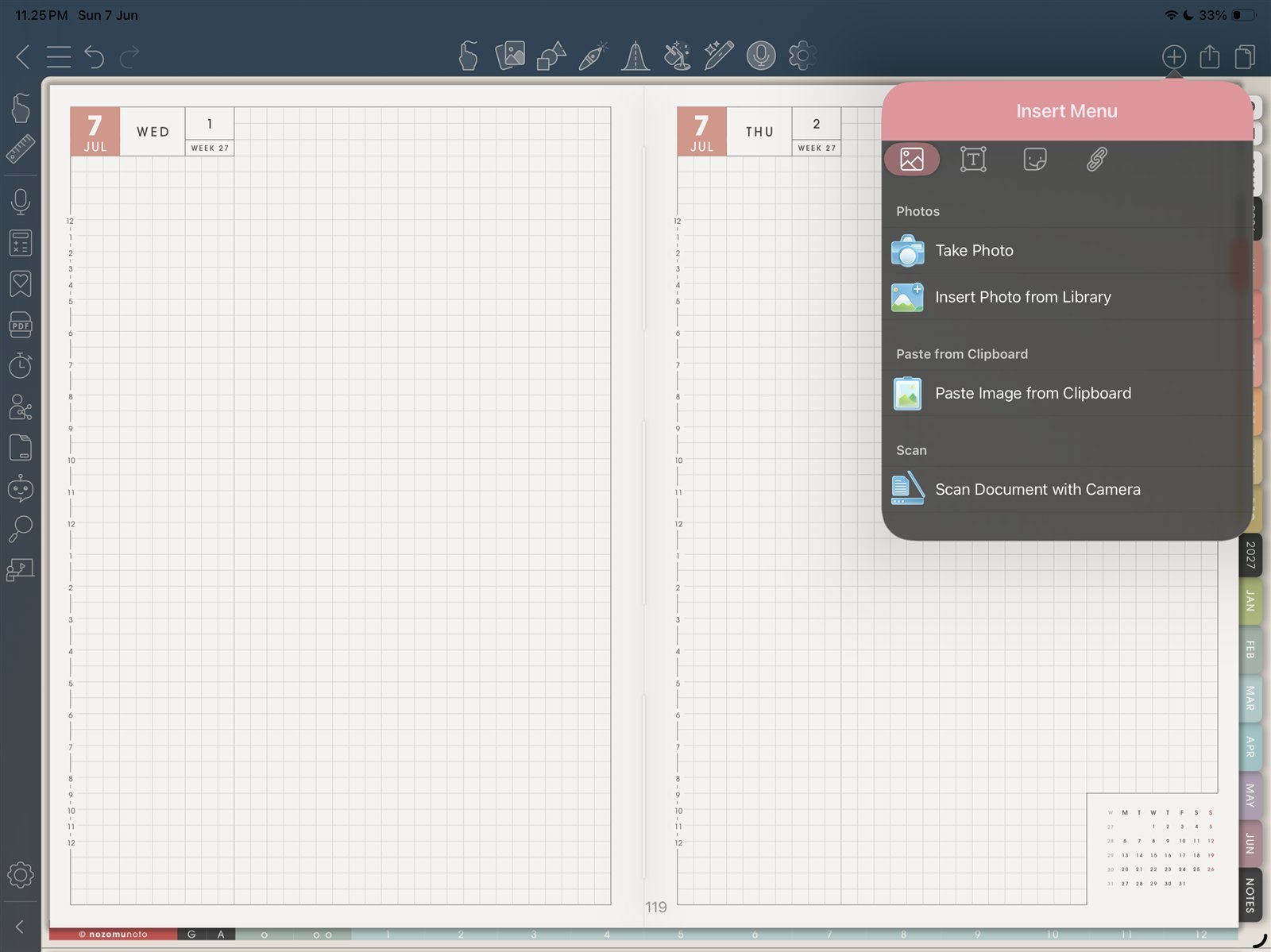
Insert one imageTry one PNG sticker or image before decorating many pages. Product shown: Yume Techo Academic 26-27 Landscape.
Notes
- Good first CollaNote setup: CollaNote feels easier when the first setup is small: import, link test, page thumbnail check, one bookmark, and one image test. After those work, the planner is ready for normal use.
When CollaNote feels confusing
1. Links and writing tools feel mixed up
What happens: you tap a planner tab, but the app acts like you want to write or edit.
What to do: switch to the hand / navigation tool for links, then return to writing tools after the page opens.
2. Page thumbnails feel too busy
What happens: the planner has many pages and it is hard to know where to go.
What to do: bookmark only Index, current month, current week, Today or Notes, and one active template copy.
3. Decorating starts before setup is tested
What happens: many stickers or page changes are added before links and page tools are understood.
What to do: test import, links, thumbnails, one bookmark, and one image first.
- If the full planner feels too big, use only Index, current month, current week, and one notes or template page for the first week.