

Use these steps to work with NozomuNoto PDF planners, notebooks, stickers, covers, and template pages in CollaNote. The official links below are for downloads, updates, and current help pages.
Reference links
Use these for current app or device help, downloads, updates, vendor support, and manual references.
Fix common CollaNote planner problems
- If the planner is not in CollaNote, go back to the library and import the extracted PDF again with + > Import PDF.
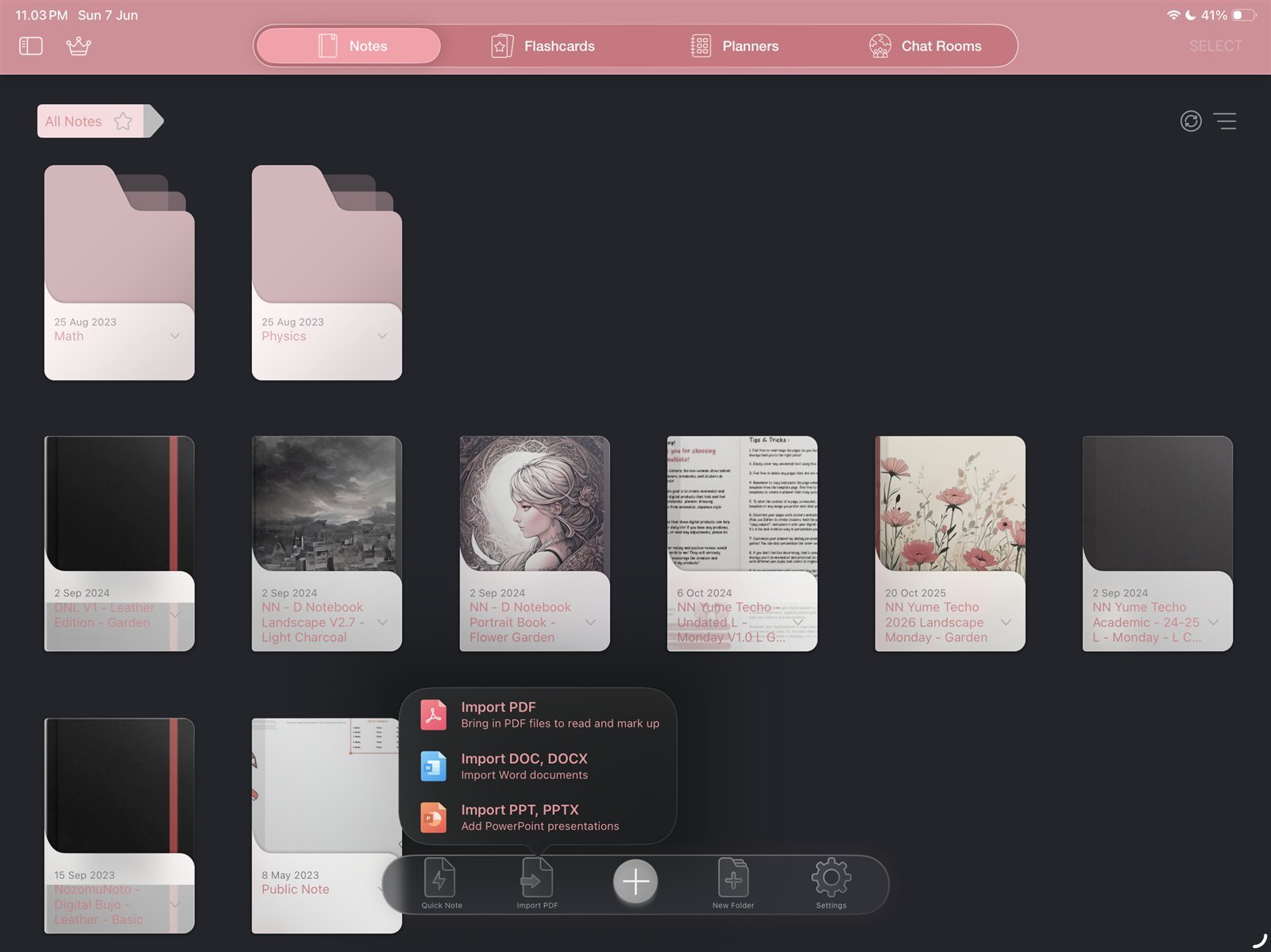
Import againIf the planner is missing, import the extracted PDF again from + > Import PDF. Product shown: Yume Techo Academic 26-27 Landscape. - If links do not move, switch to the hand / navigation tool and test the same link again before writing more.
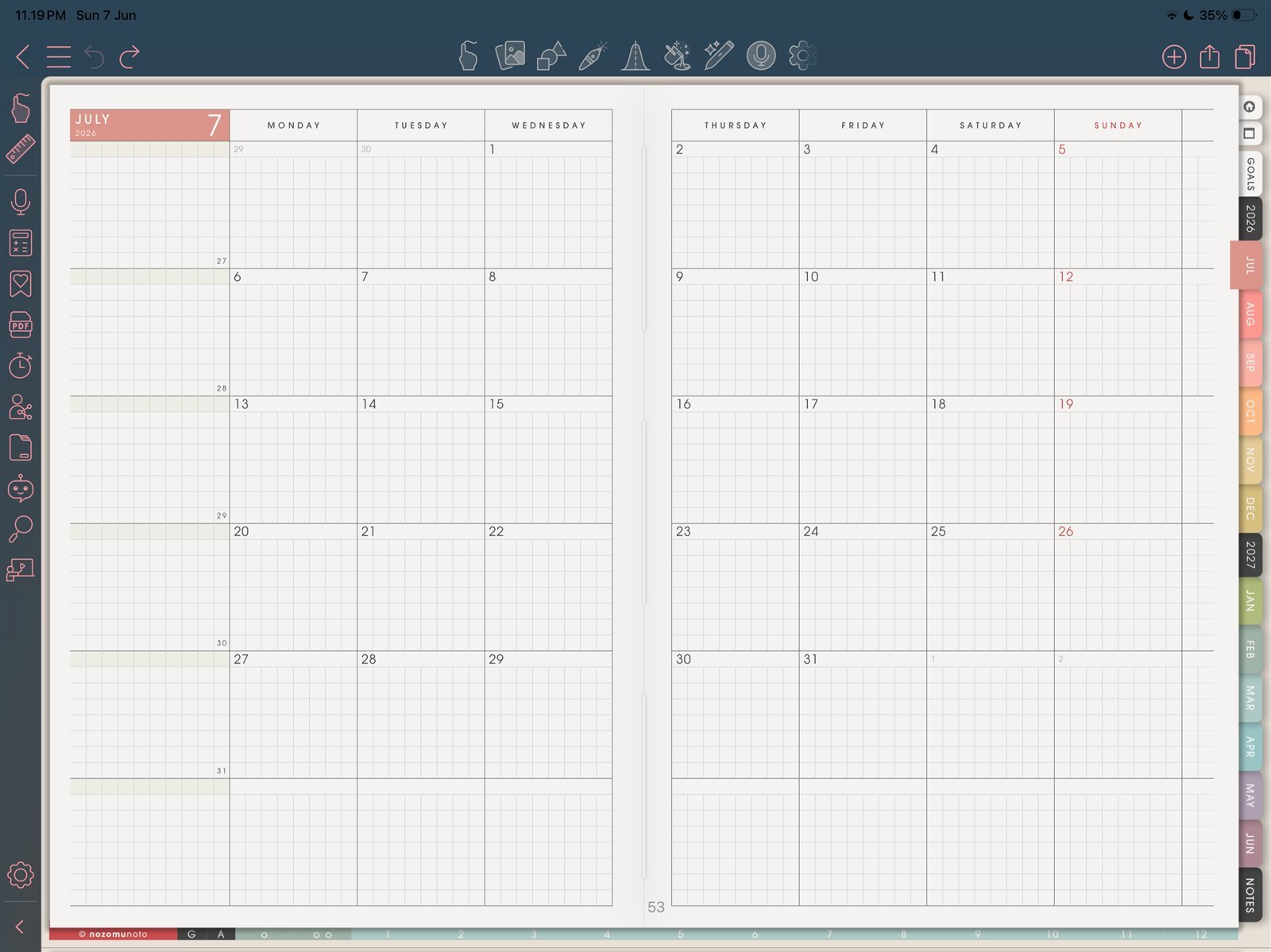
Hand tool for linksIf links do not move, switch to the hand tool and test again. Product shown: Yume Techo Academic 26-27 Landscape. - If page controls feel hidden, open the page thumbnail panel from the top-right page icon.
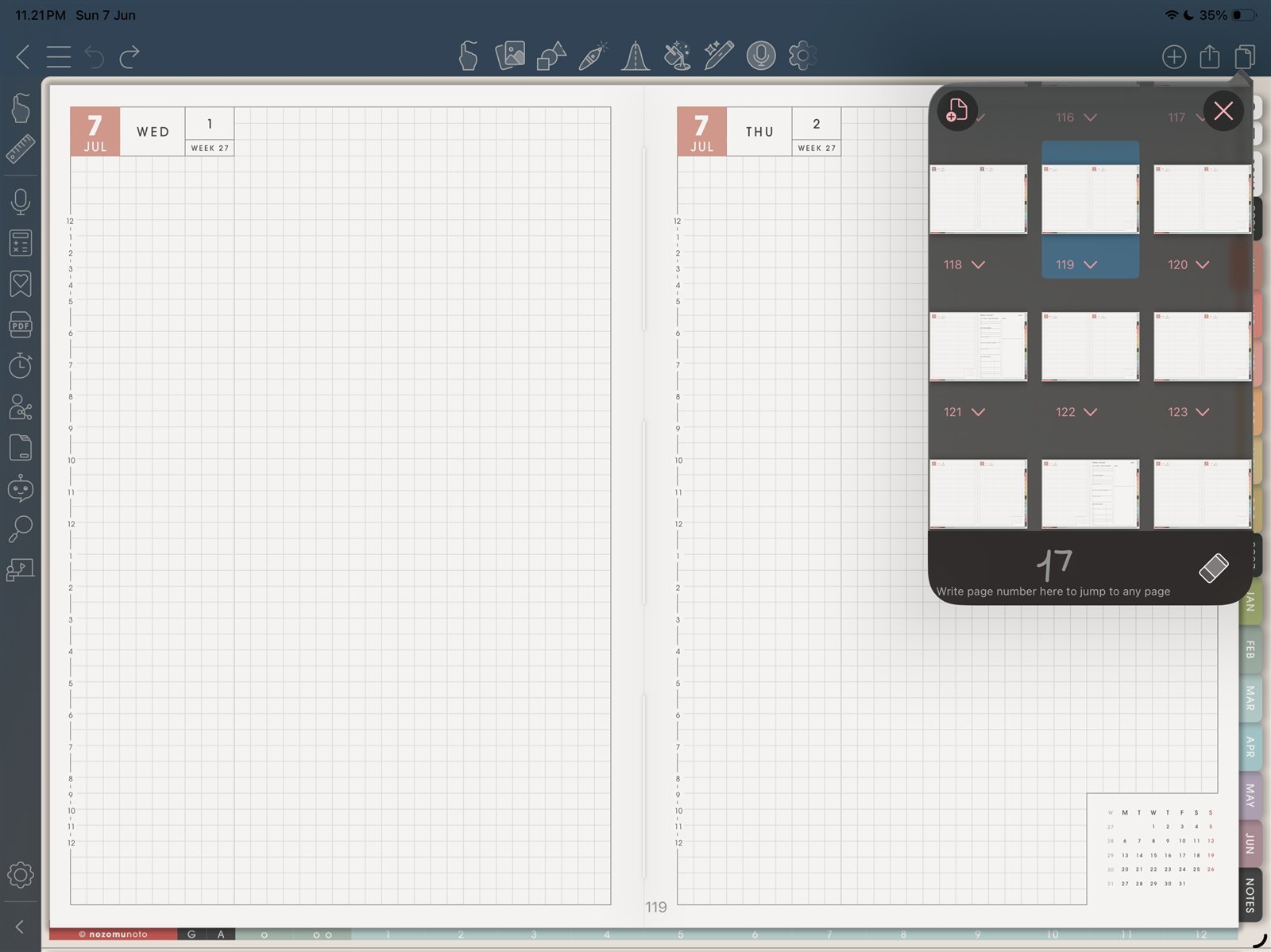
Page thumbnailsIf page controls feel hidden, open the top-right page thumbnail panel. Product shown: Yume Techo Academic 26-27 Landscape. - If a page copy or move creates confusion, stop editing that copy and re-import the original NozomuNoto PDF.
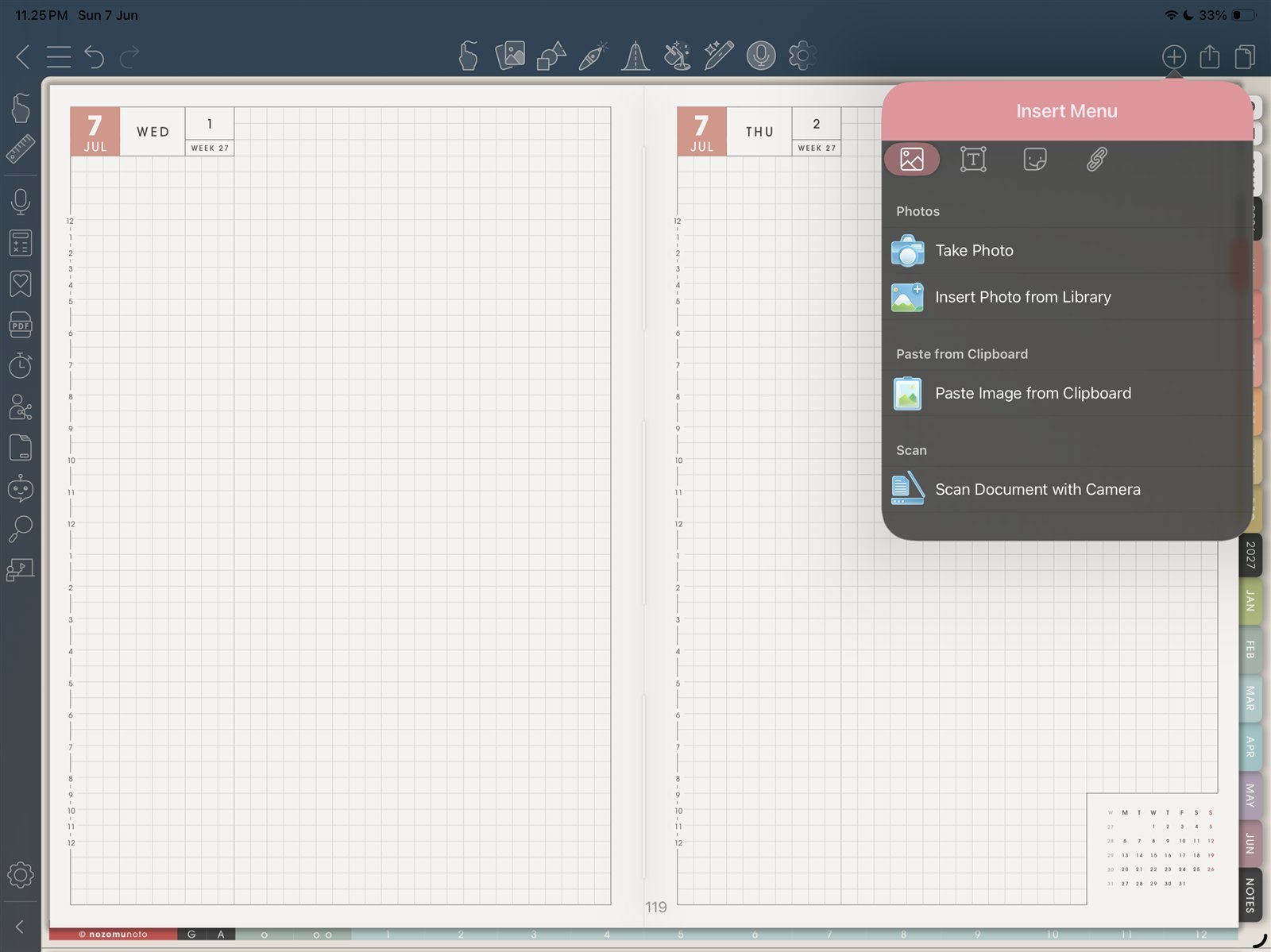
Insert MenuIf stickers are confusing, test one PNG from Insert Menu first. Product shown: Yume Techo Academic 26-27 Landscape. - If stickers or images are hard to place, test one PNG from Insert Menu > Insert Photo from Library first.
- If the file becomes slow after many images, reduce oversized stickers and keep decoration lighter on heavy planner pages.
Notes
- When to start fresh: Start fresh when the wrong file was imported, links stopped feeling reliable after many edits, or page/image experiments made the planner confusing. A clean re-import is often faster than repairing a heavily edited copy.
Before asking for help
- Test a fresh import. Import the original NozomuNoto PDF again without page moves, exports, or heavy stickers.
- Test the same link in Apple Files. This separates file-link problems from CollaNote mode or tool problems.
- Write down the exact product and app version. Include product name, year, orientation, week start, color, device, iPadOS version, and CollaNote version.
- Send a short screen recording if possible. Show the selected tool, the link or page action, and what happens after tapping.
Common CollaNote fixes
1. Use the PDF, not the ZIP
Planner and notebook products should be imported as PDF files after extraction.
2. Use the hand / navigation tool for links
Writing tools are for editing the page. The hand / navigation tool is for moving through linked planner pages.
3. Use thumbnails for page structure
When pages feel lost, the page thumbnail panel is the clearest place to check page order and available page actions.
- If the same issue happens in a fresh copy, note the product name, device, app version, and exact step before asking for help.