

Use these steps to work with NozomuNoto PDF planners, notebooks, stickers, covers, and template pages in Penly. The official links below are for downloads, updates, and current help pages.
Reference links
Use these for current app or device help, downloads, updates, vendor support, and manual references.
Penly problems to check first
- The planner is missing: go back to My Notes, tap the blue +, choose Import Document, then select the extracted PDF again.
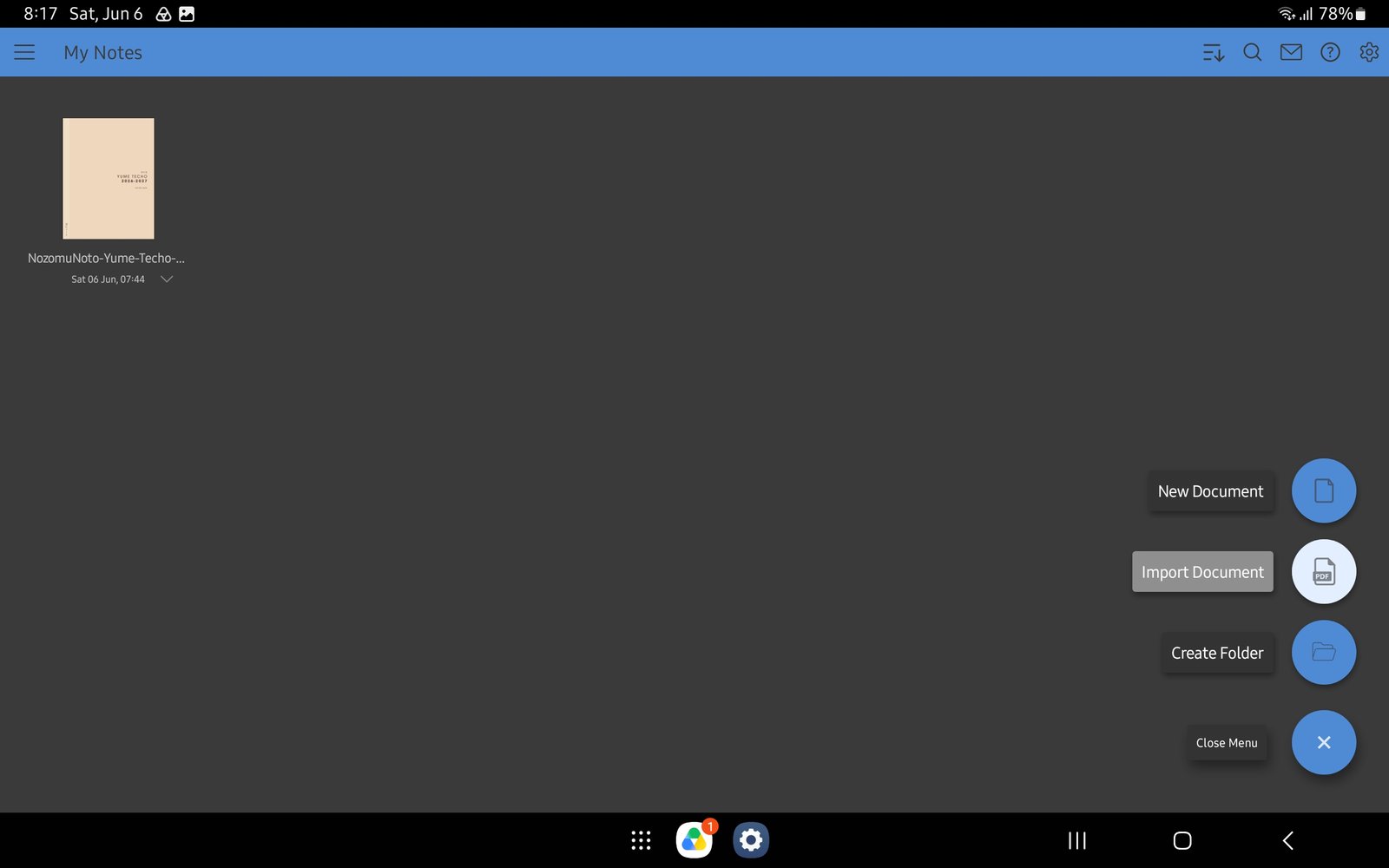
Full Penly import screenFull screen view first, then use the cropped highlight below to see the exact area. 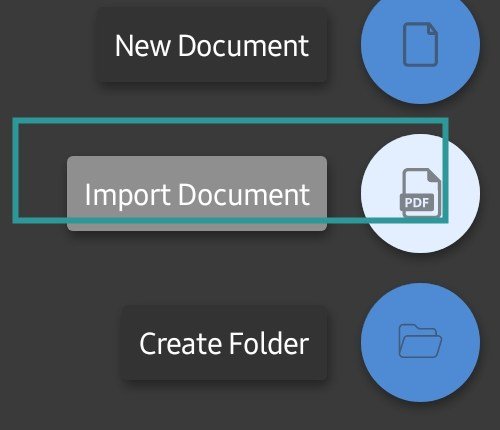
Import DocumentIf the planner is missing, import the extracted PDF again from Import Document. - The file picker does not show the planner: confirm the ZIP was extracted and choose the PDF file, not the compressed download.
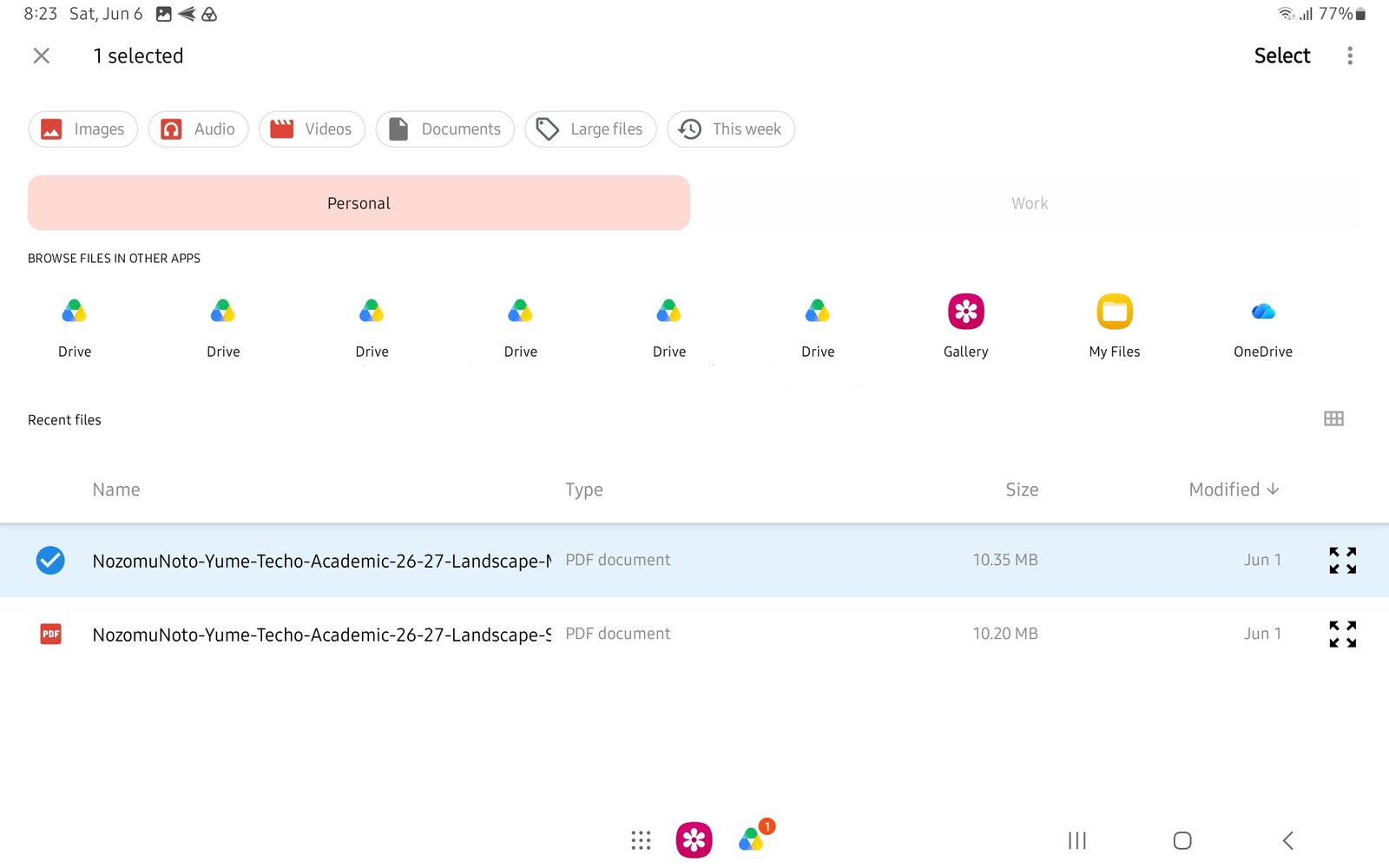
Full selected file screenFull screen view first, then use the cropped highlight below to see the exact area. 
Android file pickerIf the file picker does not show the planner, confirm the ZIP was extracted and choose the PDF. - Planner links do not move: leave the active writing, image, shape, text, or selection tool and tap the link again from the page view.
- The wrong page was copied or moved: stop editing that copy, use page overview to find the clean template again, or re-import a clean planner backup.
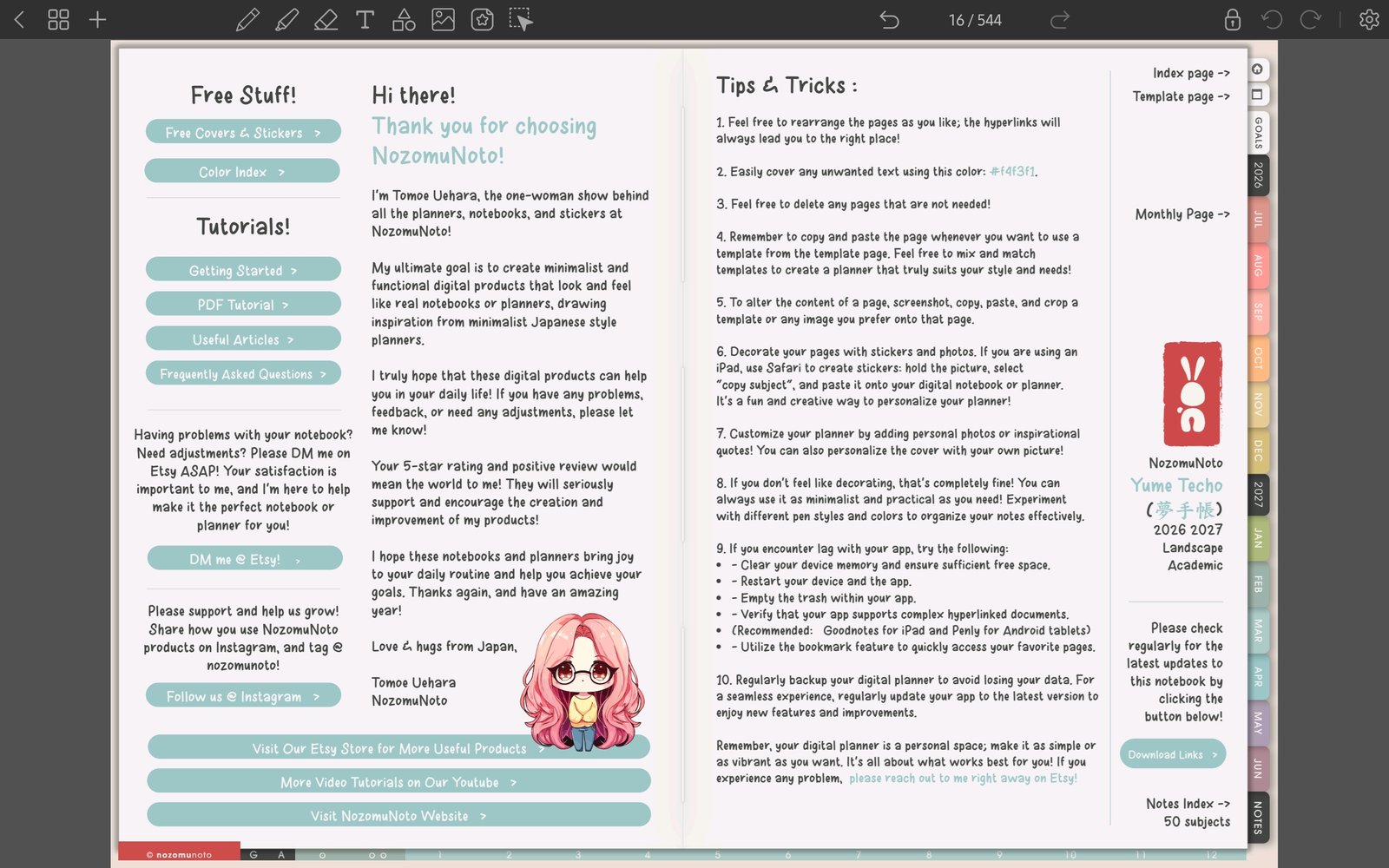
Full Penly toolbar screenFull screen view first, then use the cropped highlight below to see the exact area. 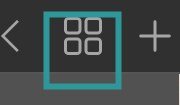
Page overview recoveryIf a page copy or move went wrong, use page overview or re-import a clean PDF. - Stickers look blurry or heavy: insert the original PNG again, keep it close to its original size, and avoid very large image-heavy pages.
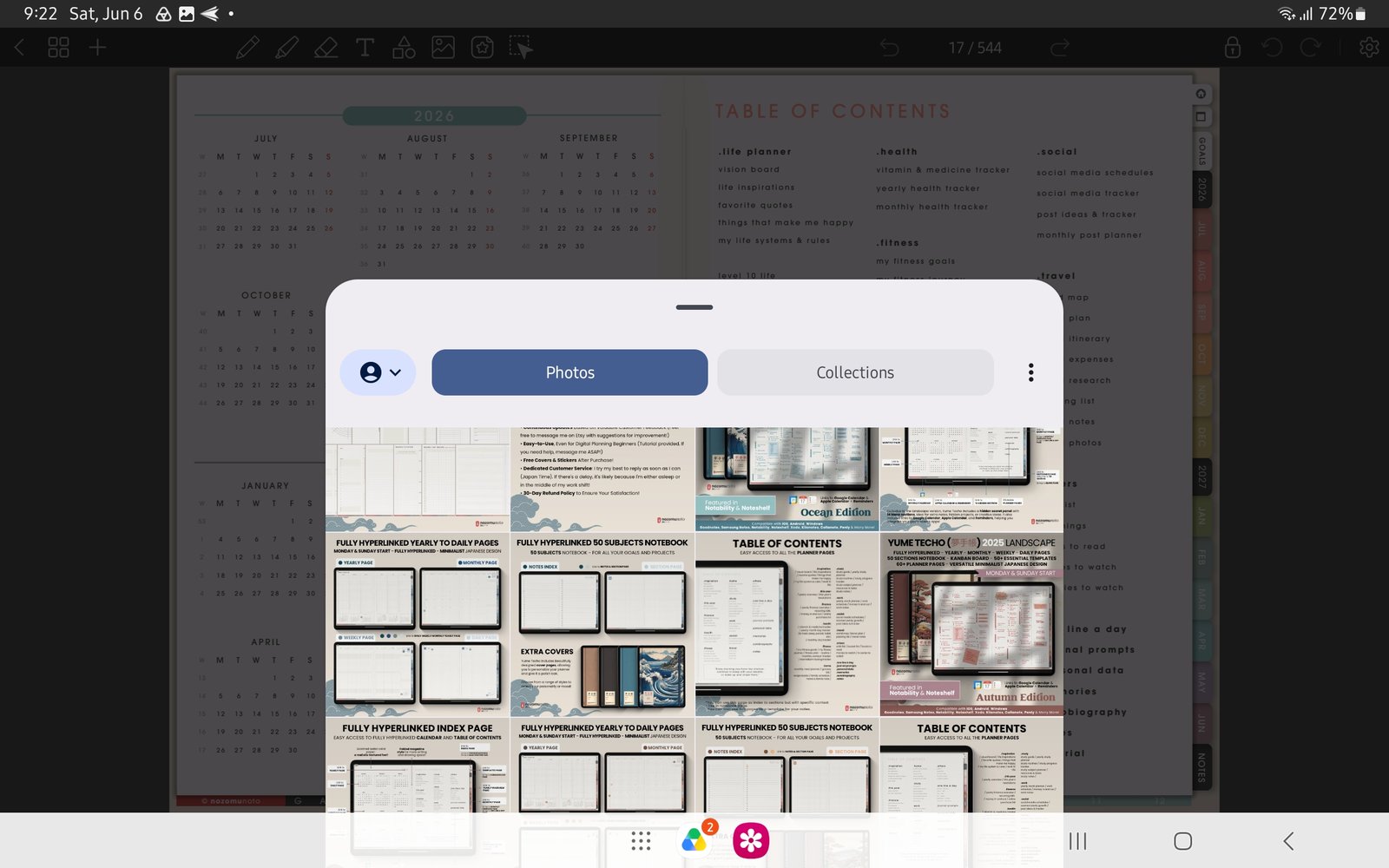
Full image import screenFull screen view first, then use the cropped highlight below to see the exact area. 
Sticker/image panelIf stickers look blurry or heavy, insert the original PNG again at a smaller size.
Notes
- When to start fresh: If the working planner has too many page experiments, re-import a clean copy from the original NozomuNoto PDF. This is often faster than repairing a confusing file.
- If the same issue happens in a fresh copy, note the product name, device, app version, and exact step before asking for help.