

Use these steps to work with NozomuNoto PDF planners, notebooks, stickers, covers, and template pages in Samsung Notes. The official links below are for downloads, updates, and current help pages.
Reference links
Use these for current app or device help, downloads, updates, vendor support, and manual references.
Set up your first NozomuNoto planner in Samsung Notes
- Keep the original NozomuNoto download outside Samsung Notes as your backup.
- In Samsung Notes, open Settings > Default note style, choose Split pages, and choose the planner orientation.
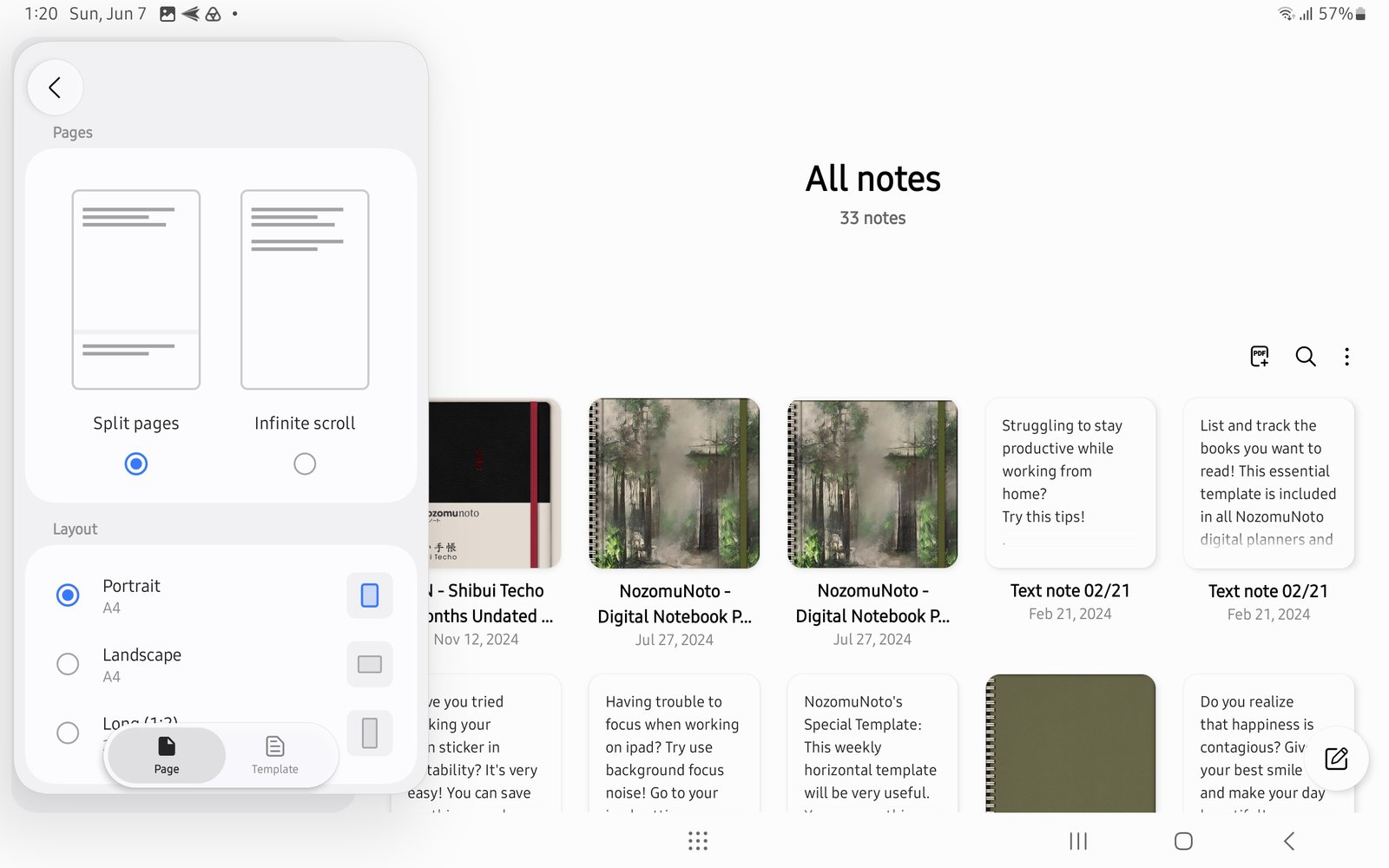
Split pages firstChoose Split pages before importing the planner. Product shown: Yume Techo Academic 26-27 Landscape. - Import one clean working copy with the PDF icon.
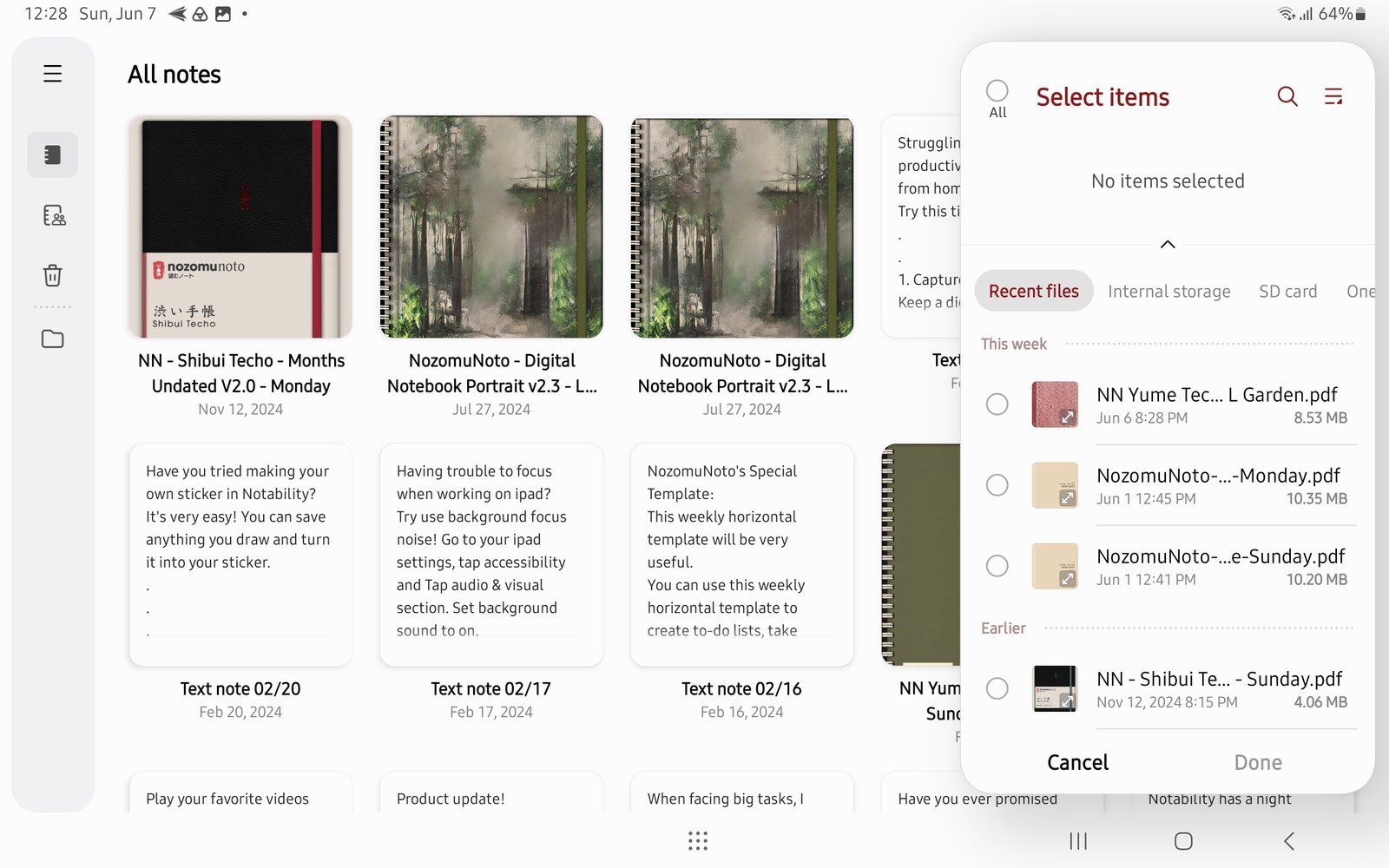
Import with PDF buttonUse the PDF button after the note style is ready. Product shown: Yume Techo Academic 26-27 Landscape. - Open the planner and tap the book/read mode icon. Test one month tab, one week or day link, and the Index.
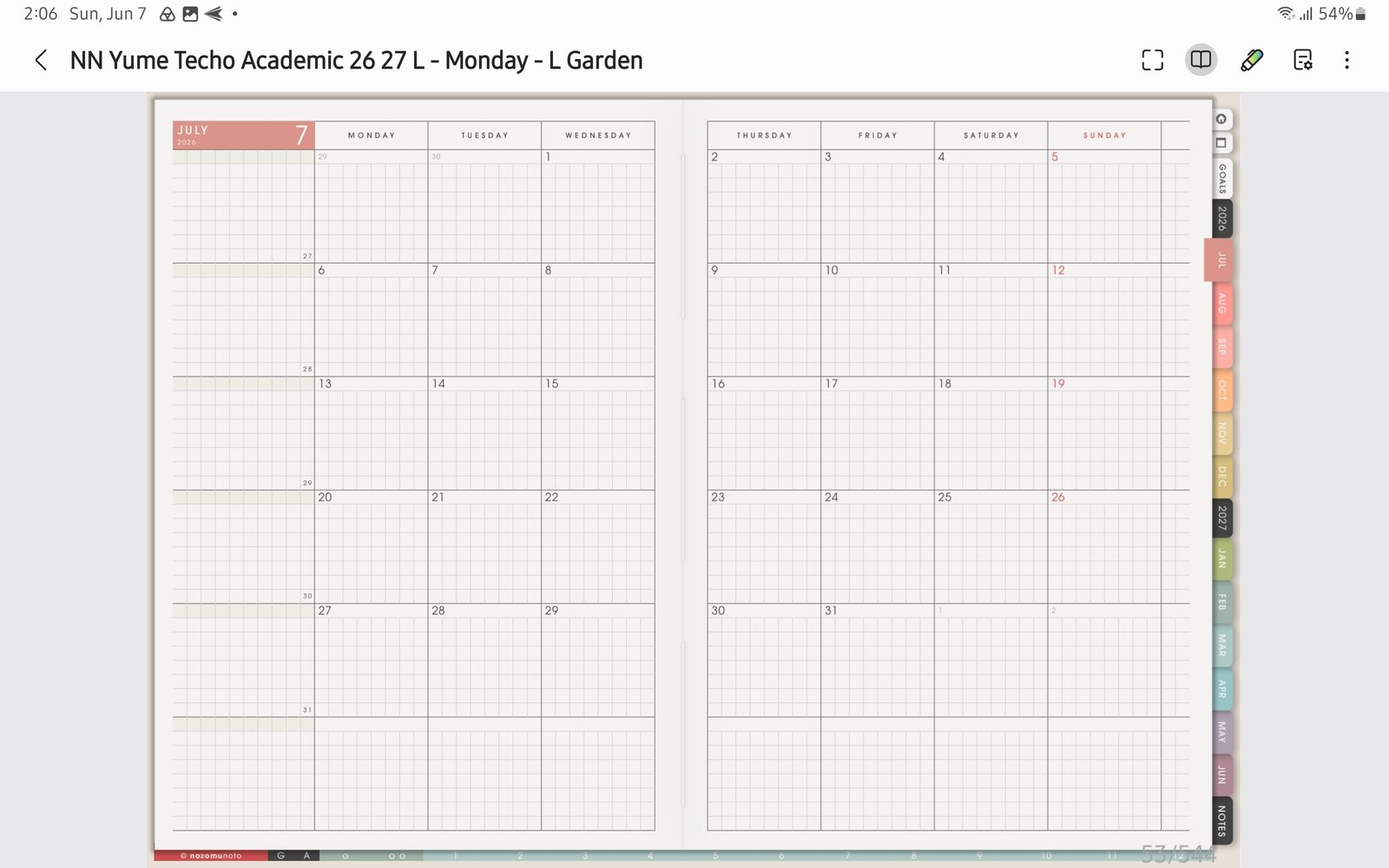
Test linksUse the book icon to test planner links before writing. Product shown: Yume Techo Academic 26-27 Landscape. - Tap the page sorter / thumbnail icon and check that the thumbnails and page actions are available.
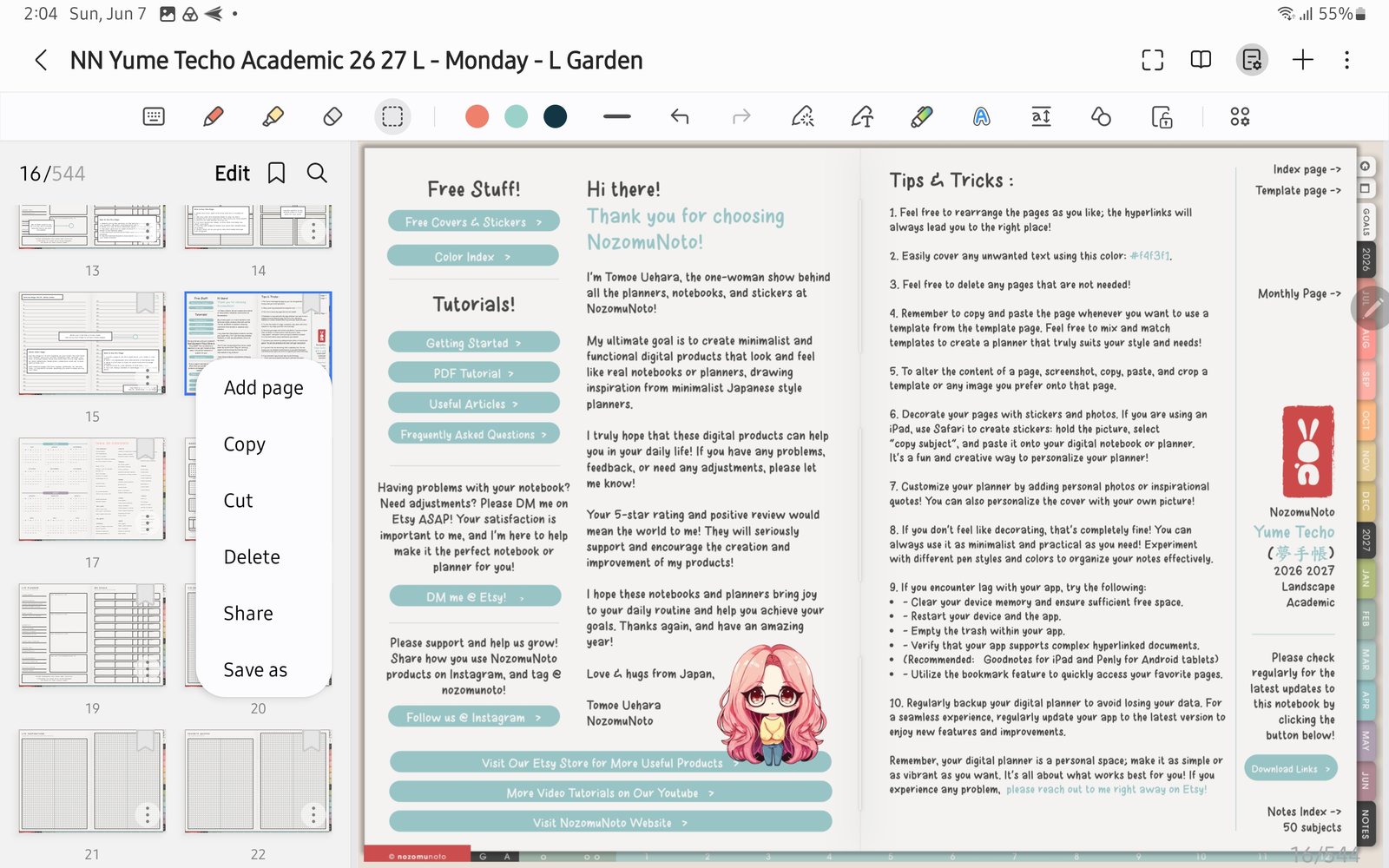
Test page actionsCheck the thumbnail menu before customizing many pages. Product shown: Yume Techo Academic 26-27 Landscape. - Favorite the whole planner note if you want it easy to find from Samsung Notes Home.
- Copy or add one template page as a test before changing many pages.
- Start with Index, current month, current week, one notes page, and one copied template page for the first week.
Notes
- Good first Samsung Notes setup: Samsung Notes can work for NozomuNoto planners, but it is less planner-focused than apps such as Penly. Keep the setup small at first, test links and page actions, then build slowly.
- If the full planner feels too big, use only Index, current month, current week, and one notes or template page for the first week.