

Use these steps to work with NozomuNoto PDF planners, notebooks, stickers, covers, and template pages in Flexcil. The official links below are for downloads, updates, and current help pages.
Reference links
Use these for current app or device help, downloads, updates, vendor support, and manual references.
Use template pages in Flexcil
- Open the NozomuNoto Template Pages section.
- Open Page Navigation so the page thumbnails appear on the right.
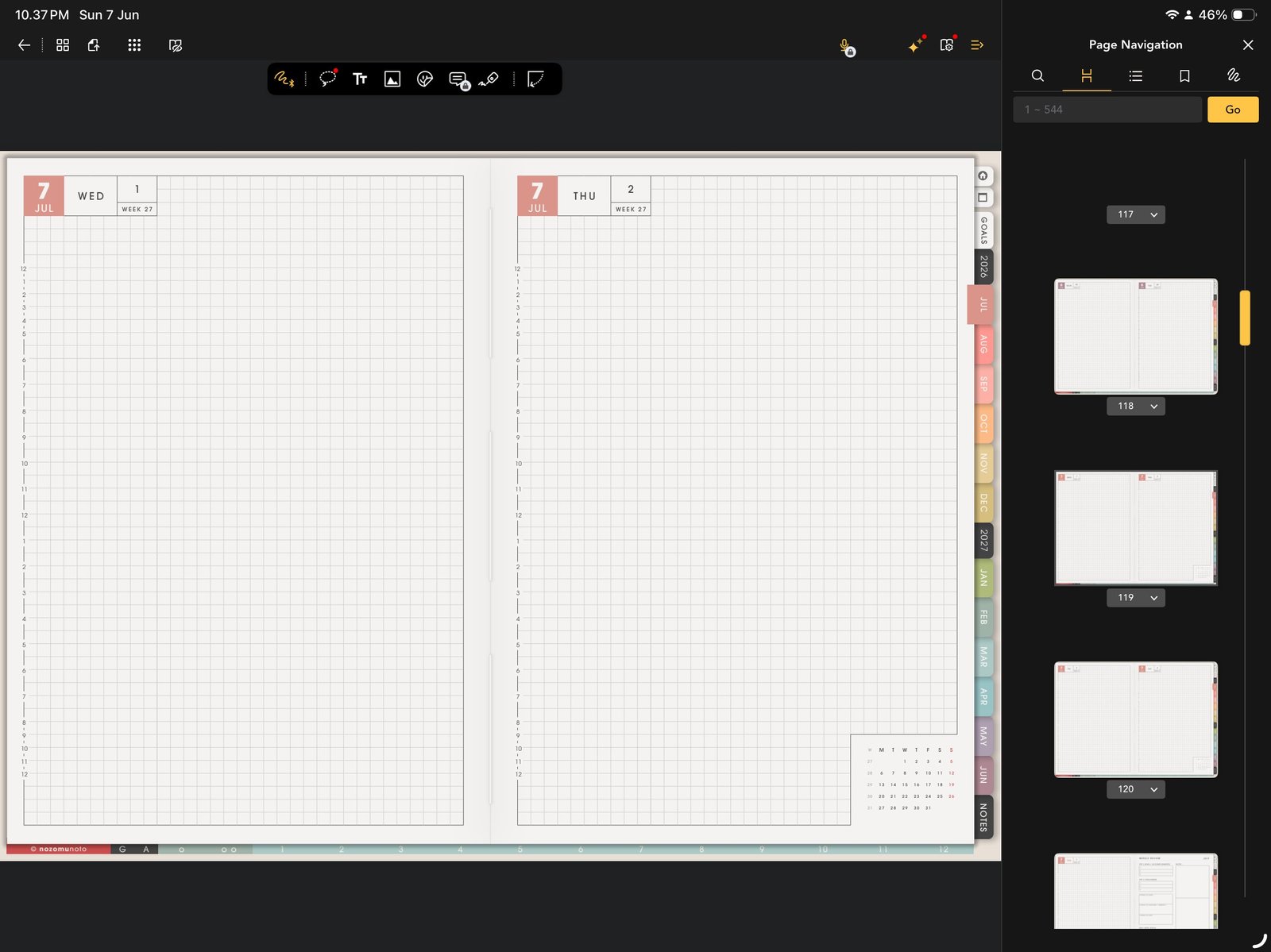
Template thumbnailsUse Page Navigation to find a clean NozomuNoto template page by thumbnail. Product shown: Yume Techo Academic 26-27 Landscape. - Find the clean template page you want to reuse.
- Open the page action menu under that thumbnail.
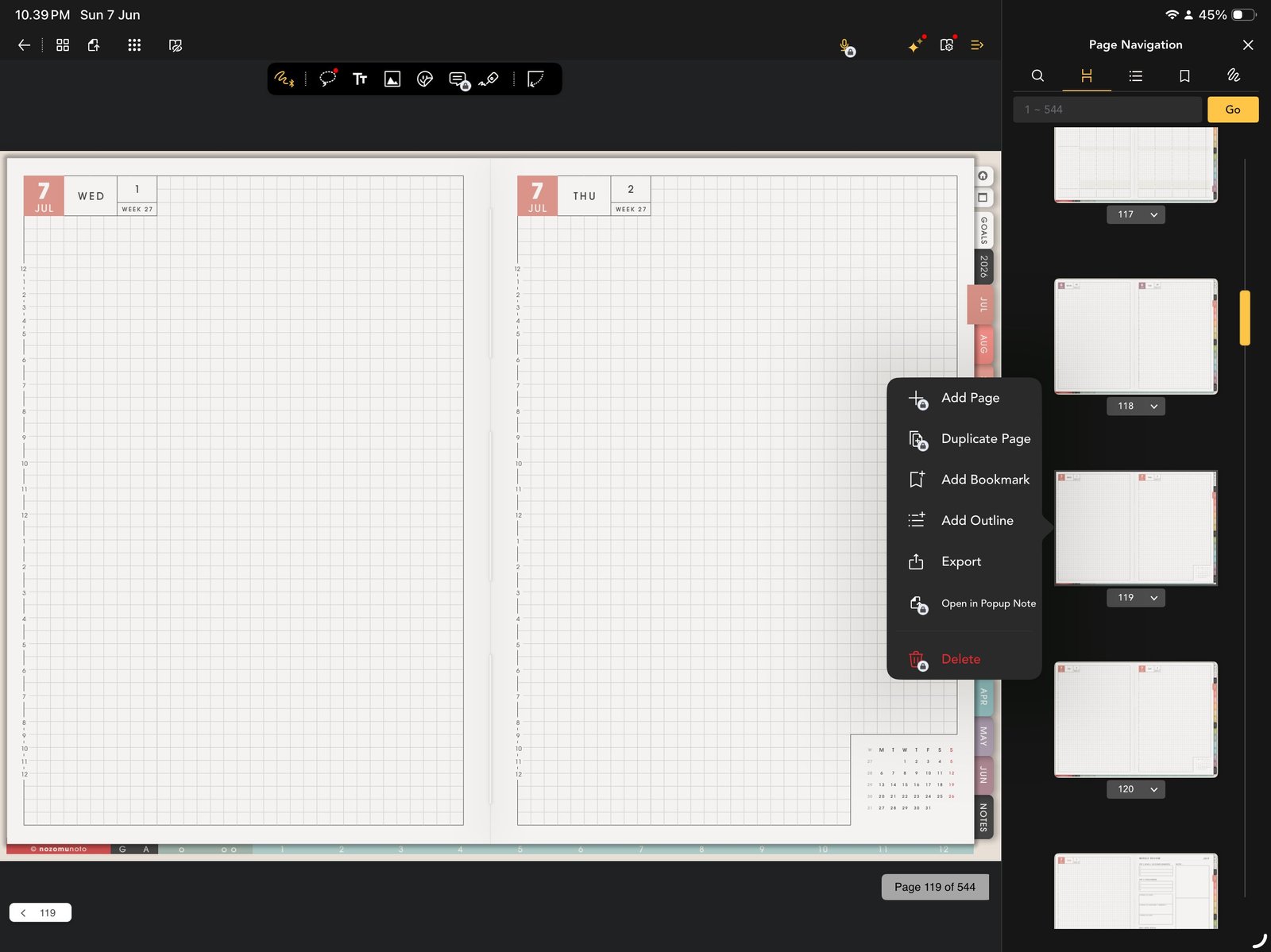
Duplicate PageUse Duplicate Page before writing on a reusable template. Product shown: Yume Techo Academic 26-27 Landscape. - Tap Duplicate Page before writing on the template.
- Write on the duplicated page and keep the original NozomuNoto template clean.
- After duplicating, switch to Gesture mode and test the Index or a planner tab again.
Notes
- Template safety rule: Use Duplicate Page first. The clean template is your master copy. If it gets filled by accident, import a fresh NozomuNoto copy, find the clean template again, and duplicate from that clean copy.
Useful template workflow
- Find the clean page. Use the Index or Page Navigation thumbnails.
- Duplicate before writing. Write on the duplicate, not the original template.
- Bookmark active copies. Bookmark only the copied template pages that are currently useful.
- Review later. Delete or archive old experiment copies when they are no longer needed.
If the clean template is already filled
Do not spend a long time erasing. Re-import the original PDF, find the clean template page, duplicate it again, and keep the new working copy clearly bookmarked.
- If the clean template is already filled, re-import a fresh copy, find the clean template page, and duplicate it again.