

Use these steps to work with NozomuNoto PDF planners, notebooks, stickers, covers, and template pages in Flexcil. The official links below are for downloads, updates, and current help pages.
Reference links
Use these for current app or device help, downloads, updates, vendor support, and manual references.
Bookmark pages in Flexcil
- Go to the page you want to bookmark.
- Open Page Navigation from the right side of the planner.
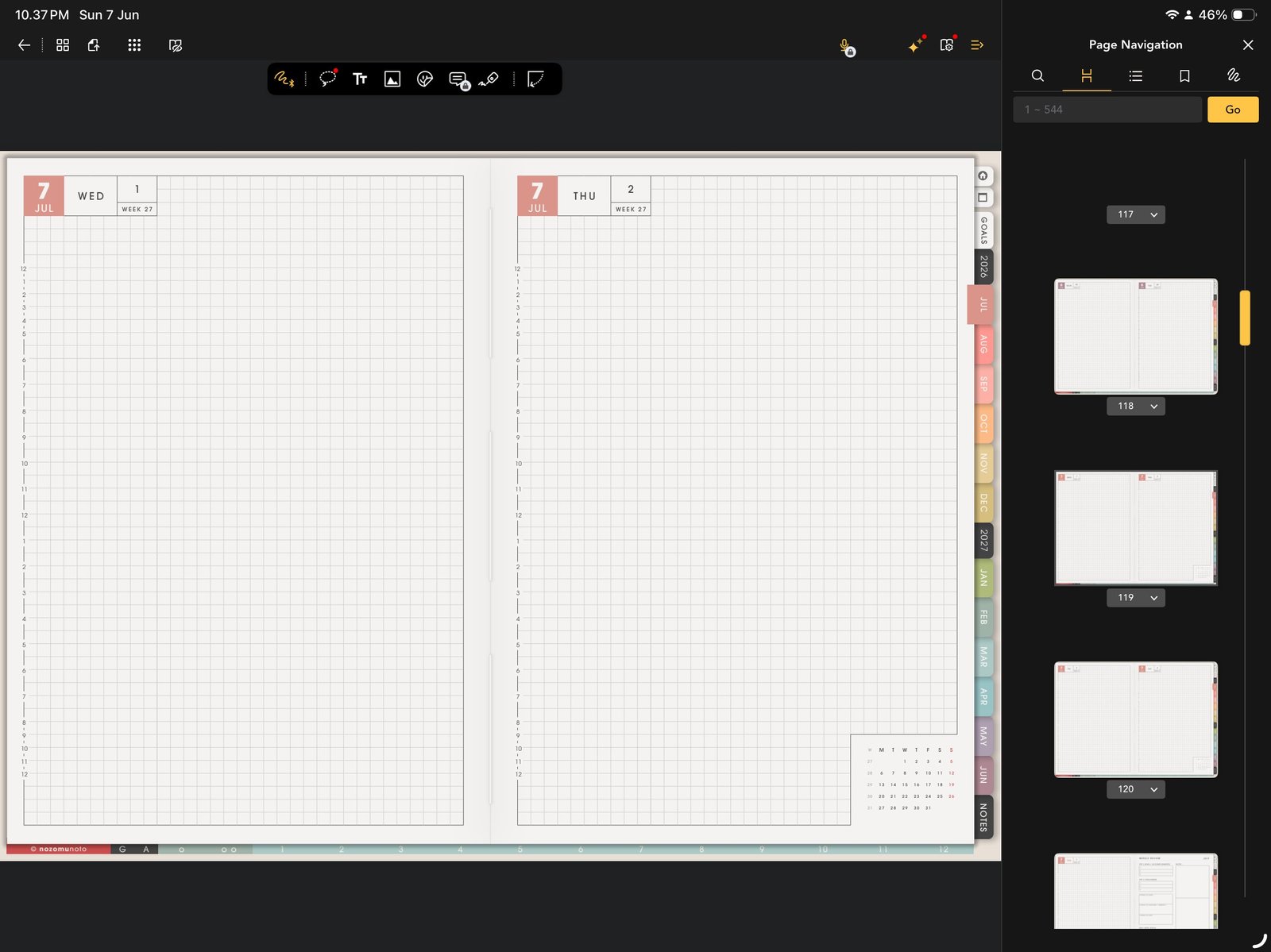
Page NavigationOpen Page Navigation so page thumbnails and bookmark tools are visible. Product shown: Yume Techo Academic 26-27 Landscape. - Open the page action menu for the current page thumbnail.
- Tap Add Bookmark.
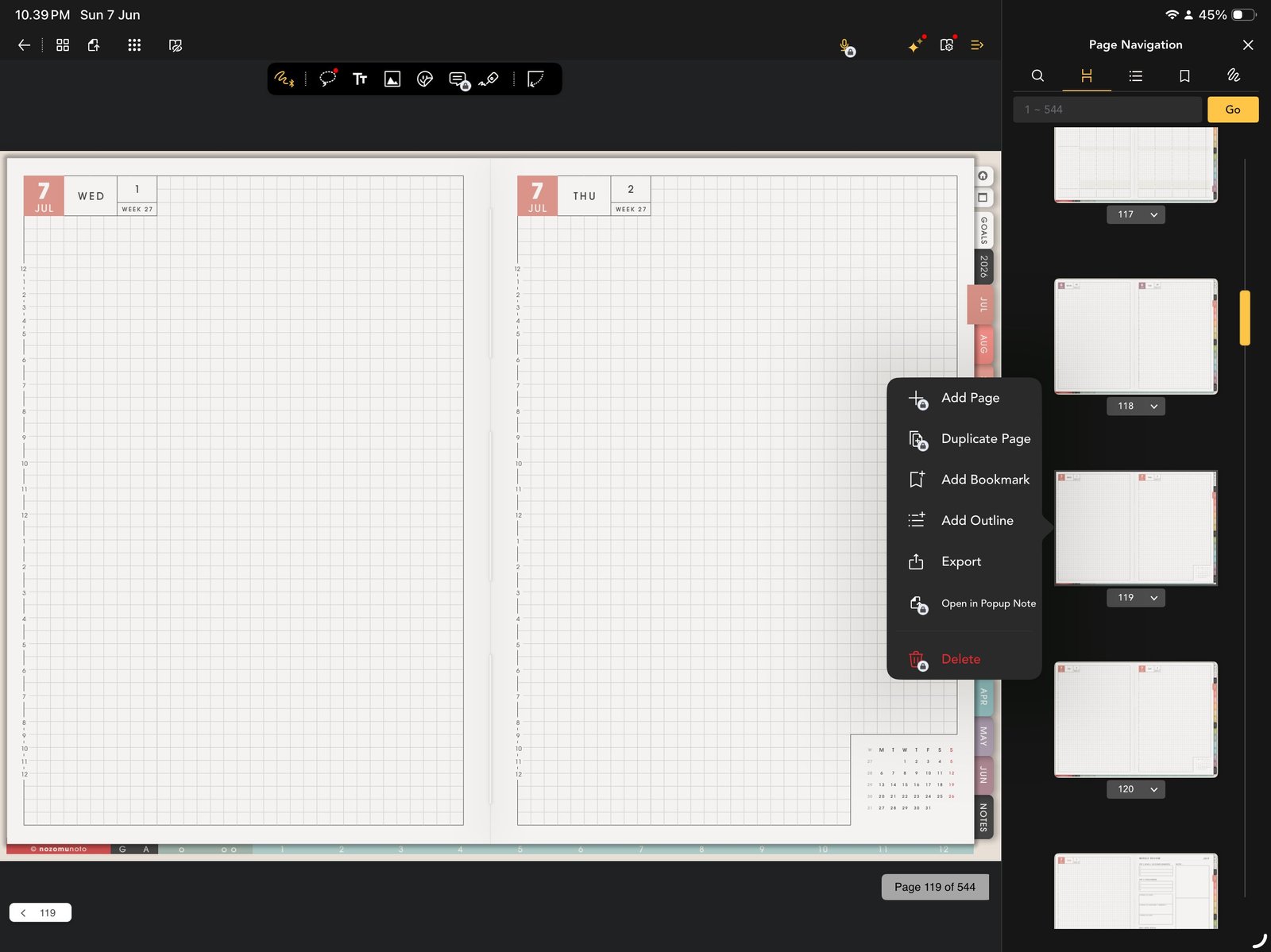
Add BookmarkOpen the thumbnail menu and choose Add Bookmark. Product shown: Yume Techo Academic 26-27 Landscape. - Type a short title such as Index, This Month, This Week, Notes, or Project.
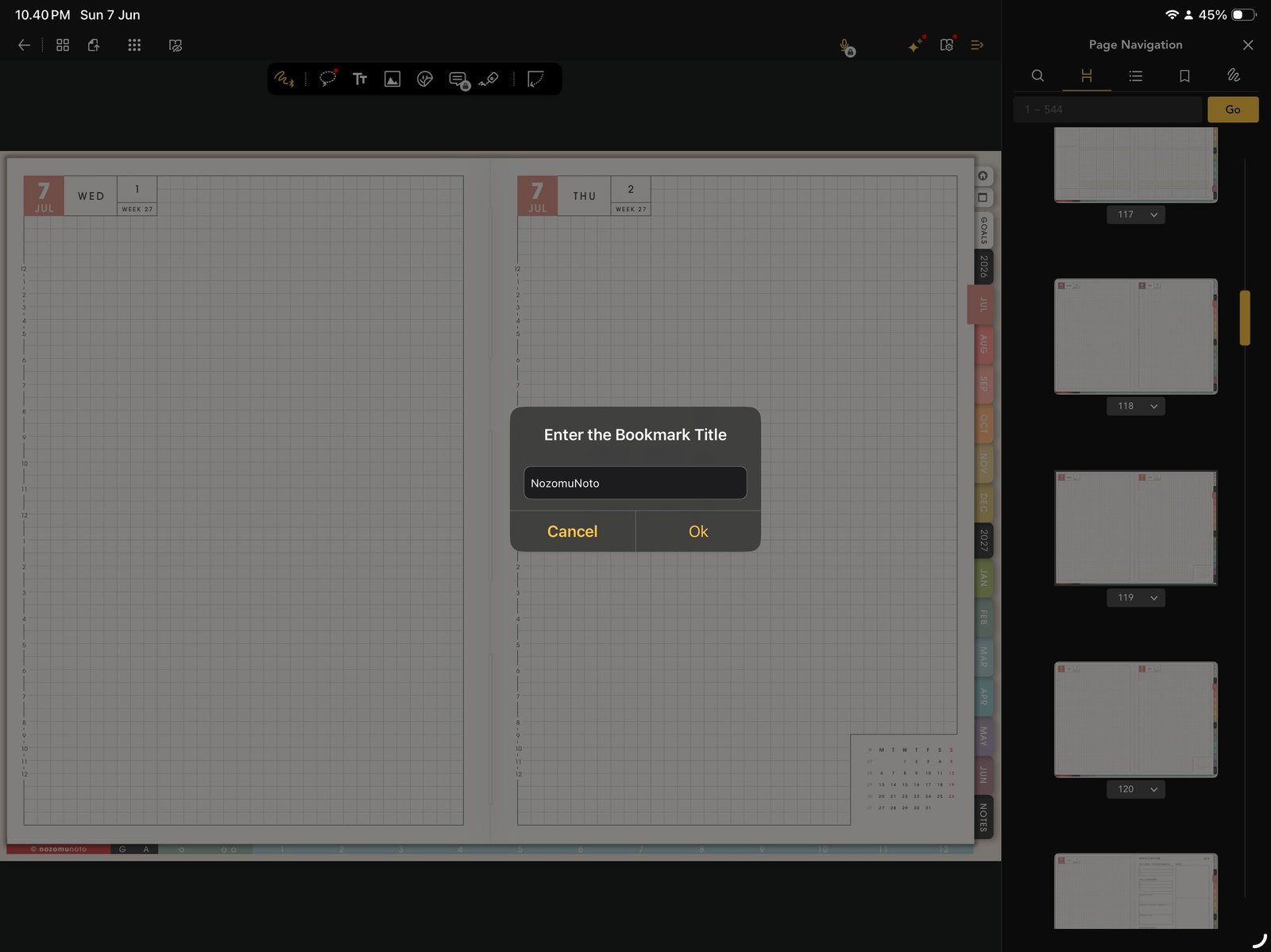
Bookmark titleType a short bookmark title, then tap Ok. Product shown: Yume Techo Academic 26-27 Landscape. - Tap Ok.
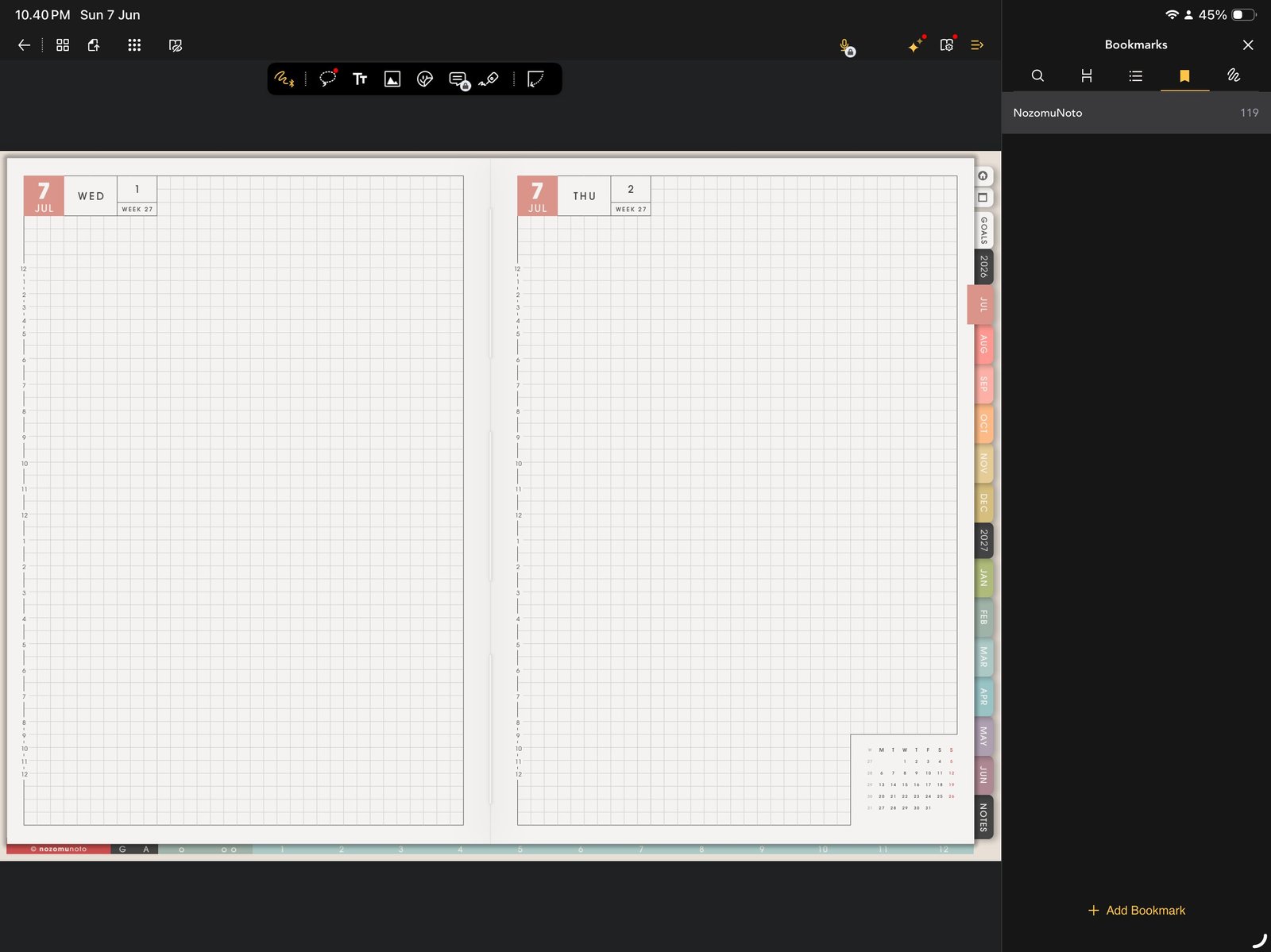
Bookmarks listUse the bookmark tab in Page Navigation to return to saved pages. Product shown: Yume Techo Academic 26-27 Landscape. - To return later, open Page Navigation, tap the bookmark tab, and choose the saved bookmark.
Notes
- Keep bookmark names short: Short names are easier to scan on a tablet screen. Use everyday names instead of long page names, especially for pages you open many times a week.
Good bookmark choices
- Index: the page everyone can return to when the planner feels big.
- This Month: fixed dates, bills, appointments, launches, and deadlines.
- This Week: current focus and tasks that actually matter now.
- Notes: a safe place for ideas that do not belong on the daily page yet.
- Active template: one project, class, tracker, or routine page you are using right now.
If bookmarks become messy
Remove old bookmarks that no longer help you decide what to open. A good bookmark list feels like a tiny dashboard, not another full table of contents.
- If bookmarks become crowded, keep only Index, current month, current week, and pages you reopen often.