

Use these steps to work with NozomuNoto PDF planners, notebooks, stickers, covers, and template pages in Flexcil. The official links below are for downloads, updates, and current help pages.
Reference links
Use these for current app or device help, downloads, updates, vendor support, and manual references.
Import the PDF into Flexcil
- Save and extract the NozomuNoto file first so the PDF is visible in Drive, My Files, OneDrive, Downloads, or another Android file location.
- Open Flexcil to the Documents screen.
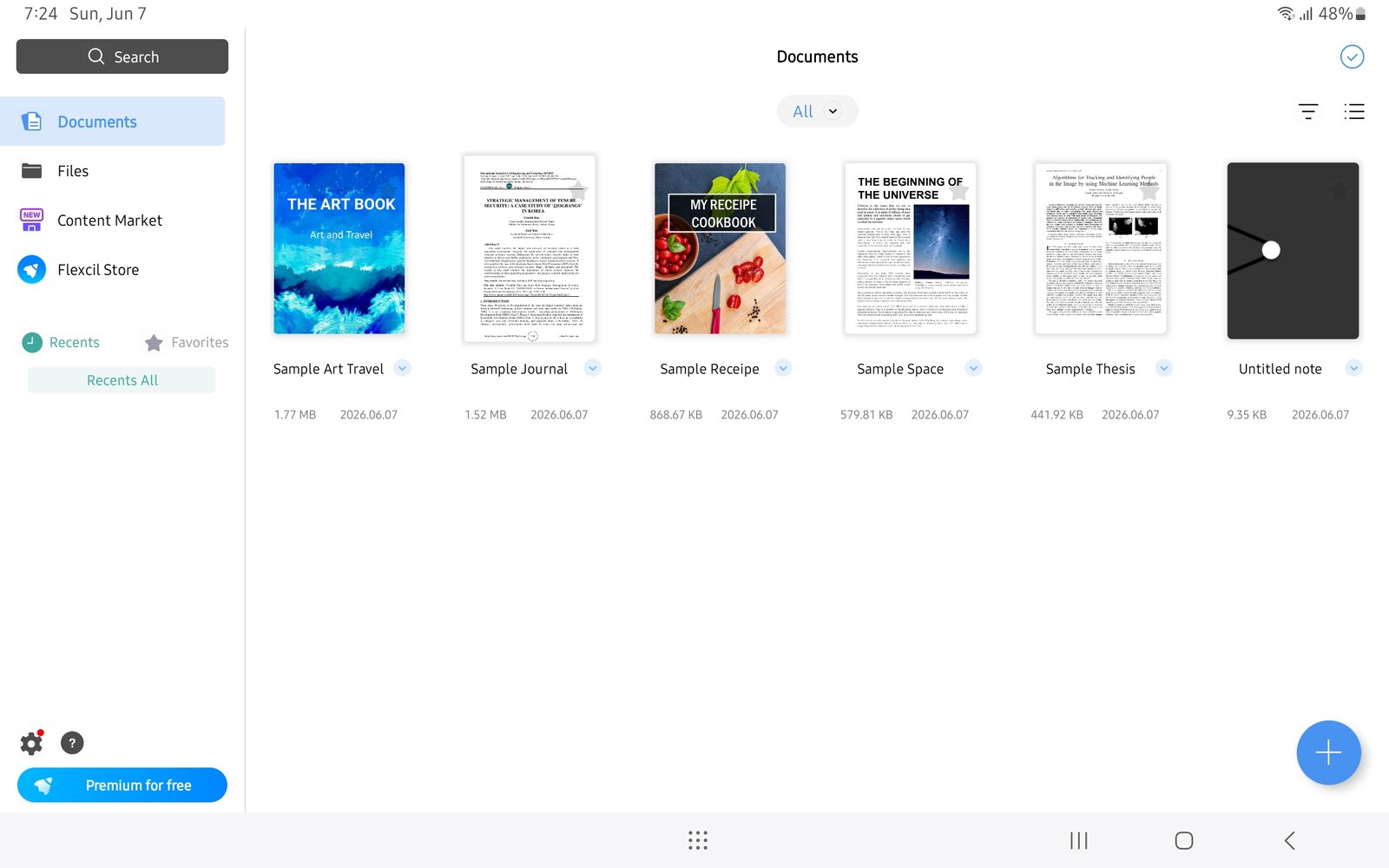
Flexcil DocumentsFlexcil Documents screen on Android before importing Yume Techo Academic 26-27 Landscape. - Tap the blue + button in the lower-right corner.
- Choose Files.
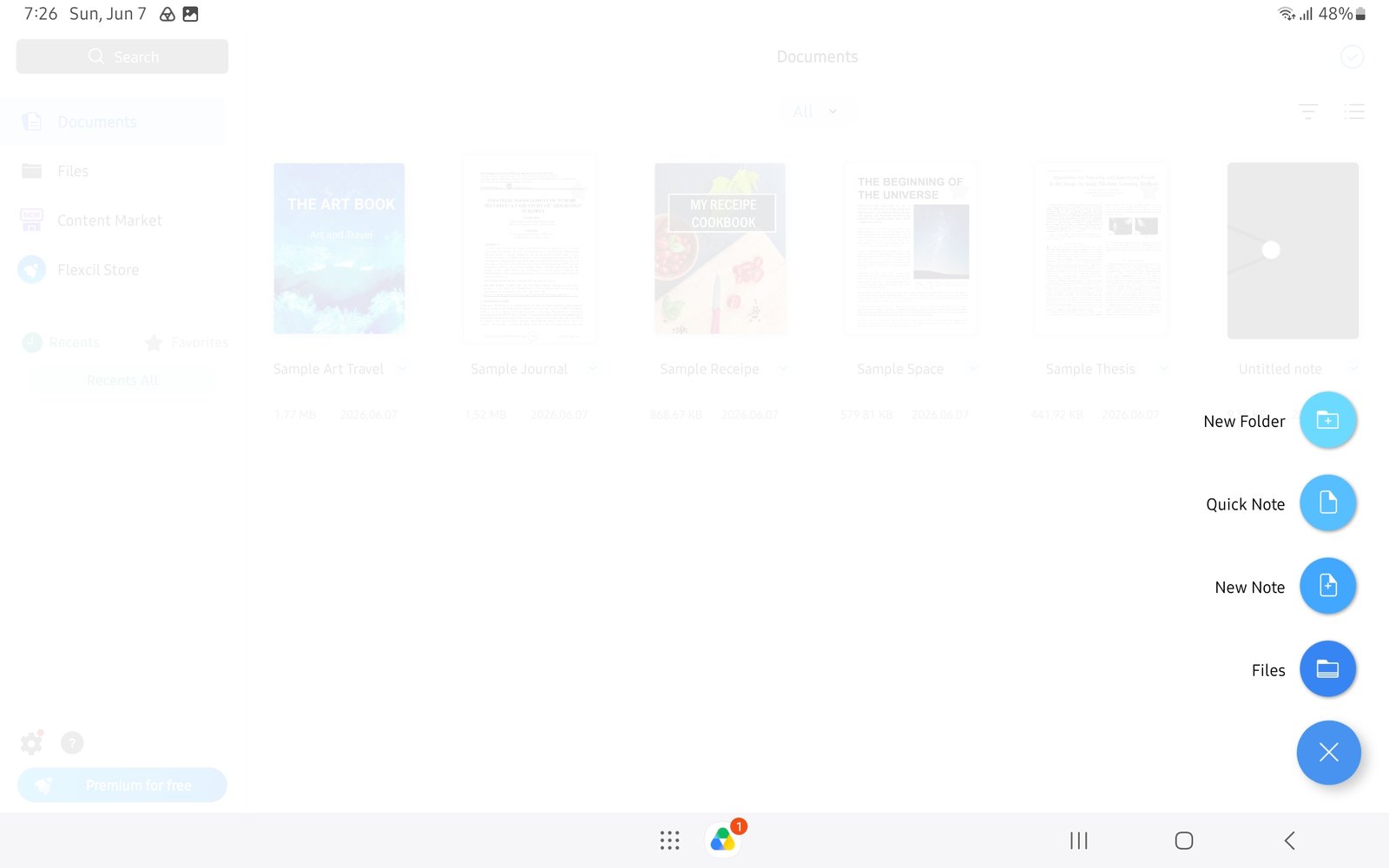
Choose FilesTap the blue plus button, then choose Files in Flexcil for Android. - Select the NozomuNoto PDF. Android should show 1 selected at the top.
- Tap Select in the top-right corner.
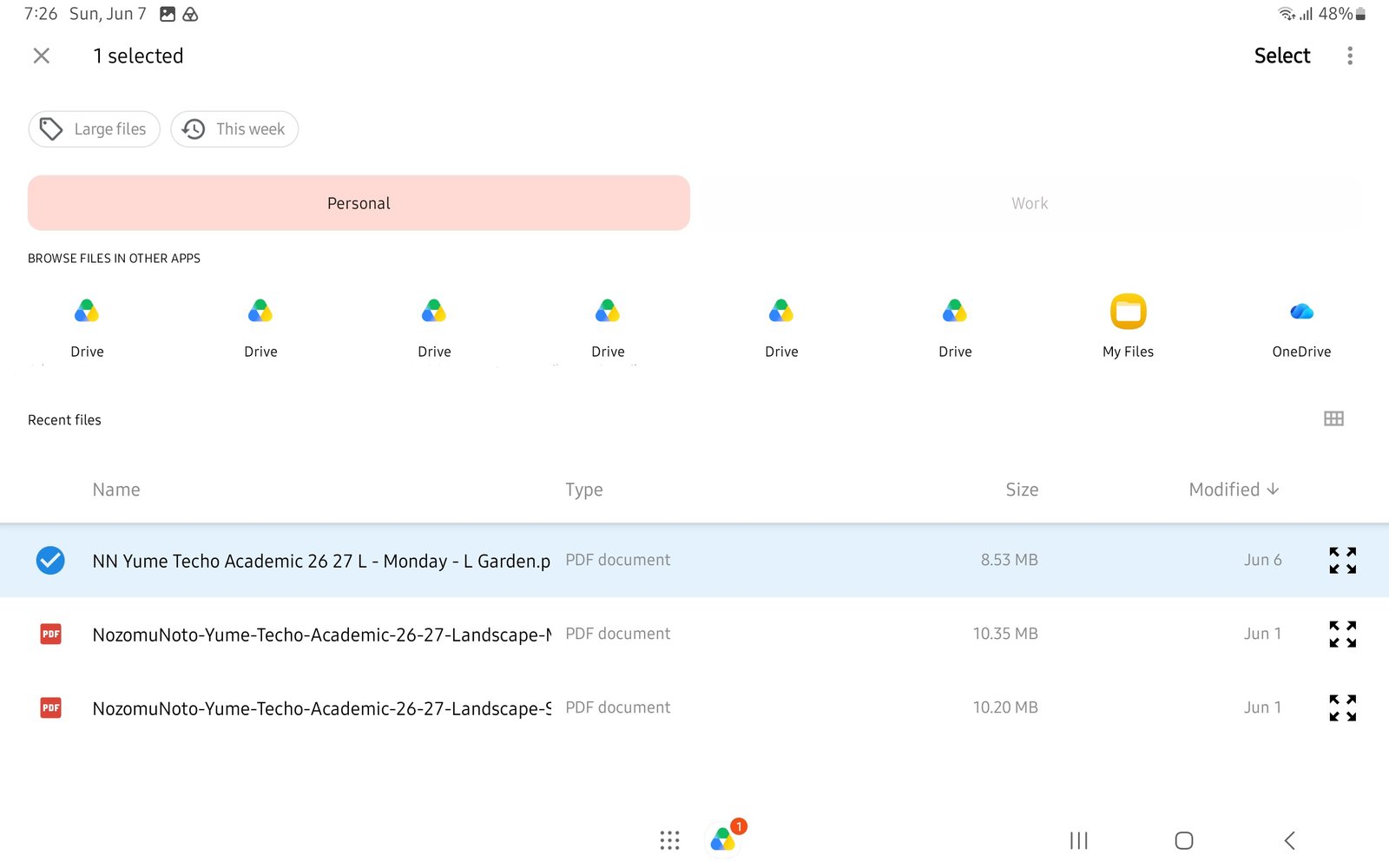
Select the PDFAndroid file picker with Yume Techo Academic 26-27 Landscape selected before tapping Select. - When Flexcil returns to Documents, open the imported planner and test one month tab before writing on it.
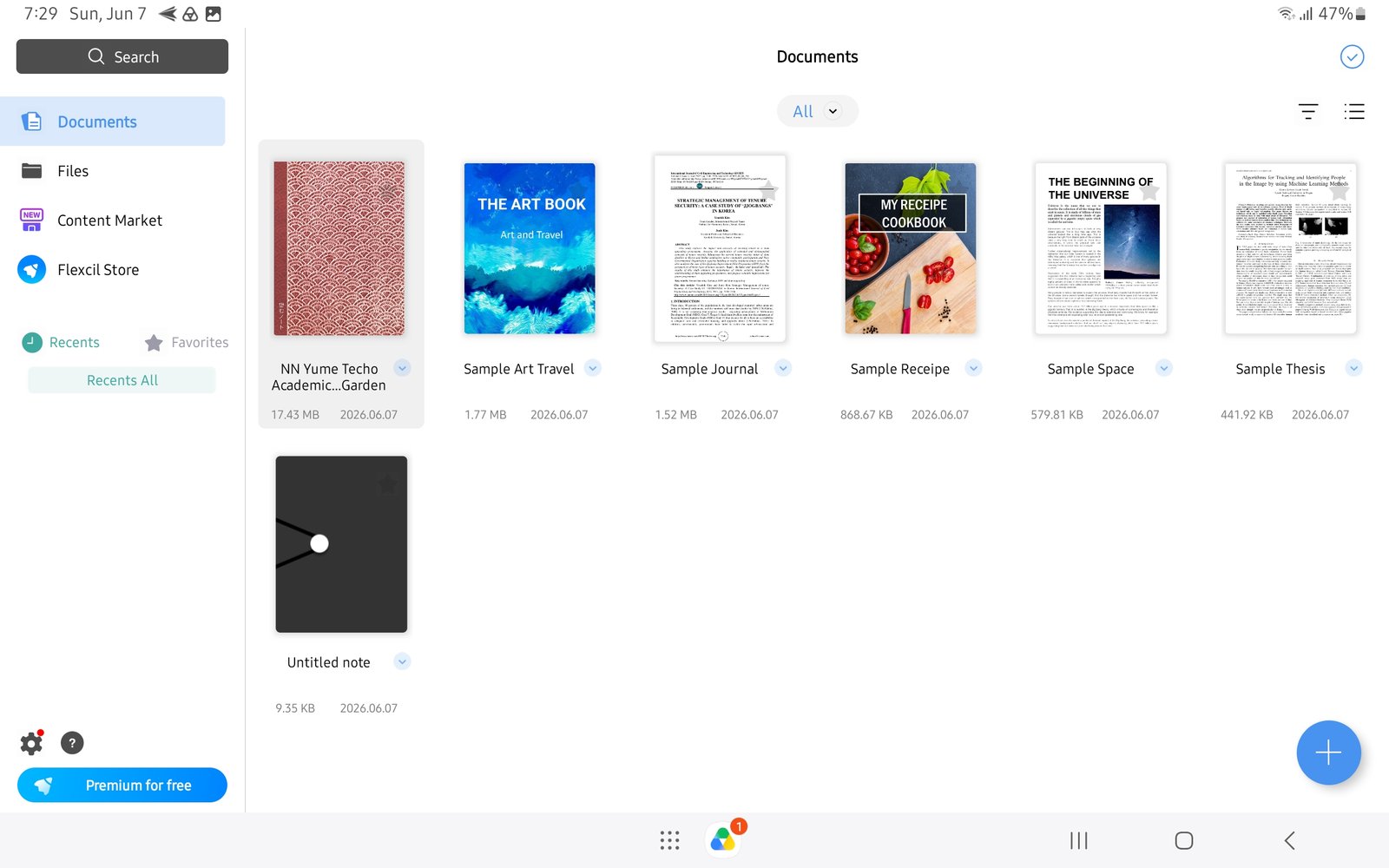
Imported plannerImported Yume Techo Academic 26-27 Landscape appears in Flexcil Documents.