

Use these steps to work with NozomuNoto PDF planners, notebooks, stickers, covers, and template pages in Flexcil. The official links below are for downloads, updates, and current help pages.
Reference links
Use these for current app or device help, downloads, updates, vendor support, and manual references.
Install and use stickers in Flexcil
- Extract the NozomuNoto sticker ZIP so the PNG images are visible in your Android file location.
- Open the planner in Flexcil and switch to Pen mode.
- Tap the image icon on the pen toolbar.
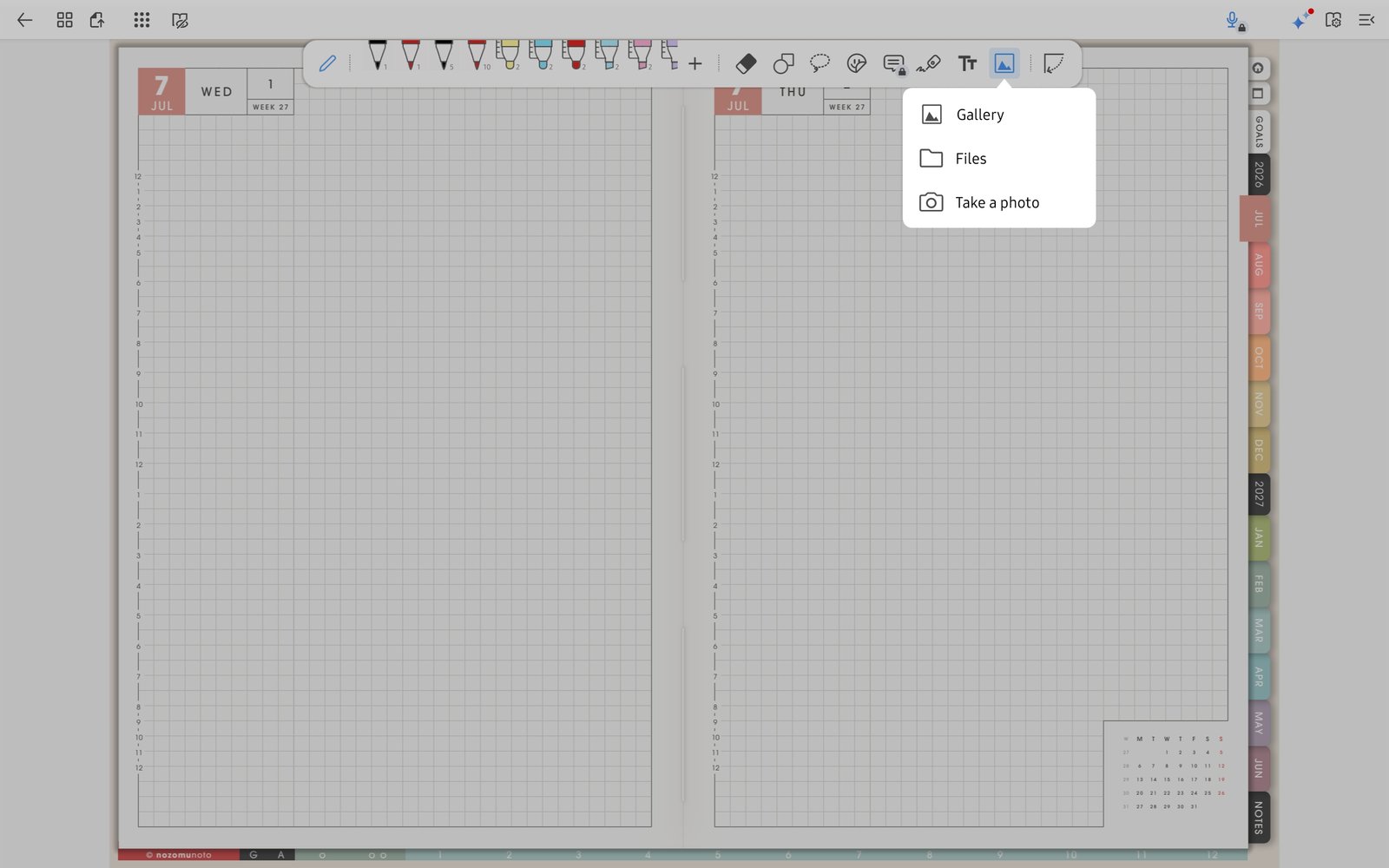
Image toolFlexcil image tool can insert planner stickers or images from Gallery, Files, or Take a photo. - Choose Gallery, Files, or Take a photo.
- Choose one PNG sticker first and place it on a test page.
- Resize or move the image before adding many stickers to the planner.
Notes
- Keep sticker tests small first: Flexcil can place images clearly, but a planner can become heavy if every page has many large PNGs. Try one sticker on one page first, then decorate more pages after you know export and sync still feel smooth.
- If stickers look blurry, reinsert the original PNG and keep it close to its original size.