

Use these steps to import a NozomuNoto PDF planner or notebook into Notability on iPad or iPhone. The official links below are for app help, downloads, updates, vendor help, and current manual references.
Reference links
Use these for current app or device help, downloads, updates, vendor help, and manual references.
Before importing into Notability
Make sure you are choosing the real planner or notebook PDF before you open Notability.
- Save the original download as your clean backup.
- If the download is a ZIP file, extract it first and open the extracted folder.
- Choose the actual NozomuNoto planner or notebook PDF.
- Skip receipts, preview pages, ZIP files, and instruction-only PDFs for the planner import.
- Open the PDF from Files, Safari, Google Drive, or your download folder.
- Use Share or Open in, choose Notability, then import it as a new note.
- Open the imported planner or notebook, test one link, and write one small note before setting up everything.
Import the PDF into Notability
- Save the original NozomuNoto download as your clean backup. If the download is a ZIP file, extract it first.
- Open Notability Library.
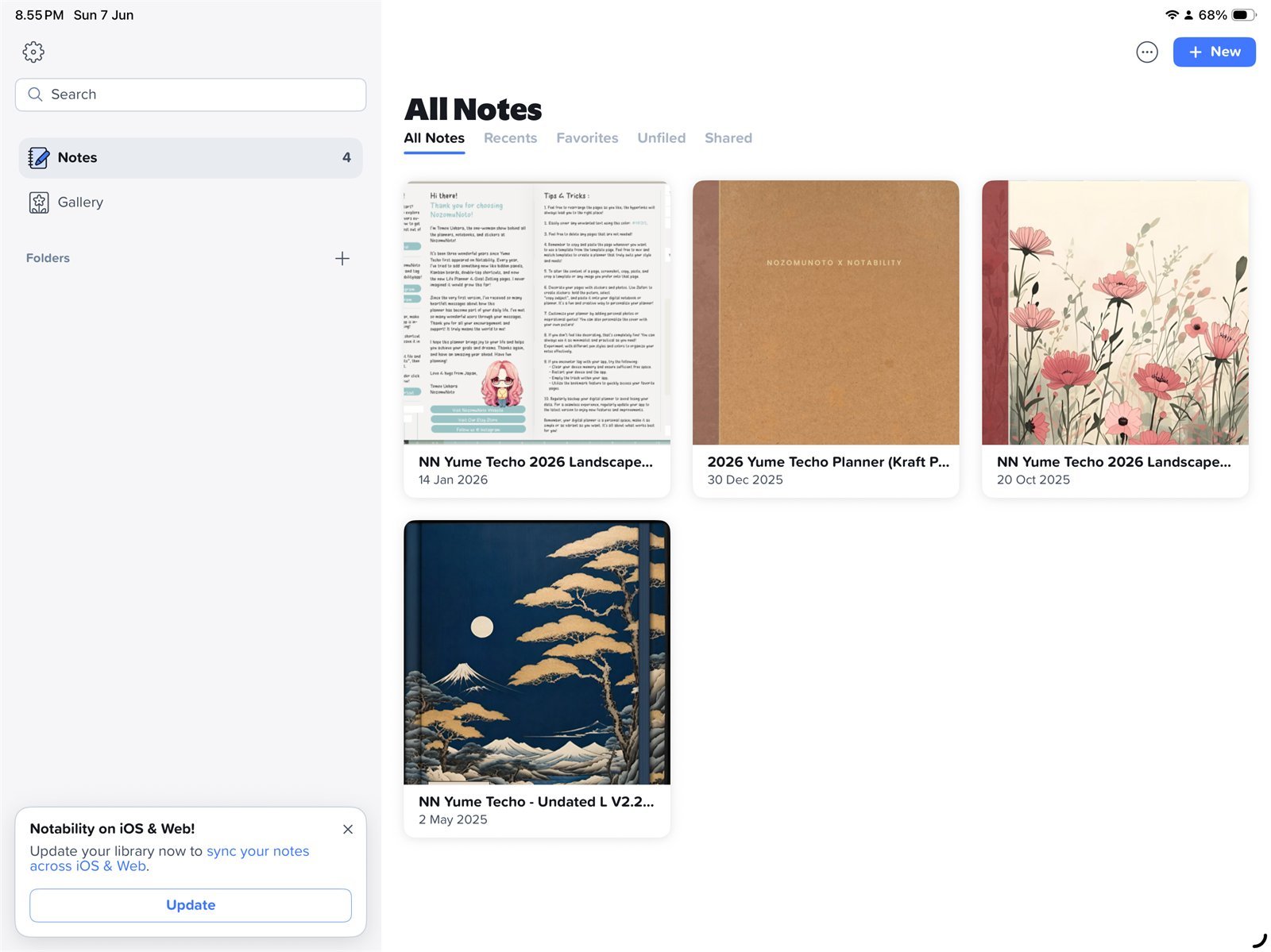
Notability LibraryNotability on iPad with Yume Techo Academic 26-27 Landscape already imported in the Library. - Tap + New, then choose Import. If your Notability menu shows it this way, press and hold + New, then choose Import.
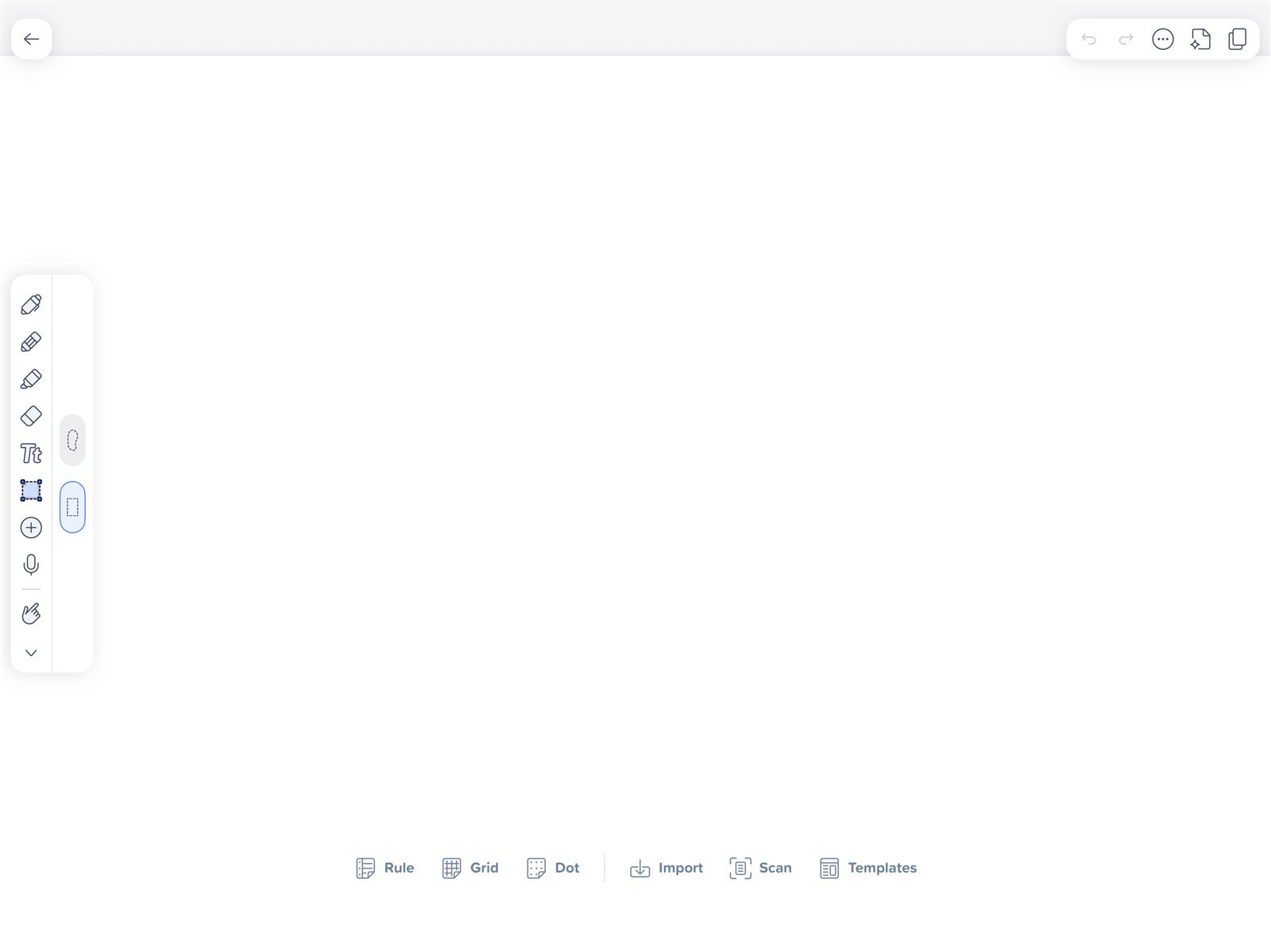
+ New import menuNotability on iPad. Press and hold + New, then choose Import for the NozomuNoto PDF. - Choose Files, Dropbox, Google Drive, OneDrive, Box, or WebDAV, then select the actual NozomuNoto planner or notebook PDF. Skip receipt, preview, ZIP, and instruction-only files.
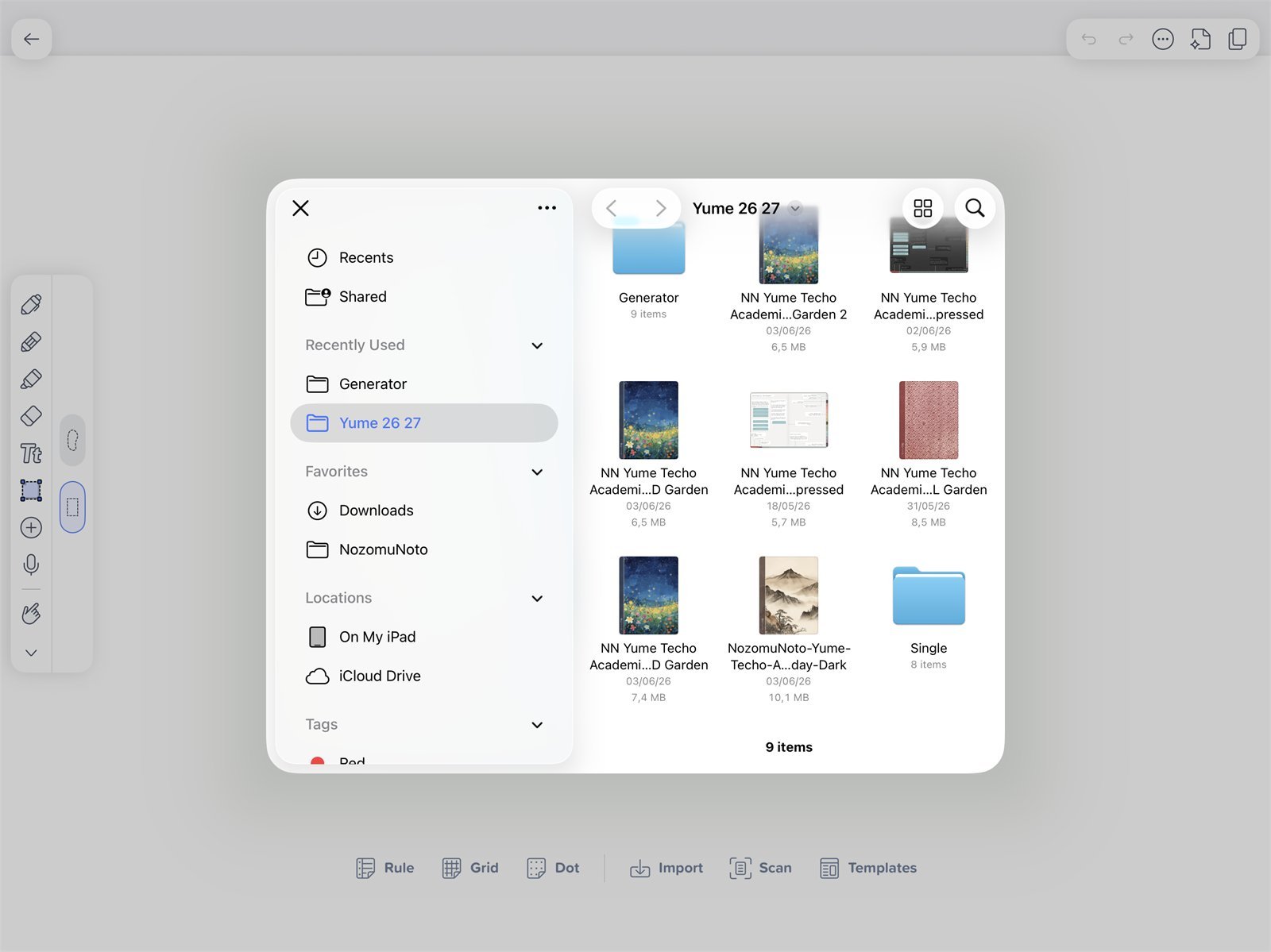
Choose the PDF fileFiles picker inside Notability. Choose the Yume Techo Academic 26-27 Landscape PDF, not the ZIP file. - Import it as a new note, then open the imported planner or notebook.
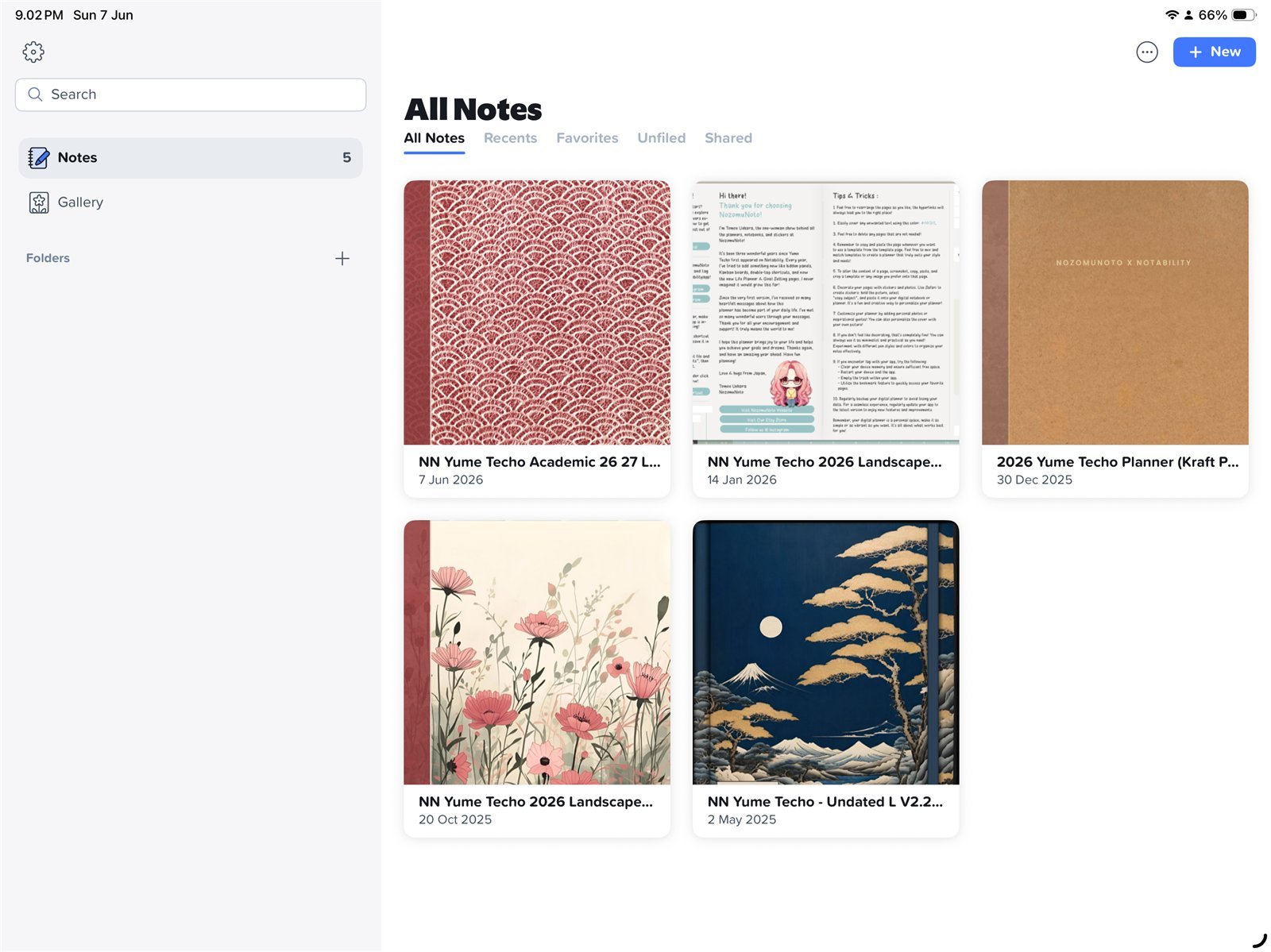
Imported plannerNotability Library after importing Yume Techo Academic 26-27 Landscape as a note. - Test one planner link and write one small note before setting up the whole planner.
Import from another app
If the PDF is already open in Files, Safari, Google Drive, or a download folder, use Share or Open in, choose Notability, and import it as a new note.
Notability import checks
1. Use the PDF for planners and notebooks
NozomuNoto planners and notebooks should be imported as PDF files. Use PNG files for stickers, covers, or image extras when the product includes them.
2. Import as a new note first
For your first setup, import the PDF as its own note. Adding the PDF into another note can make the planner harder to find and troubleshoot.
3. Keep the original download outside Notability
Use Notability as the working copy. Keep the clean NozomuNoto PDF in Files, iCloud Drive, Google Drive, or another folder you can find again.
4. Test before real planning
Open the imported planner, tap one obvious link, and write one small note. After that quick check works, start your normal setup.
If import looks wrong
If the file content is missing after import, test the original PDF in Apple Files first. If the PDF looks normal there, the issue is likely the Notability import/rendering copy. Re-import a fresh copy before writing on many pages.