

Use these steps to use the NozomuNoto Index page as your planner map in Notability. The official links below are for app help, downloads, updates, vendor help, and current manual references.
Reference links
Use these for current app or device help, downloads, updates, vendor help, and manual references.
Use Index as your home base
The Index page is your NozomuNoto planner map. In Notability, use it when you want to jump to an important section without scrolling through many pages.
- Open your NozomuNoto planner or notebook in Notability.
- Go to the Index page.
- Choose the hand tool so links move instead of turning into writing.
- Tap one section name or button.
- Check that Notability moves to the right page.
- Return to Index whenever the planner starts to feel large.
If tapping writes on the page, Notability is probably using a writing tool. Choose the hand tool, then test again with your finger.
Use the NozomuNoto index page in Notability
- Open the imported NozomuNoto PDF note in Notability.
- Find the Index page near the beginning of the planner or notebook. The Index is part of the NozomuNoto PDF, not a Notability folder or subject.
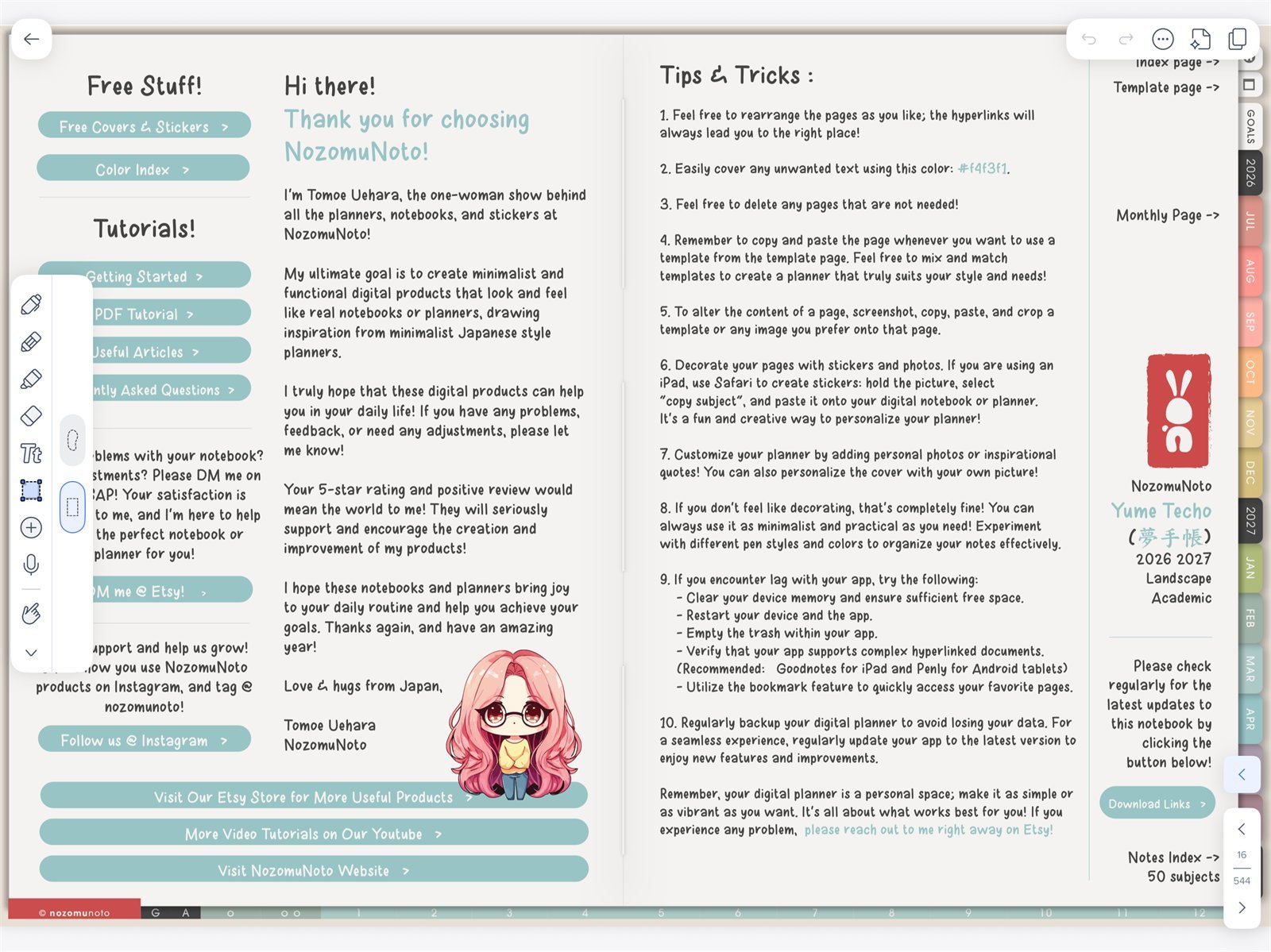
Planner mapYume Techo Academic 26-27 Landscape in Notability. The Index and product tabs are the main map for moving around the planner. - Choose the hand tool from the Toolbox so index links navigate instead of turning into writing.
- Tap one linked section, month, week, template area, or notebook divider from the Index.
- Check that Notability moves to the right page, then return to Index when you need the planner map again.
- Open Content Manager when you want a thumbnail view of pages.
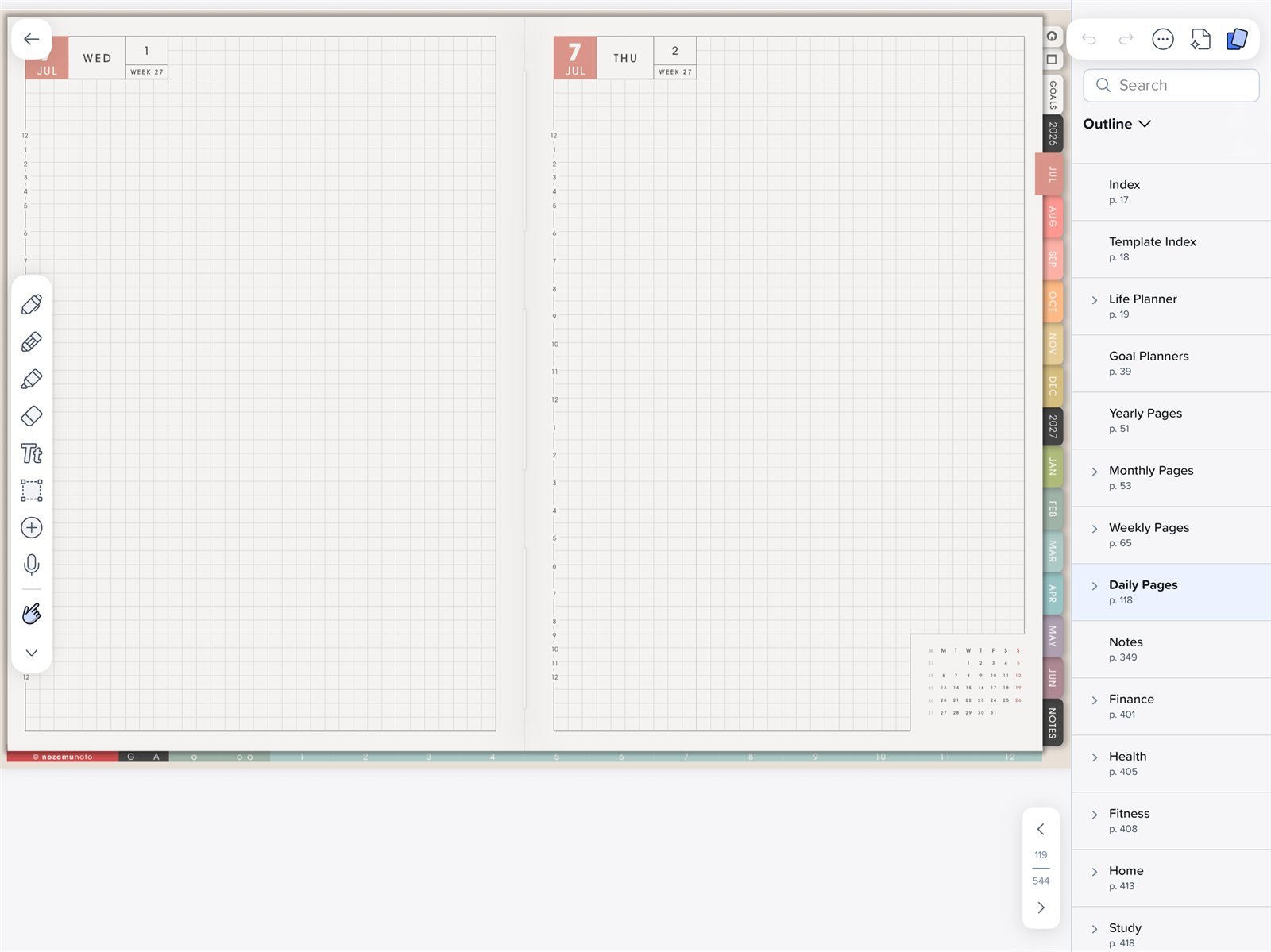
Outline and Content ManagerNotability Content Manager on iPad showing the Yume Techo Academic 26-27 Landscape outline and page sections. - Bookmark the Index and the pages you return to often, but use Index as the built-in NozomuNoto map.
How Index works with Notability
Use Index as the NozomuNoto product map and Content Manager as the Notability page manager. Index is better for planned navigation. Content Manager is better for thumbnails, bookmarks, moving pages, and page actions. Notability subjects help organize notes in the Library, but they are separate from the Index links inside the PDF.
Tiny Index test
- Start from Index. Choose the hand tool and tap one clear month, section, template, notes, or tutorial link.
- Check the jump. Make sure Notability opens the page you expected.
- Return to Index. Use the Index tab, your saved bookmark, or Content Manager if you need the map again.
- Write after the test. When the link works, switch back to a writing tool and add one small note.
If copied pages are hard to find
A copied template page may not appear from the original Index link. Bookmark the copied page in Content Manager or keep it near the section where you use it.