

Use these steps to create Notability bookmarks for the NozomuNoto planner pages you open often. The official links below are for app help, downloads, updates, vendor help, and current manual references.
Reference links
Use these for current app or device help, downloads, updates, vendor help, and manual references.
Bookmarks vs planner links
NozomuNoto planner links are built into the PDF. They move you through tabs, dates, buttons, and Index links. Notability bookmarks are extra shortcuts you create yourself.
- Current week
- Today page
- Project page
- Class notes
- Copied template page
- Important list
Bookmarks are separate from planner links. They just make your own favorite pages easier to return to.
Bookmark pages in Notability
- Open the note or imported PDF.
- Tap the Content Manager page icon in the upper-right corner.

Content ManagerTap the page-shaped Content Manager icon in the upper-right corner of the note. - Use All Pages to view page thumbnails.
- Tap the Bookmark icon on a page thumbnail to bookmark that page.

BookmarkInside Content Manager, tap the bookmark icon on a page thumbnail. 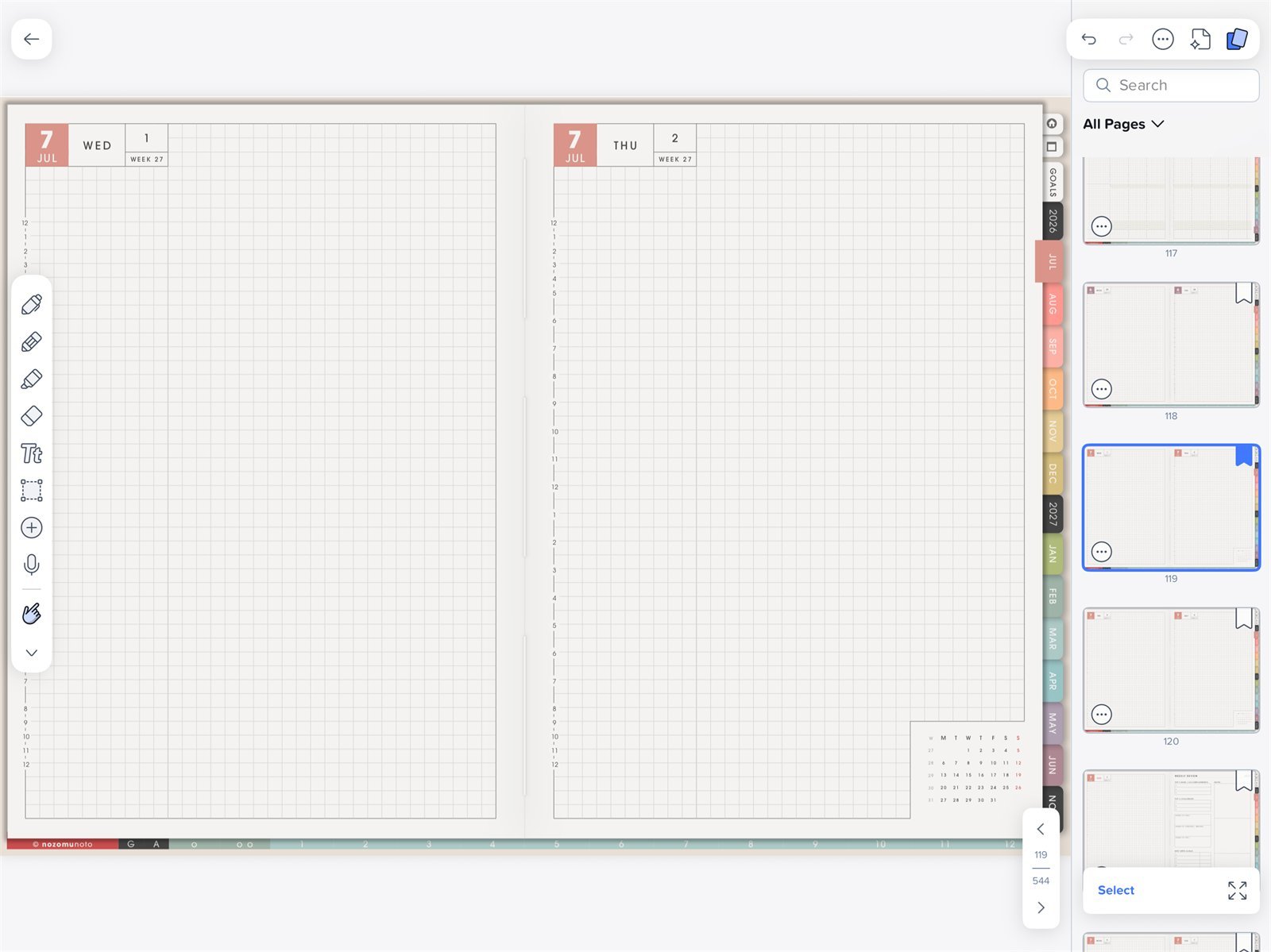
Bookmarked pageYume Techo Academic 26-27 Landscape in Notability. The bookmark icon marks a page you want to return to often. - Open the Bookmarks view inside Content Manager to see bookmarked pages.
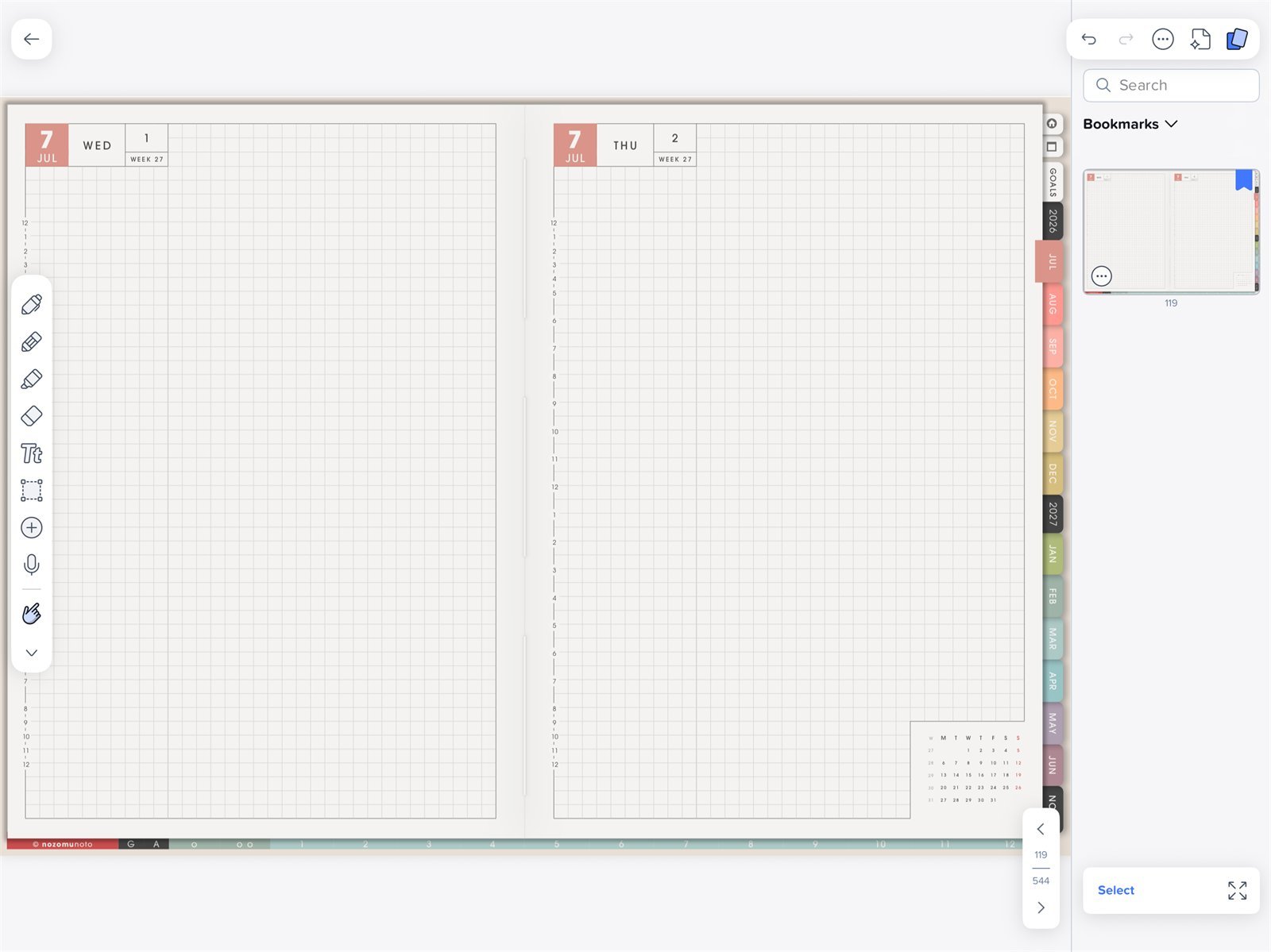
Bookmarks in Content ManagerNotability Content Manager showing bookmarked pages inside Yume Techo Academic 26-27 Landscape. - Review Bookmarks later and remove old shortcuts so the list stays useful.
Best pages to bookmark in Notability
- Index. Use it as the planner map.
- Today page. Use it for the page you open many times in one day.
- Current week. Use it as the main planning page.
- Project page. Use it for an active project, client, class, or study topic.
- Copied template page. Bookmark copied pages only while you use them.
- Important list. Use it for a list you return to often.
If bookmarks become messy
Open Content Manager, switch to Bookmarks, and remove old shortcuts you no longer use. Keep the list short so it helps instead of becoming another index.