

Use these steps to import a NozomuNoto PDF planner or notebook into Noteshelf on iPad or iPhone. The official links below are for app help, downloads, updates, vendor help, and current manual references.
Reference links
Use these for current app or device help, downloads, updates, vendor help, and manual references.
Before importing into Noteshelf
Make sure you are importing the correct file before you open Noteshelf.
- Save the original download as your clean backup.
- If the download is a ZIP file, extract it first and open the extracted folder.
- Choose the actual NozomuNoto planner or notebook PDF.
- Skip receipts, preview pages, ZIP files, and instruction-only PDFs for the planner import.
- Import from Noteshelf with + then Import Document, or open the PDF from Files, Safari, Google Drive, or your download folder and use Share or Open in.
- Open the imported planner or notebook, test one link, and write one small note before setting up everything.
Import the PDF into Noteshelf
- Save the original NozomuNoto download as your clean backup and extract the ZIP first if your download is a ZIP file.
- Open the extracted folder and choose the actual planner or notebook PDF. Skip receipts, preview pages, ZIP files, and instruction-only PDFs for the planner import.
- Open Noteshelf from All Notes.
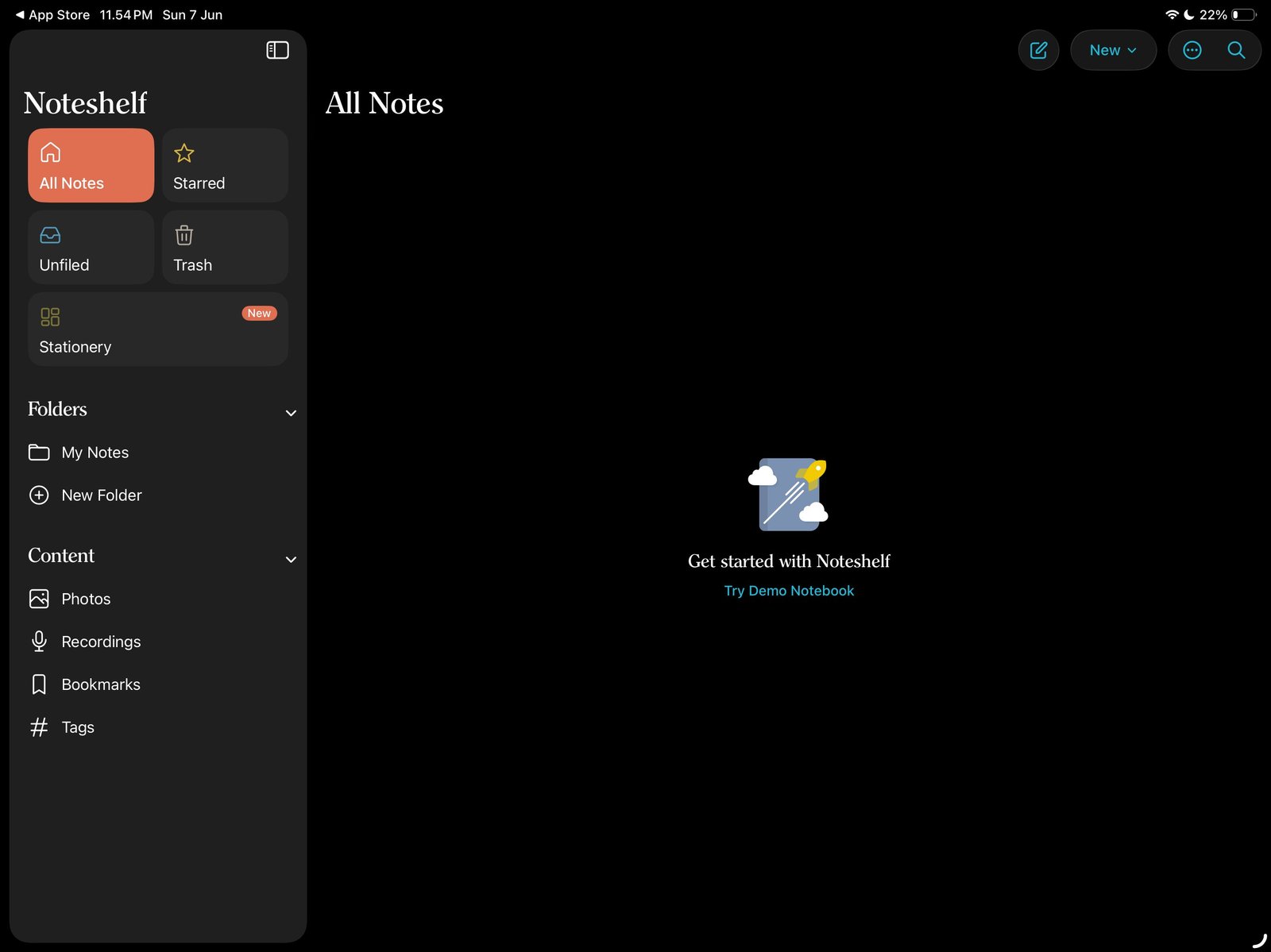
All NotesStart from Noteshelf All Notes before importing. Product shown: Yume Techo Academic 26-27 Landscape. - Tap the + Add menu, then tap Import Document.
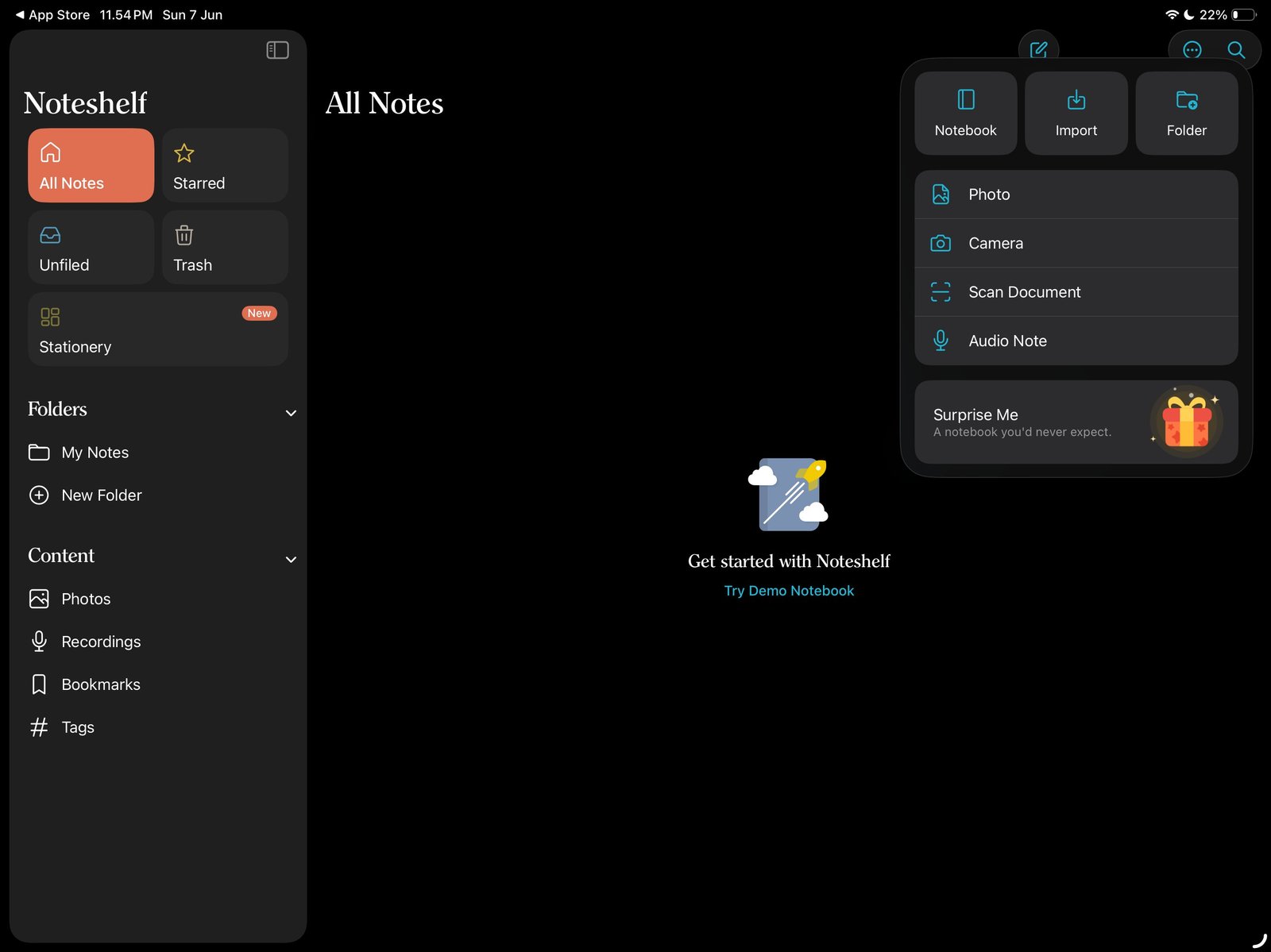
+ > ImportTap the Add menu, then choose Import. Product shown: Yume Techo Academic 26-27 Landscape. - Choose the NozomuNoto PDF from Files, iCloud, Google Drive, or the folder where you saved it.
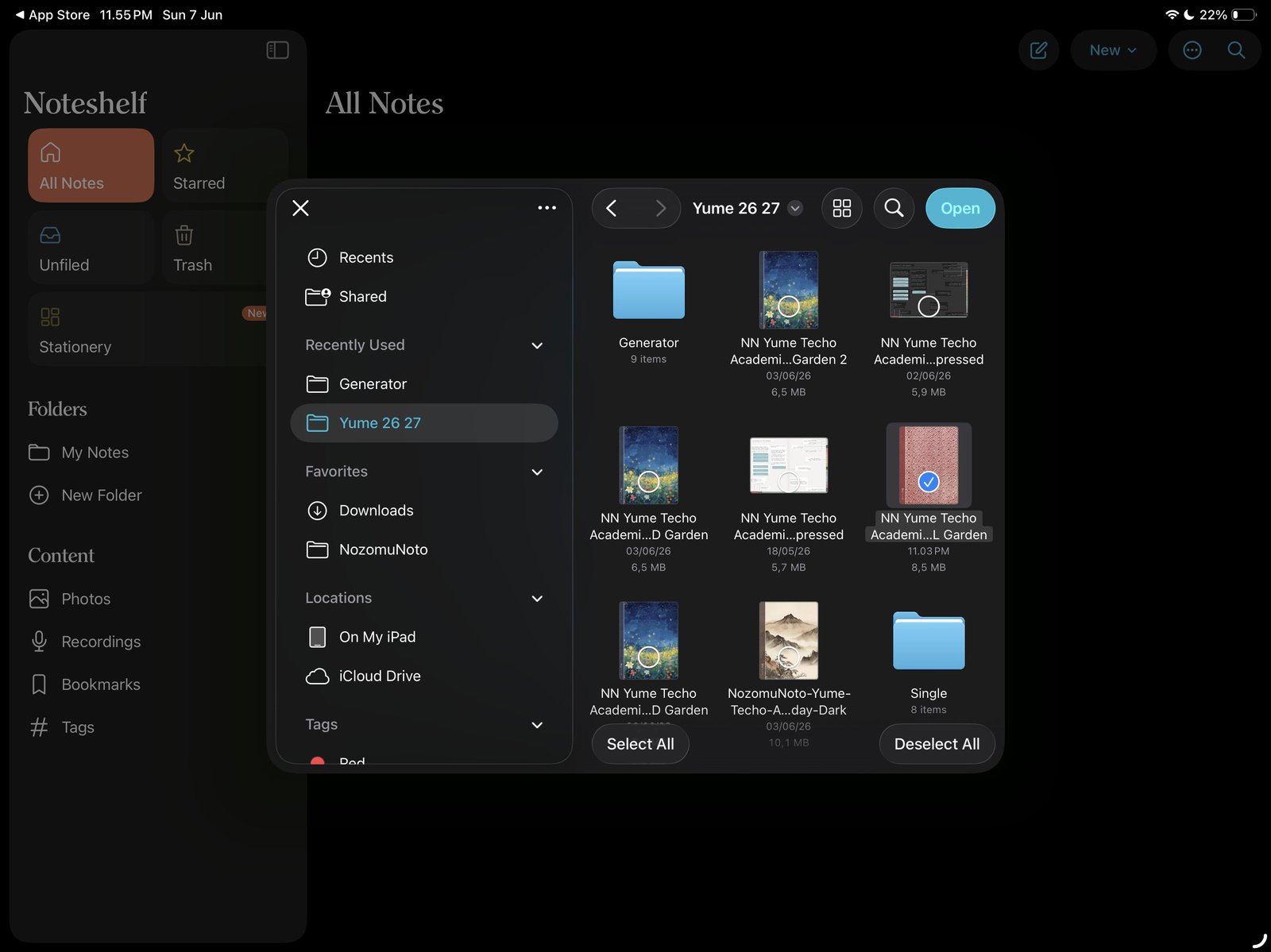
Select the PDFChoose the NozomuNoto PDF from the iPad file picker. Product shown: Yume Techo Academic 26-27 Landscape. - If the PDF is already open in Files, Safari, Google Drive, or a download folder, use Share or Open in, choose Noteshelf, and import it as a new notebook or document.
- Open the imported planner or notebook in Noteshelf, test one link, and write one small note before setting up everything.
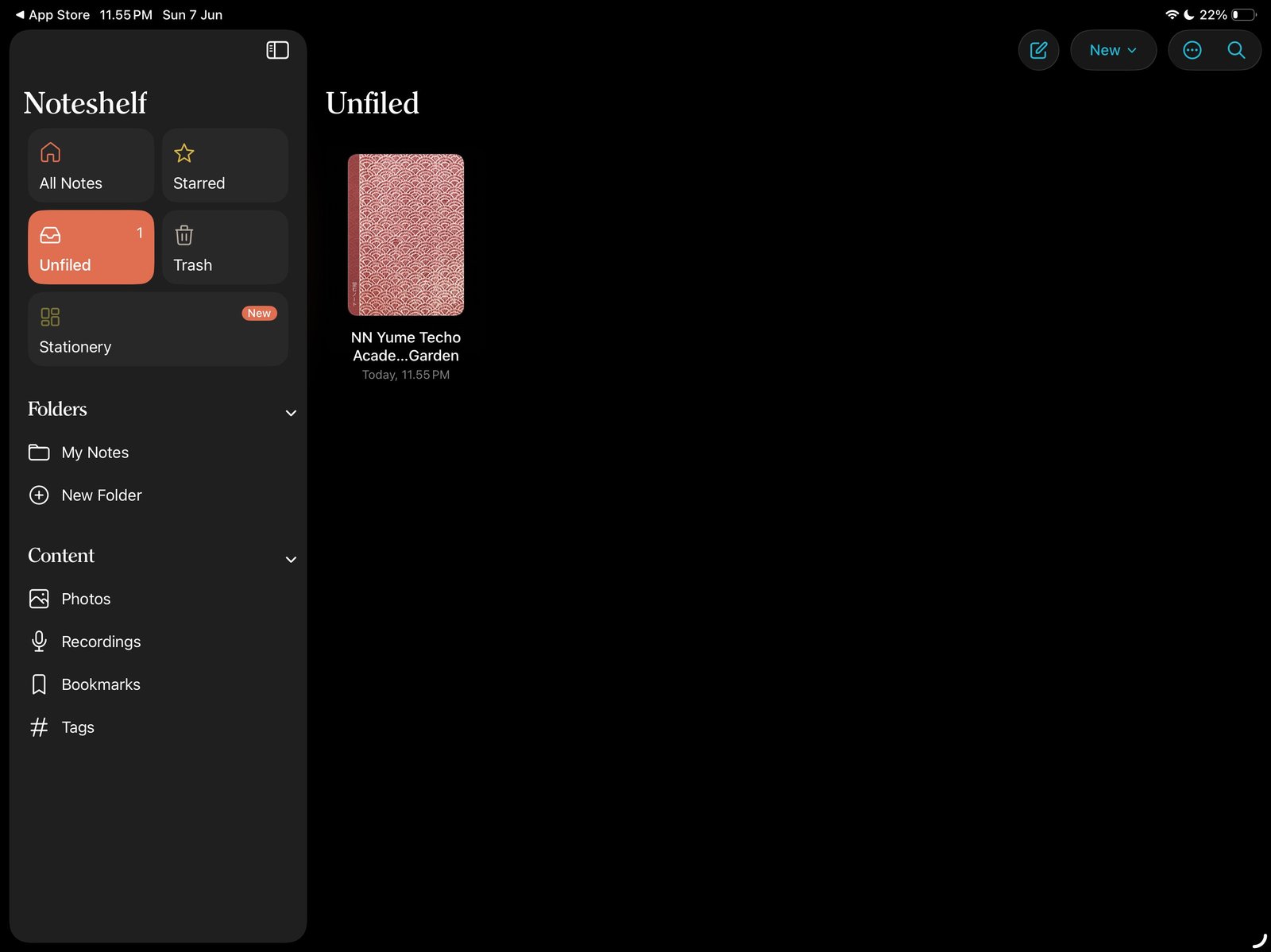
Imported plannerOpen the imported planner from Noteshelf All Notes. Product shown: Yume Techo Academic 26-27 Landscape.
Noteshelf import checks
1. Use the PDF for planners and notebooks
Use the extracted PDF for planners and notebooks. Use PNG files later for stickers, covers, and image extras.
2. Keep one clean backup
The first import should be one clean working copy in Noteshelf, with the original PDF kept outside the app as your backup.
3. Test before real planning
Open the imported planner, test one link, and write one small note. After that quick check works, start your normal setup.
If import gets confusing
1. The ZIP is still unopened
What happens: Noteshelf cannot show the planner pages, or the file picker does not show the full PDF.
What to do: open the download in Files first, extract it, then import the PDF file only.
2. The planner appears more than once
What happens: All Notes shows several similar planner cards.
What to do: open the copy you want to use, test one link, then remove extra test copies only after the working copy is confirmed.
3. The wrong file was imported
What happens: the file looks like a sticker sheet, cover, or image instead of the full planner.
What to do: return to the extracted product folder and choose the main planner PDF.