

Use these steps when NozomuNoto planner tabs, dates, Index items, or buttons need to move inside Noteshelf. The official links below are for app help, downloads, updates, vendor help, and current manual references.
Reference links
Use these for current app or device help, downloads, updates, vendor help, and manual references.
If links fail to move
If tapping a tab, date, Index item, or button writes on the page instead of moving, the planner is usually okay. Noteshelf may still be in writing or editing mode.
- Turn on Read-Only Mode before tapping planner links.
- Try tapping the link with your finger instead of Apple Pencil.
- Test one obvious link from the Index page.
- Make sure the PDF has been imported into Noteshelf rather than only opened in Files, Safari, Google Drive, or a preview screen.
- If links still fail, import a fresh clean copy of the PDF and test again before setting up the planner.
Tap planner links in Noteshelf
- Open the imported NozomuNoto PDF in Noteshelf.
- Turn on Read-Only Mode before tapping planner tabs or Index links.
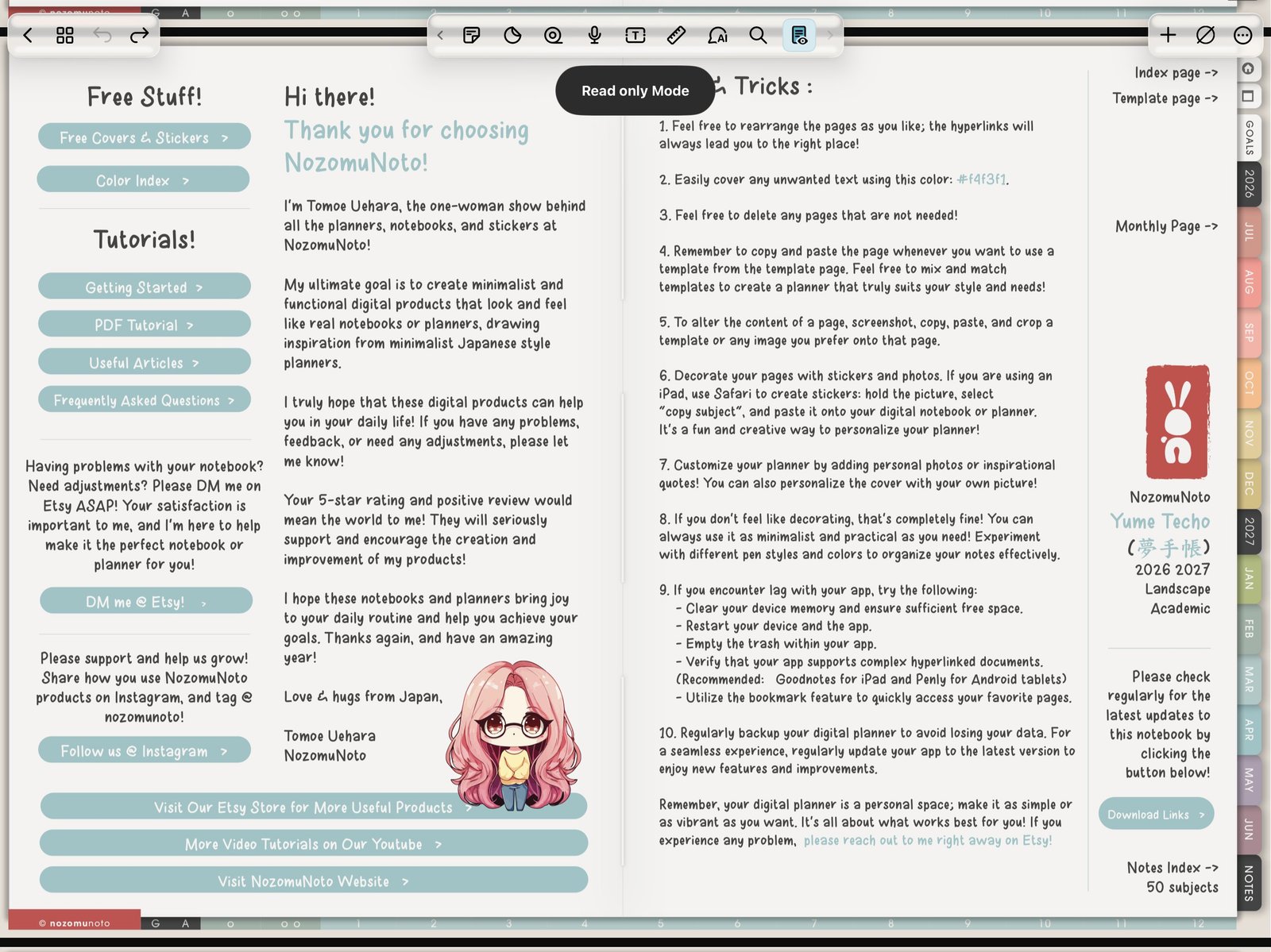
Read-Only ModeTap Read only Mode before testing planner tabs and Index links. Product shown: Yume Techo Academic 26-27 Landscape. - Tap a planner tab, month, week, Index item, or linked button.
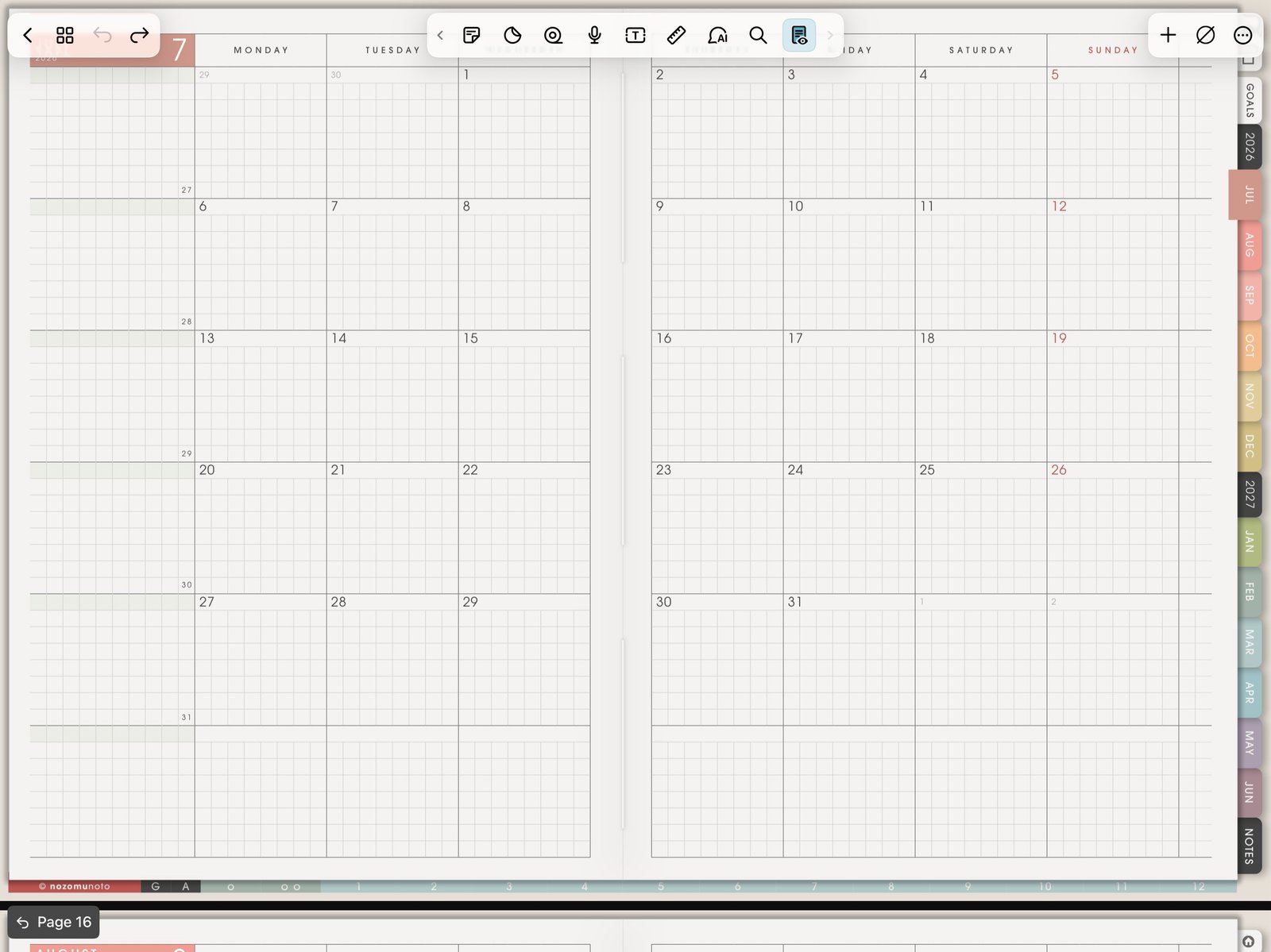
First link testTap one obvious planner tab or Index link first. Product shown: Yume Techo Academic 26-27 Landscape. - Test one more link inside the planner before writing heavily.
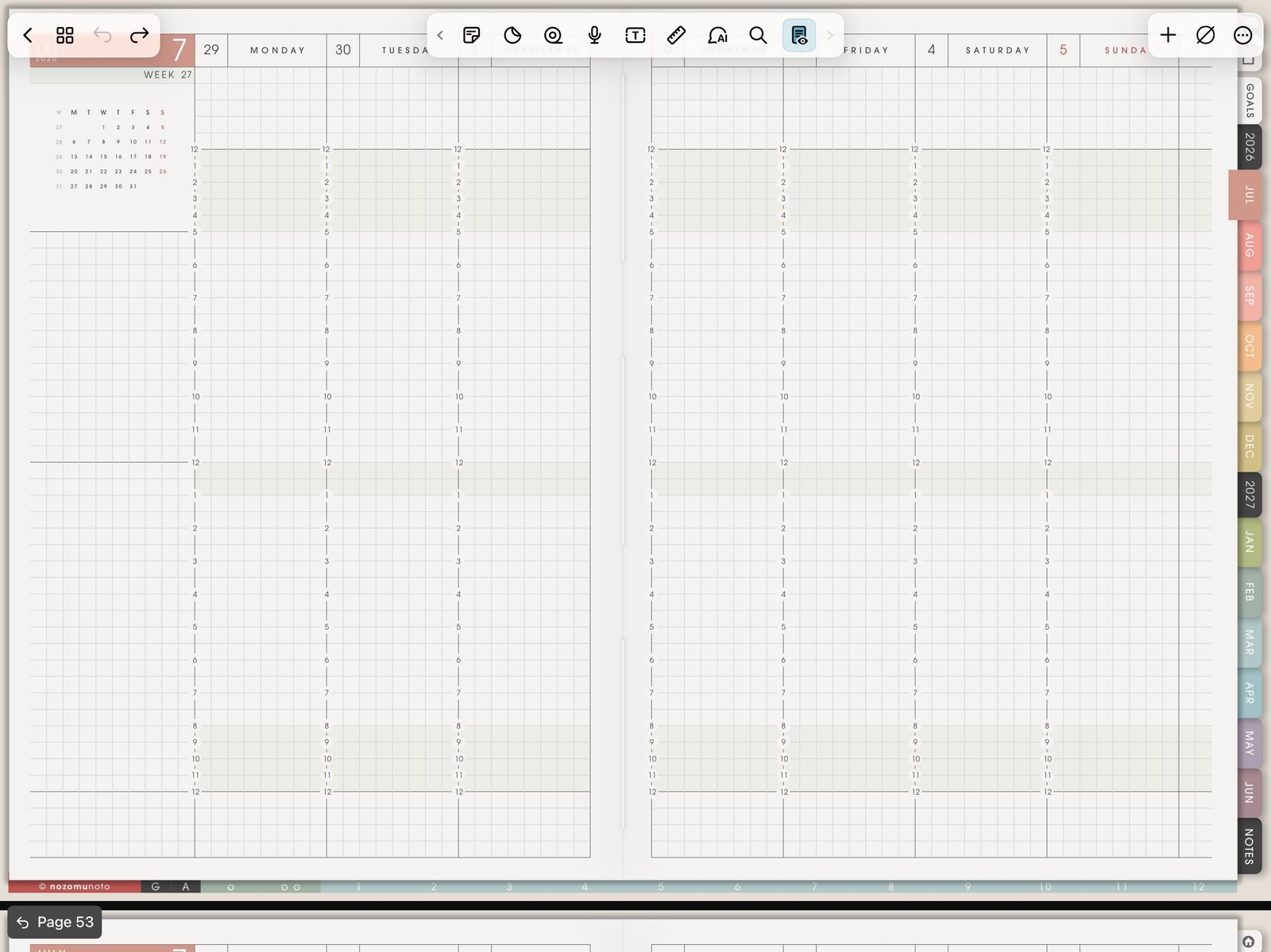
Second link testTest one more link inside the planner before writing heavily. Product shown: Yume Techo Academic 26-27 Landscape. 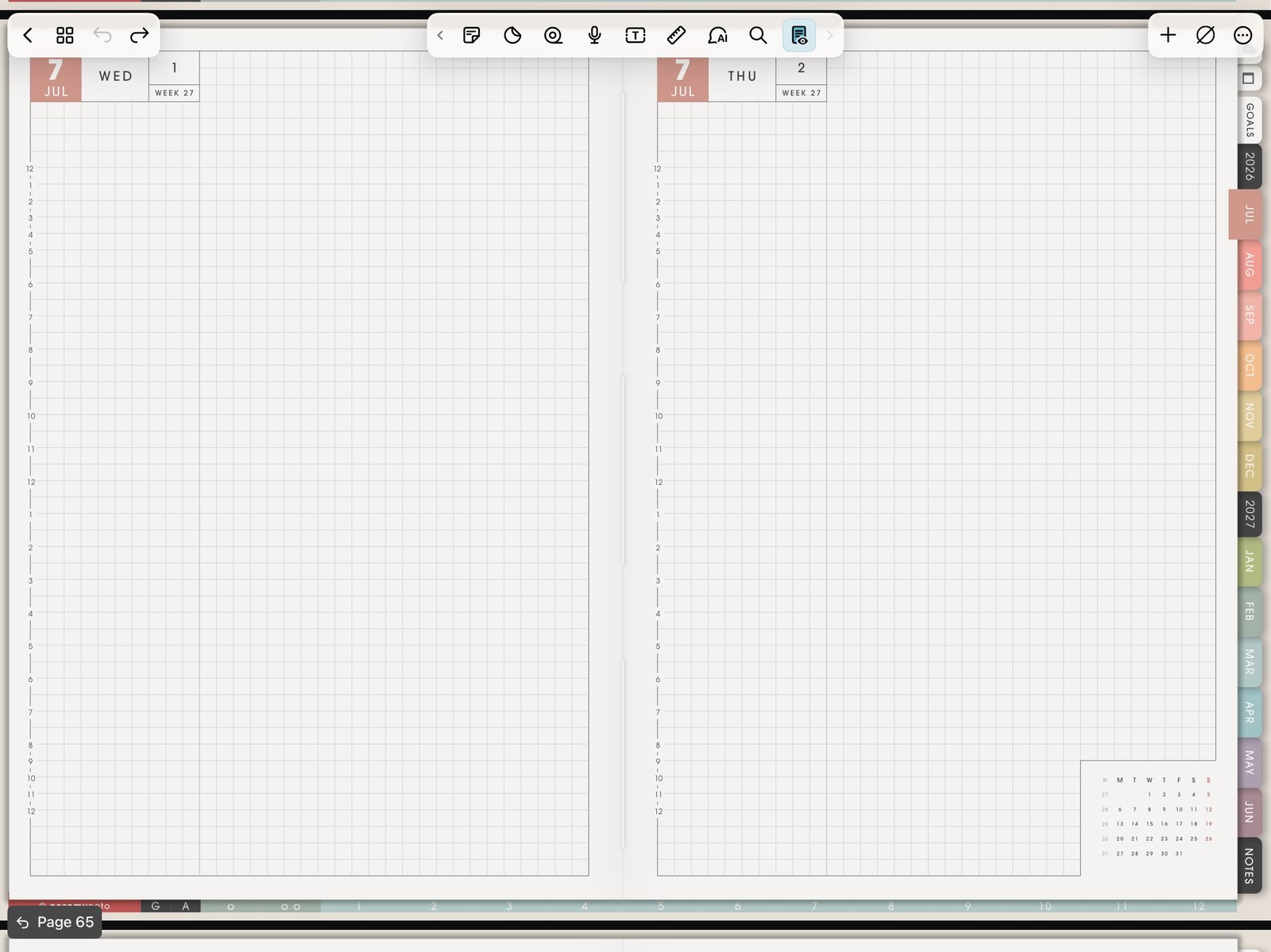
Daily or weekly link testConfirm another planner jump works in the same imported PDF. Product shown: Yume Techo Academic 26-27 Landscape. - Tap Edit when you want to write, highlight, or lasso again.
- If a link fails in Read-Only Mode, make sure the PDF is imported into Noteshelf rather than only open in Files, Safari, Google Drive, or a preview screen.
- If links still fail, import a fresh clean copy of the PDF and test one Index link before editing the planner more.
Why Read-Only Mode matters
Noteshelf separates reading/navigation from editing. Read-Only Mode is for tapping planner tabs, Index links, months, weeks, and date buttons. Edit mode is for handwriting, highlighting, lasso, stickers, and page work.
Quick link test
- Test one outside tab. Tap a clear month, section, or Index tab.
- Test one inside link. From the Index or monthly page, tap a weekly, daily, template, or notes link.
- Return and write. After the jump works, tap Edit and write one small test note.
If links fail to move
1. Edit mode is active
What happens: tapping a tab writes, selects, or opens editing controls.
What to do: turn on Read-Only Mode and tap the same link again, preferably with your finger for the first test.
2. The PDF is only in preview
What happens: the file is open in Files, Safari, Google Drive, or another preview screen, not inside a Noteshelf notebook.
What to do: import the actual PDF into Noteshelf, then test one Index link.
3. The working copy has too many edits
What happens: links worked before, then became harder to use after page changes or exports.
What to do: import a fresh copy of the original PDF and test the same link before editing more pages.
4. The original file needs checking
What happens: the same link fails in Apple Files or another PDF viewer too.
What to do: contact NozomuNoto with the product name, exact page, link tapped, device, iPadOS version, and Noteshelf version.