

Use these steps to work with NozomuNoto PDF planners, notebooks, stickers, covers, and template pages in Noteshelf. The official links below are for downloads, updates, and current help pages.
Reference links
Use these for current app or device help, downloads, updates, vendor help, and manual references.
Copy first
Template pages are meant to be reused. Before writing on a NozomuNoto template page in Noteshelf, copy or duplicate the clean page first, then write on the copy.
- Open the clean template page you want to use.
- Use the Noteshelf Finder or page-thumbnail menu to copy or duplicate it.
- Paste or move the copied page to the place where you want to use it.
- Write, type, decorate, or add stickers on the copied page.
- Keep the original template page clean so you can reuse it again later.
If you already wrote on the original template, re-import a fresh clean copy from your saved backup when you need a new clean master.
Use template pages in Noteshelf
- Open the planner or notebook in Noteshelf and go to the NozomuNoto Template Pages section from the Index, a template tab, or page previews.
- Choose the clean template page you want to reuse before writing on it.
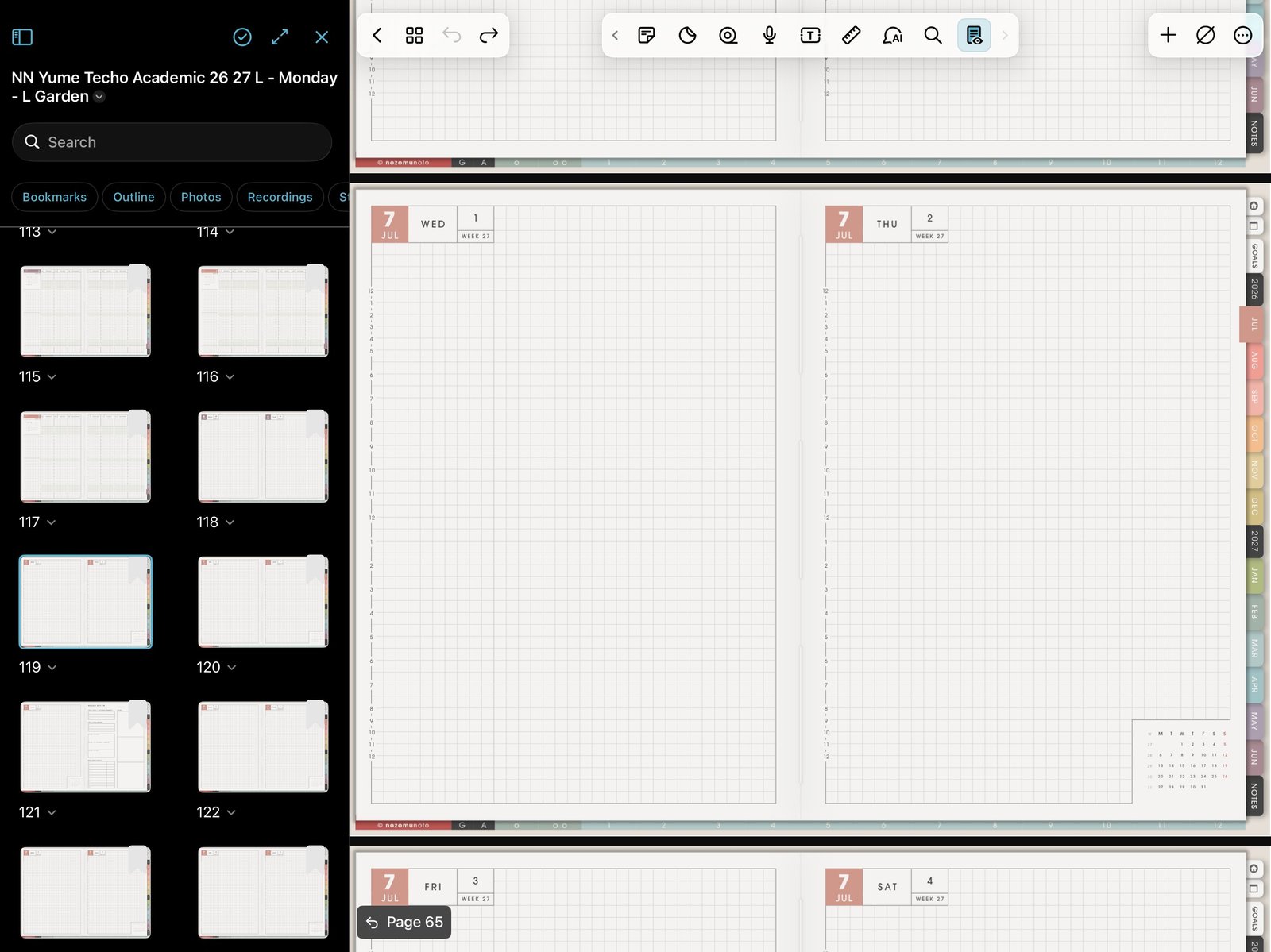
Template thumbnailsOpen page previews to find a clean NozomuNoto template page before writing on it. Product shown: Yume Techo Academic 26-27 Landscape. - Open the Finder or page-thumbnail menu, tap Edit, and select that clean template page.
- Tap More, shown as the three-dot icon, then choose Copy. If your Noteshelf version shows Duplicate for that page, duplicating the clean page is also fine.
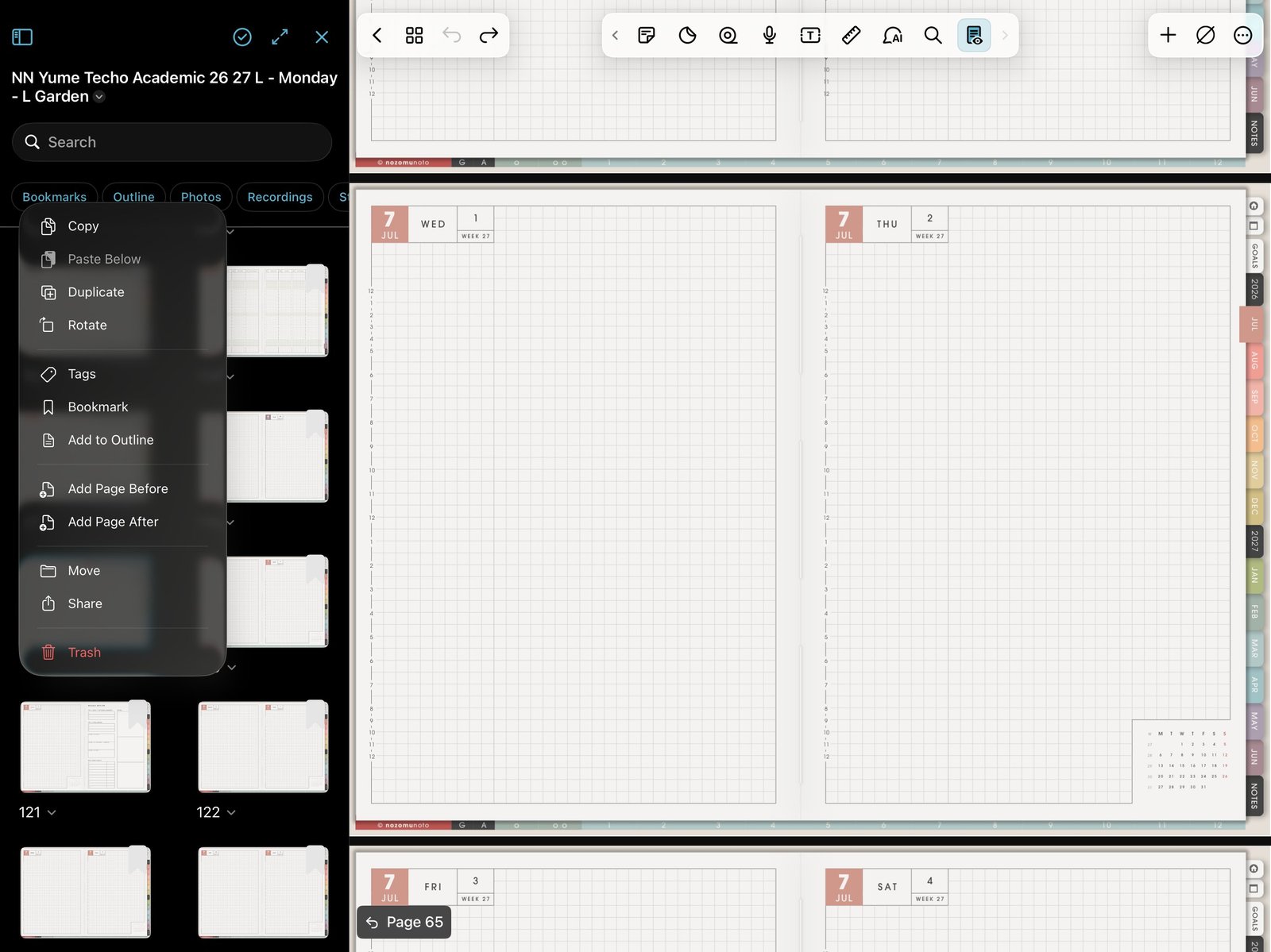
Duplicate templateUse Duplicate from the page action menu before writing on a reusable template. Product shown: Yume Techo Academic 26-27 Landscape. - Go to the place where you want to use the template, long-tap the destination page in the Finder menu, and choose Paste Below.
- Write, type, decorate, or add stickers on the copied page, then leave the original template page clean for next time.
NozomuNoto templates and Noteshelf paper are different
NozomuNoto Template Pages are PDF pages inside the planner. Noteshelf paper templates are app backgrounds. Both can be useful, but they are not the same thing. For linked planner use, start from the NozomuNoto template page inside the PDF.
Safe template workflow
- Find the clean page. Use the Index, template tab, Pages view, or Finder menu.
- Copy before writing. Use Finder > Edit > More > Copy, then Paste Below where you want the page to live.
- Use Duplicate when your version shows it. A duplicate of the clean page is also a working copy.
- Write on the working copy. Add handwriting, typing, decoration, stickers, and project notes there.
- Keep the original PDF outside Noteshelf. That gives you a fresh clean file if the template master gets filled.
If the clean template is already filled
Re-import the original PDF, find the clean template page, copy or duplicate it again, and keep the new working copy bookmarked or near the section where you use it.
If the copied page lands in the wrong place
Open the Finder menu, use thumbnails to find the copied page, then move it closer to the section where you want to use it. After moving copied planner pages, return to the Index and test a few main links.