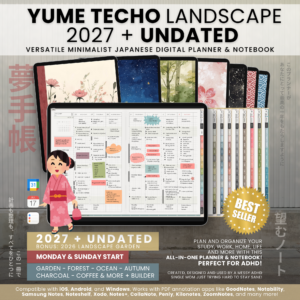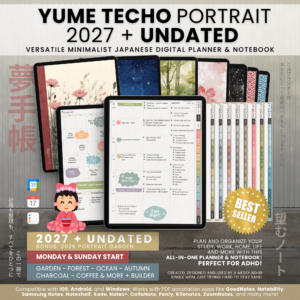
A year ready to fill
Dated planning for the year ahead, with Monday and Sunday starts.
- Shibui Techo 2027 Monday
- Shibui Techo 2027 Sunday
渋い手帳
望むノートPlan your study, work,
home, life, and more!
A versatile minimalist Japanese digital planner & notebook for your multiple life roles and unique needs. A bullet-style journal for rapid logging, brain dumps, and building your own system from scratch!
Download a landscape PDF, open it in a note-taking app, write or type on its pages, and tap links to move between sections. See devices, apps, and setup.
Meet Shibui Techo · 渋い手帳
Plan and organize your study, work, home, life, and more with this minimalist planner & notebook. Made for a flexible, ADHD-friendly approach to planning.
Meet your next everyday notebook
Some days need a plan. Others need a list, a sketch, or a place to get everything out of your head.
Shibui Techo is a versatile minimalist rapid logging bullet-style journal planner made for total freedom! Unlike Yume Techo, it has no fixed daily pages to follow. It is perfect for rapid logging, brain dumps, and building your own system from scratch. Use the linked planning pages, make your own symbols, and build a system that works for you.
Created, designed, and used by a messy ADHD single mom, just trying hard to stay sane!
The idea behind NozomuNoto
You can be a student and a part-time worker, a mother and an entrepreneur, a writer and a designer. Your life does not have to fit inside one fixed planning system.
NozomuNoto brings together minimalist Japanese notebook aesthetics and pages you can adapt for your own needs. Use your planner for the roles you have today, and let it change with you.
Tomoe Uehara is a single mom, graphic designer, art student, and professional. After using Japanese paper planners such as Hobonichi, Jibun Techo, and Nolty, she wanted a digital planner that was simple and flexible enough for her multiple roles—so she created her own.
She personally creates, tests, and uses NozomuNoto products in daily life. Shibui follows that same idea: enough structure to help you find your way, with open space to build your own system.
A week that works for you
Choose your weekly layout in the customer Library. Both Monday and Sunday starts are included.
Plan your week from top to bottom. Keep your daily plans on the left, with a full grid page on the right for lists, rapid logging, and ideas.
The small circle in each day’s section gives you a simple way to divide work and personal tasks, or day and night.
Make it yours
Sunday and Monday starts, fully hyperlinked, with a rapid logging system. In the Vertical layout, the tiny circle splits the day’s section: use it for day and night, work and personal tasks, or high-priority and general tasks.
There is an extra all-purpose page you can copy, paste, and rearrange to suit your needs. Use it for daily pages, bullet journaling, notes, and more. The empty grid space on the right of the Vertical weekly page is also ready for rapid logging and extra notes.
Index & note collections
Use the index page to navigate your planner. Tap the hyperlinks to jump to different sections. You can also write on the index page to add your own notes or section titles for quick reference.
For everything you’re into
A space for each class, project, journal, or subject you love. Give your collections a name, tap the number, and return to your notes whenever you need them.
Need more room? Duplicate a note page in your annotation app and keep related ideas together.
From an index entry to your own space
Organize your notebook into 50 linked note collections. Write a name beside each number, then tap it to open that section. Give your projects, classes, journals, and personal interests their own space.
Each section gives you a place to collect notes on one subject: lecture notes, project ideas, journal entries, sketches, or brain dumps. Duplicate a note page in your annotation app when you need more room, and keep related pages together so your ideas are easier to find later.
The four corner-linked hidden sections are included, separate from the 50 note collections. Keep extra notes, projects, or ideas there without giving up one of your numbered collections.
See the difference before choosing
Categories organize broader life areas. Your 50 numbered collections give individual subjects their own space. Choose the category style and collection paper independently.
Actual Library-generated pages shown in their saved Black Blue / Beige styling. These are page-choice examples; they do not recolor your covers.
Copy a template before writing. Keep the original ready for next time.
Start with a page. Make it your own.
50+ templates for planning, journaling, and note-taking, with 120+ bonus insert pages to give you even more room to create.
Grid, dotted, lined, blank, Cornell notes, and music sheets.
Daily page templates, weekly reviews, routines, trackers, and Gantt charts.
Vision boards, photo pages, Kanban boards, challenges, and more.
The complete template list
All linked from the template indexes. From a blank page to a project board, choose the space that fits what you need to do.
These are pages from the Shibui planner. Compare the two daily templates, or look at a tracker and project page before choosing how to use them.
A built-in template is a full PDF page you duplicate inside your annotation app. A bonus PNG is an image you insert using the app’s image tool. Place it on a page, resize it if needed, and write over or around it. The PNG itself is not a linked PDF page.
All 53 pages below are rendered from the actual Shibui planner PDF. Find a page by name, choose a collection, and open it to inspect the full layout.
No templates match that search. Try a different page name.
Use the template index to navigate to the desired page. Copy or duplicate that page, then paste it after your target page. Always write on your copy, not directly on the original template page, so you can reuse the template next time.
Essential templates are also included as bonus insert PNGs. The collection includes 120+ bonus insert pages for use in your annotation app.
Made to feel like yours
After purchase, open your NozomuNoto Library to choose your planner options and create your download.

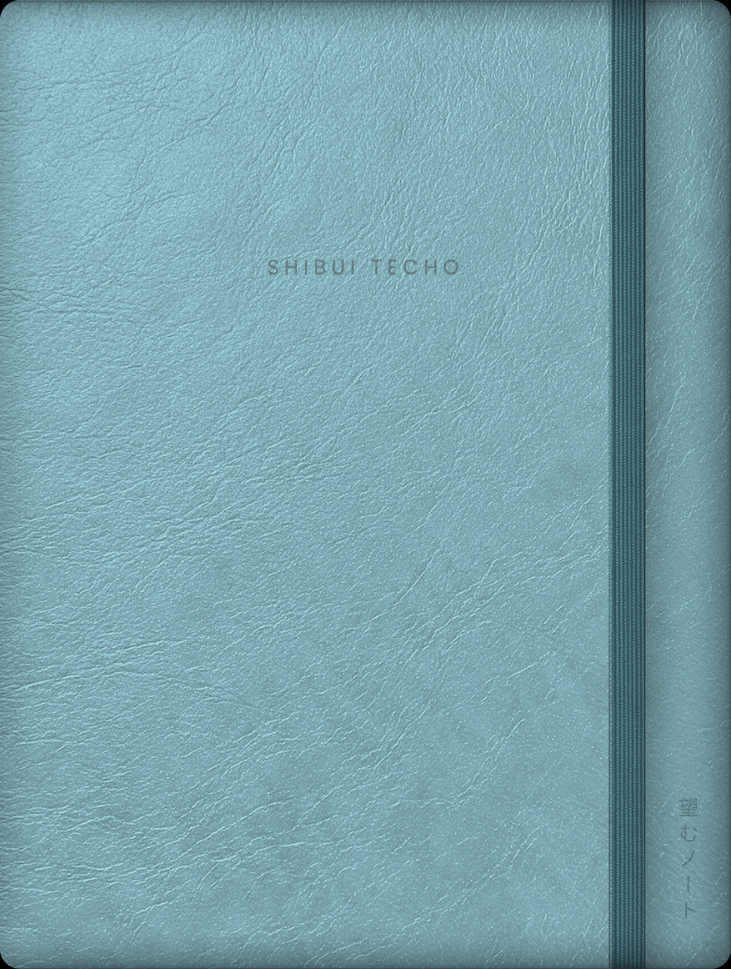
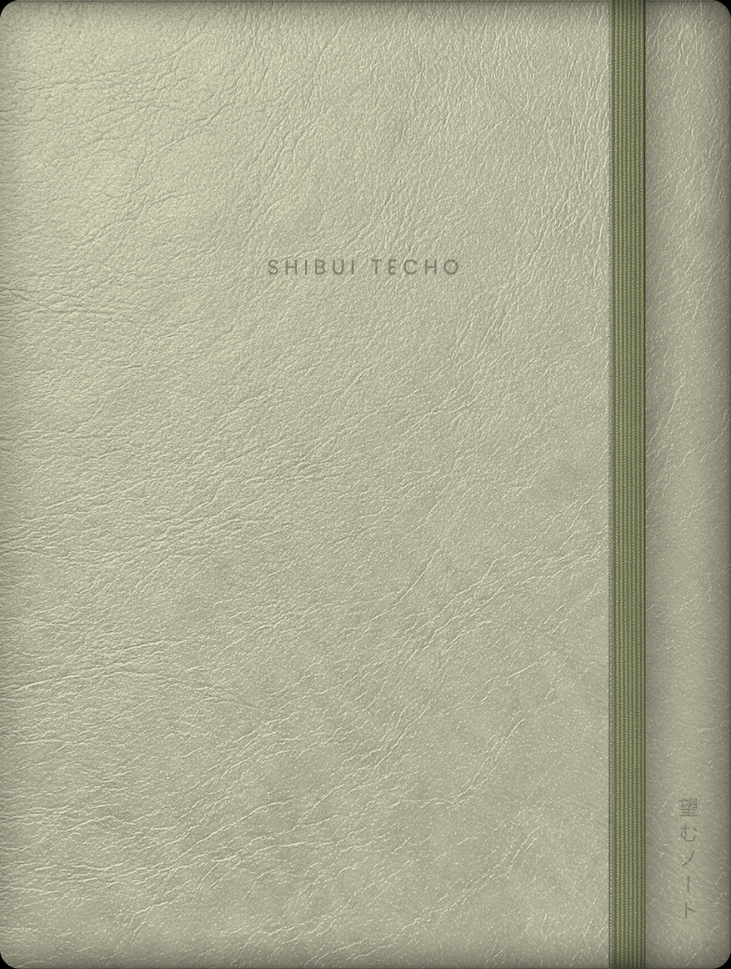
Choose the background you enjoy writing on.
Pick the colors and covers that feel like your notebook.
Vertical or Horizontal weeks, Named or A–Q categories, and Grid or Plain collections.
Choose available Google Calendar, Apple Calendar, or your own link options in the Library.
These features are based on customer requests and feedback. More features and choices can be requested—message me on Etsy with what would help you!
Beige (easy on the eyes), Plain White, or Kraft. These are the actual paper surfaces, shown without writing or template lines so you can compare the background. The pages and layouts you choose are placed over your paper.
Paper, interior color scheme, and cover are separate choices. The cover gallery below shows the leather-style exterior; paper changes the surface you write on.
All 11 cover colors
Shibui Techo includes 11 leather-style cover colors, allowing you to personalize your planner and give it a polished look. Choose one or more in the Library.
One collection, ready when you are
Your Shibui Techo 2027 + Undated collection includes Monday and Sunday starts, plus the 2026 Months and Weeks editions as a bonus.
Dated planning for the year ahead, with Monday and Sunday starts.
Plan month by month with linked monthly pages for plans, lists, and rapid logging. Fill in your own dates and pick up again whenever you need it. Keep separate copies for work, study, or home, or start fresh whenever you like.
| Library choice | Dates & start |
|---|---|
| 2027 Monday | Printed 2027 dates; Monday start |
| 2027 Sunday | Printed 2027 dates; Sunday start |
| Undated Monday | Fill in your dates; Monday start |
| Undated Sunday | Fill in your dates; Sunday start |
Shared planning choices: all four editions have linked planning pages and your choice of Vertical or Horizontal weeks.
Select one edition and its options to create a planner PDF. You can return to your Library to choose another included edition or generate a different set of options. Each download is a separate PDF; the four editions are not joined into one file. Your 2026 Months and Weeks bonuses are separate dated files.
Choose categories and collection paper independently. The Library shows the available paper, binding, cover, and shortcut choices for the edition you open.
The 2027 editions have printed dates. Undated gives you linked monthly pages with dates to fill in yourself. Use it for plans, lists, and rapid logging, keep separate copies for work, study, or home, or start fresh whenever you like.
The 2026 Months and Weeks files are bonus dated editions, distinct from the four 2027 and Undated Library choices above.
You also receive the dated 2026 Shibui Techo Months and Weeks editions with your purchase. Use them for your 2026 plans, journal entries, and records.
Explore Shibui Techo in the shop for available products and pricing.
Imagine your first week
You can start small. Here is one example of using the Vertical layout for study, work, and home without making a separate planner for each.
 ○ Class, 10:00• Send project outlineHome & ideas
Write your class beside the right day and keep your project task nearby. Use a different symbol for an event so it is easy to spot.
Keep home reminders, meal ideas, or thoughts that do not belong to one particular day in the open grid space.
If the project outline is unfinished, move it to next week or your Master To Do. A collection can hold the research and notes that go with that project.
You choose the symbols and how much structure to use. The example is a starting point, not a set of pages you must fill in.
How to use Shibui Techo
Start with your index and a simple weekly log. Add more pages, symbols, and collections as you discover what works for you.
• Send the project outline
○ Class at 10:00
– Idea for the weekend
→ Move an unfinished task to next week
New to Shibui Techo? A quick guide is ready to help you get started. Find the tutorial pages at the end of the book, or anytime by tapping NozomuNoto inside your planner. Open any preview below to read the complete page.
Choose the planning style that fits you
Both are minimalist Japanese digital planners. The difference is how much structure you want waiting for you.
Choose Shibui for a minimalist landscape planner with room for rapid logging and no fixed daily pages. Choose Yume if you want structured 24-hour daily pages or prefer a portrait layout.
Before you buy
Compatible with iOS, Android, and Windows. Shibui Techo works with PDF annotation apps such as Goodnotes, Notability, Samsung Notes, Noteshelf, Starnote, Xodo, Notes+, CollaNote, Penly, Kilonotes, ZoomNotes, and many more.
A PDF annotation app is an app that can import a PDF, let you write or type on it, and open its links. You need one to write on the planner and use its links. App features, supported devices, and link controls vary. Your app, tablet, computer, and stylus are separate from this digital purchase.
For exact device and app instructions, use the NozomuNoto Help Center. New to this? Start with the digital-planning guide before choosing your app.
Included with NozomuNoto notebooks & planners
50+ templates for planning, journaling, and note-taking, ready to copy and reuse.
A simple, uncluttered look, with space to make the pages your own.
Quick, easy navigation between your plans, collections, and templates.
Continuous updates based on valuable customer feedback. Feel free to message me on Etsy with suggestions for improvement!
Follow the included tutorial, or message me on Etsy if you need help getting started with digital planning.
Find the free-stuff guidance in the included tutorial pages. Add more personality to your notebook as you use it.
I try my best to reply as soon as I can, on Japan Time. If there is a delay, I am likely asleep or in the middle of my work shift!
Message me on EtsyIf the planner is not right for you, contact me within 30 days. NozomuNoto’s refund policy is there to help you shop with confidence.
Read the 30-day refund policyA little help getting started
Tutorial pages are included at the end of the planner. You can also reach them by tapping NozomuNoto inside your planner.
Visit the Help CenterA compatible device and a PDF annotation app. Shibui works with iOS, Android, and Windows in apps such as Goodnotes, Notability, Samsung Notes, Noteshelf, Starnote, Xodo, Notes+, CollaNote, Penly, Kilonotes, and ZoomNotes. App features and hyperlink behavior vary. Your device and app are purchased separately.
No. Shibui Techo is a digital PDF planner and notebook. You download it and import it into your PDF annotation app; no physical item is shipped.
No. Shibui is designed for flexible planning and rapid logging. It includes daily page templates that you can copy when you want more structure or space.
Shibui is a minimalist landscape planner with a flexible bullet-journal approach. Yume offers more structured daily planning and is available in portrait and landscape formats.
Yes. Duplicate a collection page or copy a template in your annotation app, then place it where you need it. Always copy the template before writing so the original is ready to reuse.
Follow the included tutorials or contact me through Etsy. I try to reply as soon as I can, around work and family life in Japan. NozomuNoto also offers a 30-day refund policy.
Message me on Etsyこの一冊で計画も整理も、すべてをひとつに
このプランナーがあなたにとって最高の一年をもたらしますように
Shop Shibui Techo