

Use these steps to work with NozomuNoto PDF planners, notebooks, stickers, covers, and template pages in GoodNotes. The official links below are for downloads, updates, and current help pages.
Choose your problem first
If something is not working in GoodNotes, start with the issue that matches what you see.
- Links fail to move: tap Read Only, then test one Index link with your finger.
- The planner imported incorrectly: choose the actual planner or notebook PDF, not the ZIP, receipt, preview page, or instruction-only PDF.
- Stickers look blurry: use the original PNG closer to its original size.
- Pages feel hard to manage: use GoodNotes page tools carefully and keep a clean backup before deleting or moving pages.
- The file feels slow: close other apps, check storage, update GoodNotes if needed, and test with a clean copy.
- You still need help: send your product name, device, GoodNotes version if known, the exact issue, and a screenshot or short screen recording.
Reference links
Use these for current app or device help, downloads, updates, vendor help, and manual references.
- GoodNotes: Import files into Goodnotes
- GoodNotes: Navigate PDF Hyperlinks
- GoodNotes: PDF hyperlink issue guide
- GoodNotes: Use Favorites and Bookmarks
- GoodNotes: Copy or move pages from one document to another
- GoodNotes: Elements Tool
- GoodNotes: Change a notebook cover
- GoodNotes: Export documents or pages
- GoodNotes: Templates & Notebook Covers
GoodNotes known problems with NozomuNoto planners
- If the planner file does not appear, confirm the ZIP is extracted and import the PDF from + New > Import.
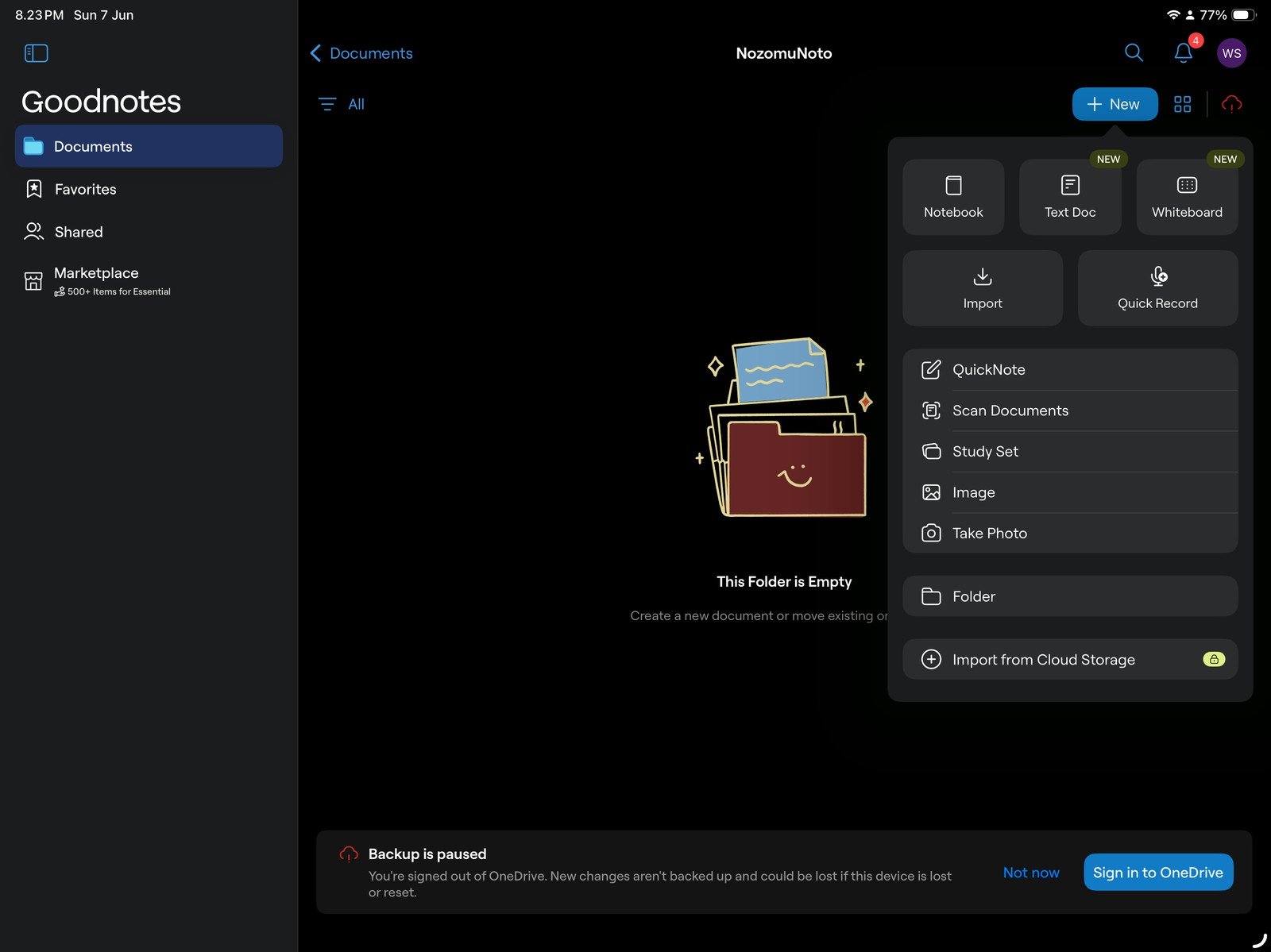
Full GoodNotes import menuFull screen view first, then use the cropped highlight below to see the exact area. 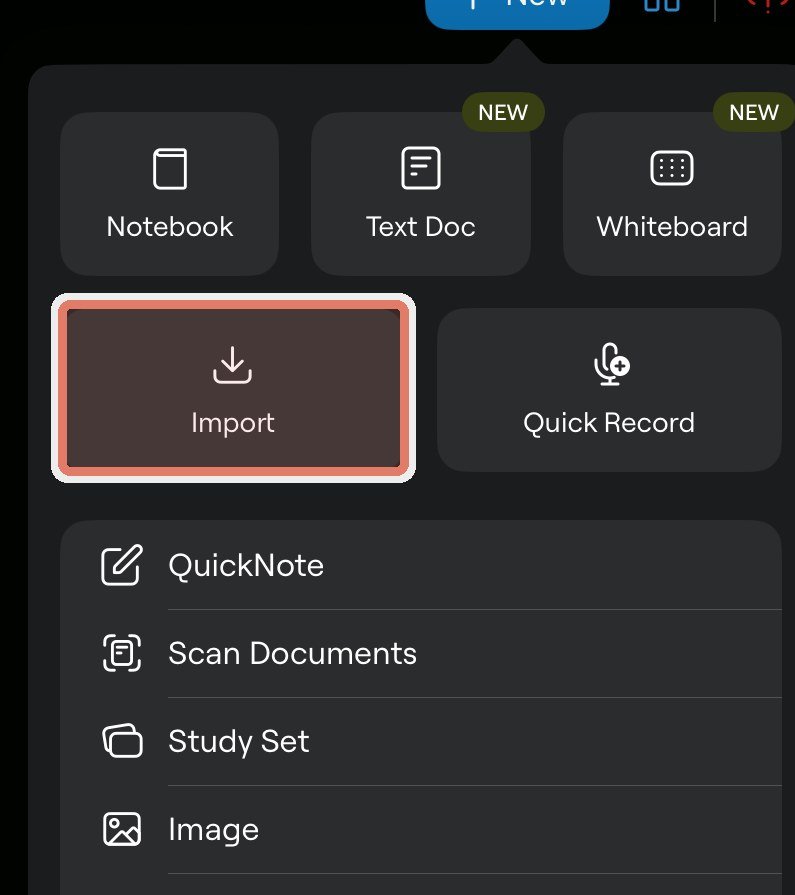
Import the PDF againIf the planner file does not appear, return to GoodNotes library and import the extracted PDF, not the ZIP. - If links fail to move, tap Read Only, then test one Index link with your finger. In edit mode, long-press the linked area and choose Open Link.
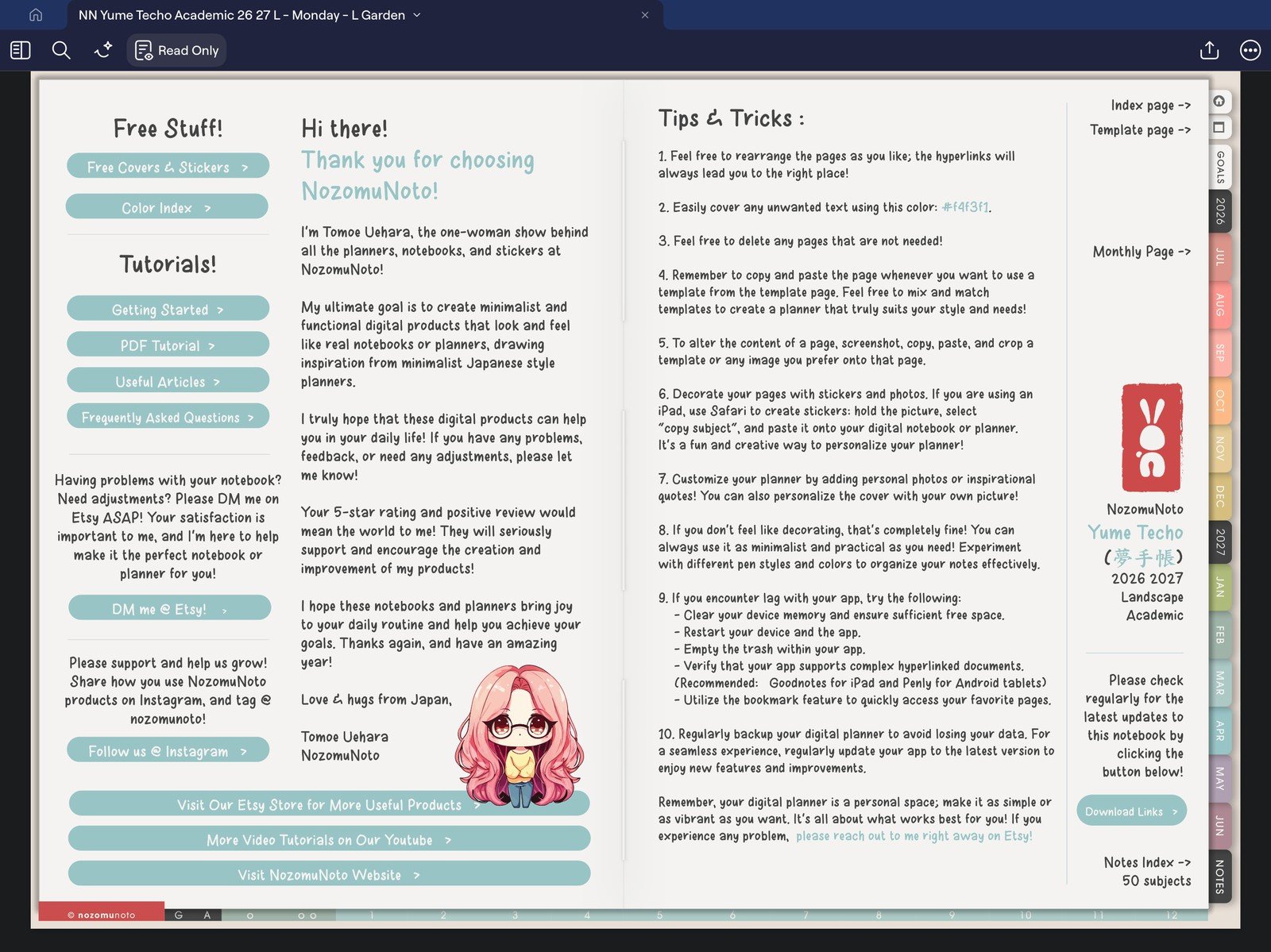
Full GoodNotes toolbar screenFull screen view first, then use the cropped highlight below to see the exact area. 
Read Only modeIf links do not move, use Read Only before tapping planner links. - If links worked before export but not after export, test a fresh copy of the original NozomuNoto PDF. Flattened or edited exports can lose link behavior.
- If template pages are messy, re-copy from a clean template page or re-import a fresh planner copy from the original download.
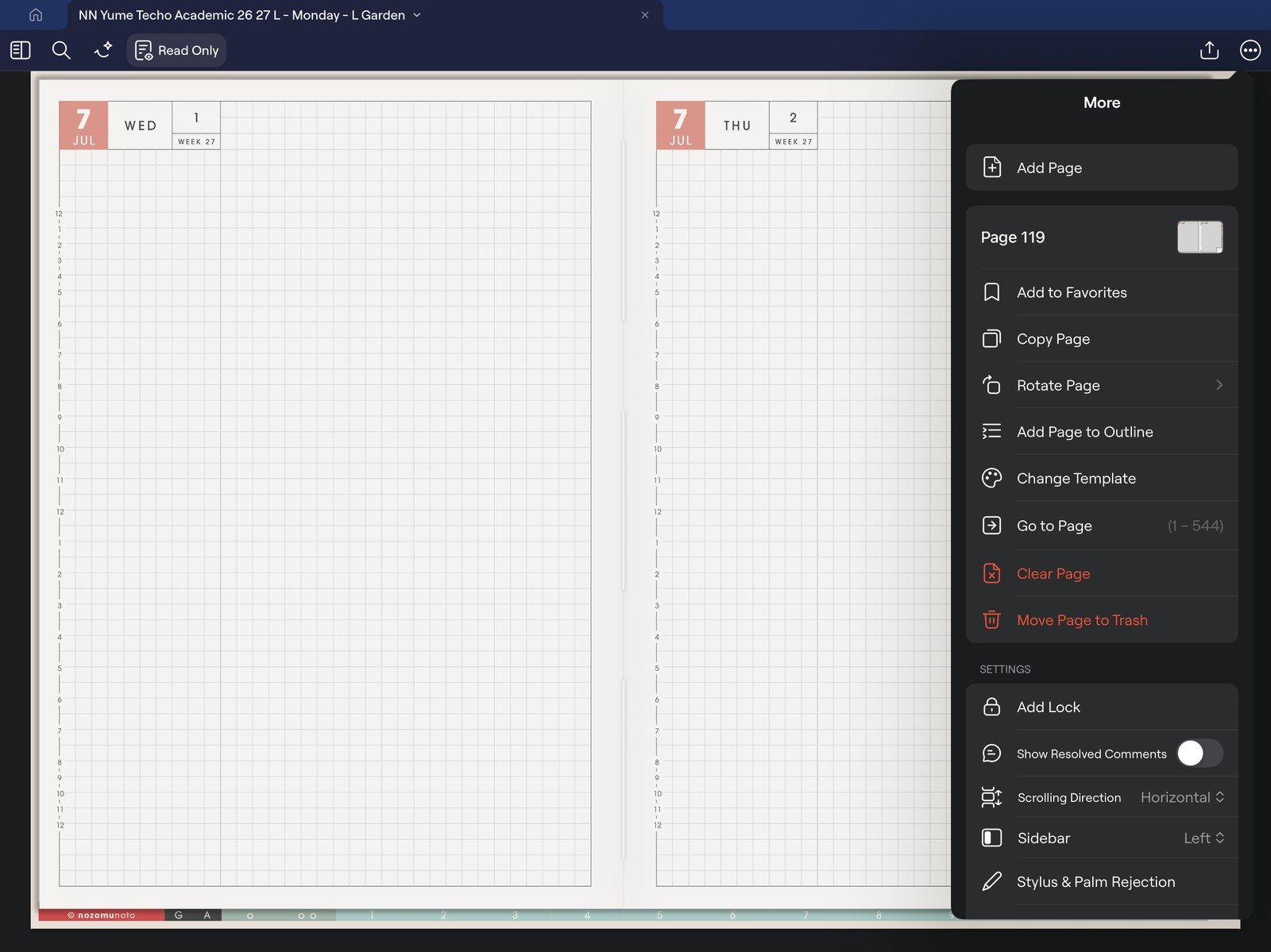
Full page actions menuFull screen view first, then use the cropped highlight below to see the exact area. 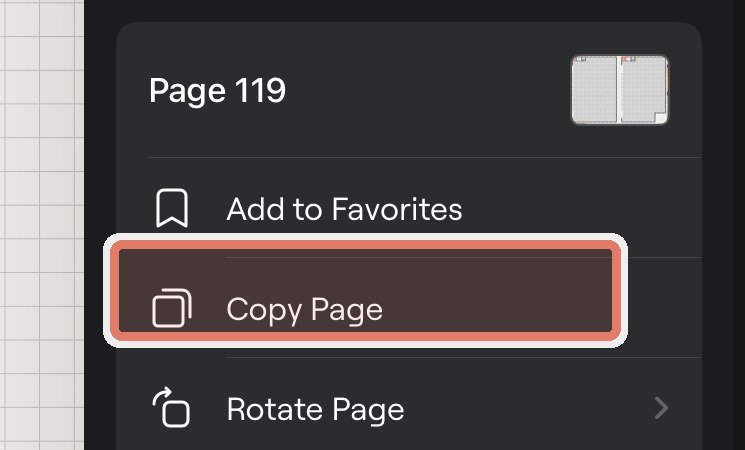
Copy clean template pageIf a template page gets messy, copy a clean template page before writing on it. - If stickers look blurry, insert the original PNG again and keep it close to its original size.
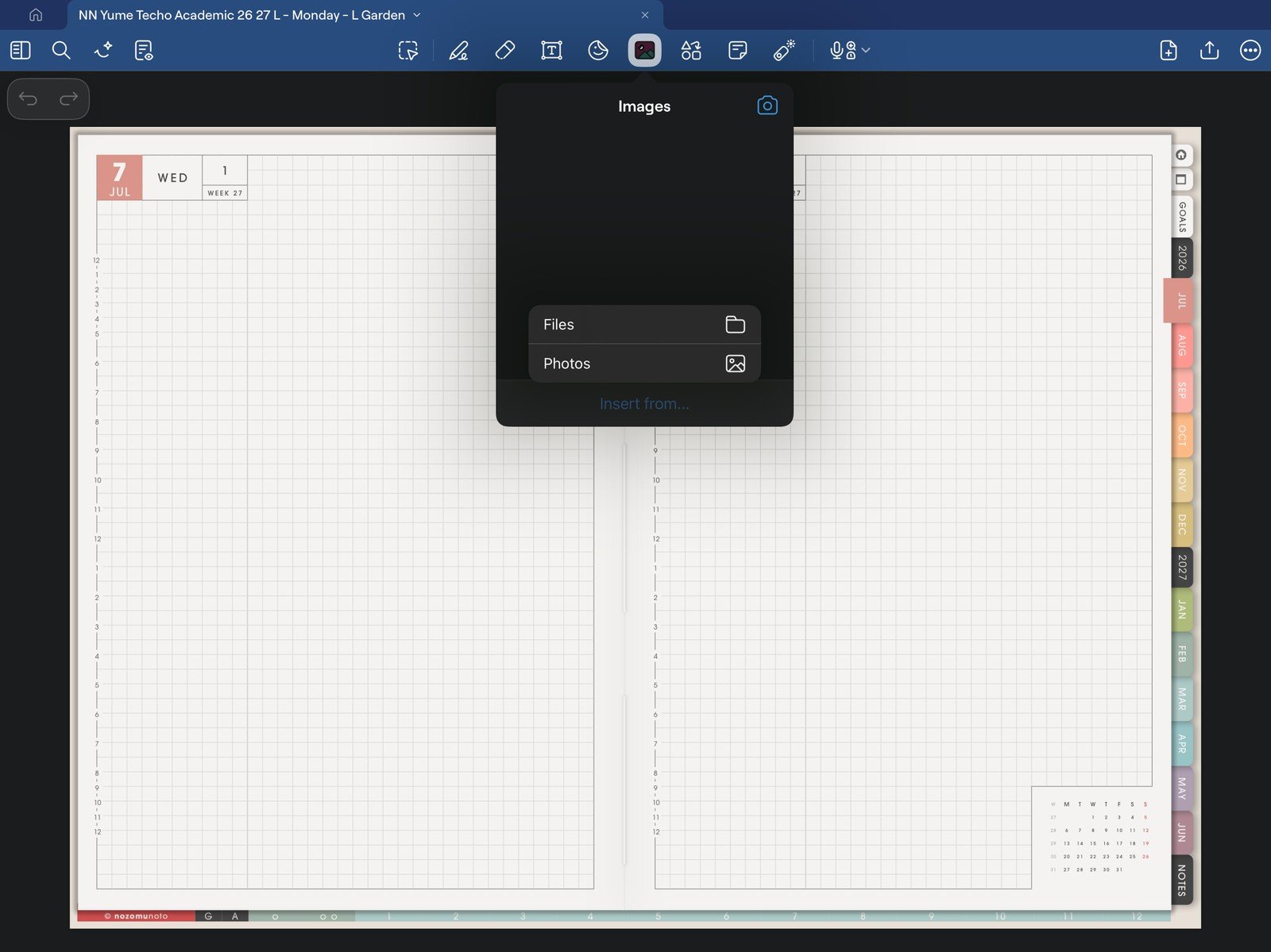
Full image menu screenFull screen view first, then use the cropped highlight below to see the exact area. 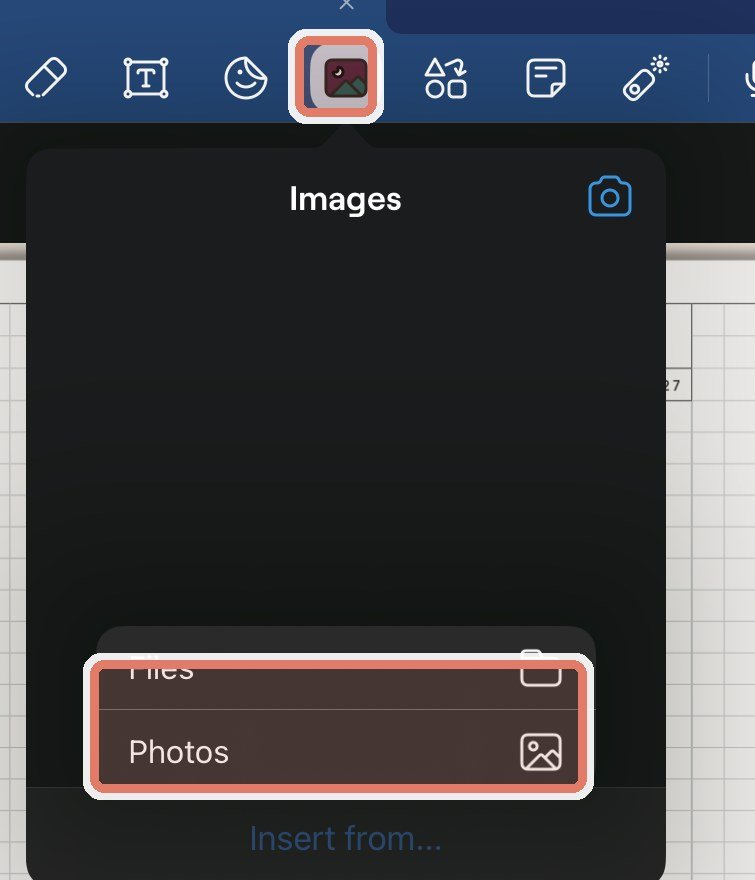
Insert original PNGIf a sticker looks blurry, insert the original PNG again and keep it close to its original size.
Before asking for help
- Test a fresh import. Import the original NozomuNoto PDF again without page moves or exports.
- Test the same link in Apple Files. This separates file-link problems from GoodNotes mode problems.
- Write down the exact product and app version. Include product name, year, orientation, week start, color, device, iPadOS/iOS version, and GoodNotes version.
- Send a short screen recording if possible. Show the exact step where the problem happens.
Common GoodNotes fixes
1. Use the PDF, not the ZIP
GoodNotes needs the extracted PDF for planners and notebooks.
2. Use the right mode for links
Writing tools are for writing. Read Only or Open Link is for navigation when a tap starts editing instead of moving.
3. Keep a clean backup
The fastest fix for a broken working copy is often a fresh import from the original NozomuNoto download.
4. Check page tools and slow files
If pages feel hard to manage, copy or duplicate before moving pages and use the page-management guide below. If the file feels slow, close other apps, check storage, update GoodNotes if needed, and test the same planner as a clean copy.