

NozomuNoto template pages are reusable pages inside a planner or notebook. Use them when the dated page is not enough, when you need a custom page for a project, or when you want one clean layout that can be copied again and again.
The safest rule is to treat the template page like a master copy. Open it, choose the layout you need, duplicate or copy it, then write on the copy.
Copy first
Template pages are reusable page layouts. To use one safely, copy or duplicate the template page first. Then write on the copy.
- Open the template page you want to use.
- Duplicate or copy the page in your app.
- Move the copied page to the section where you need it.
- Write, type, decorate, or add stickers on the copied page.
- Keep the original template page clean so you can reuse it later.
If your app uses different buttons, use the matching Device & App tutorial for exact steps.
Quick answer
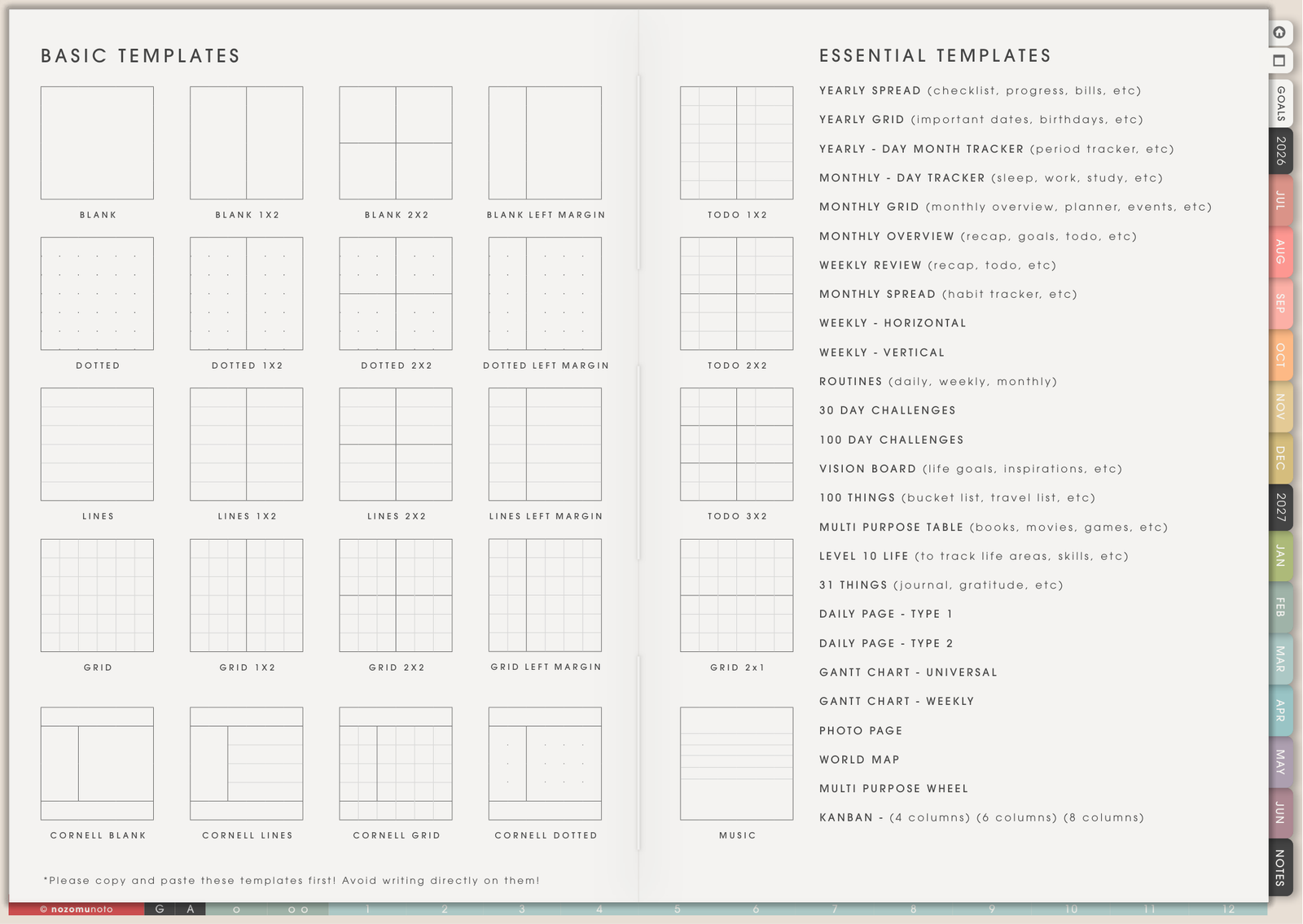
- Use basic templates for flexible notes, lists, sketches, study pages, meeting notes, and custom layouts.
- Use essential templates for ready-made pages such as routines, challenges, vision boards, 100 things, tables, level 10 life, Gantt charts, photo pages, world maps, and kanban pages.
- Copy first, write second. This keeps the clean template ready for the next time.
- Bookmark important copies. Custom copies usually need their own return path.
How to choose a template page
- Start with the job, not the prettiest layout. Ask, “What do I need this page to do?” Notes, tracking, planning, remembering, brainstorming, or reviewing?
- Choose simple pages for messy thoughts. Blank, lined, grid, dotted, split, and Cornell-style pages are good when the idea is not organized yet.
- Choose structured pages for repeated work. Trackers, routines, Gantt charts, tables, kanban pages, and challenge pages are better when you already know the pattern.
- Choose visual pages for motivation or memory. Vision board, photo page, world map, 100 things, and list-style templates are useful when pictures, ideas, or future plans matter.
- Use fewer templates at first. Pick 1 to 3 templates for the current season. A smaller setup is easier to keep alive.
Basic workflow
- Open Template Pages. Use the Index, Table of Contents, Template tab, or page thumbnails to reach the clean template area.
- Choose one template. Pick the page that matches the job. For example, use Kanban for moving tasks, a table for comparisons, or a grid page for sketching.
- Duplicate or copy the page. Use the page manager, thumbnails, page sorter, or page actions menu in your app.
- Move the copy to the working section. Put the page near the month, week, project, notes, class, home, work, or life planner section where it belongs.
- Add a small title. Write a clear page name at the top, such as “June Launch Plan”, “Reading Tracker”, “Math Unit 2”, or “Home Reset”.
- Bookmark the copy if you will use it again. Use favorite, outline, bookmark, or page thumbnail tools so the custom page is not lost.
Useful template page ideas
1. Weekly overflow page
Use a blank, lined, grid, or todo template after the Weekly Page when the week has too much information. Put appointments on the weekly page and use the copied template for errands, meal ideas, reminders, school forms, small tasks, and anything that does not deserve a full project page.
2. Project planning page
Use a kanban, table, grid, or notes template for one project. Good examples are a product launch, birthday party, craft project, room reset, school assignment, client work, or travel plan. Keep the monthly deadlines on the Monthly Page and the messy details on the copied template.
3. Study or class page
Use Cornell, lined, grid, table, or todo templates for class notes, reading notes, practice questions, flashcard lists, tutoring plans, or assignment breakdowns. If one class needs many pages, create a small section and bookmark the first page.
4. Routine and habit pages
Use routines, tracker, table, or challenge templates for a morning routine, medication check, cleaning rhythm, study streak, reading habit, exercise routine, sleep log, or low-energy day plan. Keep the page simple enough that you can return to it on a tired day.
5. Finance, health, and home tracking
Use a table, tracker, grid, or list template for bills, spending notes, grocery lists, meal planning, doctor questions, symptoms, house projects, maintenance, or family schedules. Put facts and repeated checks here instead of crowding the daily page.
6. Vision, memory, and motivation pages
Use vision board, photo page, 100 things, world map, or blank templates for goals, travel dreams, memories, gratitude, seasonal moodboards, reading lists, or “things I want to try.” These pages work well near Life Planner or Notes.
7. Content, craft, and creative planning
Use kanban, table, grid, blank, or photo templates for content ideas, sticker design notes, crochet or craft tracking, YouTube ideas, social media schedules, product photography notes, or art practice logs.
When this gets tricky
1. You want to use every template
What happens: the template section looks exciting, so you copy many pages before you know whether you need them.
Example: the planner now has trackers, challenges, lists, tables, and kanban boards, but none of them have a clear job.
What to do: choose only one template for notes, one for tasks, and one for tracking. Add more only when a real problem appears.
2. You keep writing on the original template
What happens: the clean master page becomes filled with real notes, so future copies are messy.
Example: the original Routine page has this week’s schedule written on it, or the original Kanban page has one old project on it.
What to do: undo if possible. If not, import a fresh planner copy from your saved download and copy the clean template again. Going forward, write “MASTER – COPY FIRST” on a sticky note or bookmark title if your app has that feature.
3. The copied template is hard to find
What happens: the page exists, but it is buried between other pages.
Example: a copied challenge page is somewhere after Template Pages, but you meant to check it every morning.
What to do: move the copy beside the section where it belongs, then bookmark it. If you use many custom pages, make one My Pages list with the page names.
4. The app has limited page tools
What happens: the app can write on PDFs but the page management tools are limited or hidden.
Example: you can annotate the planner, but Duplicate, Copy, Move, Paste, or Add Page is hard to find.
What to do: check the Device & App guide for your app. If your app has no page-management tools, use the template as a reference page, or insert a screenshot/image copy only when hyperlinks are not important for that copied page.
5. The template becomes another guilt list
What happens: a tracker, challenge, or routine page starts feeling like proof that you failed.
Example: a 30 day challenge has many blank days, so you stop opening the planner.
What to do: rename the page as a check-in instead of a perfect streak. Use fewer boxes, shorter time spans, or a weekly review note. The template should help real life, not punish it.
Related help
- How to change or reuse template pages on planner landing pages
- How to use NozomuNoto index pages
- What does “hyperlinked PDF planner” mean?
- Which apps work with NozomuNoto planners?
- GoodNotes page management guide
- GoodNotes template page guide
- Penly page management guide
- Penly template page guide
- Samsung Notes page management guide
- Samsung Notes template page guide
- Yume Techo Landscape tutorial pages